Summary Ditto saves unlimited clips, persists across reboots, and offers search, groups, and sticky items for quick access.Sync, export, and share clip databases over LAN; supports images, files, HTML and custom formats.Powerful paste options, case transforms, cleaning tools, assignable shortcuts, easy install via winget or portable.
If you only use the clipboard feature occasionally, the default Windows clipboard is serviceable enough.However, if your workflow relies heavily on copy-pasting stuff (like mine does), there are better tools available.Ditto is one such tool.
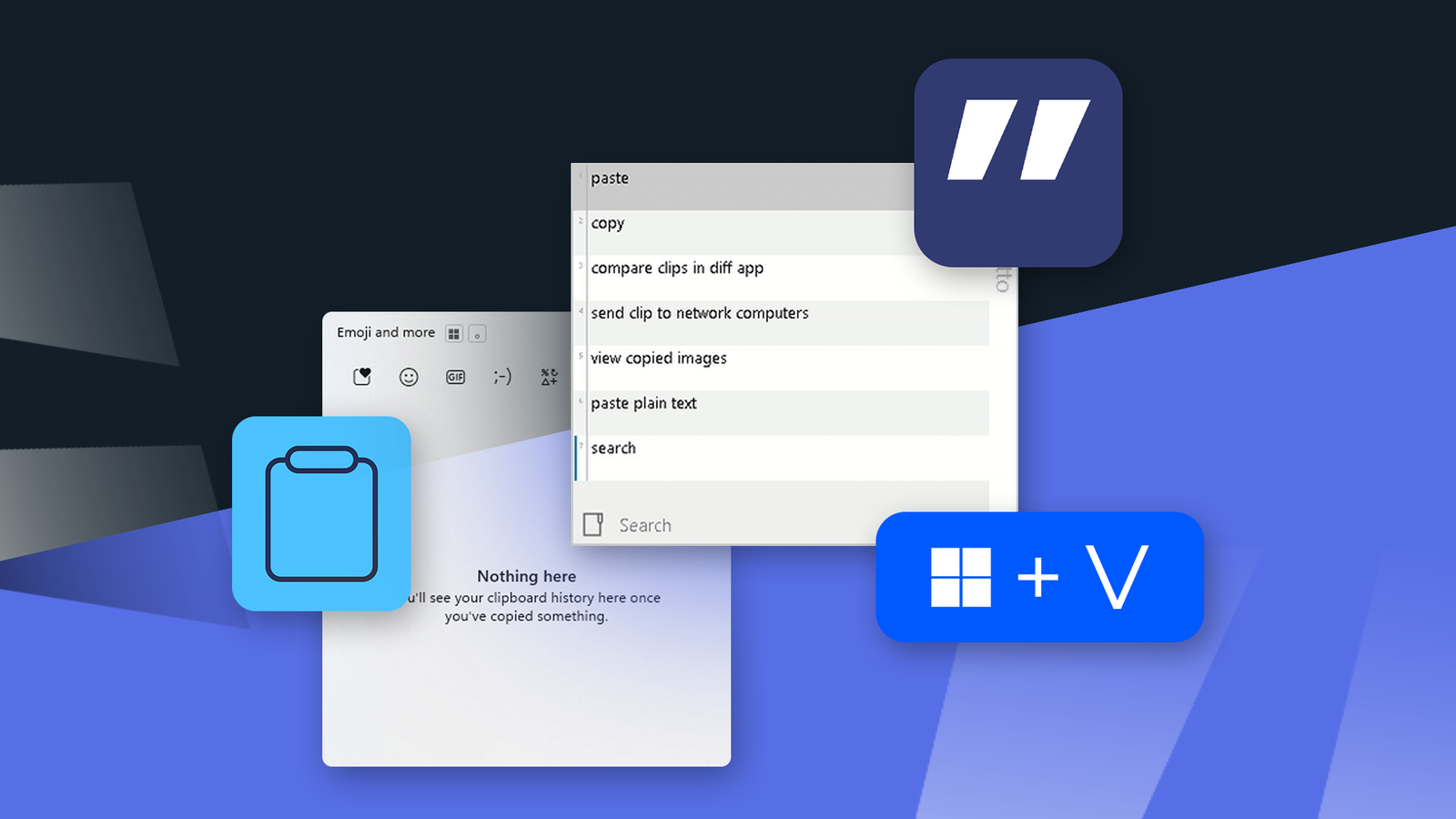
It's an open-source clipboard manager meant for power users.Why you might want to change the default clipboard manager You can activate the built-in Windows clipboard by pressing the Windows+V keys.It shows you a list of your recently copied text snippets, alongside a menu of GIFs, symbols, emojis and emoticons.
You can even pin items to the clipboard to access them after a reboot clears the clipboard.That's the extent of its features, but Ditto can do all that and so much more.No limit on the saved entries For starters, Ditto has no limit on the saved items (the default is 500, but you can extend it indefinitely).
The Windows clipboard can only save 25 items at most, after which it starts overwriting unpinned items.With Ditto, you can save thousands of entries and organize them for quick access.There are no organization or search features in the Windows clipboard.
Clipboard data persists after reboots Annoyingly enough, Windows automatically clears the clipboard data after a reboot.So even if your clipboard items aren't overwritten once they hit the limit, they will be cleared when the computer shuts down.Ditto clipboard items persist across reboots, by default.
You can scroll through the preserved clipboard history, even days or weeks later.You can also create "sticky clips" which are pinned to the top of the clipboard for quick access.Save and share clipboard data The Windows clipboard doesn't allow you to sync the clipboard between different devices, but you can do so with Ditto.
You can share the clipboard data with any PC connected to the same Wi-Fi or local network.You can also export the clipboard database in different formats and restore those backups on a different machine.Robust paste options The Windows clipboard can either paste in the same formatting or as plain text.
Ditto, on the other hand, gives you a lot more paste options.You can paste multiple entries at once.Or you can paste items in uppercase, lowercase, sentence case, capital case, or camel case with a single click.
There are even cleanup tools that automatically trim white spaces or tidy up lists.People who publish content on websites need to create "slugs," which are the text strings that follow the website's domain name in a URL.Ditto can create those slugs automatically from simple text.
Supports more formats It also supports more formats than the standard Windows clipboard manager.Beyond the usual text and image formats, you can also copy and paste multiple files and folders just like you would with text files.It supports HTML content, so you can paste in HTML while preserving the links and formatting.
You can even add formats that work with your specialized software or toolkit.Install Ditto The Ditto GitHub offers a bunch of different sources to install the clipboard.The simplest and fastest way is to either use Winget or the Windows App Store.
You can open the Terminal and paste in the following command to install Ditto.winget install -e --id Ditto.Ditto You can also go to the Ditto website and download the portable installer to use it without installing.Once launched, Ditto will show up in the system tray.
You can click the blue icon to open the clipboard, and you can access the settings by right-clicking on it.Set up shortcuts The first thing you'd want to do is set up the shortcuts for accessing Ditto.Right-click on the Ditto tray icon and look for the "Options" button.
Click the "Keyboard Shortcuts" tab and choose a shortcut.Here, you can set the activation shortcut for pulling up the quick paste menu.For example, I chose the "Insert" key to open the clipboard.
You can copy text or images like you normally would with Ctrl+C and then press your shortcut (the Insert key in my case) to pull up the clipboard.Click once on the copied item to paste it.You can right-click on the item to access the "Special Paste" menu.
You can assign shortcuts to paste items in any of those special modes.Search through your clipboard The one thing Ditto objectively does better than the Windows clipboard is its organization and search features.When the clipboard is open, you can just start typing to fuzzy search through your clipboard history.
You can also organize relevant items into groups to quickly access them without searching.To access clipped items even faster, you can turn them into "sticky" items.Customize the clipboard to match your theme You can even customize the look of Ditto to match your computer's theme.
You can change the font, the theme, and the default size of the pop-up clipboard.Most of the interface defaults can also be customized using the Advanced Options menu.Ditto far more customizable and powerful than the default Windows clipboard manager.
If your work involves repetitive copy-pasting or data entry, this handy little utility can save you a lot of time and clicking around.
Read More