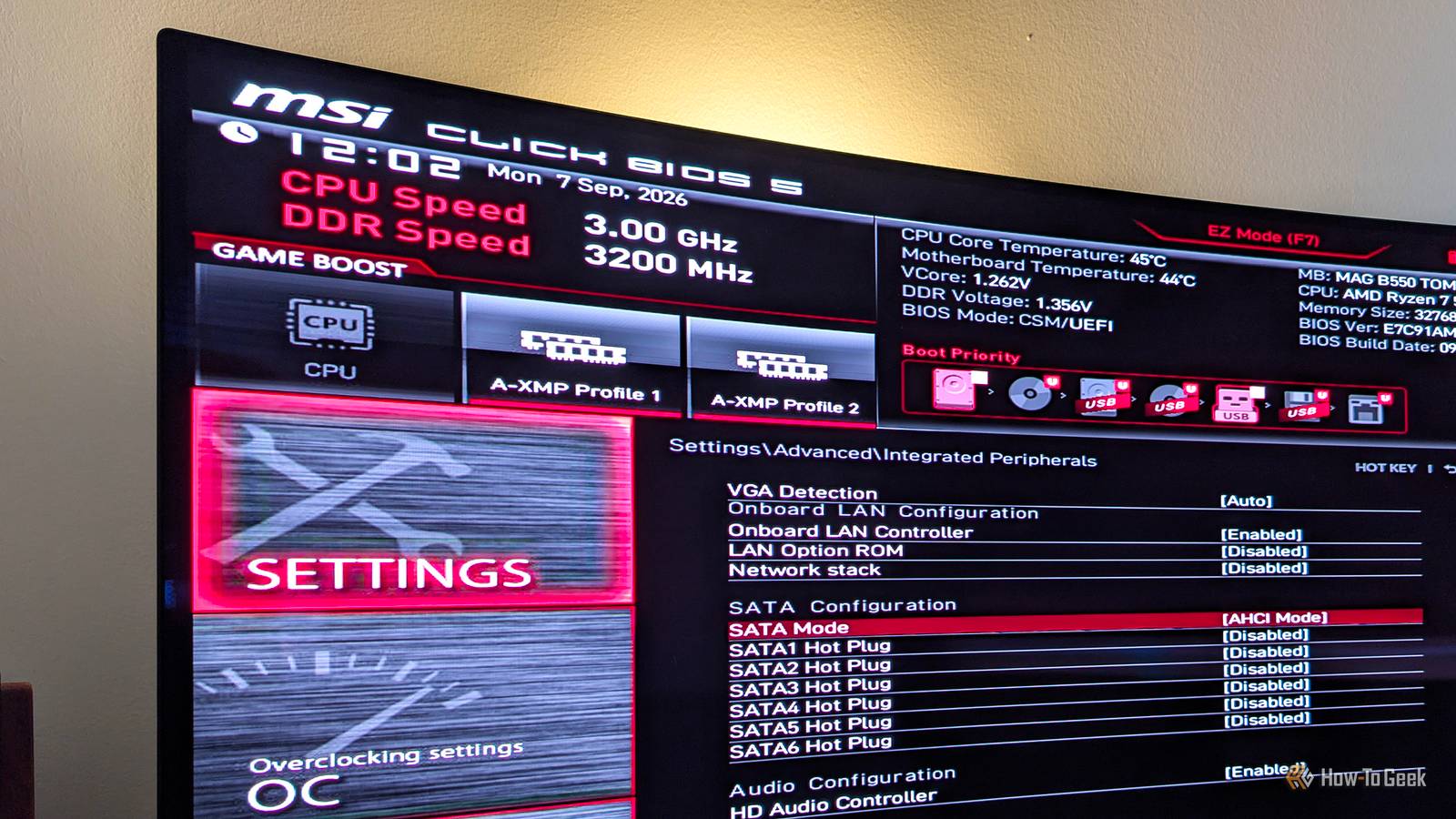
Most people shouldn't worry about the majority of BIOS settings, since leaving them at their default values makes the most sense.This applies to most SSD-related BIOS settings as well.That said, there's a chance the previous owner messed with them if you bought a used PC, or that one friend who likes to tinker with PCs tweaked your motherboard's BIOS settings without your knowledge.
This might be bad news because misconfiguring certain BIOS options can negatively affect the performance of the SSDs residing in your PC.In one case, though, the opposite applies, as leaving a specific BIOS setting at its default value can throttle your SSD by preventing the drive from using its full bandwidth.Below, you'll find a list of BIOS settings that can slow down your SSD, along with recommendations on which values you should use.
Make sure your NVMe SSD has access to all the PCIe lanes it needs This might disable certain SATA or USB ports, though Close While my motherboard, the MSI B550 Tomahawk, doesn't let me configure the number of PCIe lanes dedicated to specific M.2 slots, some do.More specifically, certain boards let you choose whether to run certain M.2 slots in x2 or x4 mode.For example, the ASUS TUF GAMING X870-PRO WIFI7 W NEO lets you choose whether its second M.2 slot (labeled as M.2_2) runs in PCIe x2 or x4 mode.
The slot defaults to x2 mode because it shares bandwidth with the motherboard's USB4 controller, but you can switch it to x4 mode in the BIOS at the cost of disabling the USB4 ports.If your motherboard also has an M.2 slot that can run in both x2 and x4 modes, it might be set to x2 by default to keep certain SATA and USB ports enabled, with the affected ports varying from one motherboard to another.If you have an SSD installed in that slot and don't use the affected SATA or USB ports, you can safely switch it to x4 mode and practically double its available bandwidth.
Don't force your NVMe SSD to run at an older PCIe generation Running your PCIe 5.0 SSD in PCIe 3.0 mode can massively reduce its performance Close Some motherboards also include BIOS options that allow you to manually select which PCIe generation specific PCIe and M.2 slots can run at.For instance, I can choose the PCIe generation for my primary PCIe slot, but I can't do the same for specific M.2 slots.But since my motherboard's chipset provides 10 PCIe 3.0 lanes, four of which are used by the secondary M.2 slot that runs in PCIe 3.0 x4 mode, I can choose the PCIe generation those lanes operate at by changing the Chipset Gen Switch setting.
I keep this option set to Auto since that's the best and most straightforward route, ensuring that the SSD installed in the secondary M.2 slot runs at PCIe Gen 3.0 speeds.I could, however, change the setting to PCIe Gen 2.0 or even Gen 1.0, but I won't because doing so would massively slow down the SSD installed in the second M.2 slot.If you're the first owner of your PC and haven't had anyone rifling through your BIOS settings and changing things, the equivalent settings in your BIOS are likely set to Auto as well, which is the way to go.
However, if you're noticing that, for instance, your PCIe 4.0 SSD is crawling despite being installed in an M.2 slot that supports PCIe 4.0 speeds, someone may have changed this setting and forced the slot to operate at an older — and slower — PCIe generation.Another situation where you might want to tweak this option, but this time for your primary PCIe slot, is if you're using a PCIe riser cable to mount your GPU vertically, as you have to match the PCIe generation at which the slot is running with the generation supported by the riser cable.Don't use IDE/Legacy mode for your SATA SSDs Make sure AHCI (Advanced Host Controller Interface) mode is enabled While modern motherboards shouldn't include an IDE/Legacy SATA mode and instead only support AHCI, some older motherboards may offer both options.
My MSI B550 Tomahawk, for instance, doesn't include the former and sets every SATA port to AHCI by default.But if you've got an older motherboard, you might have the IDE/Legacy SATA mode option, and it might be active.If it is, you should definitely change it to AHCI because IDE/Legacy mode can negatively affect the performance of your SATA SSDs.
While you're at it, you should also look out for an option that allows you to set the SATA generation of your motherboard's SATA ports.Again, newer motherboards, including mine, which came out in 2020, don't have this option and run every SATA port at the fastest SATA generation, SATA III, which tops out at 6Gbps.But older boards might allow you to, for instance, change the SATA generation to SATA II, which tops out at 3Gbps and can limit your SATA SSD to ~300MB/s.
Having Active State Power Management (ASPM) enabled can make your SSD less responsive ASPM is not as impactful as the other settings, but still worth mentioning Active State Power Management (ASPM) is a BIOS option that governs the power management of your PCIe connections and can put idle PCIe links into low-power states.This also applies to the PCIe lanes used by your NVMe SSD.Having ASPM enabled can lead to various SSD-related issues, such as random stutters when playing games or navigating the operating system, or file transfers not beginning immediately and instead forcing you to wait a few seconds for them to start.
If you own a desktop, you can freely disable this option if it isn't already disabled by default, as it is in my motherboard's BIOS.On the other hand, if you own a laptop or a handheld PC, ASPM might be enabled by default, and you might want to leave it on because it can improve battery life.But if you encounter stalls when copying or transferring files or constant micro-stutters while gaming, you might want to disable it even if you own a portable PC and see whether doing so solves the problems you're having.
In general, it's best not to mess with most BIOS settings unless you're in the know Unless you absolutely know what you're doing, I recommend keeping most BIOS settings, including SSD-related ones, at their default values.That said, there are certain options you should tweak.For instance, you should definitely enable XMP and EXPO for your memory, as well as Resizable BAR (also known as SAM or Smart Access Memory), because these settings bring clear performance benefits and should be enabled on every system.
If you have an M.2 slot that can run in both x2 and x4 modes, you should tweak that setting as well if you're not using the SATA or USB ports that are disabled when the slot runs in x4 mode, of course.But in general, you shouldn't touch most other settings unless you're experiencing an issue, such as your SSD running much slower than it should.
Read More