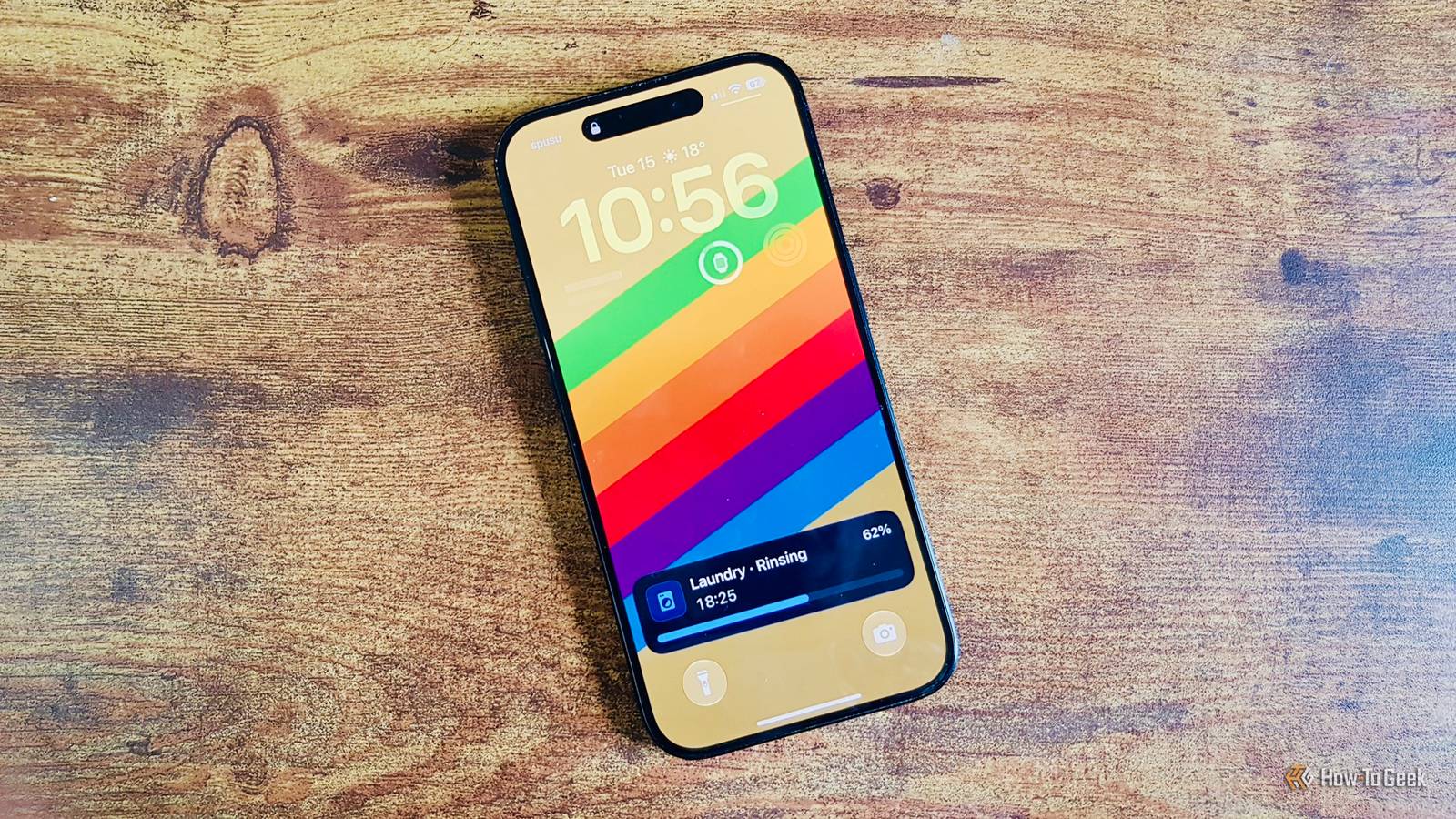
Phone and watch notifications are one of the most effective ways to share information from Home Assistant.A recent update to the Home Assistant Companion app quietly made these notifications even more powerful.Home Assistant now supports Live Activities on iOS Notifications can update over time instead of disappearing If you're an Android user, this isn't particularly exciting news.
Home Assistant has supported Live Updates on Android 16 or later since February 2026.For iPhone users, however, this is a brand-new feature.Live Activities show ongoing, changing information on iOS devices without having to display notification after notification.
The Live Activity stays visible on the iPhone Lock Screen and in the Dynamic Island on supported devices, with the information it contains able to update over time.You need to run the 2026.9.0 release or later of the Home Assistant Companion app, Home Assistant Core 2026.7.0 or later, and at least iOS 17.2 on your iPhone.You can then use Home Assistant to send Live Activity notifications to your iPhone.
Related 7 more of the best Home Assistant custom integrations—according to the community If you're not using them, you should be.Posts By Adam Davidson You can display progress bars and live countdowns Some processing can happen on device Turning a Home Assistant notification into a Live Activity (or Live Updates on Android) is as simple as adding live_update: true and a tag to the data payload of the notification.The Companion app will then display the notification as a Live Activity rather than a standard notification.
You can update the Live Activity simply by sending another notification with the same tag and live_update: true.This replaces the current Live Activity rather than creating a new one.Home Assistant recommends avoiding sending constant updates, since iOS may throttle or even drop push delivery if updates are too frequent, although throttling doesn't apply if you're using local push.
You can also let your iPhone handle some of the updates itself.You can use chronometer to add a timer to the Live Activity, and the iPhone will process it, so you don't need to send updates every second.There are plenty of useful ways to use these Live Activity notifications.
You can display the progress of your robot vacuum, including the room it's currently cleaning.You can track the progress of your 3D printer and see how long is left on the print, or monitor how long a door has been left open.I'm using a Live Activity notification to track how long I sit at my desk.
It uses an mmWave presence sensor to detect when I'm in my home office chair, and the Live Activity shows the elapsed time since I sat down and clears once I get out of the chair.It's a great motivation to get up and walk around when I can see that I've been sitting down for hours at a time with a quick glance at my phone.Live Activities can automatically appear on your Apple Watch See your smart home status on your wrist Close If you have an Apple Watch, you can also see Home Assistant Live Activities on your wrist.
Your watch can automatically mirror the Live Activity from your iPhone.The Live Activity will appear at the top of the Smart Stack that you can access by swiping up or rotating the Digital Crown.This means that you can check the status of a Home Assistant Live Activity just by looking at your wrist, without having to fish out your iPhone.
If you're keeping track of how long your washing machine has been running, for example, then a quick glance can show you how long it's been running or how long is left.If you don't want these Live Activities to appear on your Apple Watch, you can disable them through the Watch app on your iPhone.Go to General -> Auto-Launch -> Live Activities Settings, and scroll down and tap Home Assistant.
Toggle Mirror Live Activity from iPhone off.Live Activities aren't suitable for everything They're great under the right circumstances This update doesn't mean that you'll never use standard phone notifications again.Live Activities can be useful, but they're not always the best option.
If you want to get immediate information about something that has changed, such as a window opening, motion being detected, or your water leak sensor detecting a leak, then a standard notification is a better choice.A critical alert can be even better if the information is urgent enough that you need to be notified even when your phone is muted or in a Focus mode.There are also some practical limitations.
If your sensor updates every 30 milliseconds and constantly changes values, sending every update as a Live Activity notification will soon cause notifications to be throttled or dropped.Activities that only run for a few seconds are also unsuited, since you may not even notice them on your phone before they're gone.In the right circumstances, however, using Live Activities can be an even more useful way to display information from Home Assistant.
It's well worth experimenting to see what you can do with them.Live Activities are a significant upgrade The real benefit of this change isn't that you get more stylish or better-looking notifications.It's that you can now make ongoing information from your smart home easily visible somewhere that you're regularly looking, whether that's your phone's screen or your smartwatch.
It makes tracking this updating information even easier to do.
Read More