My routine is pretty simple once I get in the car.I connect to Android Auto, hit play, and I get on with my drive.It’s one of those little things I’ve gotten used to—until Google Messages started messing with it.
Every time someone messaged me, my music would dip or get interrupted.At first, I ignored it.Then it started happening often enough that I got genuinely annoyed every time I heard that notification.
I wasn’t trying to have a conversation while driving; I just wanted to listen to my music.I tried the obvious fixes, but nothing seemed to help.Eventually, I found one setting that actually worked—and, thankfully, my music could finally play without Google Messages constantly demanding attention.
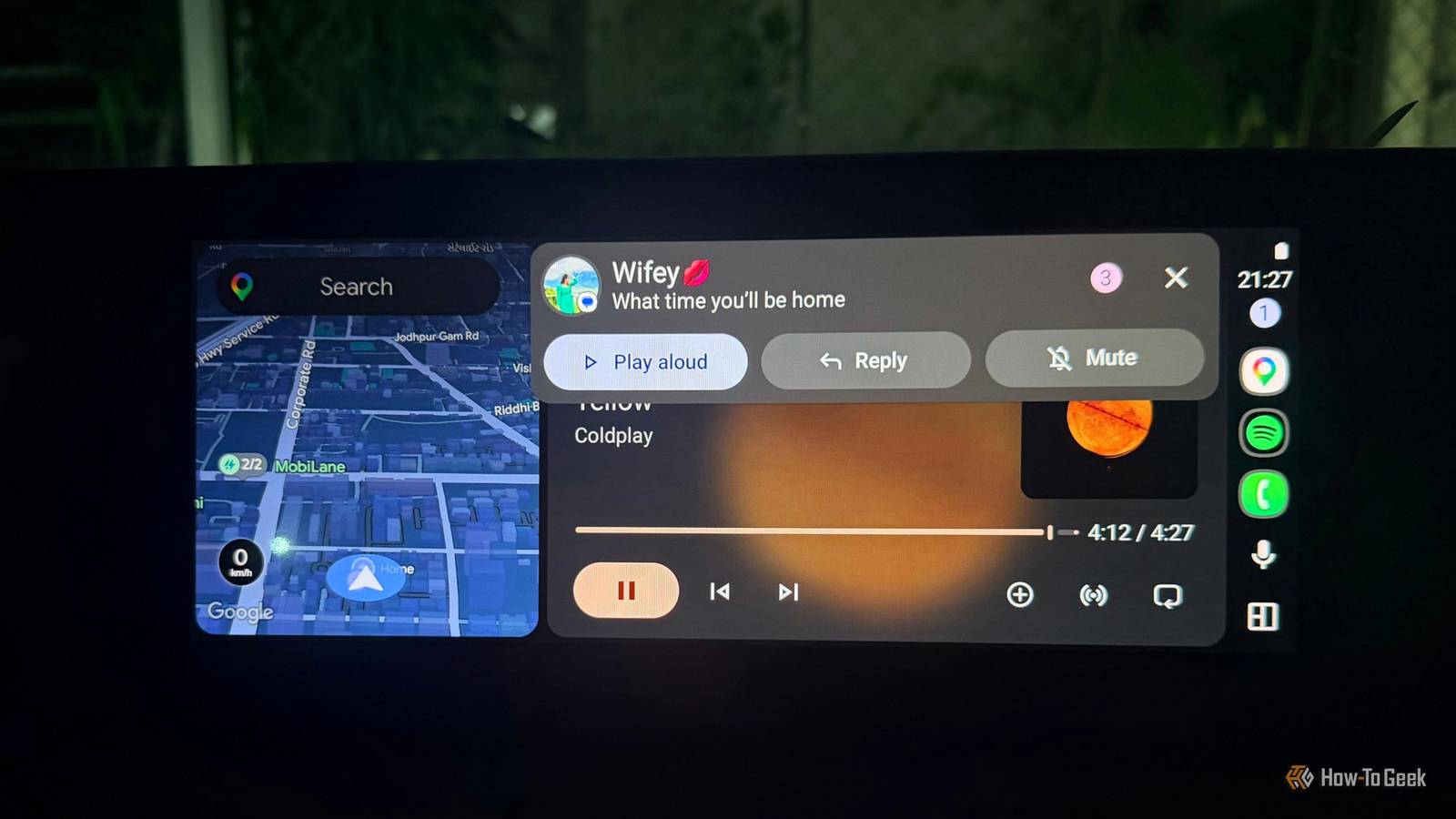
It started with one annoying notification My music was taking a hit Close It usually happened when I was already settled into a drive.I’d have Spotify playing, Google Maps handling my directions, and my daughter sitting in the back, usually busy with something of her own.Then my husband’s message would come through, and my music would suddenly dip or pause.
One notification wasn’t a big deal, but when a few messages came in close together, I started getting annoyed.I’d be halfway through my favorite song, and suddenly the volume would drop because someone had texted me.Sometimes I didn’t even want to check the message right then.
I just wanted to keep driving and enjoy the vibe.What bothered me more was that I still wanted my messages to come through.I didn’t want to completely mute Google Messages or stop Android Auto from showing notifications.
I just didn’t see why every incoming text had to interrupt whatever I was listening to.After dealing with it for a while, I decided to dig through the settings in my parking lot and see if I could finally get Android Auto to leave my playlist alone.I tried the obvious fixes first None of them let me hear my music properly Close I first went after the settings that seemed like the obvious culprit.
I checked Android Auto’s notification settings because I thought there had to be a way to stop Messages from interrupting my music.I also looked through Google Messages notification settings and tried muting a conversation, thinking that might keep the message from taking over my car screen.Of course, it worked for that particular chat, but it wasn’t really the best solution.
What if I got a message from my mom asking me to pick her up, and it was on mute? I also tried lowering the notification volume, but that only made me more anxious.My music still dipped when a message came in, which meant I was trying to solve the wrong problem.I didn’t want an anxious me; I wanted my music to keep playing normally.
At that point, I realized I could keep changing random settings all afternoon, but I wasn’t getting anywhere.My accidental discovery After all that, it was this Close I wasn't even looking for this setting when I found it.I had opened Android Auto settings because I wanted to customize my taskbar, something I had been meaning to do for a while.
While scrolling through the options, I came across Play conversation chime.I stopped for a second because this sounded like exactly what I needed.I had already tried changing a few notification settings, so I figured I had nothing to lose by giving this a shot.
I turned Play conversation chime off and decided to test it before assuming I had actually fixed anything.And it worked.The next time I was driving my daughter to her class, I had Spotify playing and was following Google Maps.
My husband sent me a message while I was on the road, and for once, my music didn’t suddenly dip to make room for the notification.I could still see that I had a message, but I didn’t have that sound cutting into my music every time someone texted me.That was the first time I felt like all that random scrolling had finally worked in my favor.
Related I tried Android Auto's most useful features and regretted every one When convenience becomes a headache.Posts 3 By Sanya Shah I noticed the difference on my next few drives Smoother drive, happy me What I liked most about this change was that I didn’t have to change the way I use Android Auto.I also noticed something else: I stopped anticipating the next notification.
Once I turned the chime off, I could leave my phone alone and focus on driving.Even short trips felt less fussy, especially when I was just running a quick errand or heading somewhere familiar.It was a tiny change, but I liked not having that little interruption hanging over every drive.
It pays to poke around sometimes Sometimes, you just need to spend a little time poking around your phone.I usually open settings when I have something specific to change, so I probably wouldn’t have found this one if I hadn’t been messing around with my Android Auto features.You never know when the solution to an annoying little problem is sitting right in front of you the whole time.
Related 4 powerful Android Auto features I never drive without My secret driving superpowers.Posts By Sanya Shah
Read More