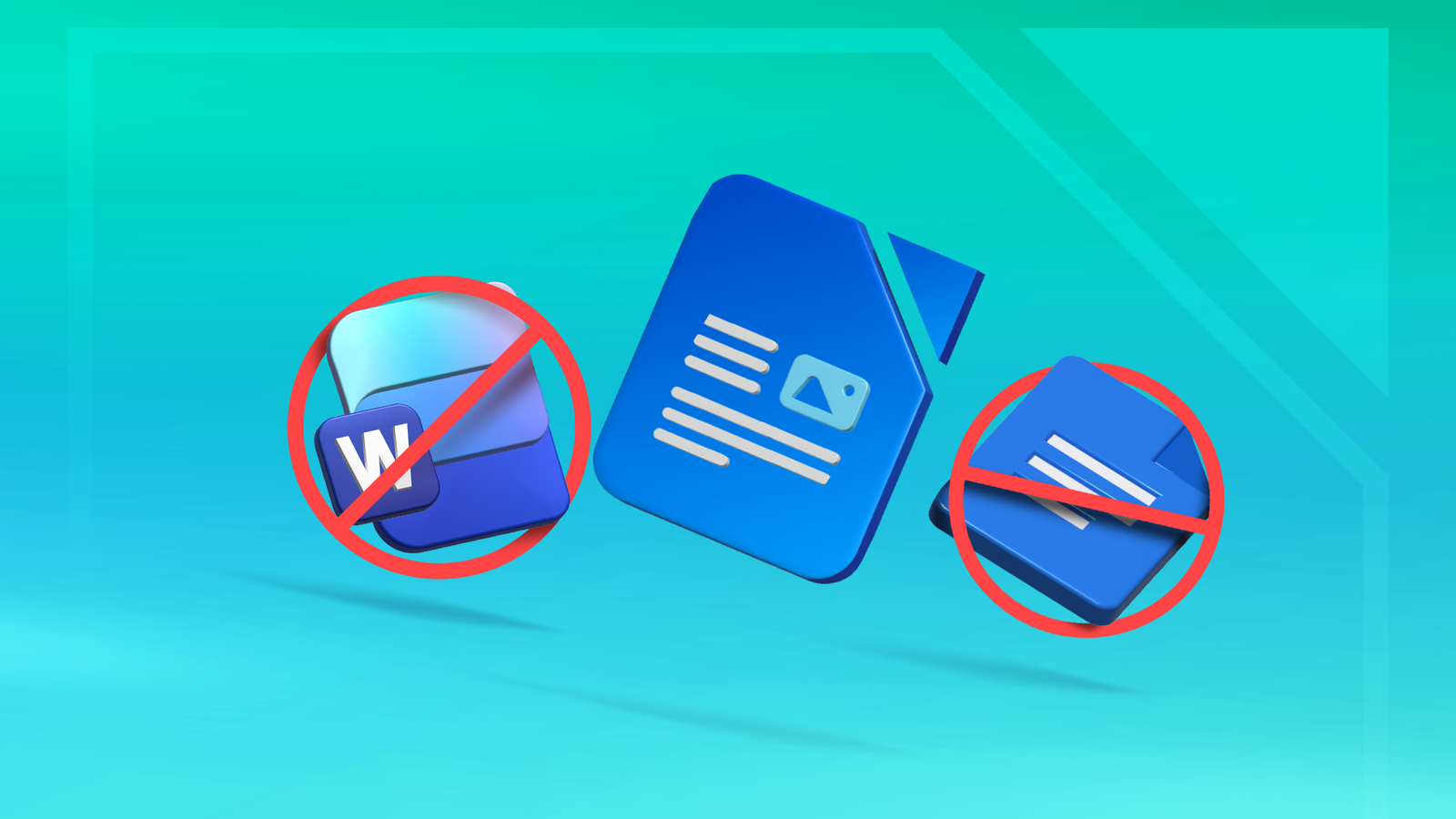
For years, my writing workflow revolved around Microsoft Word and Google Docs.That's not surprising.In most professional environments, those two tools are the default.
Documents arrive as DOCX files, teams collaborate in Google Docs, and sooner or later you end up using whatever the rest of the workplace uses.I did the same thing.Word handled most of my writing, while Docs filled in when something needed quick sharing or editing in a browser.
At some point, though, I realized I didn't actually need everything those platforms were built around.Subscriptions, accounts, and cloud integrations are useful in the right environment, but for everyday writing they often felt like unnecessary baggage.I still needed a full-featured word processor that handled formatting properly and worked with DOCX files, but I didn't need the whole platform that came with it.
These days I do nearly all of my writing in LibreOffice Writer, and the transition was far easier than I expected.Word and Docs gradually became more software than I actually needed It was getting in the way of simple writing Over time, both Word and Google Docs started to feel like more software than I actually needed.Word in particular has become deeply tied to Microsoft's subscription ecosystem.
It's no longer just a straightforward word processor you install and forget about.There are accounts, cloud integrations, and a steady push toward Microsoft 365 features that I rarely use.None of that necessarily makes Word bad, but it does add layers of complexity that don't really help me when all I want to do is open a document and start writing.
Google Docs has the opposite problem.It's incredibly convenient for collaboration, but the browser-first design can feel limiting if you're used to a full desktop editor.Everything revolves around being online and inside a Google account, and file management is tied to Google Drive whether you want it that way or not.
For quick shared edits, it’s the best, but for day-to-day writing, I found myself wanting something simpler: a traditional word processor that launches quickly, works locally, and doesn't require me to sign into anything before I can start typing.Other writing tools are great, but they aren't true Word replacements LibreOffice Writer keeps the familiar Word workflow I did look at a number of other writing tools before settling on LibreOffice Writer.Apps like Obsidian and other Markdown-focused editors are excellent if your workflow is built around notes, knowledge bases, or lightweight text files.
They're fast, flexible, and a lot of writers swear by them.The problem is that they aren't really a one-to-one replacement for a traditional word processor.Formatting works differently, exporting documents often requires extra steps, and collaborating with people who expect a DOCX file can quickly become awkward.
What I needed was something that behaved like Word without being Word.LibreOffice Writer fit that role perfectly.It opens and saves DOCX files without any drama, supports all the formatting tools I actually use, and the interface feels familiar enough that there's almost no learning curve.
I didn't have to rethink my workflow or rebuild it around Markdown.I just installed the software, opened a document, and started writing the same way I always had.Related LibreOffice Says It's Time to Ditch Windows 10 and Microsoft Office The LibreOffice team has joined the End of 10 project to help people move to desktop Linux.
Posts 21 By Corbin Davenport The Tabbed interface makes LibreOffice feel instantly familiar A ribbon-style layout that mirrors Microsoft Word One small change made the transition to LibreOffice Writer even easier for me: switching the interface to the Tabbed layout.By default, LibreOffice uses a more traditional toolbar and menu system that feels a bit like older versions of Office.If you’re coming from modern versions of Microsoft Word, the layout can feel unfamiliar at first.
The Tabbed interface solves that problem by organizing tools into ribbon-style sections like Home, Insert, Layout, and Review, which should feel immediately recognizable to anyone who has spent time in Word.If you're installing LibreOffice for the first time, you may not even need to change anything manually.When LibreOffice opens for the first time, you may see a Tips prompt suggesting different interface layouts, including the Tabbed UI.
If you skip that step or want to change it later, it only takes a few seconds.In LibreOffice Writer, click View in the menu bar, choose User Interface, and then select Tabbed from the list of available layouts.After confirming the change, the interface will switch to a ribbon-style layout that's much closer to what Word users are used to.
Once the tabs were in place, everything felt familiar enough that I could just focus on writing instead of hunting around for formatting tools.Related Replace your Microsoft 365 subscription with these 5 free open-source apps Writer, Gnumeric, Thunderbird, Proton Drive, and Joplin cover the essentials, without a Microsoft 365 subscription.Posts 20 By Jorge A.
Aguilar LibreOffice Writer is perfect for people who just want to write A full word processor without the baggage LibreOffice Writer is a great fit for people who want a full-featured word processor without being tied to a larger platform.If most of your work revolves around writing documents, editing text, and sharing files in common formats like DOCX or PDF, it covers everything you're likely to need.Anyone who spends a lot of time working with Word documents will feel right at home.
It behaves like a traditional desktop application, launches quickly, and doesn't require an account or subscription just to get started.Subscribe to the newsletter for practical LibreOffice Writer tips Get the newsletter for focused, practical coverage of LibreOffice Writer and local-first writing workflows — from Tabbed UI setup to DOCX compatibility.Subscribe to learn straightforward tips and real-world guidance that help you write without cloud baggage.
Get Updates By subscribing, you agree to receive newsletter and marketing emails, and accept our Terms of Use and Privacy Policy.You can unsubscribe anytime.It's also a natural choice for people who prefer local software over cloud-first tools.
Your files stay on your computer unless you decide to store them somewhere else, and the application works the same whether you're online or offline.That simplicity is refreshing in a world where so many apps revolve around accounts, subscriptions, and always-on connectivity.If you just want a reliable word processor that installs once and gets out of your way, LibreOffice Writer is surprisingly hard to beat.
Sometimes the simplest writing tools are the ones that work best Your files stay on your computer by default, which means nothing is automatically uploaded, synced, or tied to an online account unless you choose to do that.LibreOffice Writer doesn't require signing in, connecting to a cloud service, or linking the app to a larger platform just to start writing.That local-first approach doesn't mean you're stuck in your own little island, though.
LibreOffice Writer handles DOCX files very well, which means you can still share documents with people who use Microsoft Word without creating extra steps for them.I regularly open DOCX files, edit them, and send them back without any issues.In practice, that compatibility means you can keep the simple, local workflow while still collaborating with people who expect Word documents.
Microsoft 365 Personal OS Windows, macOS, iPhone, iPad, Android Brand Microsoft Microsoft 365 includes access to Office apps like Word, Excel, and PowerPoint on up to five devices, 1 TB of OneDrive storage, and more.$100 at Microsoft Expand Collapse
Read More