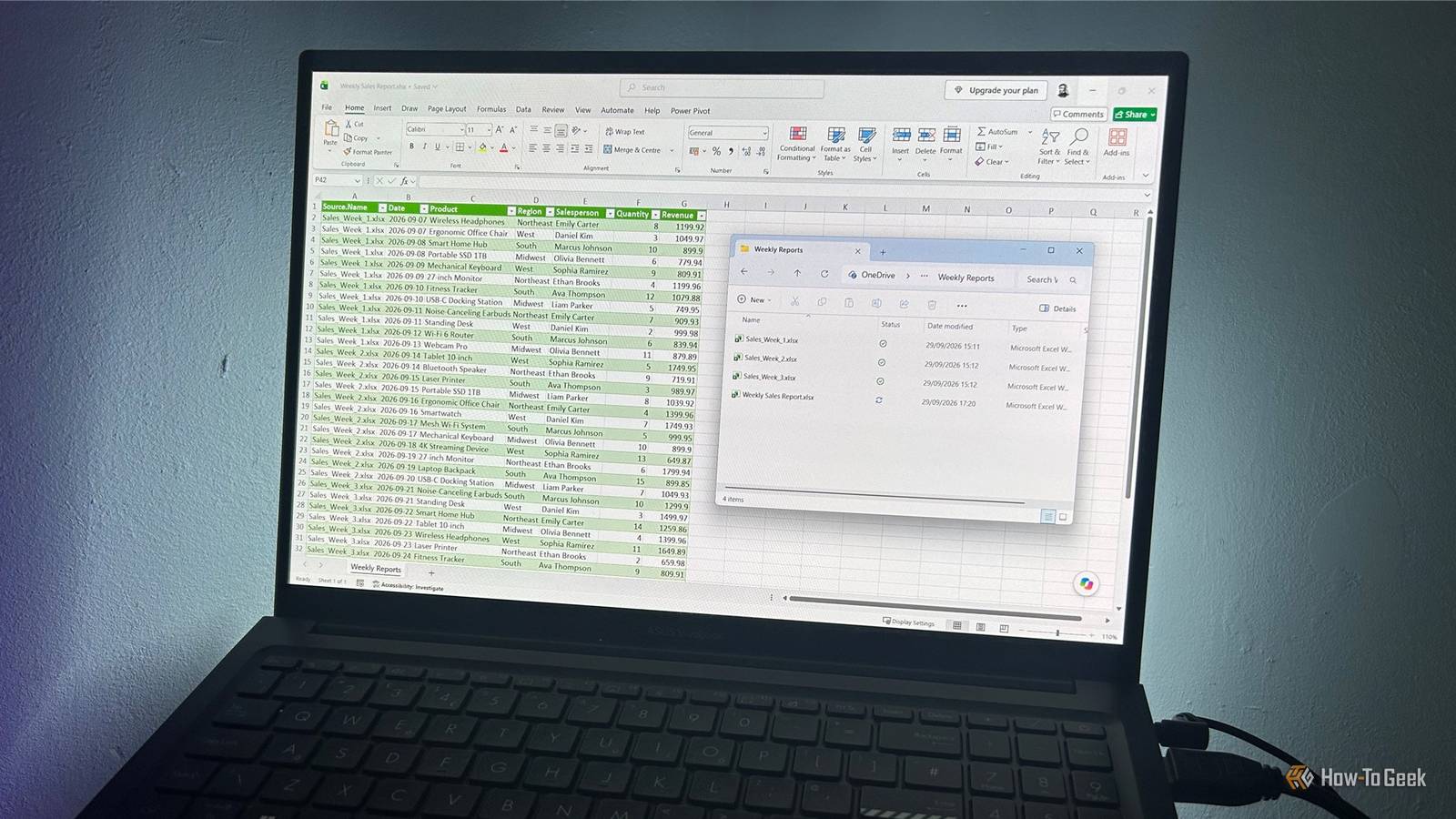
I used to hate combining weekly Excel reports.Copying data from one workbook to another works well enough, but it gets tedious when you have to do it every week.Then you have to remember whether you've done it, or worry about overwriting existing data.
Thankfully, Excel can connect to a folder and combine those files for you, and even though it sounds like Excel wizardry, the setup takes just four simple steps.Step 1: Setting up the weekly files Keeping the structure consistent Close This workflow requires Power Query, a user-friendly interface for combining, transforming, and cleaning data.For it to work properly, I first need to make sure my files are set up correctly.
In my example, I've created a folder called Weekly Reports.Each week, I'll add an Excel file named Sales_Week_#, replacing # with the week number.Sales_Week_1 is already in the folder, and I'll add Sales_Week_2 and Sales_Week_3 later.
Each workbook contains a worksheet called SalesData.This worksheet has the same six columns: Date Product Region Salesperson Quantity Revenue The data and number of rows can change from week to week.What need to stay consistent, though, is the worksheet name, the column headings, and the basic data structure.
In other words, if every weekly report follows the same template, Excel has a much easier job combining them.I'm also keeping the source data as ordinary worksheet ranges.There's no need to waste time turning each weekly report into an Excel table for this workflow.
Next, I need to create the master workbook where all the weekly data will eventually be combined by right-clicking inside the Weekly Reports folder, hovering over New, clicking Excel Workbook, and naming it Weekly Sales Report.I like to keep it in the same Weekly Reports folder so everything stays together.That's fine because I'll tell Power Query to ignore it when it looks for weekly reports.
Step 2: Connecting Excel to the folder Letting Power Query do the repetitive work Close To connect the master Weekly Sales Report workbook to the individual files, I open it, go to Data > Get Data > From File > From Folder, select the Weekly Reports folder, and click Open.Excel brings up the files it finds.I then click Transform Data to open the Power Query Editor, where I can give Power Query a couple of instructions without needing to build complicated formulas or write any code.
First, I need to click the filter arrow in the Name column header, choose Text Filters > Does Not Begin With, type Weekly, and apply the filter.This removes Weekly Sales Report from the list while leaving files such as Sales_Week_1 and Sales_Week_2 available to combine.The next phase involves combining the files, telling Excel which worksheet to use, and loading the combined data back into my master workbook.
Close To do this, I find the Content column and click the Combine Files button in the column header.When Excel asks which worksheet I want to use, I select SalesData, the worksheet that appears in every weekly file, and click OK.Power Query then combines the data from the workbook in the folder, so I can click the top half of the split Close & Load button to bring the result back into Excel.
The master workbook now contains the 12 data rows from Week 1, and there's also a Source.Name column, which tells me which weekly file each row came from.That's the slightly fiddly part of the process done, and the good news is I don't need to go through these Power Query steps again.Step 3: Adding another week's report manually One click is all it takes Now it's time to see what happens when Week 2's report appears.
The first time I did this, I was amazed at how everything just worked.There was no copying and pasting, and I didn't need to go back into Power Query.First, I move Sales_Week_2 to the Weekly Reports folder.
Then, in Weekly Sales Report, I head to the Data tab and click Refresh All.At this point, Excel checks the folder, finds the second workbook, and adds its data to the existing report, turning a 12-row report into one with 24 rows.This is where the benefit of setting everything up properly becomes clear.
I don't have to tell Excel about the new workbook or rebuild the query.I just add the file to the folder and refresh.But there's one more setting that makes the process even easier.
Don't close the master workbook yet.Step 4: Making Excel refresh the report automatically Set it and forget it Close In the previous step, I had to open the master workbook and click Refresh All.That's already easier than copying and pasting, but I can make Excel handle that step automatically.
With the master workbook still open, I can go to Data > Queries & Connections, right-click the query, and select Properties.Then, on the Usage tab, I'll check Refresh data when opening the file, click OK, save the workbook, and close it.Now, with Weekly Sales Report closed, when I add Sales_Week_3 to the Weekly Reports folder and reopen Weekly Sales Report, Excel automatically refreshes the query, checks the folder, finds the third workbook, and adds its data to the report.
I now have all three weekly reports combined without manually copying anything.That's the payoff.After the initial setup, adding another compatible report can be as simple as putting the file in the right folder.
I could even move Sales_Week_3 back out of the Weekly Reports folder, and the next time I open Weekly Sales Report, those rows of data will have disappeared.There's another useful option in the same Usage tab.Select Refresh every and specify an interval, such as every 30 minutes, if new reports might arrive while the master workbook is open.
As I add future reports, I just need to make sure I keep the same structure I set up in Step 1: the same worksheet name, column headings, and basic data structure.As long as the files follow that template, Excel can keep combining them as they arrive.One less weekly Excel chore I've gone from manually combining weekly reports to simply dropping the latest file into a folder and opening my master workbook.
That's a small change to my workflow, but it removes one of those repetitive Excel jobs that I used to have to remember every week.And there's another step you can automate if your report uses PivotTables.I've built a VBA tool that automatically refreshes PivotTables, so I don't have to remember to refresh those manually either.
Read More