I love desktop widgets.I’ve loved them since the early days of Windows 7, and I hate the fact that Microsoft decided to remove them.Sure, some of you will say the desktop looks cleaner without widgets, but to me, it just feels like wasted screen real estate.
Widgets give you easy access to useful information without requiring you to open an app.Add How-To Geek on Google Add as Preferred Source Follow on Google Discover Now, yes, you can technically bring desktop widgets back to Windows 11 using Rainmeter.However, that comes with its own set of drawbacks, which I’ve mentioned in a later section.
As such, I decided to take matters into my own hands and started creating custom widgets using Claude and Rainmeter.These widgets display highly personalized information that I care about, and the whole process takes barely a few minutes.Windows 11 has widgets, just not where they’re actually useful Technically present, but practically hidden Before I get swarmed with comments, I’d like to mention that, yes, Windows 11 does ship with widgets.
However, they’re not as useful as traditional desktop widgets.The Windows 11 widgets are tucked away inside the Widgets Panel, which you can open by clicking its corresponding taskbar icon or pressing Windows + W.The very fact that you need to press a button to view the widgets is a minus in my books.
Now, some folks claim to like this setup because you can pull up the panel from inside any app without having to quit back to the desktop.To that, I’d like to point out that you can also press Windows + D from inside any app to jump straight to the desktop.As such, the panel doesn’t provide any workflow convenience while losing when it comes to general accessibility.
Desktop widgets remain visible when you close a window, switch to a new virtual desktop, or simply start your computer.And while we can argue about whether they have aesthetic appeal, there’s certainly a practical one.Constantly seeing a calendar widget with your daily agenda and a to-do list widget with pending tasks can help keep you accountable and improve your habits.
If you’re interested, I’ve written a dedicated post exploring the idea of using widgets as a productivity hack.Related I found the perfect way to fix my messy workflow using desktop widgets How desktop widgets transformed my workflow and productivity.Posts 1 By Dibakar Ghosh I now build my own widgets using Claude and Rainmeter Sometimes you’ve got to take matters into your own hands Rainmeter is one of, if not the most popular, ways to get desktop widgets on your Windows 11 PC.
The typical workflow involves searching the web for Rainmeter widgets, a.k.a.“skins,” and installing them on your system.It works, but it isn’t without its flaws.
The main issue is that skins made by different people rarely match each other.So, if you mix and match widgets, your desktop can start to look a bit off.There’s also the fact that some of the better-looking skins are locked behind a paywall.
Now, of course, you can always code your own widgets — after all, each Rainmeter skin is essentially a text file.However, if you’re like me and don’t have a background in coding or design, then it’s not really a practical solution — at least, it wasn’t until now.I’ve recently been vibe coding with Claude, and the results have been remarkable.
So, I decided to see if I could use it to create some Rainmeter widgets, and it did a phenomenal job.Related I finally understand why vibe coding is pulling people into programming Vibe coding lowers the barrier to programming by letting you describe what you want, test quickly, and learn by fixing what breaks.Posts 5 By Rich Hein Welcome to the world of vibe coding widgets Close The process is pretty straightforward, and you don’t need any special prompts or connectors.
I’ve found Claude, specifically Opus 5.5, to be pretty well-versed in how Rainmeter works, even without any user-provided context.I simply told it how I wanted the widgets to look and what information they should display, and after a couple of back-and-forths, I had my widgets ready in a few minutes.You can sketch the design of a widget on a piece of paper, take a photo, and share it with Claude to describe the layout more precisely.
Now, you can technically use any version of Claude for this project, but I recommend using Claude Code.It has direct access to your file system and can create all the Rainmeter skin files and save them in the right folder without you having to lift a finger.That said, if you want more control, you can also use the standard Claude app — it will give you the code for each skin and tell you where and how to save the files.
It’s a more hands-on process and takes longer, but it works just as well.I’d also encourage you to use a powerful model like Opus 5.5 or even Fable, if you have access to it.I tried creating widgets with Sonnet 5.5, but ran into more issues.
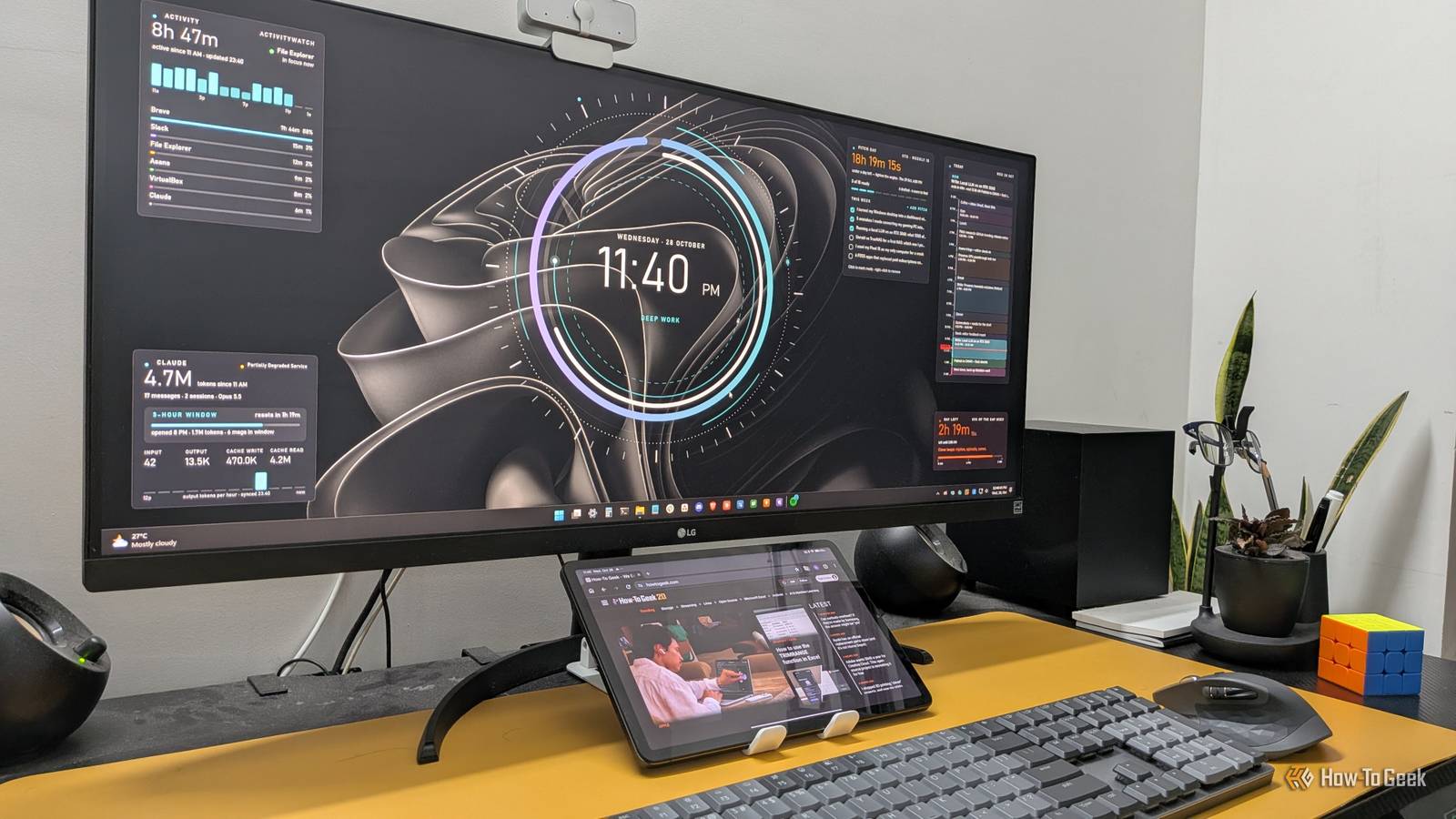
Opus made the process much more streamlined and produced fewer bugs.Related I finally found a local coding LLM that I actually want to use Local AI coding assistants are actually useful now.Posts 6 By Nick Lewis My favorite Rainmeter widgets I designed with Claude A few ideas worth stealing for your own desktop Close If you’re looking for inspiration and ideas for what’s possible, here’s the set of desktop widgets I created using Claude and Rainmeter that I actively use on my system: Today widget: A timeline of my day running from 11 AM to 2 AM, with color-coded blocks for each task, a line marking the current time, and a card at the top telling me what I’m doing now and what’s coming up next.
It reads from a CalDAV file I saved locally on my system to determine which event is coming up and when.Day Left widget: A countdown timer designed to show how much of my workday is left.The numbers change from white to amber to red as the day runs out.
I built this to stop my workday from bleeding into my evenings and pushing back my bedtime.Pitch Day widget: An editable checklist where I can add article ideas to pitch to my editor.It’s set to count down to my Thursday pitch deadline.
All pitches added to the widget are also saved to a local file.Pitches I check off get archived to a separate file, while the rest carry over to the next week.Activity widget: A graph that pulls data from the ActivityWatch server running locally to show how long I’ve been active on my PC today, which hours were busiest, and which apps took up most of my time.
Claude widget: Tracks my Claude Code usage for the day and estimates when my current five-hour usage window resets.Clock widget: A large animated clock sitting at the center of the screen, mostly for aesthetic reasons.Related I tried widget-maxxing my Android home screen, and it's surprisingly useful How many widgets can you really put on a home screen? Posts 1 By Joe Fedewa You can now build the widget you always wanted Technically, desktop widgets never disappeared from Windows because we always had Rainmeter.
The problem was finding the right widgets that displayed the information you wanted and looked great together.But now that we live in the age of AI and vibe coding, it’s easier than ever to create widgets tailored to our specific needs.And, of course, you don’t have to use Claude.
Other coding agents with CLI access, like Codex and Antigravity, are just as capable, as long as you’re using a capable model.
Read More