One of the easiest ways to up your Linux terminal game without memorizing a ton of commands is just to start using TUIs.These are the ones I keep on virtually all day long while I work on my Linux computers.TUIs, or Text-based User Interfaces, are usually designed to look nice and be more user-friendly than traditional, cryptic command line tools.
They're typically interactive, too, with hotkey shortcuts and arrow key navigation to let you make more use of your keyboard and rely on your mouse a little less.Btop++ Monitor system stats in one attractive interface If you're coming over from Windows, then you're probably familiar with the Windows Task Manager and its way of showing what was happening with your RAM, your storage, and your GPU.What if you were able to monitor the same things on Linux, but in a very cool terminal interface.
That's what Btop++ is for, also known as simply Btop.Just type btop into your terminal, and you get a beautiful look at resource consumption, network activity, power level, and more.You can cycle through presets with the p key, or create your own.
Press the m key to open the menu, head to settings, and quickly customize things like the color scheme, graph symbols, and hotkeys.Personally, I like to have Btop++ set to the Dracula theme to match Superfile (which I'll talk about later).I use it mostly to check which processes are consuming the most resources, and also make sure I'm not running low on RAM.
Sometimes I even run it on servers, like my Chromebook server, to make monitoring them easier.If you want Btop++, it's available across Linux distributions.You can get it from Snapcraft, or by running one of these commands: sudo apt install btop #Debian and Ubuntu sudo dnf install btop #Fedora sudo pacman -S btop #Arch sudo zypper install btop #openSUSE Superfile Navigate your filesystem with speed and extra features If you're using a Linux desktop, you probably open Nautilus, Dolphin, or some other graphical file browser to manage your files.
You might think to do the same in the terminal would require memorizing commands like cd and ls, but not so with Superfile.I like having Superfile open as my file browser for a lot of management tasks.It presents your file system in an attractive way, with multiple panels you can switch between for various tasks.
It also has several hotkeys that let you do everything from making new files to copying and pasting them.Arrow key navigation means you can speed through your filesystem, and if you use Zoxide, it includes integration.Related This Quake-inspired terminal is my new favorite on Linux There's no faster way to pull up a console than the way Quake did it.
Posts 7 By Jordan Gloor Speaking of copying, Superfile has a built-in clipboard manager, and it also features a process monitor for ongoing operations within Superfile.In other words, as you copy and otherwise modify files with Superfile, you'll see it happening in Superfile.Arch users can installer Superfile with the sudo pacman -S superfile command.
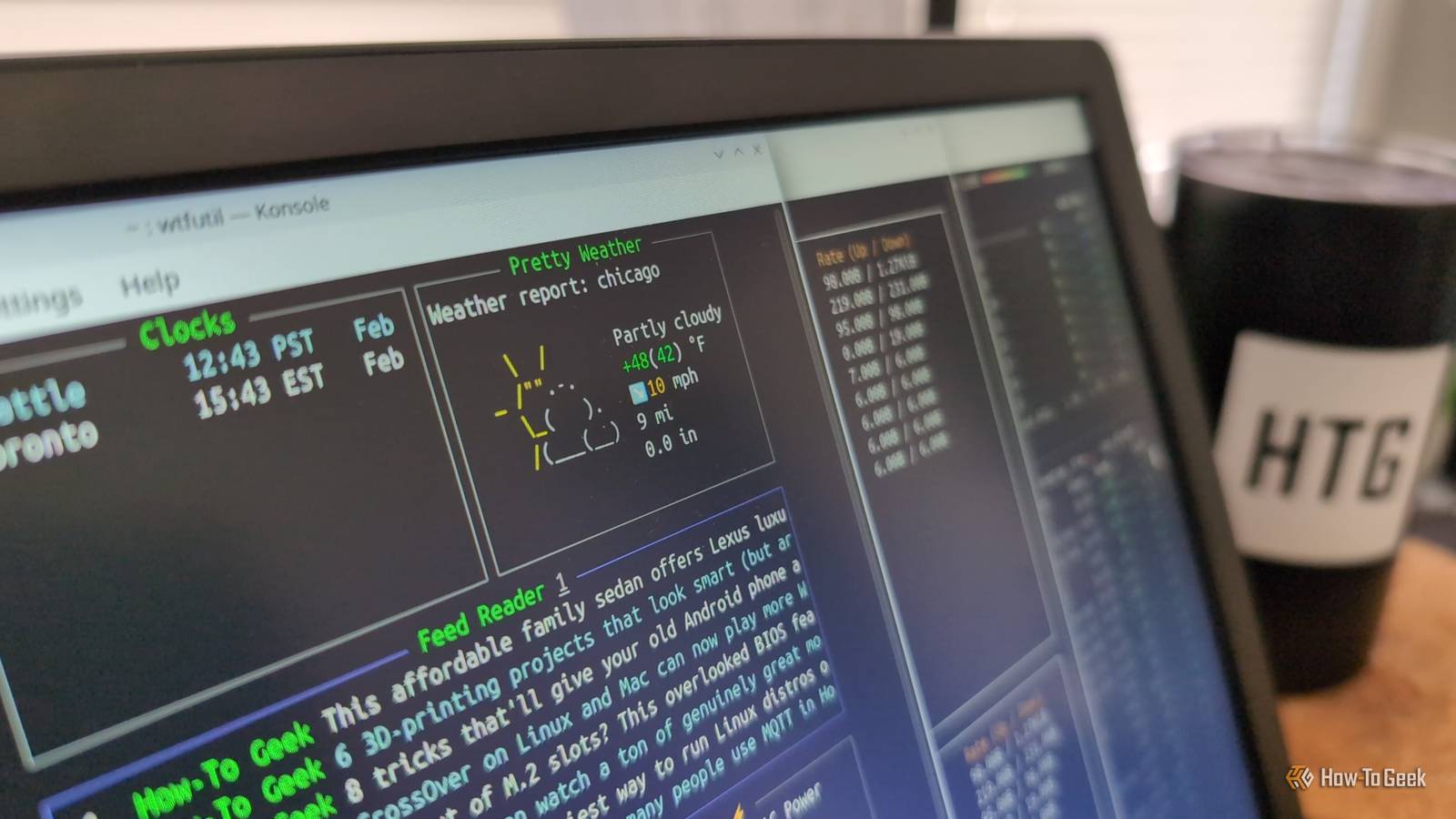
Everyone else can run one of these commands to download and initiate a script provided by Superfile's developers that automatically installs it from source: bash -c "$(curl -sLo- https://superfile.dev/install.sh)" #Download with curl bash -c "$(wget -qO- https://superfile.dev/install.sh)" #Download with wget After installation, remember that the command to run it is spf, not superfile.If that's hard to remember, though, you can always create an alias for it.wtfutil Use your terminal to know "WTF" is going on The wtfutil app, also called simply WTF, is one that I love having on a secondary monitor.
It's a dashboard that lives in your terminal, and displays whatever you want to long as you can find a WTF module that supports it.I recommend you check out WTF's module list, which includes examples of how to add it to your WTF configuration (which is a YAML file).The ones I particularly like are Pretty Weather for weather reports, the Feed Reader for RSS news, and URLcheck for letting me know when one of my websites is down.
You can also simply have it display text files or run commands inside a mini terminal emulator.Wtfutil is very developer-focused, so there a lot of integrations that software developers will appreciate.The GitHub module, for example, lets you query GitHub for things like review requests and open pull requests you've made.
It's a module that includes keyboard actions so you can browse repositories and read items that GitHub fetched.Related 8 “hidden” terminal features that make Linux feel like a power-user OS No installs required: history search, redirection, job control, completions, and other built-in terminal features that exploit the power of Linux.Posts 3 By Bobby Jack If you have Homebrew on your Linux PC, you can install WTF on your system with this command: brew install wtfutil Otherwise, the simplest installation method I found was to simply download the binaries from the wtfutil GitHub release page and then running it with ./path/to/wtfutil.
The challenge with wtfutil for me was learning its dashboard layout system.It forms a grid according to your specifications, and each module needs to be assigned a position and size in that grid.Be sure to read the WTF documentation to make sure you understand it as you construct your personalized dashboard.
Doing more in the terminal never looked so good You can accomplish a lot in the terminal, and I only covered three of many, many TUIs out there.I recently went over some TUIs that are just genuinely useful.
Read More