Almost everyone needs a screen capture tool at some point, from explanations and references to humorous shares and valuable project steps.Windows screenshot tools (Snip & Sketch, classic Snipping Tool, and the newer Snipping Tool) work great for quick, simple captures, but they have limits on editing, sharing, and resizing.I used to capture screen areas with the "classic" Snipping Tool and the new Windows 11 version, and I briefly tried Snip & Sketch before it was deprecated.
None of them offered the options I needed to work more productively and efficiently, even for home use.As I searched for a better screenshot tool, I found one that lets me do almost everything I need for capturing, editing, and sharing — it became my go-to source for screenshots and quick image editing (even for regular images).I needed an app that not only captured the screen but also offered more editing options than the Snipping Tool and could integrate other applications into its process, saving me the hassle of opening separate programs just to get the task done.
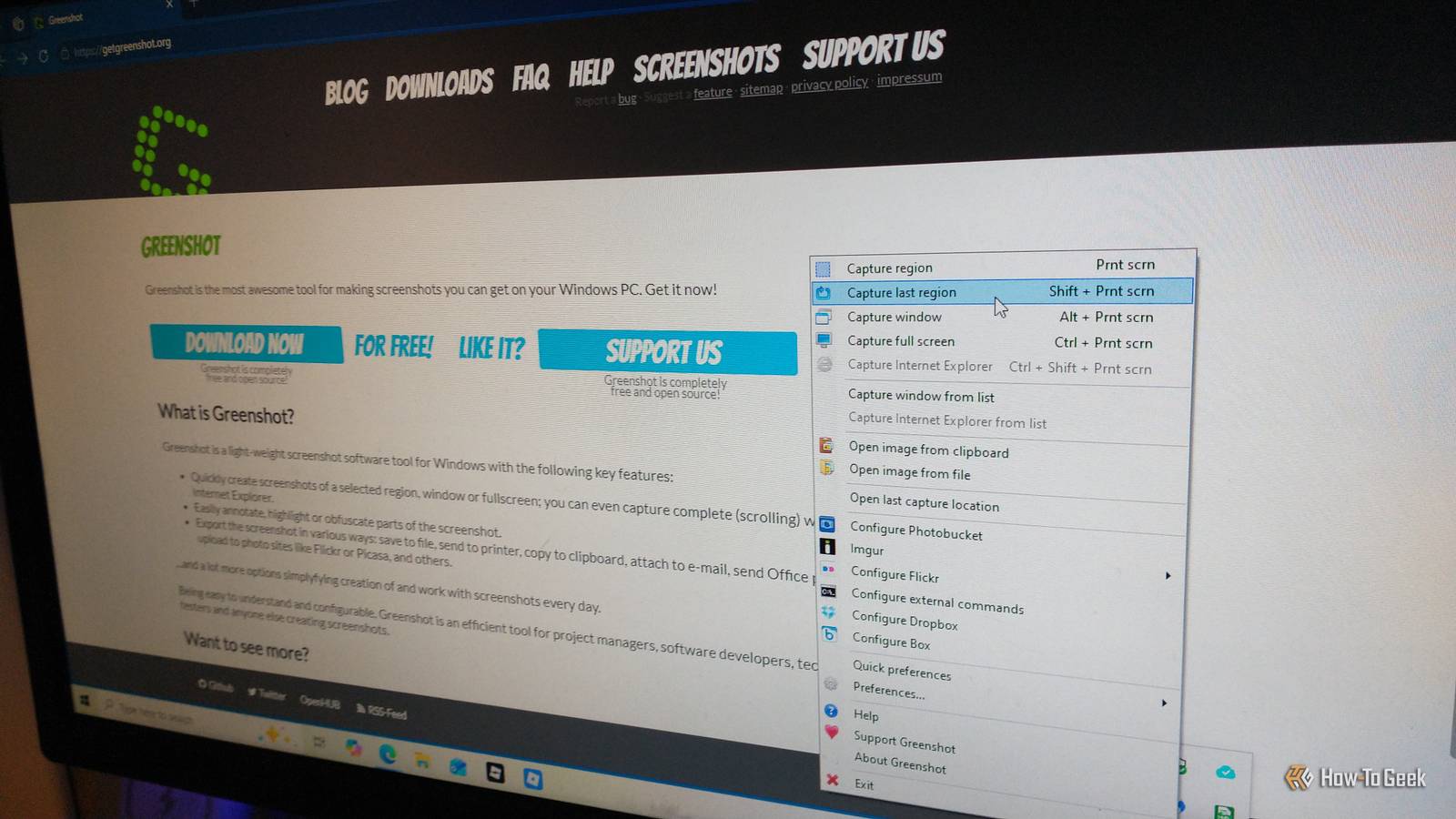
Greenshot delivers a 3-click strategy built right in Capture, edit, and share with other applications Close Greenshot is a free, open-source capture tool and image editor designed with productivity and integration in mind, allowing scripts and plugin customizations while also offering better annotation tools — all while avoiding manual, multi-software processes.There are many third-party apps that outrank Windows programs, but this screenshot tool does exceptionally well at it.Most screenshot tools offer capture options (full-screen, partial screen, and window), along with minimal annotation and simple sharing or saving to a folder.
But that gets tedious because you not only have to capture the image; you often need to edit it further in a third-party program, then open it in another application, and then share it or save it.Greenshot takes all those steps and combines them into an automated process within the app, perfect for workflow management and dev teams (more on this later).All you have to do is set your hotkey to capture however you like, then configure the app to open it in the image editor (if desired), and then choose your output or make a clickable script that automates third-party actions.
You can even press a hotkey to capture, then click an export or share option, and then click to save it in the desired folder.The 3-click strategy is dependent on what you need and is fully customizable.Pre-included plugins make screen capturing and sharing a quick process Sharing to OneNote, Jira, Confluence, Word, and more Close For those who want to simplify sharing screenshots, there are several open-source screenshot tools available for Windows, but Greenshot has a unique design and convenient features that let you take control of your screenshot tasks.
Greenshot includes predefined export options for Jira, Confluence, Box, Dropbox, Imgur, Word, Excel, Outlook, OneNote, and other applications.There is also a Windows Share option, but I could never get it to work because Windows security updates keep changing the system.In that case, I use a script to open the saved directory in Explorer, then click the "Share" option, but you can also use another workaround.
If you need a screenshot for your Jira report or project management status, you can select the Jira plugin and let it streamline the process for you, versus capturing, editing, saving, and then going to Jira and inserting it manually.Greenshot does all that within the app.If you need to add a capture to a Confluence collaboration or doc, the Screenshot app places it exactly where your cursor resides, without all those additional steps getting in the way.
The Microsoft Word plugin will do the same — capture and send the shot to your cursor position in your document.I like using the Microsoft Word plugin, and I have also used the OneNote plugin for quick references and the Outlook one whenever I need a quick screen snap for an email.You can also send your image to your current PowerPoint or Excel spreadsheet.
Another preinstalled option is Thunderbird (if using the unstable release).Custom scripts and batch files are where Greenshot shines the most Create convenient batch files that load scripts or run simple commands Close Greenshot includes a "Configure external commands" option (as mentioned above) that also lets you add third-party apps it can launch directly.You can even use commands or "load" scripts via a batch file in the same space to launch your specific app, send the captured image to the cursor's position, and then finish what you need to within that app.
You add your own external commands or batch scripts and let the app run them after the capture process.I can use WinSCP to send the files to a cloud storage service or remote storage.You can also create a script to embed into the application that sends captures to a cloud-managed platform, CMS, or anything you like.
Sometimes, I need it to save in two locations, so I create a batch file that does exactly that.I recently used a batch file to autoload the capture into Inkscape for advanced editing (more on that below).You can even launch a sharing option like Facebook by adding a batch file that loads a script.
For simpler commands, using the "Edit external commands" option is a great solution for home users.I set Greenshot to launch Inkscape so I can use its advanced editing to create annotated, watermarked, and privacy-blurred images, and it works perfectly.Greenshot automatically captures the screen, then sends it over to Inkscape for processing.
I use a simple batch file as the external command.MOVE /Y %~1 "%USERPROFILE%\Docs-Universal\Pictures\My Screen Shots [Universal]\Greenshot\" START "" "C:\Program Files\Inkscape\bin\inkscape.exe" "%USERPROFILE%\Docs-Universal\Pictures\My Screen Shots [Universal]\Greenshot\%~nx1" If I wanted to, I could also have the batch file wait for me to close Inkscape, then allow it to finish the Greenshot process.But the majority of the time, I find the built-in editor works just fine for my needs.
Imagine what you could do with commands and batch files.Allowing external plugins is also a nice bonus Launch apps automatically or launch, place, and submit at once Third-party plugins are similar, except you add them directly to Greenshot to load at launch and appear in the options, but you need Visual Studio to inject them.This task is geared more toward developers and workflow management support, but you can use it at home if you have the skills.
For developers and coders, you'll find more information in the DeepWiki Greenshot plugin pages to access plugin processes and details, and modify ".csproj," ".props," and other files.Greenshot's automated features save time Custom auto-generated titles, cloud uploads, and more Greenshot certainly has its fair share of customization options, and file-naming is just another advantage you have to better organize your screenshots — you can adjust the default to whatever you like.The preset string is ${capturetime:d"yyyy-MM-dd HH_mm_ss"}-${title} which creates a filename like "2026-09-14 18_52_42-Document2 - Word.png."Let's say you are working on a project and need several screenshots — the automation saves time by pre-formatting the filenames.
You capture a region on the Trello browser page, but you want to add the project name to the beginning and remove the "hour-minute-second" part.You can edit the filename format to Project X-${capturetime:d"yyyy-MM-dd "}-${title} so that it saves as "Project X-2026-09-14-Trello - Brave.png." The title is always the window or tab you are capturing, even with region captures — it's pretty cool.If you don’t need a bulk session of screenshots, you can just use the "Save as" dialog option and name it however you like.
For cloud storage, I often take screenshots and need them to save to pCloud, so Greenshot lets me do that in two ways.I can create a batch file to save the capture to an automatic upload folder, or I can use a WinSCP upload script to send it directly to the cloud server in a specified location.You can create or use scripts for whatever cloud storage you need, or use one to save it elsewhere.
It's a great feature that really comes in handy.Sometimes, I like complete automation, especially when I don't require any screenshot editing.I set Greenshot to automatically save to a specified folder on my PC (often a sync folder).
I press my custom hotkey for the type of screenshot I need, then I let it do the rest.It automatically saves the file (using the predefined file naming string) in the folder I specified.Screenshot — A tool designed for efficiency and convenience for everyone From home users and developers to workforce team collaborators and IT departments, Greenshot makes screen captures quick and efficient, with 3-click functionality or advanced options.
It's not a simple screenshot app with limited editing or in-program restrictions; it's built to make captures as painless as possible.The main concept is to capture, edit, and save without opening several apps, and being free and open source makes that much easier.
Read More