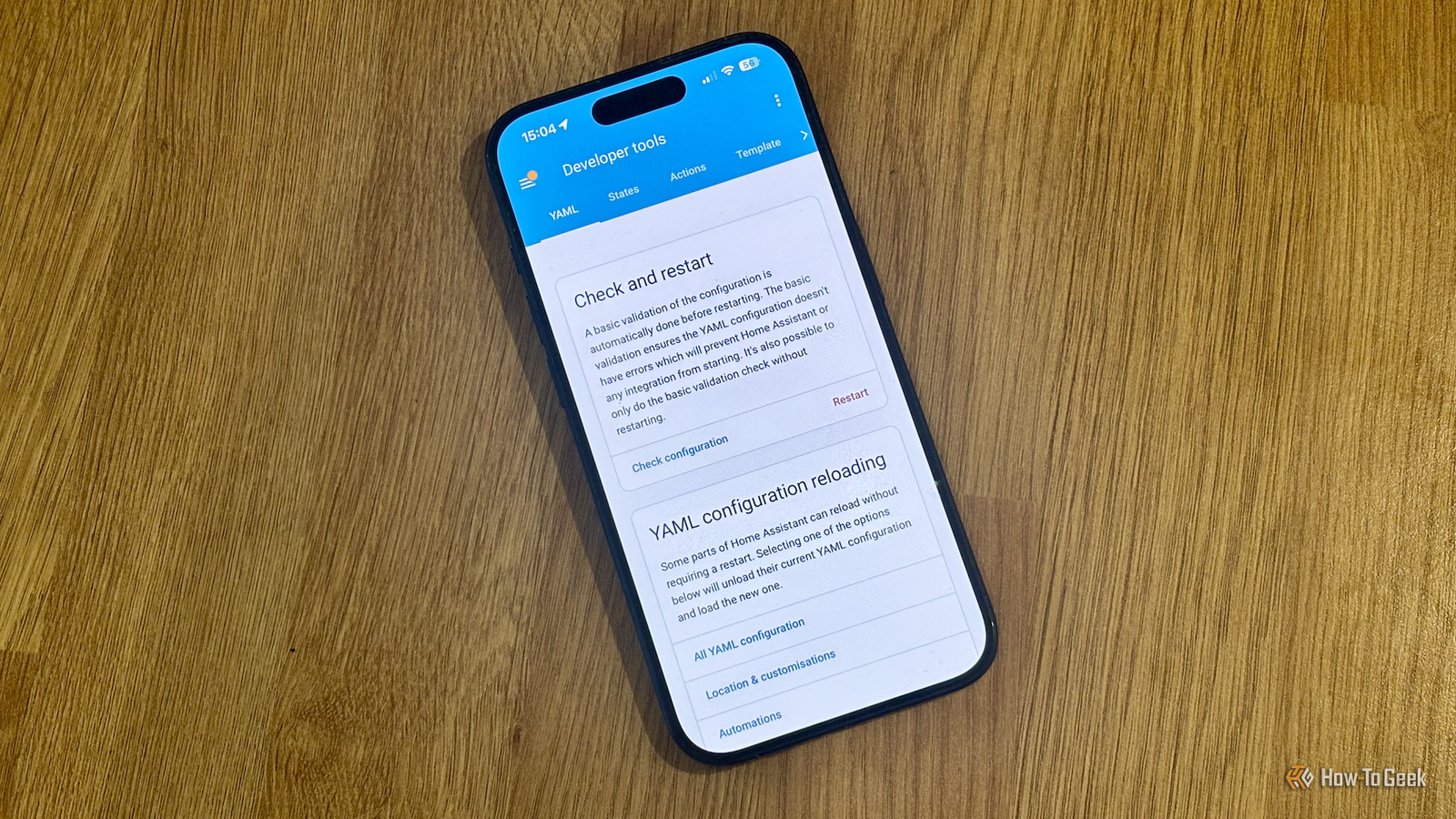
The Developer tools feature in Home Assistant is an essential part of the smart home software.You can use the tools to check and update the states of devices, to perform actions, and check your configuration is workable.Unfortunately, this useful feature has disappeared from the Home Assistant sidebar in a recent update, but it's possible to restore it to its original location.
What changed in Home Assistant 2026.2 The Home Assistant 2026.2 update included a number of changes to the smart home software.The new Overview dashboard became the default, add-ons were renamed as apps, and a very useful new Quick search feature was added that makes navigating Home Assistant with your keyboard even quicker.While some of the changes were met with positive responses from the Home Assistant community, there was one change that was less well-received.
The Developer tools feature that was previously part of the default menu in the sidebar was removed, and the feature was relocated to a sub-menu in Settings.The biggest gripe for many users is that accessing Developer tools through the UI now requires an extra click.Where previously you could just click the option in the sidebar, you now have to select "Settings," then scroll down to almost the bottom of the screen to select "Developer Tools." While it's only two clicks instead of one, they all add up over time.
The fastest ways to open Developer tools One of the features added in 2026.2 also provides one of the quickest ways to access Developer tools, without needing to use the UI at all.You can quickly open the new Quick search feature with the keyboard shortcut Ctrl+K (or Cmd+K on Mac).Once Quick search is open, you can type any letter combination from the words "developer tools" to bring it to the top of the search results.
The fastest way that I found that didn't bring up a different command, device, or entity instead was to type "ol".Developer tools then becomes the top result, and pressing Enter opens the UI to the Developer tools screen.It didn't take long for the combination to become muscle memory, and pressing Cmd+K, O, L, Enter takes about as much time as it takes to reach across and grab my mouse to start clicking through the UI.
Bring back Developer tools with a custom panel If you're not a fan of navigating Home Assistant using the keyboard, then the good news is that you can add Developer tools back to the sidebar so that you can access it with a single click.There are a few ways to do so, with one of the simplest being to use the native using the Custom panel integration.This lets you create your own custom panels for the Home Assistant sidebar.
You can use it to create panels for almost anything, and it's an effective way to add Developer tools back to the sidebar.You'll need to edit the configuration.yaml file to do so, which can sound daunting if you're fairly new to Home Assistant, but in this instance, it's just a case of copying and pasting a few lines of code.One of the simplest ways to edit the configuration.yaml file is to install the File editor add-on (now an app), a no-frills text editor that gives you easy access to the configuration.yaml file.
Go to Settings > Apps and click "Install app" at the bottom of the screen.Search for "file editor" and select the "File editor" app.Click "Install" and once the app has installed, select your options.
Toggle "Show in sidebar" on to keep the File editor option in the sidebar, and press "Start." Select "File editor" in the sidebar to open the app.If you don't see configuration.yaml immediately, click the folder icon, and select the configuration.yaml file.Add the following code to the configuration.yaml file, taking care to use the correct indentation.
panel_custom: - name: Developer Tools sidebar_title: Developer Tools sidebar_icon: mdi:hammer js_url: /api/hassio/app/entrypoint.js url_path: developer-tools/yaml embed_iframe: true require_admin: true config: ingress: core_configurator Restart Home Assistant, and the Developer tools link should reappear in your sidebar.The File Editor app can only be installed through the UI on Home Assistant OS and Supervised installations.For Container (Docker) and Core installs, the App store is not available.
You will instead need to use an external text editor (like VS Code or Notepad++) or an alternative such as the Config Editor custom component from HACS.Getting Developer tools back to its original position By default, the link will appear in alphabetical order in your sidebar menu, while the original position was at the bottom of the list.To get things back exactly where they were before, click and hold "Home Assistant" at the top of the sidebar, and then release.
The "Edit sidebar" window will appear, allowing you to reorder the sidebar.Drag "Developer Tools" down to the bottom of the list, and it will appear at the bottom of the sidebar menu once again.Change can often be a good thing, but for many people, removing Developer tools from the sidebar was a strange decision, adding an unnecessary additional click to access the useful feature.
It may now be in a more intuitive location, but for many people who have been accessing it from the sidebar for years, it's a shock to the system.One of the best things about Home Assistant is that if there's something you don't like, there's often a way to fix it.
Read More