There's no shortage of advice promising to make Windows 11 faster.Disable startup apps, turn off animations, change your power plan, and run a debloating tool, and your PC will supposedly feel brand new.But after testing several popular tweaks on my ASUS laptop, I found that many didn't solve the problem I thought they did.
Some reduced background activity, some removed interface delays, and others barely made a measurable difference.Add How-To Geek on Google Add as Preferred Source Follow on Google Discover I'd been treating "slow Windows" as a single problem, when it's really a bundle of different complaints.Startup apps use background resources Fewer apps running, but almost the same boot time I started with one of the most common recommendations: disabling unnecessary startup apps.
I had six enabled entries I was happy to stop launching automatically, including Copilot, Slack, Screenpresso, and the Send to OneNote Tool.I compared how long Windows took to reach a usable desktop before and after making the changes.The results were almost identical.
My baseline median was 49.29 seconds, while the two runs after disabling the apps averaged 49.18 seconds.That's basically no improvement.There was a possible benefit elsewhere, however.
Five minutes after startup, Task Manager showed 6.1GB of RAM in use, compared with 6.8GB in my baseline test.CPU usage was also lower in the post-change snapshot.So disabling startup apps can reduce background activity without necessarily making Windows boot faster.
It's primarily a resource-management tweak, rather than a startup-speed tweak.Interface tweaks affect responsiveness Some remove delays, others barely change a thing Close I also tried a few recommendations aimed at making Windows feel snappier.First, I switched off animation effects in Settings.
The Start menu skipped its opening transition, but nothing else felt any quicker.Turning off transparency effects was even less interesting.It changed the appearance of the Start menu and other interface elements, but I couldn't detect a performance difference in everyday use.
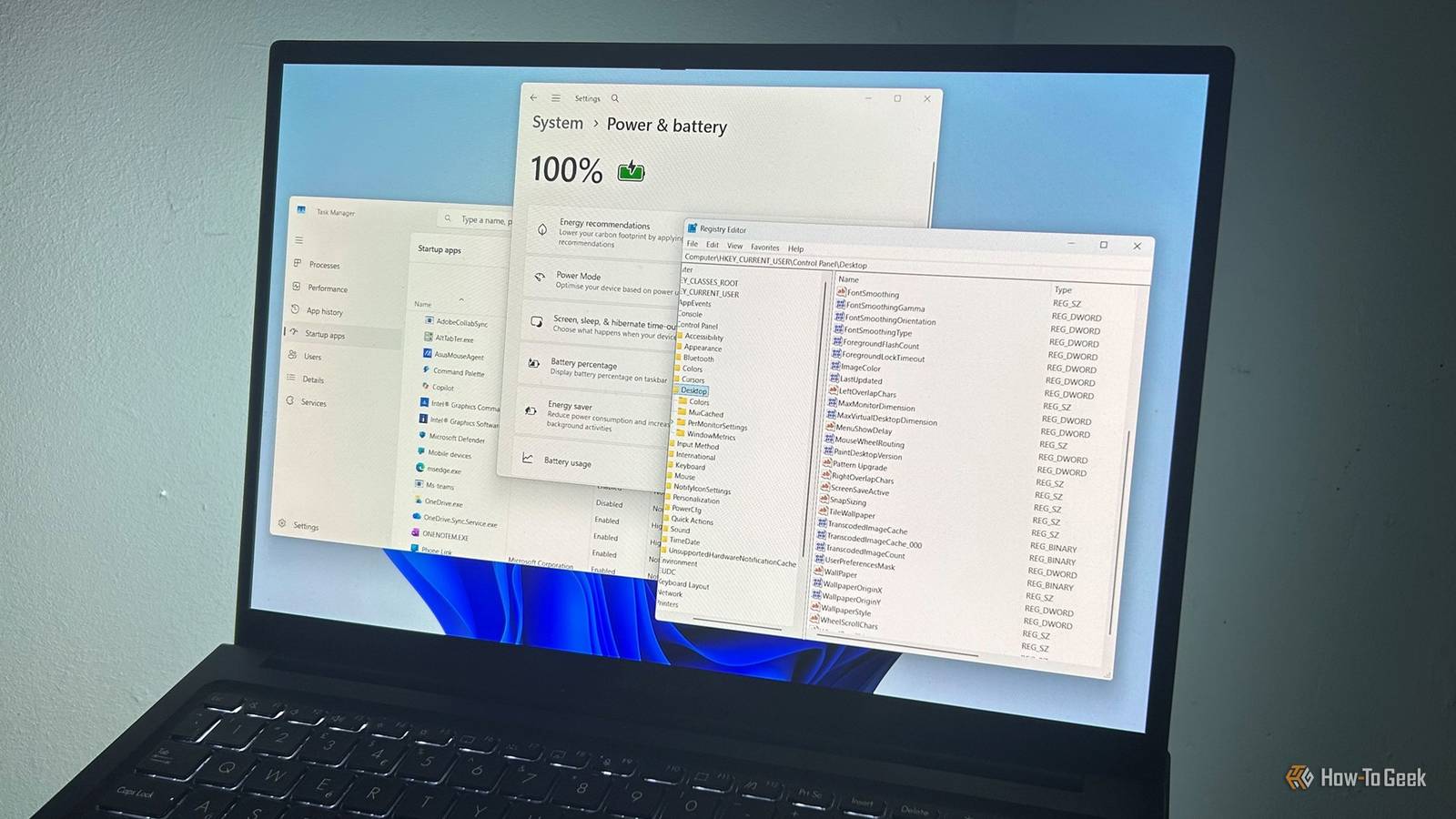
These are fine to flip if you like the simpler look, but don't expect a faster PC.Changing the menu delay was more worthwhile.Windows uses a Registry setting called MenuShowDelay to control how long it waits before opening cascading menus.
Its default value is 400 milliseconds.I reduced it to 200, but the difference was barely noticeable.Setting it to 0, however, made menus open noticeably faster.
But Windows wasn't processing anything faster; it was simply waiting less.If cascading menus are what make your PC feel sluggish, this tweak removes that delay.Of all the things I tested, this was the one I noticed most immediately.
Power modes offer little measurable gain Best Performance barely beat Balanced Windows offers power modes intended to balance performance and energy use.It's tempting to think Best Performance, or the Ultimate Performance plan, will give your processor a worthwhile boost.I tested both against Balanced using the built-in Windows System Assessment Tool.
I ran winsat cpu -compression three times in each mode, with my laptop plugged into the mains.The command measures CPU compression throughput, so it doesn't represent every aspect of PC performance, but it gave me a consistent workload to compare.Power mode Average throughput Balanced 1,391.36 MB/s Best Performance 1,400.16 MB/s Ultimate Performance 1,369.50 MB/s Best Performance was just 0.63% faster than Balanced.
Ultimate Performance recorded a lower result, but the differences are small enough that I wouldn't conclude the plan actually makes the processor slower.They're more likely to reflect normal variation between benchmark runs.Neither setting did much of anything.
Unlike the startup and menu tweaks, these settings are intended to influence performance and power behavior directly.On my laptop, switching plans barely moved the needle.WinUtil bundles different kinds of tweaks A recommended preset isn't a performance checklist I also took a look at WinUtil, a popular Windows customization and debloating tool, and examined the options in its Standard preset.
Some options concern privacy, such as disabling activity history, location tracking, and telemetry.Others handle maintenance or convenience, including cleaning temporary files, changing service settings, and adding an End Task option to the taskbar.Those might suit some people, but they won't all make your PC faster.
What struck me was how privacy, maintenance, convenience, and performance all end up in one "recommended" package.That's a good reminder that not every tweak inside an optimization tool is actually trying to make Windows faster.Search indexing is about coverage A wider search doesn't guarantee faster results Windows Search has another setting that often appears in performance advice: the choice between Classic and Enhanced indexing.
Enhanced searches a wider range of locations.This setting is mainly about search coverage, not search speed.I switched from Classic to Enhanced and waited for indexing to finish.
I then searched for a known video file in my Downloads folder three times.Each search was instant.I repeated the same test after switching back to Classic, and those searches were instant too.
That quick test doesn't prove the modes are equally fast in every situation, but switching to Enhanced didn't give me a noticeable speed advantage.If Search can't find your files, changing the locations Windows indexes may help.That's a search-coverage problem, not a general performance problem.
Find the problem before changing the settings The biggest lesson from these tests is that Windows doesn't have one universal kind of slowness.Startup apps reduced background activity, MenuShowDelay made menus feel faster, and an earlier CPU-boost experiment improved battery life.But several other tweaks produced little measurable benefit.
Many of these tweaks weren't useless.They were just solving a different problem from the one I thought I had.Before changing a bunch of Windows settings, work out what's actually bothering you.
The most effective tweak is usually the one that targets that specific issue.
Read More