The minimalism of Pixel software is great — until you want to change how something works.That's why I've always loved "Good Lock" on Samsung phones.It's an optional suite of tools specifically for power users.
That's what the "Essentials" app is trying to do for Pixel phones, and I finally get the hype.Add How-To Geek on Google Add as Preferred Source Follow on Google Discover Essentials has been on my radar since one of my writers brought it to my attention a few months ago.However, I was using a Samsung phone at the time, so I didn't really have a reason to try it out.
I finally switched back to a Pixel phone recently, and I finally gave Essentials a try.I'm happy to report it's even better than I expected.Essentials is a full suite of tools and mods No root required, just a few important permissions Let's start with the basics.
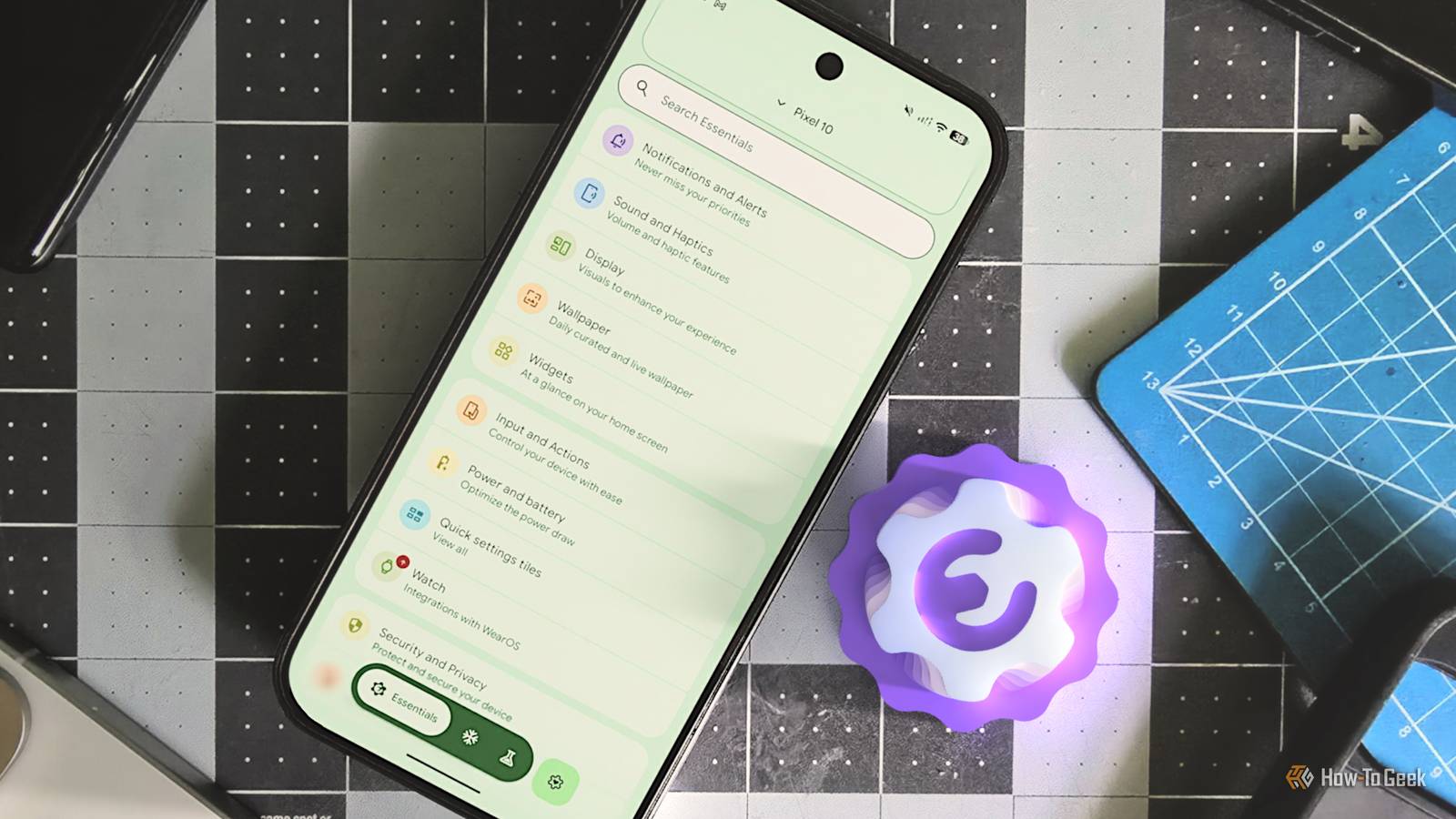
"Essentials" is a free, open-source app that puts a huge number of tools and mods under one roof.It can be used on any Android phone (even a Samsung Galaxy), but it's mainly intended for Pixel phones.The app is organized as if it's a secondary Settings app on your phone.
The tools are organized into sections, such as "Notifications and Alerts," "Display," "Input and Actions," "Power and Battery," "Widgets," and several others.Each category has a handful of things to play around with.Unlike Good Lock, Essentials is not an official first-party app, and that means it doesn't work quite as seamlessly.
The various mods and workarounds rely on a few different permissions.Some are simple to enable — like notification access — but others require a little more effort.Unsurprisingly, these are also the most powerful.
I'll explain how to install Essentials and grant permissions at the end of the article.Here's what it can do Let's explore Essentials I said Essentials is organized like the Settings app, and it feels like it has as many options as well.There's really a ton of interesting stuff to check out.
I'll do my best to highlight some of the coolest features and share how I've been using it.Essentials on Display: Shows media info and playback controls on the always-on display and screensaver.It’s an “ambient music glance” for whatever you’re playing.
Button remap: Remaps hardware buttons like volume and power to custom actions.Notification lighting: Draws an edge-lighting effect around the screen when notifications arrive.Similar to Samsung's "Edge Lighting" feature.
Island: Replace the system status bar with an iPhone-inspired dynamic pill centered around the front-facing camera.Flashlight pulse: Pulses the torch to signal notifications, which is handy if your phone is face-down or on silent.Also allows for customizing "HiLight" if you own a Pixel 11.
Maps power saving: Automatically kills Google Maps when navigation ends so it stops draining battery in the background.Replace searchbar: Choose your own search provider for the Pixel Launcher search bar.Statusbar icons: Hide system icons and customize when they appear or disappear.
Screen refresh rate control: Forces a fixed or adaptive refresh rate.This one is exclusive to Pixel phones.Lock screen clock customization: Gives you more customization options for the lock screen clock.
This is also Pixel-only.Dynamic night light: Choose to enable Night Light on an app-by-app basis.Smart pixels: Dims pixels on OLED screens for extreme battery saving.
App freezing: Freezes rarely used apps on demand, or automatically when the screen locks, to save battery and cut distractions.DIY Automation: Lets you build your own triggers and actions, with optional AI assistance for writing the rules.It's like Samsung's "Modes and Routines." Close How I'm using Essentials One of the first things that piqued my interest in Essentials was the automations.
I've been very critical of Google's lack of automation features on Pixel phones, and I love the "Modes and Routines" experience on Samsung Galaxy devices.I set up an automation that starts playing the last media session when I connect to the Bluetooth dongle in my car.Even an extremely simple automation like this can't be done with the stock Pixel software.
Next, I'm using "Essentials on Display" and the Always on Display tweaks to show media info when the screen is off, but only when specific apps are playing.This allows me to glance at my phone and see what's playing when I'm in the shower.Close The last thing I'll mention is the "Island" feature.
I'm not usually interested in copying the iPhone, but I can't deny that the Dynamic Island is a good use of space that's otherwise wasted.I set up the Island to essentially mimic the standard Android status bar, then hid the system bar completely.Set up Essentials for yourself Probably not as hard as you think The Essentials app is available from the official website and GitHub page.
Sideloading an app that requires so many permissions is a bit more cumbersome than usual.Certain permissions will be grayed out when you try to enable them.After that happens, go to Settings > Apps > Essentials > three-dot menu icon > Allow restricted settings.
Close For many of the mods, you only need to toggle a basic permission — "Allow display over other apps," for example.However, the more advanced stuff, like hiding the status bar, requires ADB commands.The good news is this is much easier than it used to be.
You can do it all from your phone with an app called "Shizuku-Next" (a more frequently updated fork of Shizuku).Essentials will give you the ADB commands when you try to enable a feature that needs it, and the app communicates with Shizuku-Next to make it as seamless as possible.You'll be guided through enabling Developer Options, wireless debugging, and pairing.
Once you've done all of this, you don't have to do it again.It's well worth the setup time to finally have a Good Lock-esque experience for Pixel phones.Not everyone needs power features, but it's nice to have the option if you have the know-how.
Read More