Raspberry Pi users should be familiar with a program called Scratch.I've been doing more and more work with it lately, and I realized that, as I've moved away from spending time with streaming and doomscrolling, I've gotten more into making things with my various devices.Scratch is quite fun to use, and I wanted to share a few easy projects/mini apps you can make with it in less than a few hours.
No coding or AI necessary Scratch is based on blocks and visuals So, what is Scratch? Scratch is a block-based programming tool that lets users create apps, games, movies, and different projects without really needing to know how to code.It was developed by MIT as a way to help kids learn and build.Even though that's its intended mission statement, it's also perfect for older folks or tech enthusiasts to start building something interesting/cool/unique if they have no coding experience or want to enjoy making something at the hobbyist level.
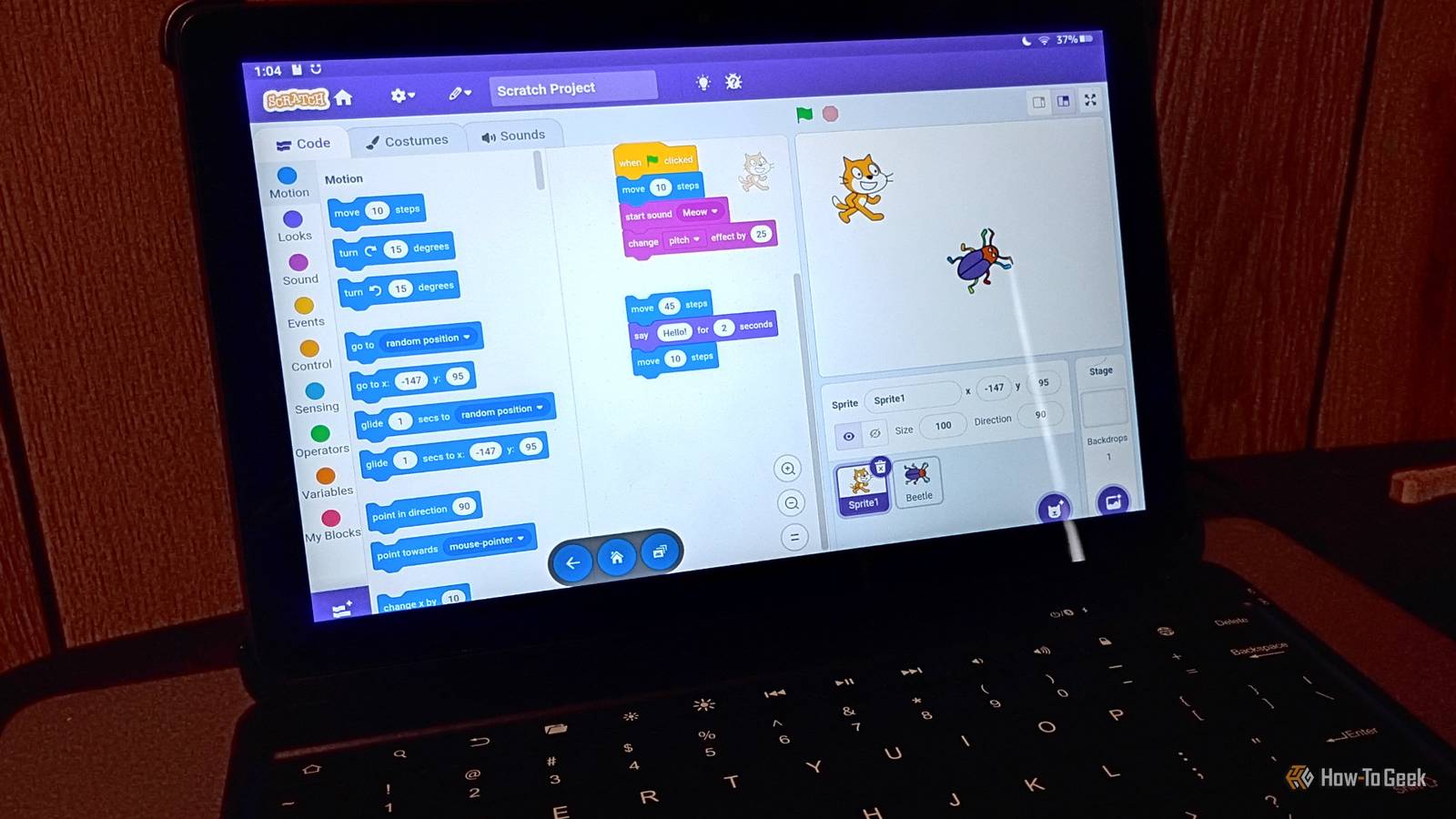
Scratch is just fun, regardless of age or skill level.The Android version has everything you need to get started and work on making a project for yourself or something you can use to spend time with your kids.I'm using the Android version of Scratch on my modded Fire Tablet.
It also works on my Samsung Galaxy Z Fold 5, but only if it's unfolded (i.e., in mode).The touch timer of doom A cool reaction timer you can interact with Close Scratch is pretty easy to understand and very intuitive.There are still a few things that might trip up new users, though.
For example, you have to put a block that tells the program to run when you touch the green flag to get it to work.So keep that in mind as you build.I recommend running through at least a basic tutorial and spending some time playing with the blocks to get a feel for how it works.
In Scratch, you have a simple GUI.On the left, you can grab code blocks and move them into the main field in the center.On the right of the screen, you can see the characters you're working with and adjust or change them.
I swapped out the default cat character with a few of my own MSPaint creations from the past 20 years: an angry cheeseburger named Clyde from 2009 and a bug-eyed blob monster named Terry from 2011.They fit the aesthetic pretty well.For my first project, I made a basic touch timer game.
I uploaded my new sprite (the angry cheeseburger seemed appropriate) and got to work.I also added a backdrop from a UFO image I made in 2025.Then I made a variable called "Reaction Time." I have two stacks of blocks for this.
The left stack starts everything and defines the game.The second tells it what to do when you click and measures your reaction time.I started out by choosing "when the green flag is clicked" from events as the start block.
From there, I stacked a few from the Looks section: set color effect to 0 and hide.Then I stacked the wait x seconds command from Control.Finally, I added a light blue reset timer from the Sensing section.
For the second block, I stacked Events - When this sprite clicked, Variables: set (reaction time) to with a timer variable in the timer slot.Finally, I ended it with a Looks - Say "Order Up" for 3 seconds.I tested it, and it worked fine.
You can add as many or as few sprites as you like.I duplicated Clyde 6 times, making him increasingly smaller and adding an additional second to the first wait block each time.Then I arranged and placed him randomly around the star scape.
The point of the game is to test your reaction time when you click a sprite.I played a few times, and my reaction time is garbage.But I had fun, and now you can make it yourself (don't forget to sub your own sprites).
To play it on other devices or share, just go to File -> Save to device, and you can play it in Scratch on any device you choose.Making music with Scratch A soundboard app for fun and noisemaking Given my obsessive interest in music (especially experimental and avant-garde music and using old MP3 players to play it), it made sense to create a music-related app.First, you add the music extension by clicking the little blue extension box at the bottom left.
I also set up three different homemade sprites in my canvas.From there, we just stack a few blocks for each of our sprites.We're going to use the same basic structure for each sprite.
Follow the way I've stacked the blocks in this photo, but make adjustments to "play note" for each tone: It will be 60 for the low, 64 for the mid, and 67 for the high.Once you finish, you can tap each sprite to play music notes.This one plays a C chord if you hit sprite 1, 2, and then 3.
It's a fun way to learn about how triads work with a very simple visual component.Scratch is fun for all ages Working with Scratch is fun for a weekend project, whether you're on an Android tablet or a Raspberry Pi.There are plenty of cool things you can make with the software.
There's also a sharing component.So if you're desperately searching for an easy, fun, and educational way to kill an afternoon or a fun project to work on with your kids, Scratch is a great app to use for it.Related Amazon is making the Fire Tablet worse.
Here's how I'm fighting back Old Fire Tablets are bloated and getting worse.Here's a practical guide to repurposing and making them better.Posts 1 By David J.
Buck
Read More