There's something wonderful and appealing about navigating your favorite software with just a few keystrokes.Sometimes, it can be easy to forget that not everyone feels comfortable navigating their software using shortcuts and commands.And while it's certainly impressive to show your co-workers how fast you are with a keyboard (hey, the Gen Z kids who work for me think it's cool), sometimes it's not always intuitive or easy to work that way.
Luckily, my favorite Knowledge Base/notes program, Obsidian, is full of useful shortcuts.I've tried most of them.But only a few changed the way I take notes.
Don't overlook the basics Sometimes, the simplest shortcuts are the best Close As we break down the different Obsidian shortcuts, I think it's pretty important not to overlook the basics.If you've been using Obsidian (or even a web browser) for a while, you're probably already using most of the typical shortcuts for editing.I'm going to go over those.
Instead, here are a few simple ones I use every time I open the app.For example, these obvious, but you'd be surprised how many of my students have no idea these exist.I absolutely use these shortcuts, pretty much daily.
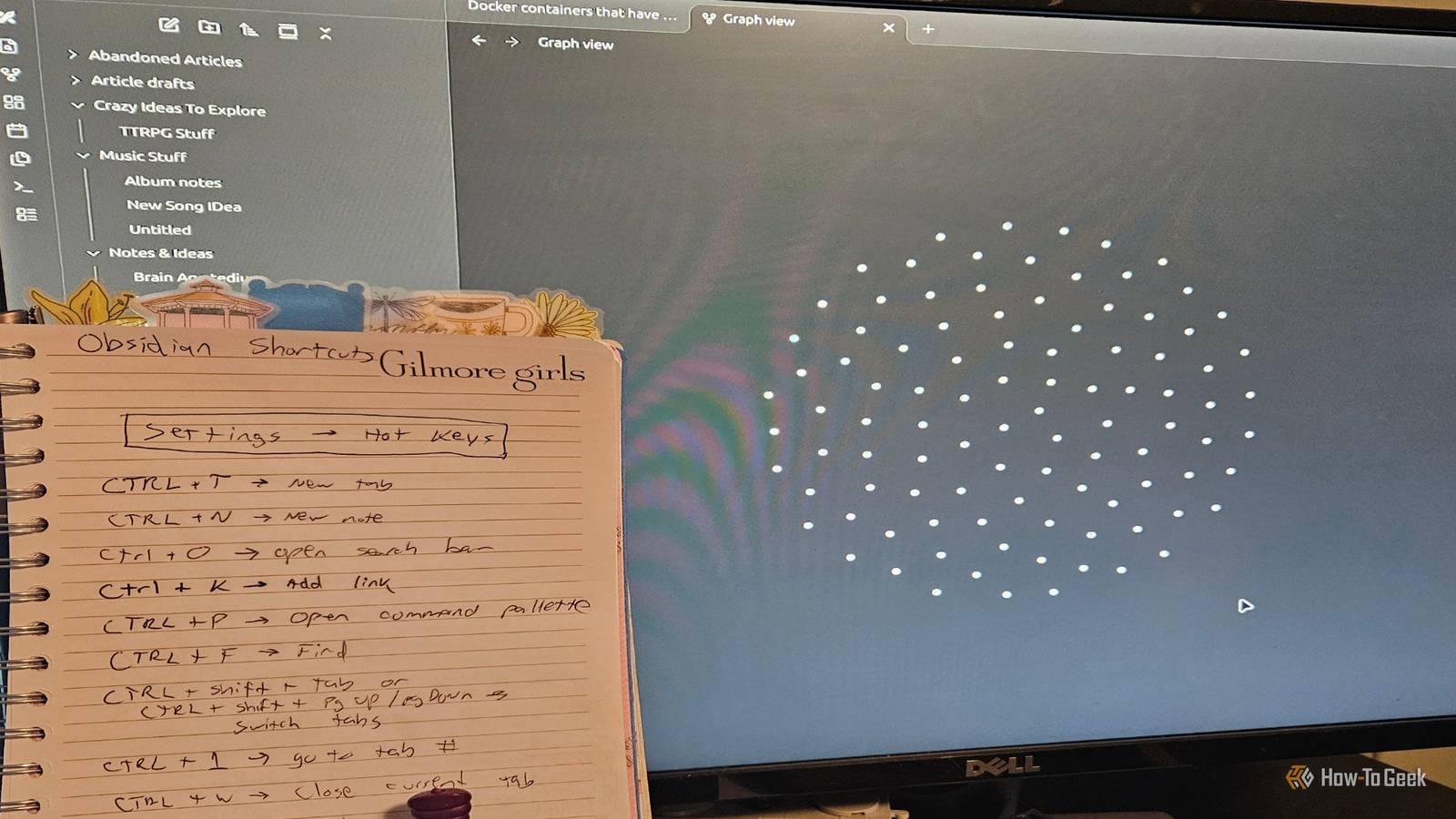
For tab navigation, I use both CTRL + 1 to navigate to different tabs (or sub a 2, 3, 4, etc.for additional tabs).I also use CTRL + PGUP and CTRL + PGDN for quick tab navigation.
CTRL + T for a new tab is super useful.Ditto for CTRL + N for a new note.CTRL + W closes the tab you're currently working on.
I also like to check out my graph every so often using CTRL + G.It's getting pretty big.While I use these shortcuts often, there's one that I use almost every time I open the software on any device.
And it helps me find what I need fast.Find and access notes quickly with this shortcut The best way to find files is hidden in plain sight I tend to save a metric ton of notes, images, clipped pages, recordings, and, well, lots of file types in Obsidian.I organize them by topic, but there are so many that I need a way to track them down quickly.
Once again, a simple shortcut comes to the rescue.CTRL + O is my go-to shortcut for getting around quickly.Simply hit the key combination and a search bar pops up, with your most recent notes listed below it.
You can choose one from the list or type the first few letters of the note you're looking for in the search box.If you're new to Obsidian or building a Knowledge Base in general, this can be a very handy shortcut for getting around quickly.I've also found it useful for finding notes that I've completely forgotten about when searching through my notes.
Inserting links and images into Obsidian is pretty easy.You just write something like this, wrapped in brackets and parentheses: [link anchor text](your actual URL).But have you ever exported your note and realized your links are totally borked? It happens.
Just like in Google Docs and Microsoft Word, you can use CTRL + K to insert your links.It's a quick and efficient way to add links to your article without messing them up or getting the syntax wrong.Assigning hotkeys to advanced tools You don't need a mouse for these Close Now, we're going to get into some more complex territory by some shortcuts specific to a workflow.
Hotkeys are shortcuts that you assign yourself.Some Obsidian tools, like folding notes, require a mouse.That is, you assign a hotkey to the function.
Specifically, I set CTRL + R to fold headers.To access hotkeys, navigate to the little gear icon near the bottom of your Obsidian sidebar.From there, select hotkeys.
It'll populate a huge list of commands and the shortcuts assigned to them.Just go down the list, choose the one you want, and add your shortcut.If it turns red, that means a different command is currently using that particular key combination.
The main hotkeys I set up for my workflow are the folding one from above, export to PDF (CTRL + ALT + E) and inserting a table (CTRL + [).From there, you can add or adjust shortcuts to your heart's content and set the layout to whatever works best for your workflow.The most useful shortcut opens more features The easy way to access commands I can't overstate how much I love having quick access to Obsidian's command palette.
When I work in the app, I use Markdown.But sometimes, you might forget a specific formatting option or need to assign an alias or backlink.The command palette also lets you insert an (or create a new one) into your document and do basically anything you need formatting-wise with just a few keystrokes.
Shortcuts make Obsidian even better Obsidian is still my preferred knowledge builder and writing app.Shortcuts are a major part of that.I prepared this collection of shortcuts for beginner-to-intermediate Obsidian users, but if you're an advanced or longtime user, we'd love to hear your favorite shortcuts, too.
Until then, I'll keep building out my Knowledge Base any way I can.Related Scratch turns anyone into an app maker, even if you've never written a line of code Turn your digital art into fun interactive weekend projects with your kids, with this simple, code-free tool.Posts By David J.
Buck
Read More