Sometimes, you just need an extra GPU.I'm not going to ask questions.Even though SLI and CrossFire are dead and buried, there are still plenty of legitimate uses for a second GPU, and in fact those use cases are growing.
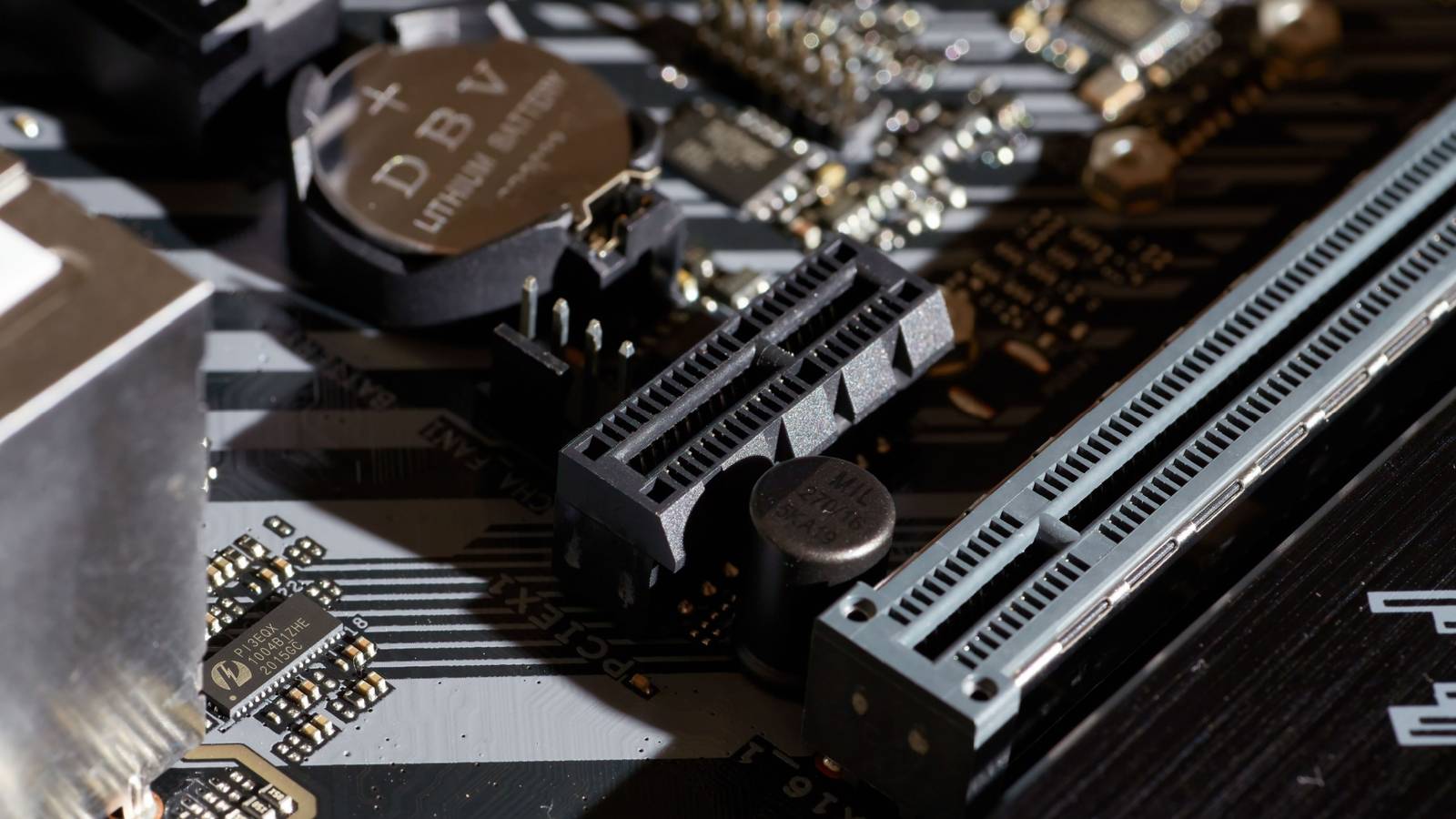
Unfortunately, peering through the window of your computer case you notice that your motherboard only has one PCIe slot long enough for a GPU.The easiest solution is to buy a new motherboard, but not only is that expensive, it means effectively rebuilding your PC and that's no fun.So before you order a motherboard, there are some alternatives to consider.
Use the M.2 slot with a PCIe riser adapter Yes, really! If your motherboard has open M.2 slots that work with NVMe drives, then you can access the (usually) four PCIe lanes for that slot using a PCIe riser adapter.Yes, this only gives your second GPU access to four PCIe lanes, but that's not necessarily an issue.If we're talking about PCIe 5.0 lanes, that's the same bandwidth as eight PCIe 4.0 lanes or 16 PCIe 3.0 lanes.
In other words, don't be too hung up on the number of lanes, but whether the total bandwidth is enough for that GPU to do the job you have in mind for it.The only fly in the ointment here is how many PCIe lanes your CPU and motherboard offer.Filling a spare M.2 slot might cause your PCIe 16x slot where your primary GPU sits to drop to half speed.
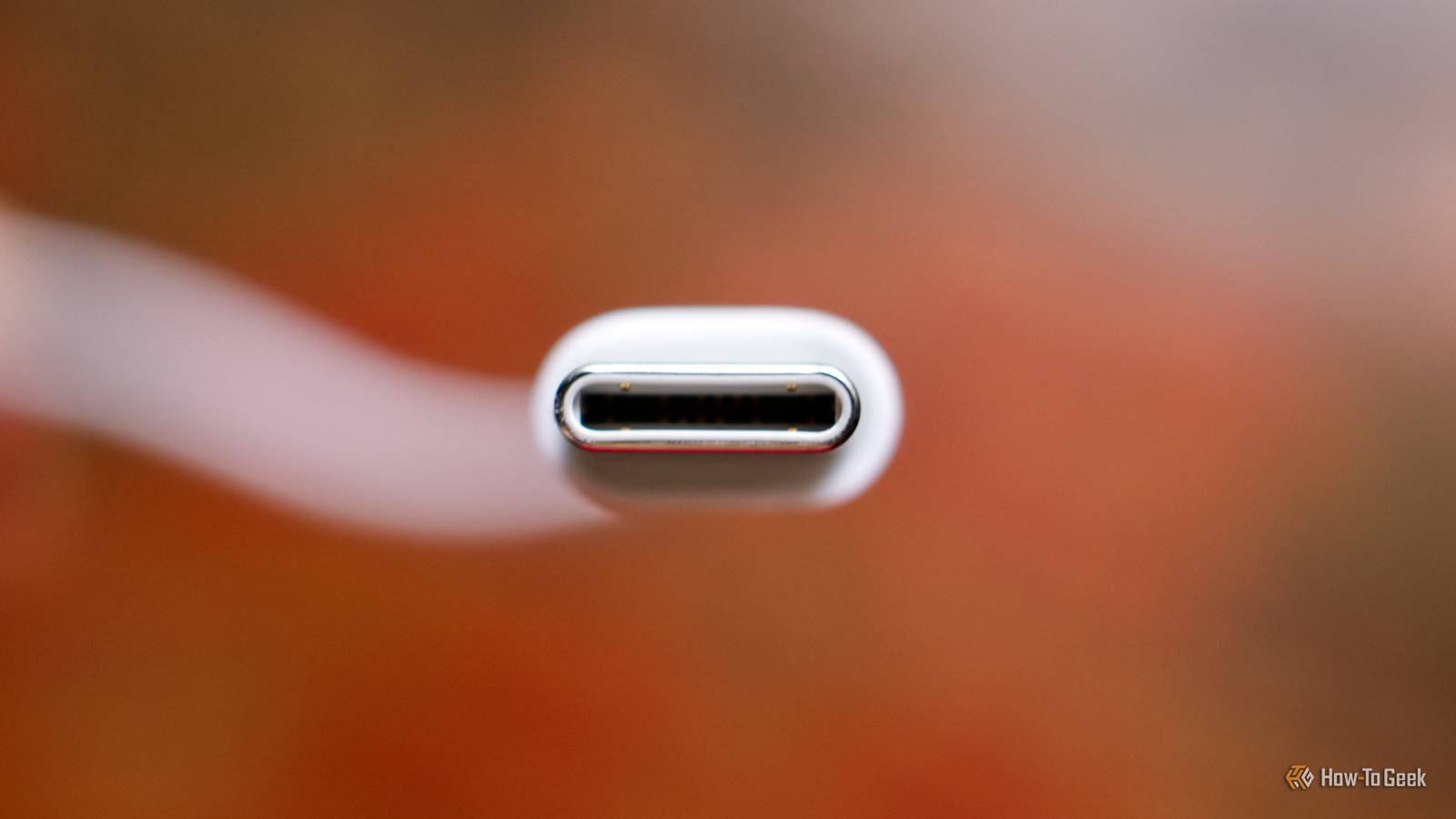
This is also only a problem if your GPU needs more bandwidth than this.So consult your motherboard and CPU documentation to check how many lanes you have and how the motherboard distributes them depending on what's plugged in.Thunderbolt/USB4 The vanilla options If your motherboard (or an add-in card) has Thunderbolt over USB-C or USB4, then you may have the option to buy an external GPU enclosure which can take any card you already have on hand.
Assuming it fits the physical case and the power supply is up to it.Alternatively, you can buy a dedicated eGPU which is an all-in-one solution but can't be upgraded later.Since this method gives you at best around four PCIe 3.0 lanes worth of bandwidth, it's not worth connecting a particularly powerful card this way.
Aim too high, and you'll simply be bottlenecked by limited bandwidth.However, if you pick your card well to match the available bandwidth, you can still get balanced performance.If your GPU workload doesn't depend on bandwidth (e.g.
AI models loaded completely into VRAM), then this isn't a concern, and you can simply pick the best card you can afford.Use OCuLink (if your board supports it) Nice, if you have it OCuLink is pretty much the same deal as using Thunderbolt or USB4, but it offers more bandwidth for eGPU needs and is generally the better choice.The catch is that your motherboard almost certainly doesn't have OCuLink built in.
It's still relatively rare, especially in desktop systems.However, that doesn't make it irrelevant, not by a long shot.If you have a 1x, 4x, or 8x PCIe slot open on your motherboard, you can purchase an OCuLink PCIe card that will give you a commensurate amount of bandwidth.
For example, an 8x OCuLink card could provide eight lanes of PCIe 4.0 bandwidth.Plenty for a powerful GPU.USB graphics adapters (with major limitations) It can work in a pinch If the reason you're trying to add a second GPU has nothing to do with GPU power, and you're only trying to connect more displays, you can use USB adapters to get the job done.
There are some options here.If you have USB-C ports that support DisplayPort Alt Mode, that's ideal.Just get the adapter of your choice and get a direct PCIe tunnel to your GPU.
If you don't have DP Alt Mode ports, you can use USB DisplayLink adapters, but these are software emulated, and while they are fine for web browsing and other basic tasks, don't expect to play video games or anything that requires acceleration.Turn another PC into a GPU node The advanced solution Another option exists, even if it's somewhat unorthodox.You can use a second computer as a GPU node.
Some software supports network rendering, so if you have a dedicated 2.5Gbps or 10Gbps connection to a second computer, you can offload certain GPU jobs such as video processing or anything that doesn't have to happen in real time.Subscribe for practical GPU upgrade workarounds Get the newsletter for tested, practical ways to add a second GPU—M.2-to-PCIe risers, eGPU via Thunderbolt or OCuLink, USB display adapters, or using another PC as a GPU node—each option's tradeoffs and setup pointers explained.Get Updates By subscribing, you agree to receive newsletter and marketing emails, and accept our Terms of Use and Privacy Policy.
You can unsubscribe anytime.The configuration might be complex, and it's going to be different for every job, but it is possible with some effort.Before I forget, if you have an iGPU, you might have the option of activating it in tandem with your graphics card.
Some modern iGPUs are quite capable, and you can use them to do light duty while using your main card for heavy lifting, if that configuration works for your needs.
Read More