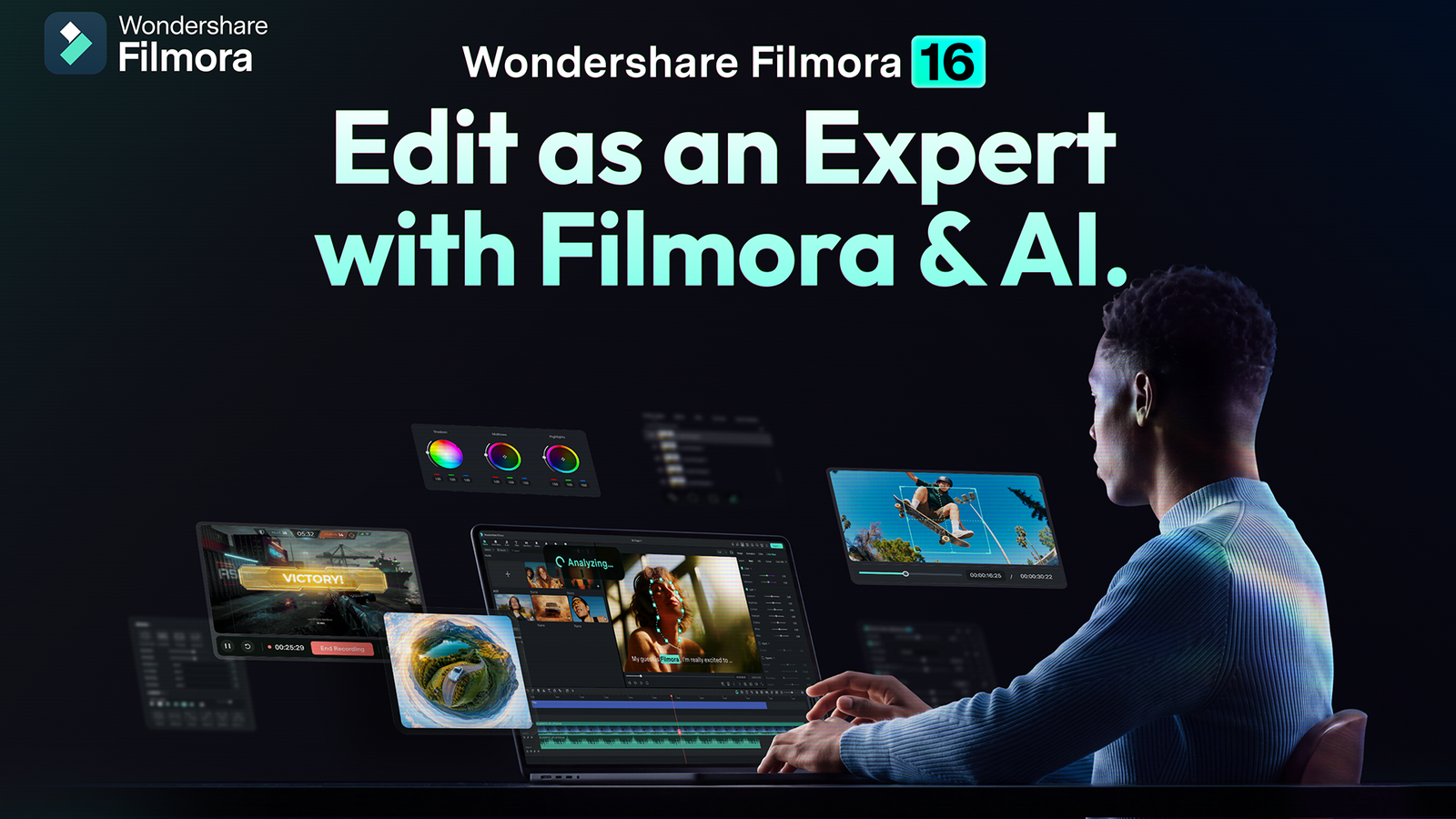
It’s probably not your recording equipment that’s stopping your videos from achieving that polished, professional aesthetic.You don’t actually need an expensive production setup to create sophisticated video content.It’s often the editing details – color profile, movement, tracking, animations, layering – that make your footage feel like an entire team spent hours putting it together.
Add How-To Geek on Google Add as Preferred Source Follow on Google Discover Filmora 16 video-editing software makes professional-looking video creation more accessible by simplifying advanced editing techniques.Its streamlined suite of tools can help you produce the kinds of refined effects associated with more complicated editing workflows.Techniques such as tracking, masking, compositing, color correction, and motion design are simplified in Filmora’s intuitive editing environment.
The result: you can use a focused set of professional editing tools to follow your subject as they move through the frame, isolate specific parts of your footage with masking, automatically enhance your color profile, or layer elements on screen without adding unnecessary complexity to your workflow.When traditionally technical editing techniques become approachable, you can focus more on the visual result and less on complicated execution.Several Filmora 16 tools can take your videos from ordinary to eye-catching, and we cover them below.
Camera Tracking: Follow your subject Wondershare Filmora 16 Key highlights Camera Tracking, Color Mask, Video Animation, Track Matte, Keyframe Motion Blur Brand Wondershare Free trial Yes Platform Windows, macOS The Wondershare Filmora 16 video-editing software makes professional-looking video creation more accessible by simplifying advanced editing techniques.Its streamlined suite of tools can help you produce the kinds of refined effects associated with more complicated editing workflows. See at Wondershare Expand Collapse The new Camera Tracking feature helps you follow the subject of your video more intuitively.You can track a head, body, or custom target throughout your footage so that they stay centered, and the shot looks smooth and professional.
Camera Tracking is especially helpful for videos with lots of movement, such as fitness and sports content, pet videos, or on-the-go content like walking vlogs.It can be easy to lose focus when your subject moves across the frame, but this feature allows you to select your subject so that the Camera Tracking automatically follows, without manual keyframes or extra tools.The result is a high-end effect, but the real benefit is reducing the amount of manual work to get there.
Color Mask: Fine-tune specific parts of the frame Applying the same color adjustments to an entire clip is fine when you want an overall filter effect, but sometimes just your subject or one on-screen element needs fine-tuning.The Color Mask feature lets you select specific areas to apply color adjustments without affecting the rest of the frame.You might have a vibrant background with a somewhat dull-appearing subject in the foreground.
Or maybe the entire clip has great exposure, but you want to create a stronger contrast between the foreground and background.Color Mask has tons of applications that can draw attention to a subject, change the appearance of a particular object, create a more stylized look, refine the colors of the featured product, or just touch up your color profile in a more intentional way.Using selective Color Mask adjustments offers more deliberate control over your color palette and overall vibe than using a global filter.
Track Matte: Creating layered compositions Layers can make any video instantly more sophisticated.Filmora’s Track Matte tool lets you use the content of one track to control which parts of another track remain visible based on either transparency (alpha) or brightness (luminance).You can use an Alpha Matte, which uses the transparency of the matte layer to determine the parts of the underlying clip that will show through.
You can use a Luma Matte, which uses brightness, revealing areas based on their lightness or darkness.Or you can use an Inverted Matte, which reverses the effects, instead hiding areas that would show through and revealing the opposite areas.There is a ton of space for creative play when creating layered compositions, creative text reveals, and transitions.
You can use text to fill the letters with videos, turn shapes into windows that reveal the footage beneath, or make creative transitions and reveals.This is one of those editing details that makes a video substantially more professional without the painstaking layer-by-layer manual editing process.Auto Color: Improving and correcting for consistent color Think about any visually stunning movie that you’ve ever seen (ahem, Wes Anderson).
They always have thematic colors and lighting, so even the bright scenes and dark scenes have visual continuity.When you’re producing video content, you may have footage from different cameras or phones, plus a range of lighting conditions and locations.Filmora’s Auto Color detects and improves common color and exposure issues.
This offers a quick starting point for color correction so that you can fine-tune your overall look.From here, you can color grade and manually adjust for a cohesive color profile.Having a consistent visual style will set your videos apart and make disjointed footage feel like it belongs together.
Video Animation: Control movement and visual rhythm A well-shot video can fall flat when every clip feels static.But manually building out every animation can become tedious and overwhelming.Filmora 16 expands its range of preset In, Combo, and Out animations for video clips, giving you more control over how footage enters, exits, and moves within your videos.
You can now apply In, Combo, and Out animations to the same clip, with Combo animations adding movement during the main part of the clip.The wider selection of presets also makes it easier to create engaging, trend-driven videos without building everything from scratch.A little movement goes a long way in shaping a video’s visual flow.
You can independently adjust a Combo animation’s start time, end time, and duration within the section between the In and Out animations, offering more control and flexibility.You can direct viewers’ attention, create a visual rhythm, emphasize key moments, add energy to transitions between shots, and give short-form content a more dynamic feel.For example, a product clip could enter with a smooth zoom-in followed by a brief movement timed to a beat in the music partway through the clip, and then finish with a zoom-out for the exit.
Your travel video could feature a quick zoom to highlight a destination or a shake effect to add more drama to an exciting moment.A fitness creator could add punchier movement to their workout footage, matching the video’s energetic pace to keep the content lively.These preset animations are a simple way of adding visual interest while elevating your content’s production value.
Keyframe Motion Blur: Give fast movement a natural feel If you’ve ever watched animated text or graphics move around the screen while remaining perfectly sharp, the result can feel a bit uncanny.Keyframes let you control an element’s movement by setting its position at different points, but fast-moving elements can look overly crisp as they travel around.This is where Filmora 16’s Keyframe Motion Blur comes into play by adding blur to keyframed movement.
This helps animations appear more fluid and integrated with the footage, avoiding that overly digital or artificial aesthetic.A product name that slides across the screen is less jarring with a touch of motion blur, providing a sense of speed and movement.Keyframe Motion Blur is another subtle detail that takes your content from average to impressive.
It’s a small finishing touch that has an almost indescribable impact on your finished product.Professional results without a complicated workflow You don’t need a team of editing pros to create polished, shareable video content.Filmora 16’s tools for tracking, color correction, masking, compositing, and motion design let you add visual flair and refined effects without the time-consuming, complicated editing process.
Wondershare also extends this approach to Filmora.TV, a browser-based AI creative studio for commercials, brand films, and product videos.Creators can develop scripts and storyboards on an infinite canvas, generate content across multiple AI models, and move selected shots directly into a built-in multi-track timeline.With shared projects and feedback kept alongside the creative work, teams can carry a production from its initial brief through to delivery in one connected workspace.
The Filmora 16 features covered above offer more control over your finished product while keeping the editing process streamlined and approachable.For creators who want to elevate their videos without becoming an editing expert, Filmora 16 closes the gap between basic editing tools and the traditionally complex workflows associated with professional video production.
Read More