Cloud-based coding assistants are definitely helpful, but they come with recurring subscriptions or pay-as-you-go costs, and you're putting potentially proprietary information onto the internet.The good news is that you can move the entire operation onto your own hardware.By running Ollama and connecting it to VS Code through a special extension, you can stand up a private, offline, no-subscription alternative to the big Cloud models very easily.
Local coding agents are great for cost and privacy Privacy, no subscription fees, and offline use Coding agents are more popular than ever, and thanks to recent improvements, local coding agents are increasingly a viable replacement for the big cloud models, especially if you can break up your work into smaller chunks.Running things locally has a few advantages, the most immediate of which is privacy.When your code never leaves your machine, you reduce the risk of leaking proprietary code, exposing data, or violating regulatory requirements.
If you're working on something sensitive, or you're just privacy-conscious, then local models are a great option.Beyond that, you can forget about API metering or monthly subscriptions.You can run your coding assistant however much you want and your only real monthly cost is the electricity, plus the distributed cost of the hardware.
It sounds rough at first, but when you consider that Claude functionally starts at $100 per month (the $20 plan is going to be too limited for most heavy users), that quickly adds up to the MSRP price of an RTX 5080.Claude Price $20 Claude is an AI assistant made by Anthropic. It can assist with a wide range of tasks—writing, coding, analysis, research, and more. Unlike a search engine, Claude reasons through problems conversationally, making it useful as a thinking partner rather than just an information retrieval tool.See at Claude Expand Collapse If you like the idea of controlling your data, cutting a subscription, and you have the hardware, a local AI is a great option.
What a local AI setup actually needs There are three components to a local AI coding agent When you run a large language model as a coding assistant, there are three things you need: Ollama — Hosts the large language model VScode with Continue or Cline — Provides a user interface in VS code An LLM — An LLM of some kind to actually help with coding You can use any LLM you like, but keep in mind that LLMs are very RAM intensive.A decent rule of thumb is that every billion parameters will require 1 gigabyte of VRAM for a standard 8-bit model.So Gemma 4 12B would need 12GB of VRAM, not including space for the context window.
You also need to account for your context which is just how much "stuff" you feed your AI combined with how much it puts out.Your context window can use up anywhere from a few hundred megabytes to many gigabytes.If you're running close to your VRAM limit, keep a close eye on this—it could easily cause you to offload to your CPU, which will bottleneck your performance massively.
Quantization is your best friend—with a catch This is where quantization—which can be thought of as a form of model compression—can help.To get a general idea if your model will fit, divide your quantization by 8 and then multiply that whole value by the parameter size of the model.For example, if you ran a 5-bit quantized version of Gemma 4 12B, you could reasonably expect it to fit into 7.5GB of VRAM, since 5/8 times 12 is 7.5.
That is precisely why 3-bit quantized models of Qwen 3.6 27B can be run on a GPU with 16GB of VRAM—they only use up 10-13.5GB of VRAM compared to the full 8-bit model.There isn't a firm answer to "which model should you use." In general, quantized models aren't as intelligent as their unquantized variants, and the more quantized a model it is, the less intelligent it will be.I'd preclude 2-bit quantizations immediately—they're almost never worth it.
3-bit models are okay, however.Additionally, I'd avoid running heavily-quantized versions of small models.They're already pretty lean, and the loss in intelligence is usually too significant to be useful.
Setting up a local coding agent Getting Ollama and your model running To get started, download and install Ollama using the installer from the Ollama website.If you're using Windows or macOS, there is an actual installer available.If you're using Linux, you'll need to use curl.
Once installed and running, you need to pull models that fit your hardware.For example, if you wanted to pull the Unsloth quantized version of Qwen 3.6-27B, you'd run: ollama run hf.co/unsloth/Qwen3.6-27B-MTP-GGUF:Q3_K_S I've been using batiai/qwen3.6-27b:q3 for my more advanced local coding model.If you find a model on Hugginface that you want to use with Ollama, open the model and click Use this model in the upper right.
It can generate a download link for you automatically.Be sure to confirm that the model you pull actually works with tools—not all do.Once that is done, you can run ollama ls to confirm it is available.
You can also use smaller, lighter models (look for something in the 7B range) for more intelligent autocomplete in Continue in conjunction with the heavier models.If you can't run a 27B coding assistant, try out a quantized 14B model or a 7B model instead.They're still quite good, especially for autocomplete.
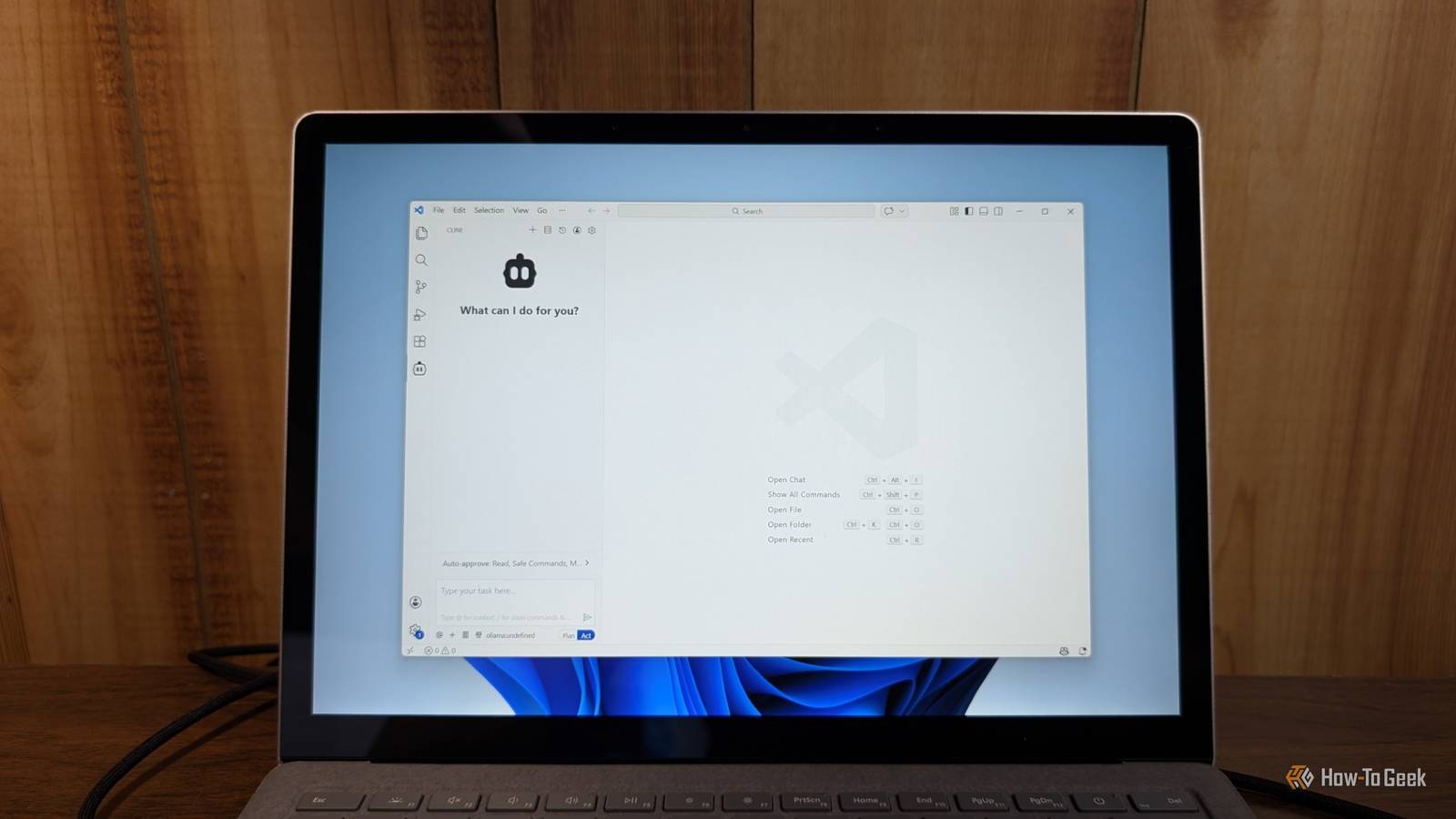
Set up your AI coding agent in VS Code Next, install the Cline or Continue extension in VS Code.Once it is installed, you just point your extension at the Ollama server running on your PC, and it'll be able to detect all of the models available to Ollama.Cline shines if you want something to produce fully-functional code blocks based on your instructions, it can't do inline autocomplete.
If you just want inline autocomplete, use Continue.Related This IDE actually made me a better programmer One IDE to rule them all.You won't want to use anything else.
Posts 2 By JT McGinty Once configured, send a few chat requests or autocomplete a few lines.If you notice the responses are lagging badly or the system feels sluggish, you should adjust your model size to something smaller to better suit your VRAM.You can also run ollama ps to see how your system is splitting resources between the GPU and CPU.
In an ideal world, you want 100% GPU—it is faster.Local coding LLMs do have some limitations CPU offload is a performance problem Local LLMs can replace some of the functions of larger cloud-based models now, which is great if you need the privacy or just don't want to pay for compute.It does have some drawbacks, however.
I'm using an RTX 5070Ti, which has 16 gigabytes of VRAM.In practice, that means that I can't use models with more than about 12B parameters (like Google's Gemma 4 12B) under normal circumstances.Between the context and the model itself, I use up that 16GB pretty quickly.
Once the 16GB is used up, it starts "offloading" to your CPU and system RAM.Unfortunately, that is slow by comparison.An LLM that might run at 70–90 tokens/s on a GPU will often slow down to 5 tokens/s with CPU offload.
If you're using it as a process, that is fine.If you're sitting there waiting for it to finish, it is pretty unpleasant.Private AI coding is now a practical daily tool, not an experiment Combining Ollama, Cline, and a dedicated code model creates a local version of Claude or Copilot that is actually useful for daily work, as long as you're careful about how you use it.
While the cloud has its advantages in raw power, the local approach pays off the moment privacy or cost becomes a primary concern.
Read More