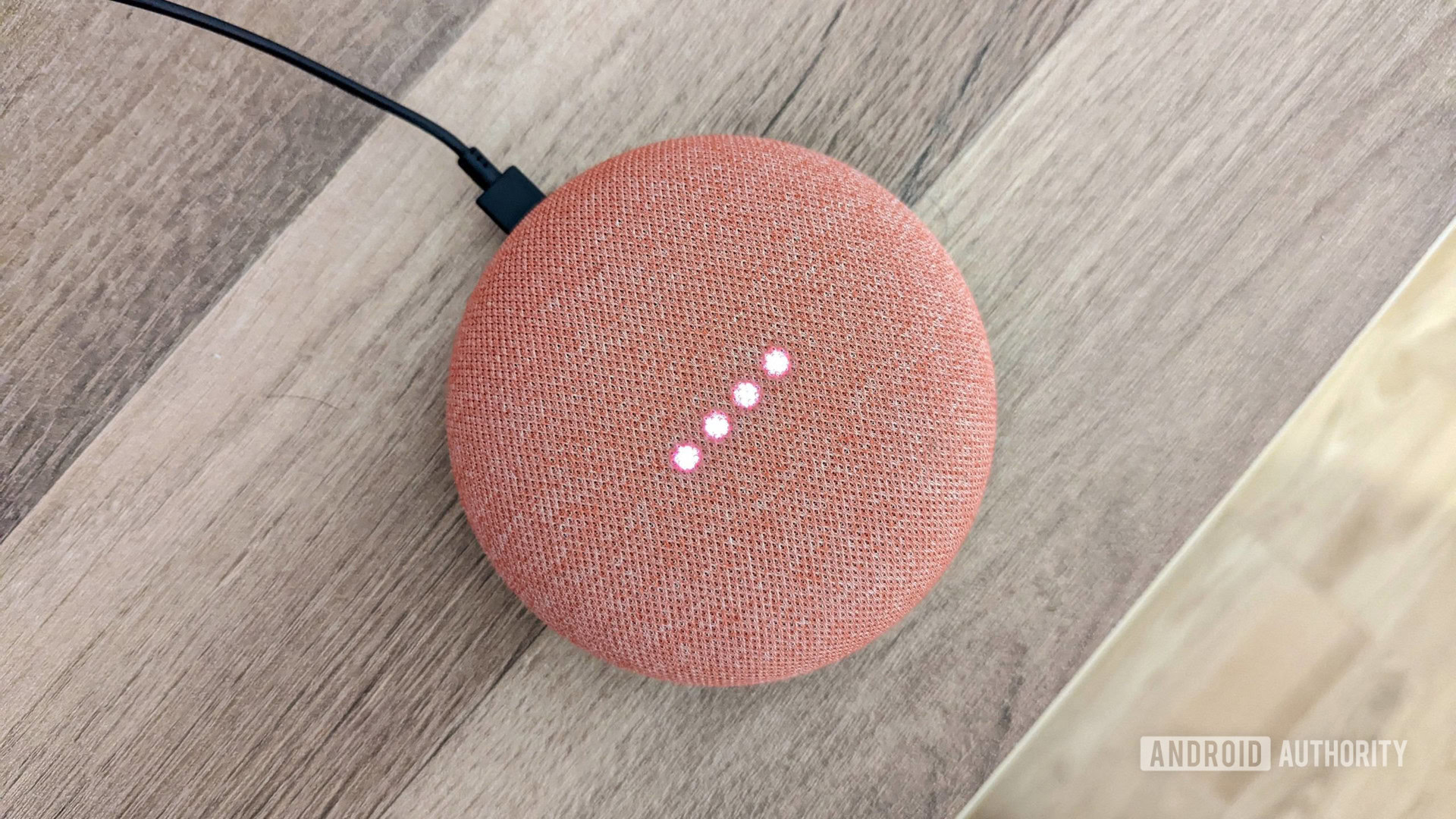
Rita El Khoury / Android AuthorityIn late October, Google officially began its big rollout of Gemini for Google Home.Google Assistant hasn’t been doing Google’s smart speakers and displays any favors in recent years, so the transition to Gemini has been long-awaited.There’s just one problem.Although Gemini for Google Home started rolling out on October 28, it looks like many Google Home users haven’t received the update yet — myself included.
My Google Nest Hub has been stuck on Google Assistant, or at least it was up until a couple of days ago.If your Google Home speaker/display is also still using Google Assistant, here’s how to get the Gemini upgrade right now.Have you received Gemini on Google Home yet?1741 votesYes, I have.12%No, I haven't.88%How to activate Gemini for your Google Home speakerThe first thing you’ll want to do is confirm that you joined Google’s early access program for Gemini.Gemini is currently rolling out only to Google Home accounts in this early access program, and if you never joined, that could be why your speaker/display is still running Google Assistant.
To check this, follow these steps.Open the Google Home app on your phone.Tap your profile picture in the top-right corner.
Tap Home settings.Scroll to the bottom of the page.Tap Early access.
If you’re prompted to join the program, go ahead and do it.It may take a little while for Google to confirm your registration, so don’t expect Gemini to appear immediately after joining.If you’re already part of the early access program, or if it’s been a few days since you joined and nothing has happened, then it’s time to move on to the next part.Here’s what to do.
Open the Google Home app on your phone.Tap your profile picture in the top-right corner.Tap Home settings.
Look for the Gemini prompt at the top of the screen and tap Get started.Once you do this, you’ll be guided through a few onboarding screens that explain Gemini’s new capabilities.Keep tapping Next to go through these pages until you reach a new screen where you’ll tap Upgrade to confirm the transition.You’ll then get to select which Gemini voice you want to use on your Google Home devices, followed by choosing how Gemini responds to you vs.
guests/other people not in your household.And that’s it.The next time you talk to any of your Google Home devices, they’ll respond as Gemini instead of Google Assistant.
You’ll still see the old Google Assistant animation if you have a Google Home Hub or Nest Hub, but rest assured that it is actually Gemini.You can confirm this by asking, “Hey Google, who are you?”It’s worth noting that Google began rolling out Gemini for Google Home to another big wave of users on December 5.It’s very possible that, if you weren’t included in the initial wave from October, you’ll get access with this latest rollout.
Multiple Android Authority team members reported getting Gemini for Google Home on December 5, so be sure to check your app again soon if you haven’t in a while.What if Gemini for Google Home still isn’t showing up?But what if you’re still having trouble? If you’ve been part of the early access program for a while and don’t see that Gemini prompt in the Google Home app, are you completely out of luck? Not necessarily.Recently, some users discovered a “hack” to force Gemini for Google Home to appear on their devices when it wasn’t showing up in the Home app.And, surprisingly, it’s incredibly easy to do.
Open Google Chrome on your Android phone.Enter googlehome://assistant/voice/setup in the address bar.Tap the globe option (the second one you see).
Tap Continue on the prompt to continue in the Google Home app.Doing this will launch Google Home and take you to the same Gemini setup screens mentioned above.It’s worth noting that some users have reported that this only enables the new Gemini voice, not any of the other Gemini for Home features, but your mileage may vary.
At the very least, it’s a worthwhile last-ditch effort.Don’t want to miss the best from Android Authority? Set us as a favorite source in Google Discover to never miss our latest exclusive reports, expert analysis, and much more.You can also set us as a preferred source in Google Search by clicking the button below.
GuidesGoogleGoogle GeminiGoogle HomeFollowThank you for being part of our community.Read our Comment Policy before posting.