When a call comes in from a number you don't recognize, it can be hard to know whether to answer or not.I missed several calls from my Dad, who was ringing to tell me he had a new number, because I assumed it was a spam call.I tried Apple's call screening features, but they felt too restrictive and meant that I missed important calls from genuine callers, so I decided to build a shortcut to check numbers while the call is still coming through.
What the shortcut does Check a number while it's still ringing In the past, when I've had a call from a number I didn't recognize, I've copied the number, pasted it into Google, and looked it up to see if it appears on sites that list common scam caller numbers.The problem was that by the time I'd looked up the number, the caller had often hung up.I wanted a way to quickly check a number when the call comes through, so I built a simple iOS shortcut.
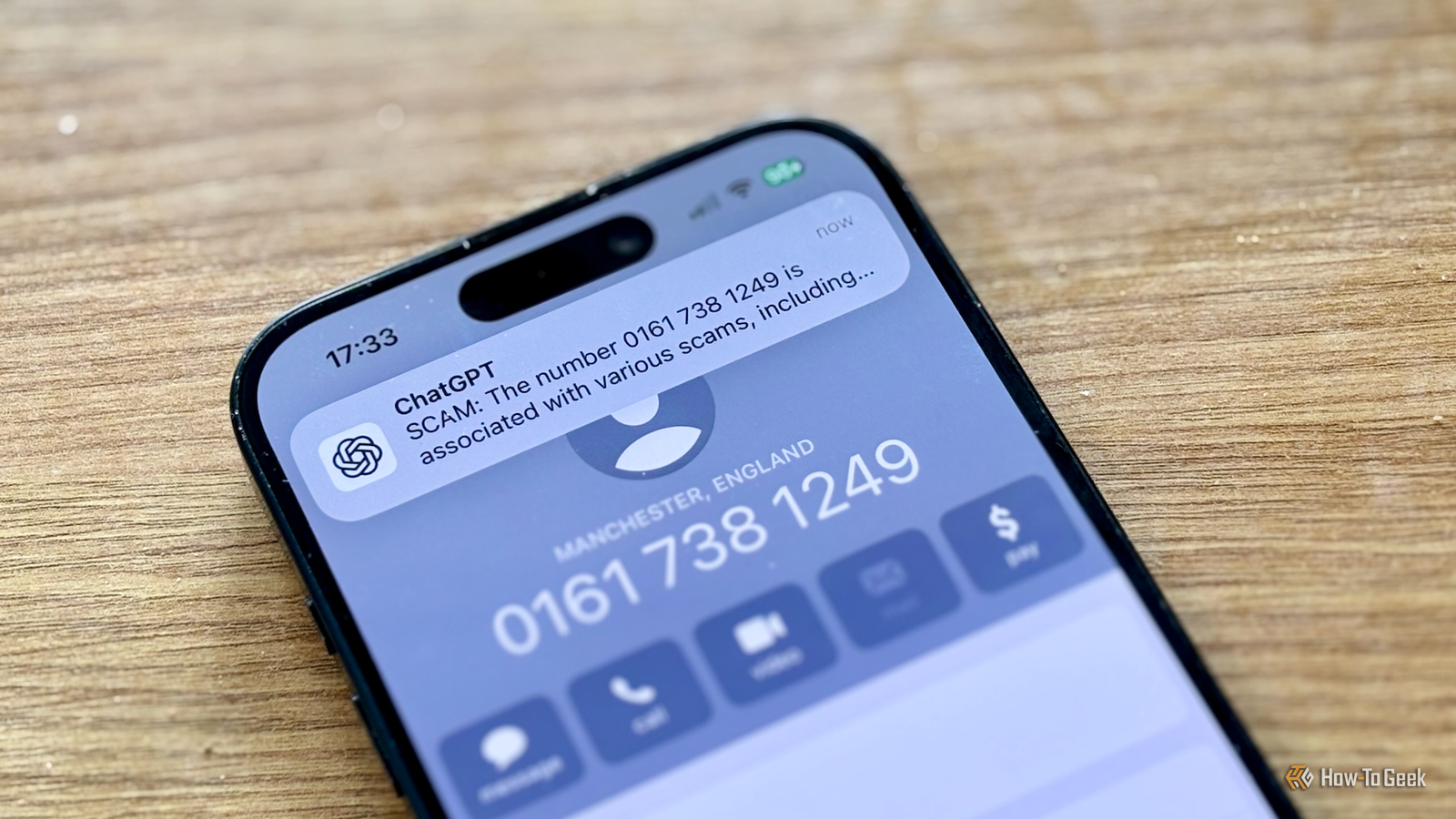
When my phone rings and it's a number I don't recognize, I triple-tap the back of my phone, which runs my scam checker shortcut.The shortcut takes a screenshot of my phone showing the incoming call number, extracts the phone number from the image, and then passes the number to ChatGPT along with a custom prompt.ChatGPT performs a web search for that number, looking for that or similar numbers on lists of known scam callers.
After completing the search, a message appears on the screen of my phone saying whether the call appears to be a scam or safe.I can then choose whether to answer the call based on the response.The shortcut takes a few seconds to run, but it's usually completed before the caller hangs up, unless they only hang on for a ring or two.
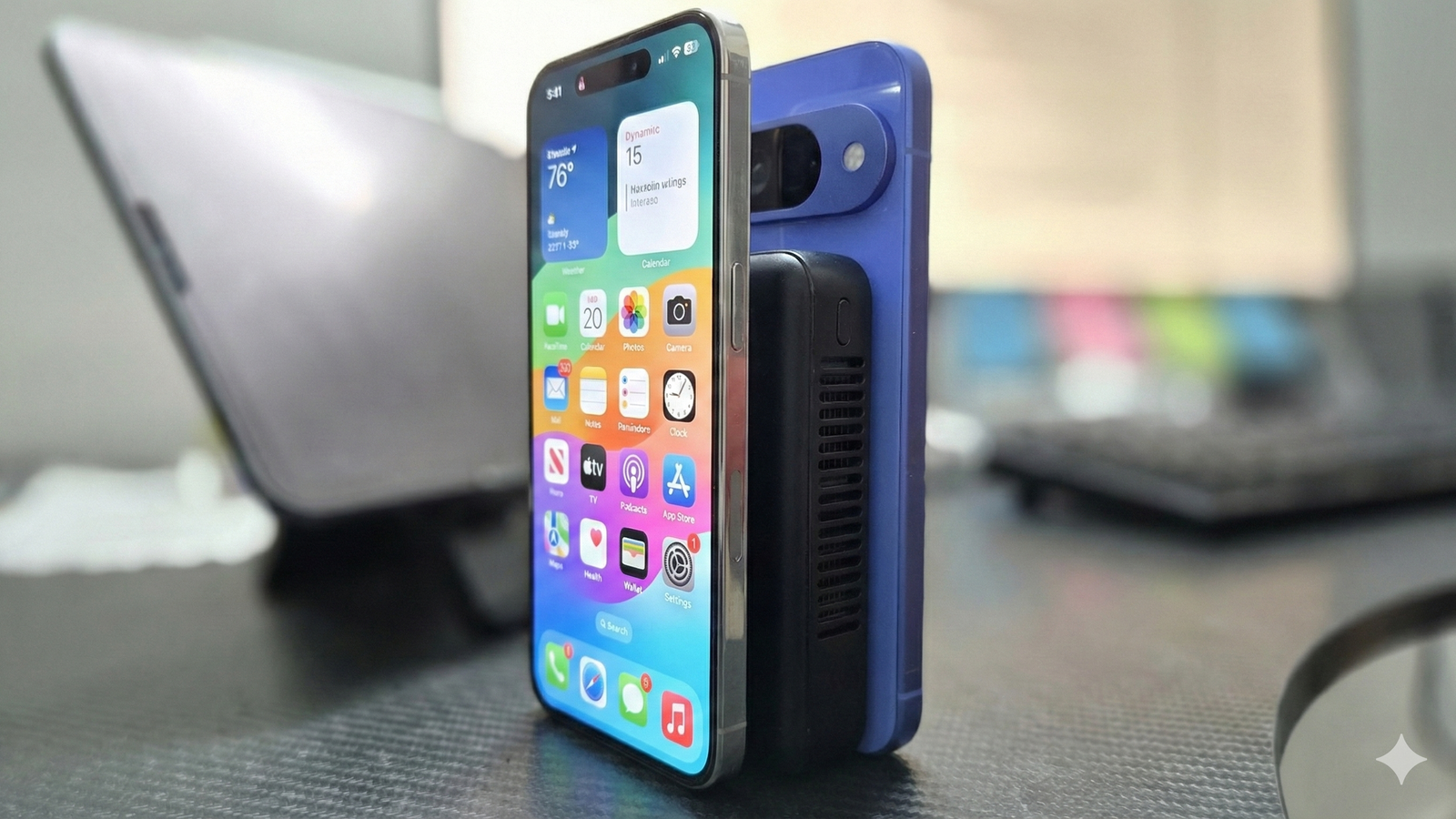
It means I have time to take the call if it's safe, or ignore it or hang up if it's a scam.Apple iPhone 17 Pro 8 SoC A19 Pro chip Display 6.3-inches The Apple iPhone 17 Pro is the company's most powerful smartphone to date, offering impressive cameras and the A19 Pro chip.It lets you do practically anything, including shooting quality videos.
Storage 256GB, 512GB, or 1TB Ports USB-C Operating System iOS Colors Silver, Cosmic Orange, Deep Blue Display type Super Retina XDR display Footnote $1099 at Walmart $1099 at Best Buy $1099 at Apple Expand Collapse Building the shortcut ChatGPT does the heavy lifting Building the shortcut was surprisingly easy to do.It only requires four actions to do what it needs to do.The first action is the Take Screenshot action, which takes a screenshot of whatever is currently displayed on the iPhone screen.
The second action is the Extract Text from Image action, which uses OCR to extract the phone number from the screenshot.The third action is Ask ChatGPT.For this action, I added the following prompt: Search for the phone number from this text and tell me if it's safe or spam.
Make the first word of the response either "SCAM" or "SAFE" and keep your response brief.The Text from Image variable generated by the previous action is then added at the end of the prompt.The final action is the Show Alert action.
This displays the output from the Ask ChatGPT action as a message on the screen, using the Ask ChatGPT variable generated by the previous action.I then set the shortcut to run when I tap the back of the iPhone three times, although you could use the Action button if you have one on your phone.To do this, go to Settings > Accessibility.
Under Physical and Motor, select Touch.Scroll down and select Back Tap.Select Triple Tap, scroll down, and select the shortcut that you just created.
Related The "I Changed My Number" Scam Isn't Going Away—Here's How to Protect Yourself Scammers pose as friends in trouble to drain your cash.Posts 9 By Ray Malik The shortcut isn't perfect AI isn't always right On the whole, the shortcut works really well.It's fast enough to tell me whether a call is genuine or likely to be a scam before most callers have hung up.
It doesn't always work perfectly, however.Sometimes I get an error telling me that I'm not signed into ChatGPT, which stops the shortcut from working.Opening the ChatGPT app usually fixes this.
Some scam calls still get through, too.Just because a number isn't found online doesn't mean that it's not a scam; it's just that no one has flagged that particular number yet.While the shortcut isn't perfect, it still works well enough for me to keep using it on a daily basis.
It's very satisfying knowing that a call is a scam and being able to ignore it without worrying that you're missing an important call from someone you know.Android has its own options Call screening and automation This trick uses iOS shortcuts, which means it's not possible to recreate it exactly on Android.However, there are options that Android users can use.
You can use the native call screening features on Android phones, although these can force genuine callers to have to identify themselves unnecessarily.You may be able to build a similar automation on Android using options such as Tasker.Tasker includes plugins that can send queries to AI services, so it should be possible to create an automation that does the same thing.
Miss fewer important calls I set up this shortcut because I was tired of missing important calls by not answering numbers I didn't recognize.It's definitely improved things; I've answered calls from people such as delivery drivers or the dentist, which I wouldn't have answered before, because the shortcut flagged their numbers as being safe.
Read More