Microsoft Excel handles temporal data effectively if you know which formulas to use.The problem is that Excel includes over 20 date and time functions, but most people only ever need a small core set to build powerful, self-updating workflows.These essential date functions turn messy timelines into automated systems you can actually rely on.
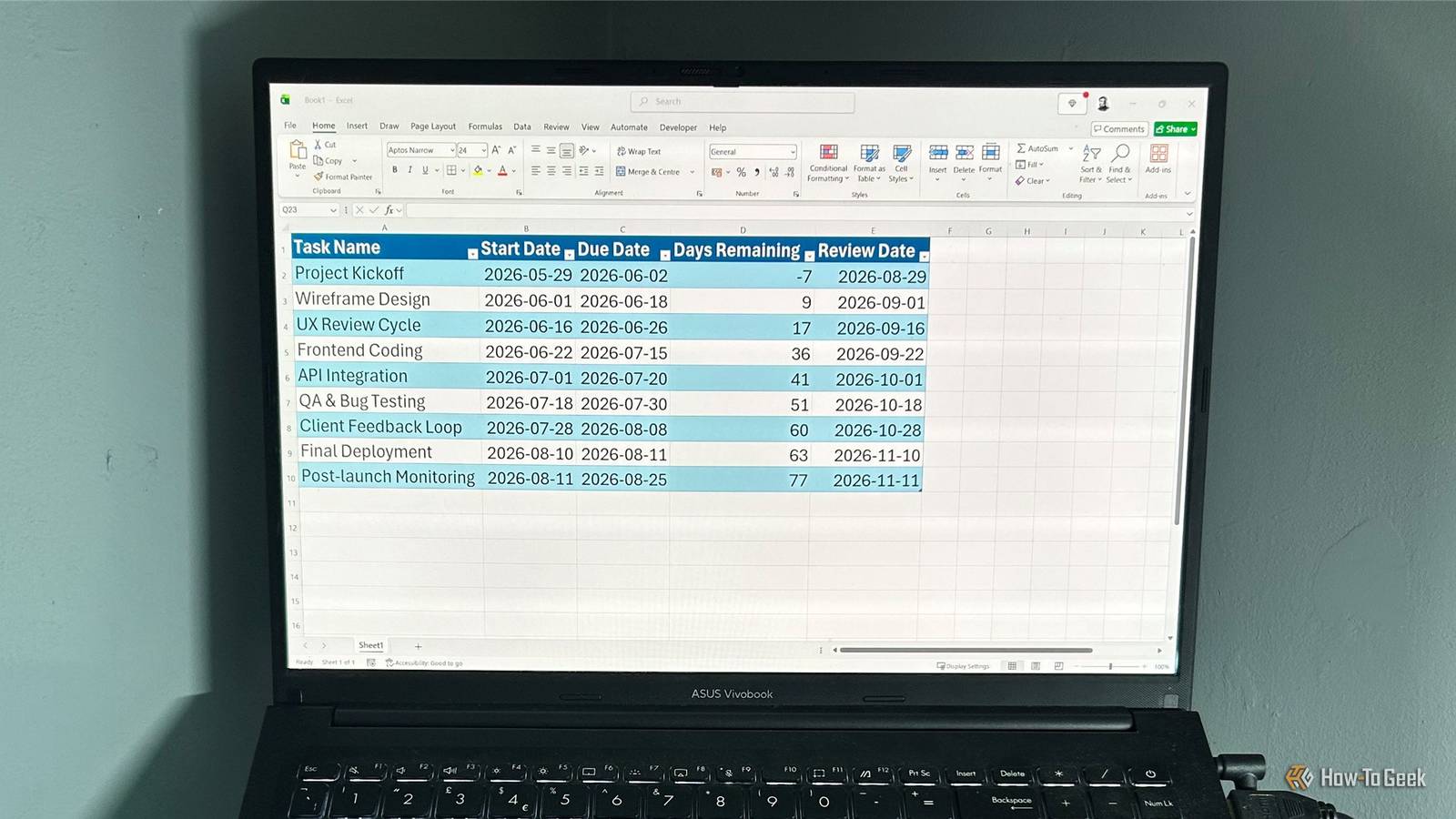
All examples in this guide use an Excel table (Ctrl+T) named ProjectTracker (pictured below).To follow along, download a free copy of the Excel workbook containing this table.After you click the link, you'll find the download button in the top-right corner of your screen.
Excel views your calendar as a massive string of numbers The secret logic behind spreadsheet dates Excel stores dates as serial numbers—starting at January 1, 1900—and displays them using date formats.For example, June 1, 2026 is stored internally as 46174.This allows you to perform arithmetic on dates, such as adding 7 to move forward one week.
Excel intentionally treats 1900 as a leap year for compatibility with older spreadsheet systems.This is not historically accurate, but it rarely affects modern workflows unless you're working with very old date ranges.Keep your timelines moving with real-time tracking Creating a live project countdown with TODAY If you currently update a "Today" cell manually each morning to keep deadlines accurate, Excel can replace that workflow with a dynamic function that always returns the current date.
To create a live countdown that updates automatically as time passes, add a new column with the following name, formula, and formatting: Column Name Days Remaining Formula =[@[Due Date]]-TODAY() Number Format General When you press Enter, Excel may automatically format the result as a date instead of a number.That's why you select the table column and set the format to General in the Number group of the Home tab.Each task displays the number of days remaining until its due date, with negative values indicating tasks that are already overdue.
The next time you open the workbook, the calculations will refresh and automatically update based on the new day.Isolate specific time frames by breaking dates into pieces Structuring reports with MONTH, YEAR, and WEEKDAY When working with project schedules, full date values like 2026-07-24 are often too detailed for analysis.You may need to group tasks by month, summarize yearly progress, or identify scheduling issues like weekend start dates.
To extract the month, delete the Days Remaining column, then add a new one with these parameters: Column Name Month Due Formula =MONTH([@[Due Date]]) Number Format General Each task returns a numeric month value, such as 6 for June or 7 for July, making it easier to filter and group tasks by month.To isolate the year for reporting across longer timelines, simply replace MONTH in the formula above with YEAR: Column Name Year Due Formula =YEAR([@[Due Date]]) Number Format General To identify scheduling issues, such as tasks that begin on weekends, you need a different approach because weekdays are not stored as simple calendar parts like month or year.Instead, Excel assigns each weekday a numeric position based on a selected system.
Here's what to do in a new column: Column Name Weekday Due Formula =WEEKDAY([@[Start Date]], 2) Number Format General With the 2 argument, Excel treats Monday as day 1 and Sunday as day 7.Without this argument, Excel uses its default system where Sunday is treated as day 1 and Saturday as day 7.Each task now returns a number from 1 to 7, where values 6 and 7 correspond to Saturday and Sunday, making weekend starts easy to identify.
Microsoft 365 Personal OS Windows, macOS, iPhone, iPad, Android Free trial 1 month Microsoft 365 includes access to Office apps like Word, Excel, and PowerPoint on up to five devices, 1 TB of OneDrive storage, and more.$100 at Microsoft Expand Collapse Calculate exact working durations without the weekend clutter Using NETWORKDAYS to measure real work time Calendar-based durations often overstate actual work time.A task running from Friday to Monday appears to take four days, even though only two are working days.
So, to calculate true working days between project milestones, add this column: Column Name Working Days Formula =NETWORKDAYS([@[Start Date]], [@[Due Date]]) Number Format General Excel returns the total number of working days between the start and due dates, counting both endpoints when they fall on working days.To include holidays, create a separate range containing vacation dates (for example, starting in cell F2).Then, select the first Working Days formula cell, and extend the formula to: =NETWORKDAYS([@[Start Date]], [@[Due Date]], $F$2:$F$5) Using absolute references ($) ensures the holiday range does not shift when the formula is filled down the table.
When you press Enter, you'll see that the calculation now excludes both weekends and holidays.If your workweek is non-standard, use NETWORKDAYS.INTL to define custom weekend rules.Map future deadlines and end-of-month cutoffs Using WORKDAY and EOMONTH for automated scheduling Beyond tracking existing timelines, Excel can generate future dates based on rules such as working durations and billing cycles.
To calculate a projected completion date based on working days, remove the Due Date column, then add these two columns.Column 1: Column Name Expected Duration Values Manually enter the number of working days.Number Format General Column 2: Column Name Projected Finish Formula =WORKDAY([@[Start Date]], [@[Expected Duration]]) Number Format Date Excel returns a date representing the expected completion based on the specified number of working days.
It automatically skips weekends and returns the next valid working date.To calculate billing cutoffs that always land on month-end, use this workflow: Column Name Billing Cutoff Formula =EOMONTH([@[Start Date]], 0) Number Format Date Excel returns the last day of the month for each task, making billing cycles consistent.Planning ahead with month-based review dates Shifting dates across months with EDATE Not all scheduling problems are about counting days.
In real project work, you often work in monthly cycles—such as scheduled reviews, audits, or check-ins that repeat at predictable intervals.Deals Unlock discounts on productivity software and subscriptions Explore savings on office suites, Excel add-ins, project-management apps, cloud storage, and productivity subscriptions.Compare deals and limited-time offers to lower costs while upgrading your work setup and timeline tools.
Deals Explore Software, AI & Subscriptions Deals For example, if a project phase starts on a given date, and you need to schedule a formal review three months later, Excel has a built-in function designed exactly for this.EDATE shifts a date by a specified number of months while preserving the day of the month when possible.Here's how to use it: Column Name Review Date Formula =EDATE([@[Start Date]], 3) Number Format Date This moves the start date forward by three full months.
For example, if the start date is June 1, 2026, Excel returns September 1, 2026.You can also move backward in time when planning earlier review checkpoints, such as retrospective checks or pre-launch assessments.In those cases, you use a negative value: =EDATE([@[Start Date]], -2) Unlike day-based subtraction, EDATE respects calendar structure, making it more reliable than manually shifting dates.
Take control of your spreadsheet timelines Ignoring Excel's built-in date tools often leads to hours of manual updates and fragile spreadsheets.By understanding how Excel stores dates and using functions designed to work with them, you can build schedules that update themselves and forecast future milestones automatically.Once you've mastered tracking time with formulas, the next step is visualizing it—turn your data into a dynamic timeline that updates as your project evolves.
Read More