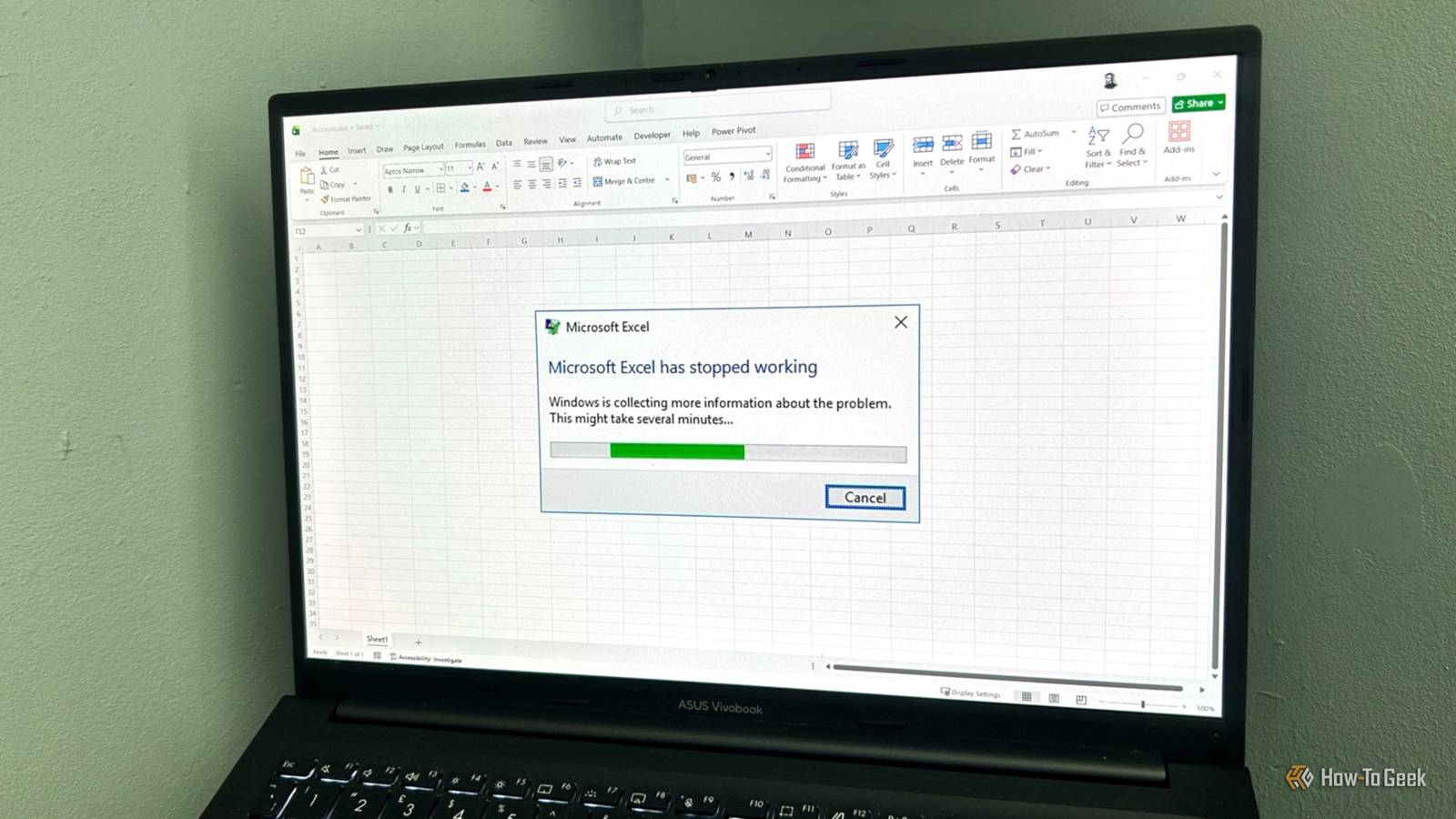
Many Excel tutorials give the same advice for speeding up spreadsheets: avoid volatile functions.While that can help, software settings often have a bigger impact on performance.If your spreadsheets lag—even on a high-end PC—you may need to change how Excel handles calculations.
These two buried settings can make large workbooks feel dramatically faster.Stop Excel from recalculating after every edit Take back control It's something we've all experienced at some point: you open an important workbook, click into a cell to update a single value, press Enter, and the software temporarily freezes.The cursor turns into a spinning blue circle, and you're forced to wait while Excel processes a large workbook just because you changed one data point.
This frustrating delay often happens because of Excel's default behavior.Out of the box, it's configured for automatic calculation.The moment a value changes, the software recalculates the affected cells and their dependents.
Related Your Excel setup is slowing down your workbook—here's how to fix it Ditching volatile formulas, using Power Query, and switching to binary formats can make bloated Excel workbooks feel fast again.Posts 1 By Tony Phillips If your spreadsheet is simple with just a few dozen rows, you get instantaneous feedback—and it feels great.But as your workbook grows into a sprawling file packed with thousands of complex formulas, certain formula types amplify this problem significantly.
Large lookup operations repeated across thousands of rows, along with volatile functions like OFFSET, INDIRECT, NOW, TODAY, and RAND, recalculate whenever you make any changes to the workbook, which can increase overall calculation load in large files.This creates incredibly long dependency chains, meaning the more complex your file becomes, the more background work Excel forces itself to perform after every edit.But large lookups and volatile functions can be really useful, so it's not always easy to just delete them.
Instead, take control of recalculation while you work.Here's how: Open the Formulas tab.Expand the Calculation Options drop-down menu.
Switch the setting from Automatic to Manual.Once you flip this switch, Excel no longer recalculates automatically after each edit.Instead, it waits until you manually trigger the process.
You can type, paste data, delete rows, and re-arrange blocks of information without waiting on the software—or, worse, worrying that it will crash entirely.Excel feels noticeably quicker because recalculation no longer interrupts your editing workflow.When you're ready to see the updated results of your work, simply press F9 to force a whole-workbook recalculation, or Shift+F9 to calculate just the active sheet.
Alternatively, click Calculate Now or Calculate Sheet in the Formulas tab.Manual calculation isn't ideal for every workflow.If you rely on seeing live results while building formulas or auditing data, Automatic mode is the better option.
Manual mode works best during heavy editing sessions where responsiveness matters more than immediate updates.Verify Excel is using all your CPU cores Maximize your hardware Modern versions of Excel are designed to handle heavy math workloads by using multi-threaded calculation.Instead of forcing your computer to process a massive chain of formulas sequentially using just a single execution path, multi-threading allows Excel to break your data down into independent workloads and solve them simultaneously across multiple CPU cores.
However, there are a few situations where these settings can change without you realizing it: Excel hit a resource limit: In some cases, Excel may temporarily reduce or disable multi-threaded processing when system resources are under heavy pressure.Recent Office patches and updates: Some Microsoft updates can occasionally adjust advanced performance settings.Third-party add-ins or VBA macros: Certain add-ins or legacy macros may adjust calculation settings during initialization, especially in enterprise environments.
Accidental changes: It's also possible that multi-threading can be disabled during troubleshooting or manual configuration changes.Multi-threaded calculation matters most when workbooks contain large numbers of formulas spread across substantial datasets.Financial models, reporting dashboards, forecasting sheets, and exported database tables often involve calculations that can be efficiently split across processor cores.
Smaller spreadsheets usually don't show dramatic gains, which is why these settings matter most when workbook complexity starts pushing Excel beyond lightweight use.Related Stop using so many tabs in Microsoft Excel Escape this common Excel habit that degrades performance and reporting Posts 9 By Tony Phillips To fix this bottleneck, you need to verify your configuration settings: Click File.Select Options.
Open the Advanced tab.Scroll down through the settings until you see the Formulas section.There, make sure Enable multi-threaded calculation is checked, and ensure the toggle is set to Use all processors on this computer.
Activating this setting allows Excel to break calculation work into smaller tasks and distribute them across your CPU cores.Standard calculations in large datasets often scale efficiently across multiple processors, but some operations still depend on single-thread speed.In rare cases, multi-threading can behave unpredictably when combined with older macros or certain background add-ins.
Verifying your settings simply ensures Excel uses its full capacity where possible.Microsoft 365 Personal OS Windows, macOS, iPhone, iPad, Android Brand Microsoft Price $100/year Developer(s) Microsoft Free trial 1 month Microsoft 365 includes access to Office apps like Word, Excel, and PowerPoint on up to five devices, 1 TB of OneDrive storage, and more.$100 at Microsoft Expand Collapse Reclaim your spreadsheet speed Even large workbooks don't have to feel painfully slow.
Switching calculation mode during editing sessions and confirming that Excel can fully use your hardware can make your spreadsheets far more responsive.For many large workbooks, these two settings can eliminate much of the slowdown, but small Excel workflow optimizations—like using the Name Box for navigation and personalizing the Quick Access Toolbar—can further improve your efficiency when working with large spreadsheets.
Read More