
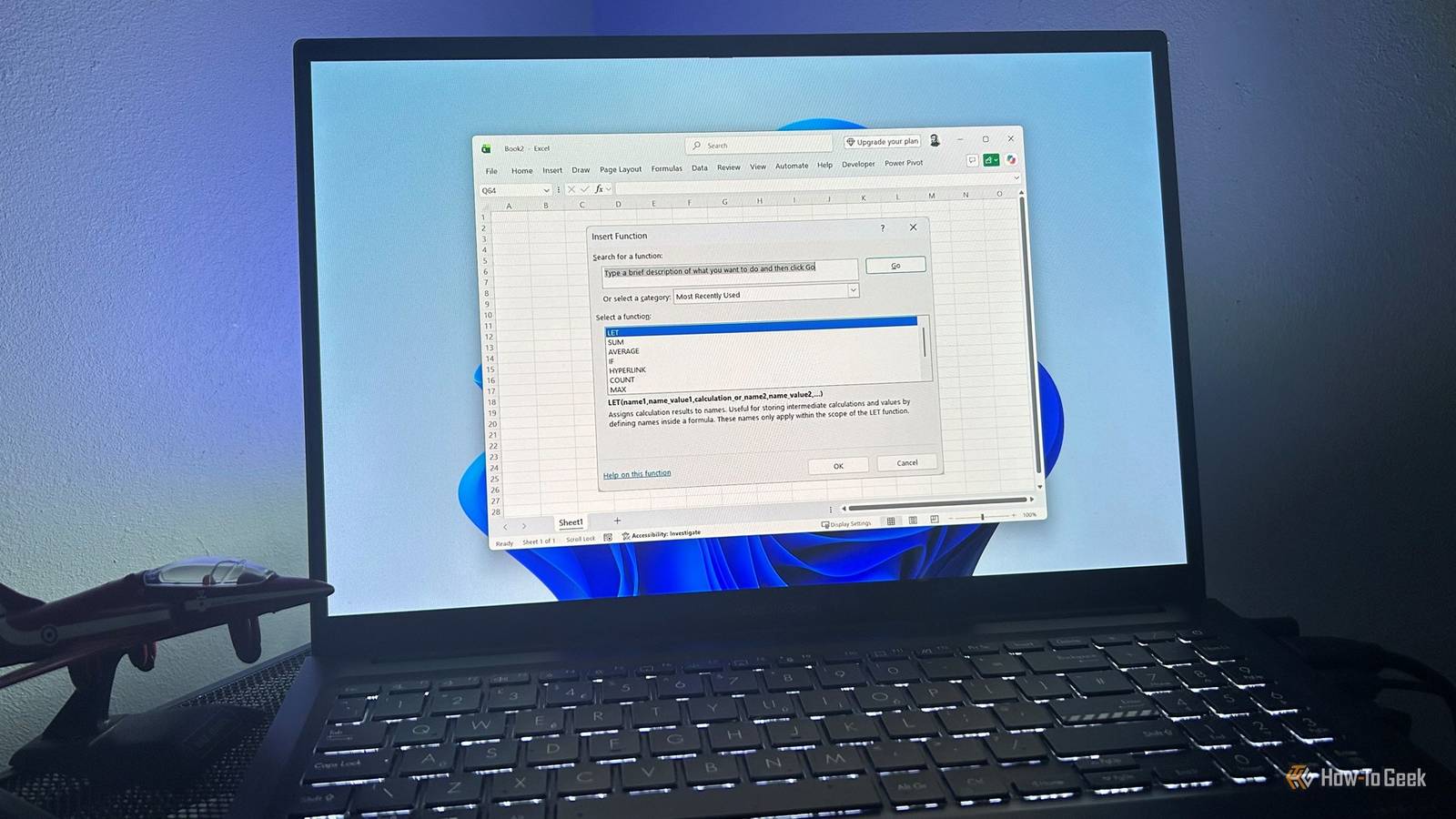
I use and write about Excel daily, but that doesn't mean I've explored every corner of it.In fact, when I recently scrolled through Microsoft's function library, I realized there were lots of functions I'd either never used at all or had only stumbled across in passing.Some looked obvious, some looked obscure, and a few made me wonder why Microsoft bothered including them.
Add How-To Geek on Google Add as Preferred Source Follow on Google Discover So I picked 10 functions and put them through their paces.Not all of them survived the cut.ARRAYTOTEXT felt too niche for the way I use Excel, while ISEVEN and ISODD largely duplicated what I can already do with MOD.
CLEAN and TREND both showed promise, but neither left me with a problem I was genuinely eager to solve again.Five functions, however, changed my mind.EXACT Case sensitivity matters When I first saw EXACT, my reaction was simple: doesn't Excel already compare values with the equals sign? Technically, yes.
The catch is that Excel's normal comparisons are case-insensitive.If one cell contains MN-CD34 and another contains MN-cd34, Excel treats them as identical.In many scenarios, that's fine, but it can cause problems when capitalization carries meaning.
Related Stop wrestling with text in Excel: These 8 tools are game-changers Fix "fake" numbers, strip hidden web spaces, and join text professionally using Excel's built-in legacy and modern tools.Posts 1 By Tony Phillips My first test compared two lists of codes that looked identical at first glance.The equals sign happily reported matches where there were subtle capitalization differences, while EXACT correctly flagged them as different.
Then I combined EXACT with XLOOKUP.Because XLOOKUP is also case-insensitive, it can return the wrong result when similar codes differ only by capitalization.EXACT allowed me to build a case-sensitive lookup instead: =XLOOKUP(TRUE,EXACT(D2,A2:A5),B2:B5) I also discovered that EXACT works well anywhere Excel needs a TRUE/FALSE result.One test used Data Validation and: =EXACT(A2,UPPER(A2)) to enforce uppercase-only entries, something I hadn't realized was possible with such a simple function.
But the case-sensitive XLOOKUP was the feature that finally sold me on EXACT.That's a capability I can see myself using again.ADDRESS From coordinates to clickable locations ADDRESS was probably the least exciting function on the surface.
At first glance, it seemed to do little more than convert row and column numbers into a cell address such as B7.Since the result is just text rather than a live worksheet reference, I wasn't immediately sure what I'd do with it.The function made more sense once I started combining it with other formulas.
I quickly realized knowing the highest value wasn't always enough.Sometimes I wanted to jump straight to it.By combining ADDRESS with MATCH, I could return the address of the cell containing the highest figure in a dataset.
Related Excel's "numbers only" mode isn't a glitch—it's a power user secret R1C1 coordinates provide a predictable map for auditing formulas and writing universal VBA macros.Posts 1 By Tony Phillips I then took it a step further and used that result inside HYPERLINK to create a clickable link that jumped straight to the record I wanted to investigate: =HYPERLINK("#"&ADDRESS(MATCH(MAX(B2:B11),B2:B11,0)+1,2,4),"Jump to highest sale") The more I experimented with ADDRESS, the more I realized it works well alongside modern dynamic array formulas too.One test even produced a spill range listing every blank cell in a schedule.
Seeing those addresses spill into a usable list completely changed how I thought about the function.I probably won't use ADDRESS very often, but I'll definitely remember it whenever I need to turn calculated positions into usable cell addresses.DATEDIF The secret function for elapsed dates DATEDIF behaves as if it doesn't exist.
Type the function name, and you'll get no autocomplete suggestions, tooltips, or help prompts.If you don't already know it's there, you're unlikely to stumble across it by accident.Despite that, it's pretty useful.
My first test was a list of employee start dates, and DATEDIF immediately made tenure calculations much easier than I expected.Within a few minutes, I had tenure results like "5 yrs, 8 mos" without building a monster formula: =DATEDIF(B2,$E$2,"Y")&" yrs, "&DATEDIF(B2,$E$2,"YM")&" mos" Related The date functions every Excel user should know (but most ignore) The most useful Excel date functions handle everyday workflows like countdowns, working days, and month-based planning automatically.Posts 1 By Tony Phillips The deeper I dug, though, the more complicated the story became.
While testing end-of-month dates, I ran into a quirk in the function's "MD" calculation.Certain date combinations produced inaccurate negative day values, a limitation, it turns out, that Microsoft has acknowledged for years.That flaw stopped me from declaring DATEDIF perfect, but it didn't make me abandon it either.
The bug only affects one of its lesser-used unit options, and the years-and-months calculations I tested worked as expected.PERCENTRANK Rankings don't tell the whole story Close Most of the functions I tested helped me solve a problem.PERCENTRANK changed how I looked at the results instead.
At first, I assumed it was just another way to rank values, but after experimenting with sales data, I realized it answers a different question entirely.A traditional ranking tells me where someone finished.PERCENTRANK tells me where a value sits within the wider distribution.
For example: =PERCENTRANK.INC(B$2:B$11,B2) showed me not only who ranked highly, but also where their result sat relative to everyone else's.An employee in the 67th percentile, for example, had outperformed roughly two-thirds of the team.Related How to Use the RANK Function in Excel You can easily rank data in Excel and even use the rankings to create a league table.
Posts By Tony Phillips The bigger discovery came when I paired it with PERCENTILE.I used: =PERCENTILE.INC(B2:B11,90%) to find the 90th-percentile sales threshold, then used PERCENTRANK to see where individual employees sat relative to that threshold.One important thing I learned is that PERCENTRANK measures position, not performance.
A high percentile is good for sales figures but could be concerning for expenses or product defect rates.The function doesn't judge the value; it simply provides context, and that's what ultimately earned it a place on my shortlist.FLOOR Not just another rounding function I nearly dismissed FLOOR before I even started testing it.
Excel already has ROUND, ROUNDUP, and ROUNDDOWN, so another rounding function felt entirely unnecessary.But what I missed initially is that FLOOR isn't really concerned with decimal places.Give it a multiple, and it'll push values down to the nearest interval that fits.
One scenario that immediately made sense was grouping times into fixed intervals.If arrival times vary throughout the day, FLOOR can place them into neat buckets for reporting and analysis.Here, I grouped them into 15-minute intervals: =FLOOR(B2,TIME(0,15,0)) Once I started testing FLOOR with arrival times, appointments, and other time-based records, its usefulness became much clearer.
It made organizing data into consistent reporting intervals remarkably easy.Related I build all my calendars in Excel—here's how you can too Stay on top of your personal and work commitments.Posts 2 By Haroon Javed Sometimes the overlooked functions are the most interesting Testing these functions reminded me that "obscure" and "useful" aren't the same thing.
Some of the functions I tried turned out to be obscure for good reason.A few surprised me.I didn't expect some of these functions to change the way I work with data, but that's exactly what happened.
At the very least, they're no longer functions I'll scroll past without a second thought.
Read More