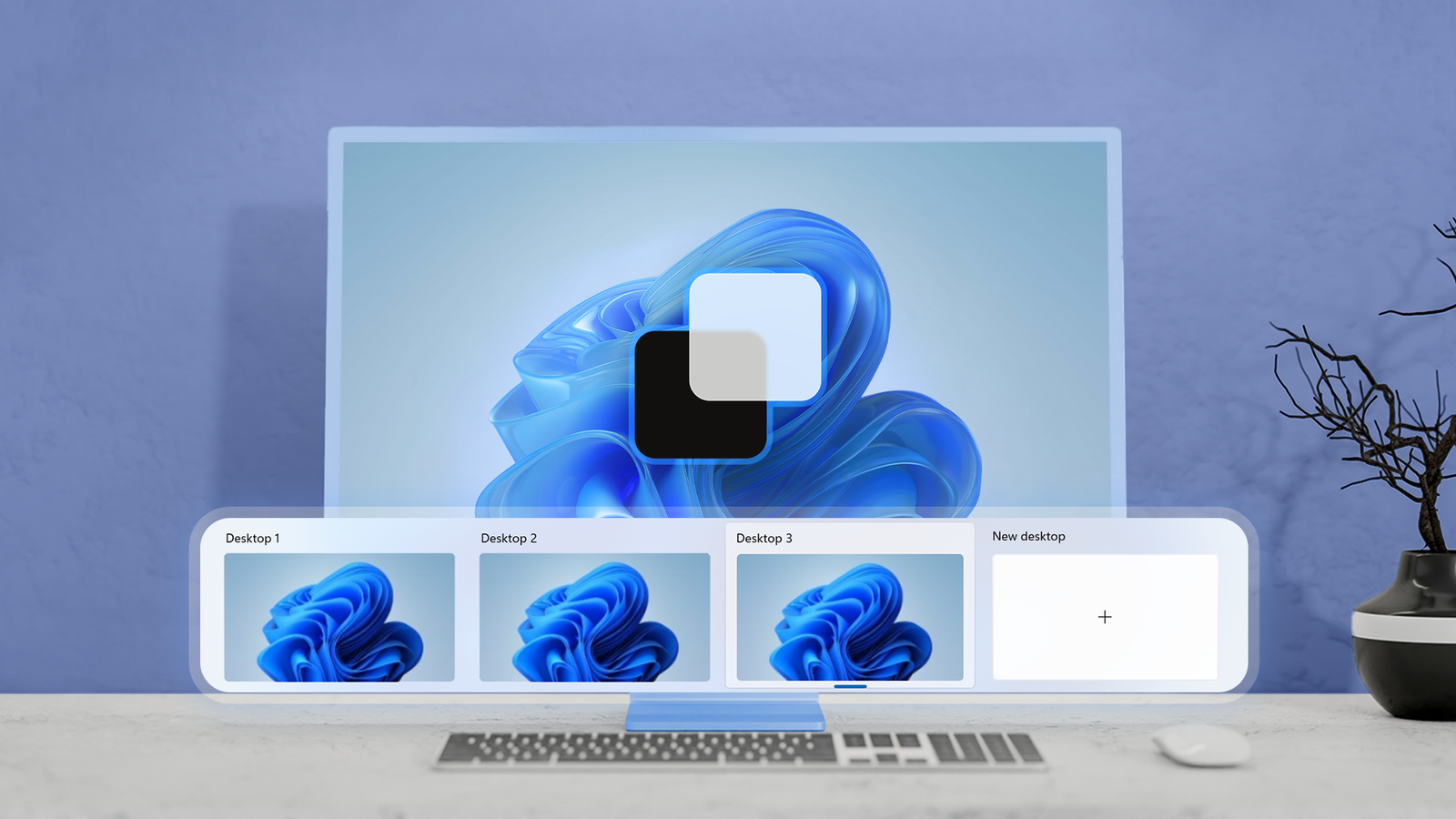
Windows 11 has a robust virtual desktop feature, but it is rather basic.It probably doesn't help that Microsoft only built its own virtual desktop solution long after Linux and macOS had shown us what they could do.The result is that there have been third-party virtual desktop apps for a long time now, across several versions of Windows.
With so much time, user feedback, and competition, some of these third-party options are still going to be a better fit than the basic solution that comes with Windows today.There are quite a few options, but this is a good cross-section of what's out there.Desk Switcheroo puts a desktop manager on your taskbar And it has a portable version too! Close Desk Switcheroo is probably the most comprehensive replacement for the Windows Task View tool on this list.
You get a compact widget that can be anchored close to your taskbar, from where you can make the magic happen.The widget shows the current desktop number, a custom label, and you can even set it to show you the current desktop's position within the total desktop count.You can use the arrow buttons or mouse wheel to shift between desktops without opening Task View.
If you click the widget, you get a full desktop list, letting you jump to a specific labeled desktop instantly, again without opening Task View.You can also quickly create, delete, rename, and reorder your desktops.You can also assign each desktop a color and wallpaper, temporarily preview another desktop, or display thumbnail previews when hovering over entries.
Desktop Switcheroo also adds some useful new tricks to window management.For example, you can pin a window across all your desktops, which is useful if you have to use your calculator app on different desktops without opening multiple iterations of it.A rules engine can automatically send matching windows to specific desktops, while event hooks can run commands when desktop-related events occur.
SylphyHornPlus adds the controls Microsoft forgot It hides itself well Downloading or installing SylphyHornPlus can trigger your antivirus.As far as I can tell, this is a false positive and is related to how the app listens for global hotkeys.However, ensure you download the app from its real page, or use the Winget command to install it.
SylphyHornPlus is a great choice if you already like the vanilla Windows virtual desktop interface, but want to expand what it can do.Instead of replacing Task View, it adds shortcuts, notifications, gestures, and management tools around the native feature without altering them.With global hotkeys, you can just switch directly to a specific desktop instead of scrolling through them, or using Task View.
You can also use the hot keys to move windows to other desktops, create or remove them, and change their order.You can set up a notification that reminds you of which desktop you're on, and can have its position and appearance customized.It's not just the keyboard controls that are better.
The app supports mouse wheel and rocker gestures.So you can do a lot of the stuff you want using just the mouse, but without clicking through a bunch of menus.While SylphyHornPlus doesn't have any window setup saving powers that I could see, you can export and save your app settings.
So if you reinstall Windows or use more than one machine, you can have your tweaked settings on hand all the time.FancyWM gives every desktop a self-organizing layout What's old is new again FancyWM is only partly open-source.The author has open-sourced core parts of the backend, but the application itself is not open-source as a whole.
You can download and use it for free, and make an optional payment to support them.The only difference is that you'll get an occasional pop-up asking you to support the project.FancyWM (Fancy Window Manager) is more than just a virtual desktop tool for Windows.
It's a full-fledged window manager that could make your life so much easier.It uses dynamic tiling to make the most of your screen real estate, which automatically makes it great if you have an ultra-wide monitor or if you're using a large 4K display.When you open your apps, FancyWM automatically tiles them in panels, instead of letting them overlap.
This is actually something that old versions of Windows did, using window tiling as the default.So it's interesting to see it come back as a productivity hack.It supports horizontal, vertical, and stacked panels, and these can be nested to build more complicated layouts.
Windows automatically resize as applications are opened, closed, or moved.One thing that makes FancyWM stand out from other tiling window managers is that there's no trick here with a proprietary hidden workspace.Instead, the app integrated with Windows' native virtual desktop technology.
This app is highly keyboard-driven if you want it to be.Using only the keyboard, you can instantly jump to any desktop or send the currently active window to another desktop.Panel arrangements can also be maintained globally or separately for each monitor.
This all adds up to a much more powerful and cohesive system than combining Windows Snap Layouts with Task View virtual desktops.While Snap can quickly arrange your open windows into a layout, it doesn't keep managing them.FancyWM adapts your window tiles in real time as you open and close them.
So each desktop ends up staying organized no matter what you're doing.There's nothing actually wrong with Windows virtual desktops out of the box, but if you start relying on this feature as part of your workflow, you'll quickly run into limitations that these apps can help solve.
Read More