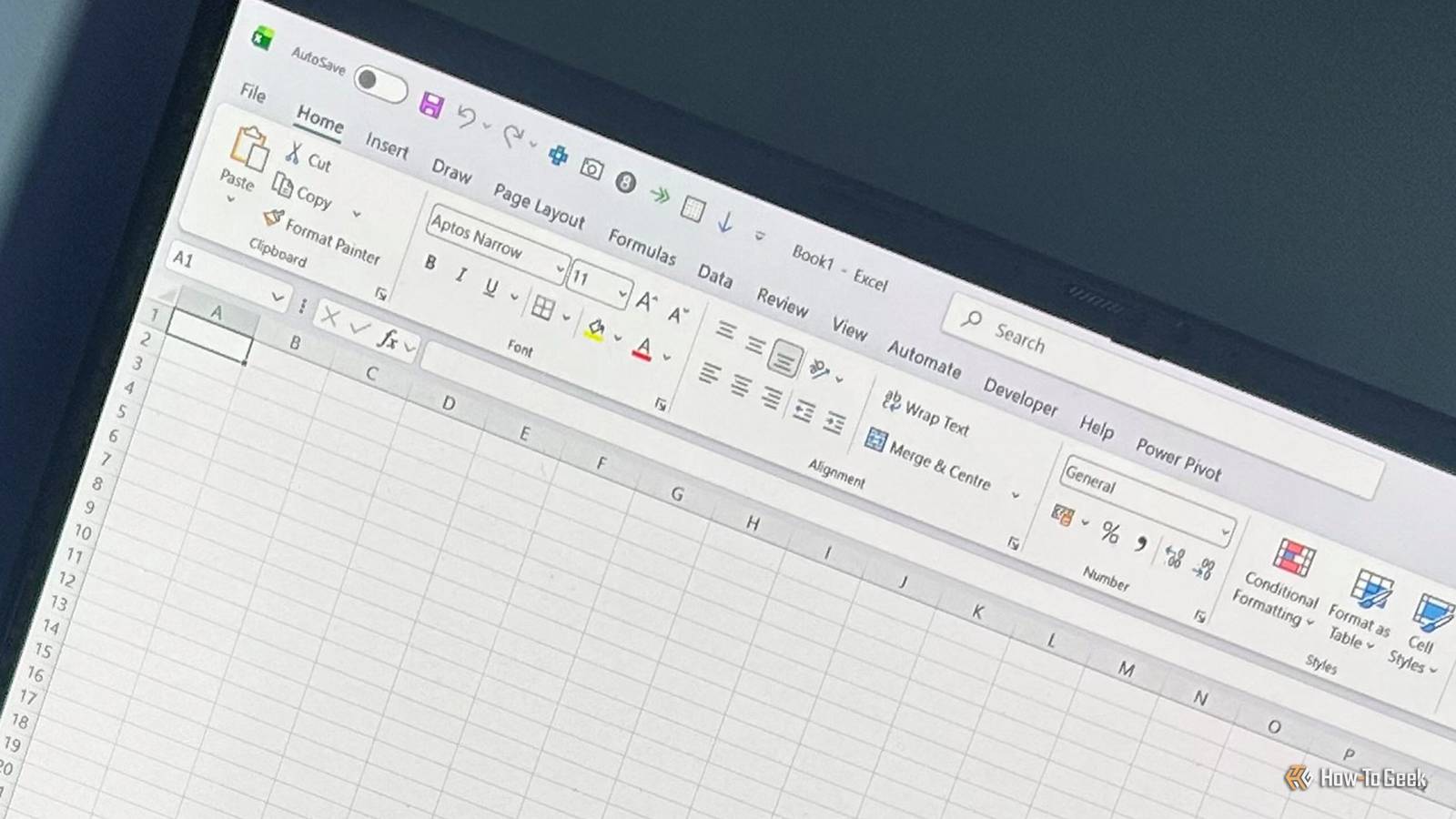
Annoyingly, many of the tools I use most in Excel aren't available as single-step commands in the ribbon or Quick Access Toolbar (QAT).That's why I built a personalized command layer that works in every XLSX file I open, turning repetitive actions into instant, reusable shortcuts.Everything runs through your Personal Macro Workbook Think of PERSONAL.XLSB as your private Excel toolkit The word "macro" often makes Excel users uneasy—and rightly so, since they can be used to hide malicious scripts.
But in this workflow, you're not dealing with a downloaded file or anything external.Instead, you're using a local Excel feature that stores your tools separately from your spreadsheets, keeping your files clean and shareable.It opens as a hidden workbook whenever Excel starts, so your macros are available even in standard XLSX files.
To get this environment set up, you first need to force Excel to create the file: Open a blank Excel workbook, then open the View tab.Click the Macros down arrow, then select Record Macro from the menu.In the dialog, set Store macro in to Personal Macro Workbook, then click OK.
Click the square Stop Recording button in the bottom-left status bar.Next, open this workbook in the VBA Editor to add your tools.This is a one-time setup that creates the specific container for your shortcuts: Press Alt+F11 to open the VBA Editor, and in the Project window on the left, locate VBAProject (PERSONAL.XLSB).
Right-click VBAProject (PERSONAL.XLSB), hover over Insert, and click Module.With the setup complete, it's time to start adding tools.Microsoft 365 Personal OS Windows, macOS, iPhone, iPad, Android Free trial 1 month Microsoft 365 includes access to Office apps like Word, Excel, and PowerPoint on up to five devices, 1 TB of OneDrive storage, and more.
$100 at Microsoft Expand Collapse Four Excel shortcuts I use in real workflows Small fixes that save me dozens of clicks every day The following basic macros are quality-of-life tools that make common but buried actions available with a single click.Copy each macro into the same module under VBAProject (PERSONAL.XLSB), making sure each one starts on a new line and has its own complete End Sub.This keeps each macro as a standalone procedure in the Editor, which also helps Excel visually separate them in the module window.
Here's how the module should look after you've added all four: When you're done, press Ctrl+S in the Editor to save the Personal Macro Workbook, then close the VBA window.Center your data without merging The first thing I fixed was Excel's annoying alignment workflow.When you merge cells, Excel loses the ability to sort and filter columns independently, but Center Across Selection gives you the exact same clean visual layout without actually fusing the cells together.
Because the alignment feature is buried inside the Format Cells menu, a macro is the only way to get one-click access.Paste this into your Personal Macro Workbook module: Sub CenterAcrossSelection() With Selection .HorizontalAlignment = xlCenterAcrossSelection End With End Sub Insert a static timestamp instead of using volatile formulas Excel's =TODAY() or =NOW() functions don't work well with real-world data logs, as they recalculate and change their values every time you open, calculate, or save the spreadsheet.To keep an accurate ledger, you can create a static timestamp macro that locks in the exact day you did the work: Sub InsertStaticDate() ActiveCell.Value = Date ActiveCell.NumberFormat = "yyyy-mm-dd" End Sub If you need both date and time, replace "Date" with Now in the VBA code, and update the format string to "yyyy-mm-dd hh:mm".
Turn messy numbers into readable visuals I use this one constantly because large tables become unreadable without visual cues for gains, losses, and empty values.This macro applies a custom format that highlights positive values in blue (the green font is too bright to read clearly) and negative values in red with parentheses, and it also replaces zeros with a simple dash.For example, 50,000 turns blue, -50,000 turns red with parentheses, and 0 changes to a -.
Sub ApplyCustomNumberFormat() Selection.NumberFormat = "[Blue]#,##0;[Red](#,##0);-" End Sub You can swap out the number format string depending on the type of data you're working with: Macro Type Examples Number Format String Data-entry friendly IDs 1 → 000001 Selection.NumberFormat = "000000" Compact thousands (one decimal place, negatives in parentheses, zero as dash) 1,000 → 1.0K -1,000 → (1.0K) 0 → - Selection.NumberFormat = "#,##0.0,""K"";(#,##0.0,""K"");-" Compact millions (one decimal place, negatives in parentheses, zero as dash) 1,000,000 → 1.0M -1,000,000 → (1.0M) 0 → - Selection.NumberFormat = "0.0,,""M"";(0.0,,""M"");-" Percentages with colors 20.5% → 20.5% (blue) -20.5% → 20.5% (red) Selection.NumberFormat = "[Blue] 0.0%;[Red] 0.0%;0.0%" Jump to the bottom of the current column One of my biggest Excel frustrations is that Ctrl+Down Arrow only works reliably when datasets have no gaps.This macro solves the problem by starting from the very bottom of the sheet and finding the last used cell in the active column, placing your cursor exactly one row below it: Sub JumpToBottomRow() Cells(Rows.Count, ActiveCell.Column).End(xlUp).Offset(1, 0).Select End Sub Press Ctrl+S in the VBA Editor, then close the window.Your macros aren't useful until they're one click away Turning scripts into toolbar buttons Writing the macros is only half the process.
To make them genuinely useful, add them to the QAT so they're always one click away: Right-click anywhere on the Excel ribbon, and if you see Show Quick Access Toolbar, click it.If you don't see this option, it's already activated.Click the small down arrow on the right side of your QAT, then select More Commands.
In the left-hand drop-down menu, select Macros.Select your newly created personal macros in the left column and click Add to move them into your toolbar window.Select an added macro in the right column, click Modify, and choose a suitable icon from the gallery.
When you close the dialog boxes, you'll see your new buttons in your QAT, and you can start using them right away.You can edit or remove any shortcut at any time Nothing here is permanent Since the VBA shortcuts live inside your Personal Macro Workbook, you can edit or delete them anytime as your workflow changes: Press Alt+F11 to open the VBA Editor.Double-click the module under PERSONAL.XLSB that contains your macros to open it.
Then you can edit the code directly in the module window, including clearing one or more of the four macros you added earlier.Alternatively, if you no longer want to use those macros at all, right-click the module and select Remove.When you're done, press Ctrl+S and close the VBA window.
Deals Save on Productivity: Software Deals for Excel Power Users Explore discounts on office suites, productivity subscriptions, automation add-ins, templates, training, and cloud tools to speed up Excel workflows.Browse Software, AI & Subscriptions deals to unlock savings and boost daily efficiency.Deals Explore Software, AI & Subscriptions Deals Removing a macro doesn't automatically clear it from your QAT, however, so you have to remove it manually by right-clicking the icon and selecting Remove from Quick Access Toolbar.
VBA isn't the only way to customize Excel This setup has completely changed how I work inside Excel.By turning multistep tasks into dedicated toolbar buttons, I spend less time hunting through menus and more time working with my data.VBA is particularly useful for workflows that Excel doesn't expose as easy-to-access commands.
But not every improvement requires code.If you want to personalize Excel using built-in features, you can create custom ribbon tabs and groups.It's a great way to surface your favorite commands and build a workspace that better matches how you work.
Read More