There’s no question that putting Google Maps on a smartphone was an absolute game-changer.We now walk around with powerful GPS navigators in our pockets.However, you may have noticed Maps choosing longer, slower routes for trips.
There’s likely one setting causing this.Multiple ways to get everywhere You have options, but Google chooses for you Back in the days of paper maps, people had to be intentional about choosing a route to get somewhere.You’d lay out the map and trace your finger over the various paths you could take.
The most direct route was usually the best, but there was no way to know for sure.Now, we have Google Maps to figure all of this out for us.When you enter a destination, Google calculates all the possible routes to get there.
It will automatically pick the one it thinks is best, but you always have the option to manually change the route.Typically, Google Maps will show you three routes to choose from, but there are obviously many different ways to get to most places.The problem is most people don’t want to take the time to manually check the possible routes every time—and that’s fine! As I said, Google picks the route it thinks is best, but your definition of “best” may not line up with Google’s.
This is why it will sometimes intentionally choose routes that aren’t the fastest way to reach a location.There’s a good reason for this, and, most importantly, an easy way to prevent it if you always want the fastest route possible.Related These are the 5 Google Maps settings I change on every new phone Google Maps offers one of the most polished navigation experiences you can get.
Out of the box, it does a great job getting you from point A to point B, with reliable directions, solid traffic data, and an easy-to-use interface.While the default settings work well for most people, there are still a few options that are either disabled or not configured the way I prefer to use Maps.If you want to make Google Maps feel more comfortable and convenient day to day, here are some small tweaks that make a noticeable difference.
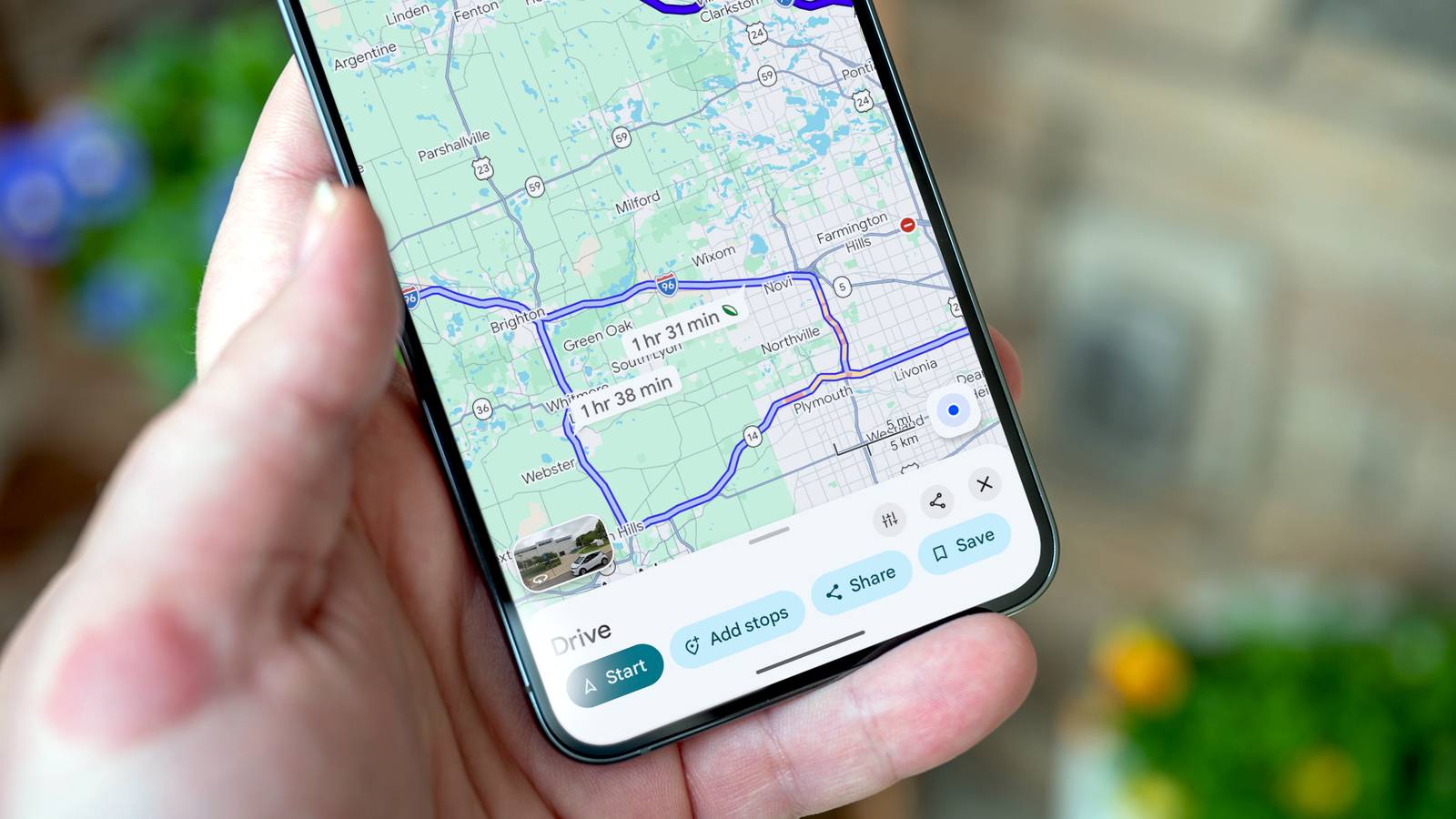
Posts 17 By Ismar Hrnjicevic Google Maps wants to help you save gas But you don’t have to let it Several years ago, Google rolled out a feature to Maps called “fuel-efficient routes.” When you looked at the possible routes to a location, you’d see a leaf icon on the one that was the most fuel-efficient.These routes were not chosen by default unless they also happened to be the fastest.At some point since then, Google changed things so Maps now defaults to using the fuel-efficient maps “when arrival times are similar.” However, many people have noticed that fuel-efficient routes can be slower—sometimes by more than just a few minutes.
The reason for this usually comes down to terrain.Flat routes with consistent speed limits and few stops are easier on your engine, which means it will use less fuel.But driving directly over a big hill rather than around it will absolutely get you somewhere faster, even if it does make your engine work harder.
It’s a trade-off that Google makes on your behalf.The good news is you can take back the decision-making.Simply open Google Maps on your Android phone or iPhone and open the Settings.
Go to the “Navigation” section and scroll down to “Prefer fuel-efficient routes”—toggle it off.Alternatively, you can do this on a drive-by-drive basis.First, find a location and tap the “Directions” button.
Before you tap “Start,” take a look at the routes on the map.You’ll see the fuel-efficient route labeled with the leaf icon, and you can compare it to the travel times for the other routes.Choose the one you like most and tap “Start.” The fuel-efficient route is usually fine There are a lot of people complaining about Google Maps choosing slower routes online, but in my experience, it’s usually not a problem.
I struggled to find an example of a fuel-efficient route that was slower than the other routes.Deals Phone deals, savings & accessories for better navigation Explore discounts on phones and mobile gear to make every trip smoother — from car mounts and fast chargers to durable cases and power banks.Find phone deals and accessories that extend battery life, improve in-car navigation, and deliver real savings.
Deals Explore Phones & Mobile Deals However, this likely depends greatly on where you live.I happen to live in a generally flat area, so the most direct route will be the most fuel-efficient.Those who live in more mountainous regions probably have to fight with Google about this more often.
Related Google Maps Is My Best Travel Tool, and It's Not Just for Directions Google Maps can be your best friend when traveling to an unfamiliar place, but the app is not just about showing directions to the destination on your itinerary.Google has packed in many more features to help you navigate smoothly while managing your travel.Along with apps for my travel itinerary, music, and photography needs, Google Maps is a must-have during my vacations and trips.
Here are my favorite Google Maps features that help me do more than find directions.Posts 5 By T.M.Amrita
Read More