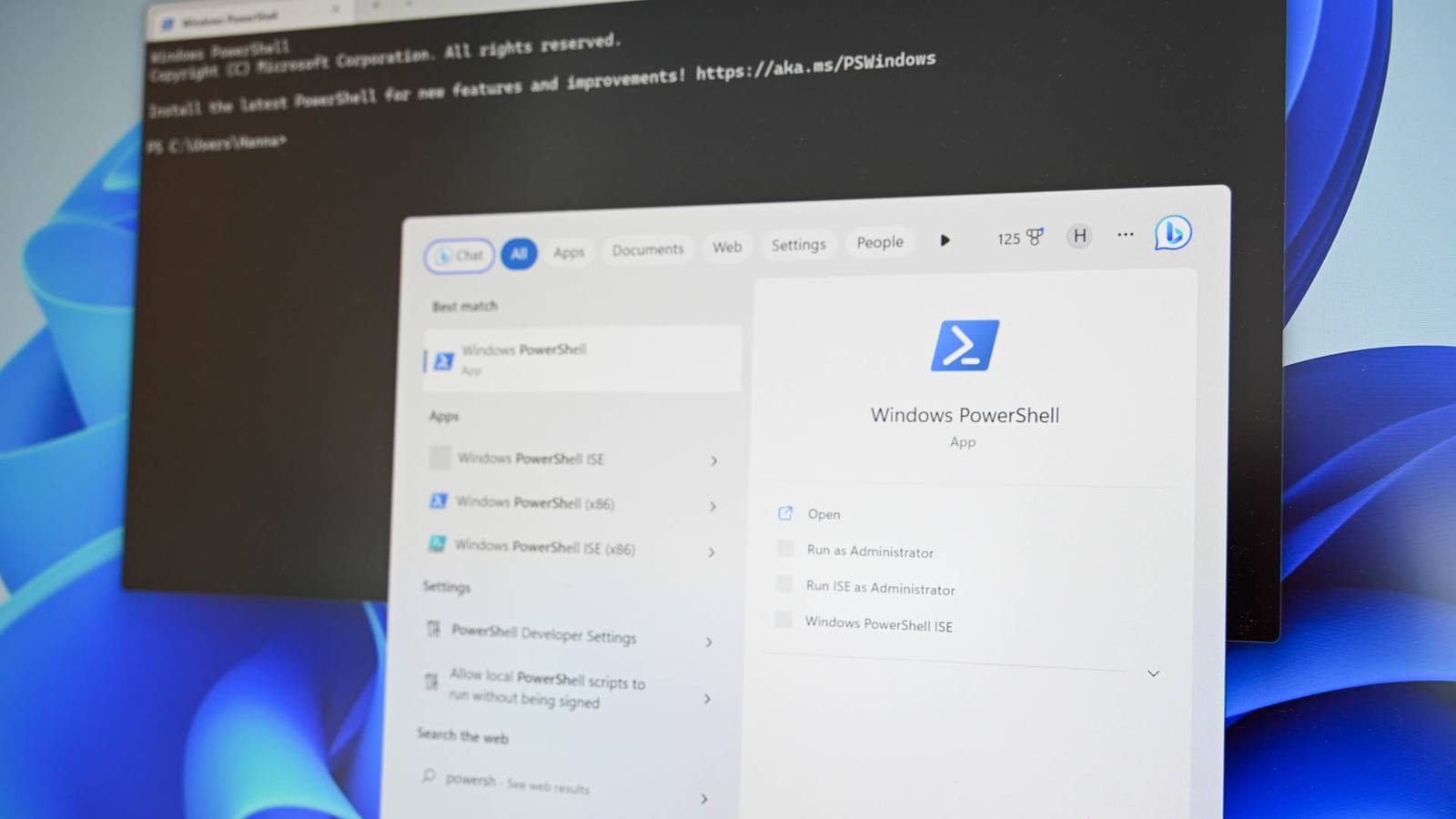
Windows is prone to errors and bugs, and you might be tempted to download third-party optimization apps to solve the problem.Sometimes they can be helpful, but as often as not, PowerShell has a command that'll get the job done more quickly.Chkdsk The easiest way to fix a problem with your storage If your PC is crashing, freezing, or you're getting vague error messages from programs, a problem with your storage drive might be the culprit.
If you don't know specifically what the problem is, one of the best and simplest commands you can run is Check Disk (chkdsk).Chkdsk can take a number of different arguments that change exactly what it does, but I'd recommend running chkdsk /r as administrator first.The /r argument tells chkdsk to locate bad sectors, fix file system errors, and recover readable information.
If you're running chkdsk on a secondary drive, you can keep using your PC while it runs, though you won't be able to access the drive and you might find your PC is a bit laggy.Related Your Hard Drive Is Slowly Dying—Here's How to Make Sure Your Data Is Safe Is your hard drive crying out for help? Learn the warning signs before it's too late.Posts 11 By Sydney Butler Since chkdsk locks the drive you're scanning, you can't scan your C:\ drive while you're using your PC.
Instead, chkdsk will schedule itself to run the next time you restart your PC before your operating system fully loads.Keep in mind that chkdsk can take a long time to run if you're scanning a large mechanical hard drive.I recently scanned a nearly-full 12TB mechanical hard drive and it took hours.
On the other hand, my half full 4TB NVMe SSD only takes a few minutes.ipconfig Network troubles are sometimes simpler than they seem Ipconfig provides information about your PC's network configuration, as well as a bit of information about your local network.In and of itself, that is invaluable if you're experiencing an unexplained network error or some kind of connectivity problem.
Run ipconfig /all to see more information.However, ipconfig can also be used to refresh your IP address with your router.I've found this fixes network problems pretty frequently.
Begin by opening PowerShell, then run the following two commands: ipconfig /release ipconfig /renew It'll usually only take a few seconds.If you had specific firewall rules set up for your PC's IP address in your router, you may need to adjust them, since running those two commands can change your local IP address.More rarely, your local DNS cache may become corrupted.
In that scenario, your PC will tell you that it has a connection to the internet, but you won't actually be able to connect to websites you frequently visit.When that happens, just run ipconfig /flushdns to clear the DNS cache completely.Ipconfig /release, ipconfig /renew, and ipconfig /flushdns will never your PC, so they're perfectly safe to try if you're not sure exactly what the problem is.
SFC and DISM The catch-all solution Modern operating systems are extremely complex, and even a few corrupt files can cause unexplained errors, crashes, and other problems.Windows System File Checker (SFC) is designed specifically to find and repair corrupted Windows files automatically.To run it, open PowerShell, then enter: sfc /scannow If it finds any corrupted files, they'll be replaced with new versions.
Deployment Image Servicing and Management (DISM) pairs well with it, since DISM can be used to repair the Windows image.DISM takes many arguments, but I'd recommend the most general, wide-reaching option: DISM /Online /Cleanup-Image /RestoreHealth You'll often see DISM and SFC used together when the problem is difficult to narrow down.They're both very broad solutions that could fix any number of issues.
They also may not fix the problem all the time.However, they're also not going to make your situation worse, which makes them a good place to start if you have a problem, and you don't know what's causing it.Reset winsock When ipconfig isn't enough Winsock, or Windows Sockets, is what allows Windows to communicate over wired or wireless networks.
If there is a problem anywhere with the configuration, you could lose connection to the internet and your LAN completely, or you may find that some applications work while others inexplicably don't.If renewing your DHCP lease and flushing your DNS cache didn't work, and you're getting network errors, then resetting winsock is a quick, easy solution you can try.Open up PowerShell as an administrator, then run: netsh winsock reset Then restart your computer.
The entire winsock configuration will be rebuilt from scratch, which will fix any problems that may have been caused by apps (especially shady VPNs) or malware.Winget handles everything No more handling bug patches manually Winget is a command-line application built into Windows that can be used to automatically download, install, update, or remove applications on your PC.Subscribe for Practical PowerShell Fixes for Windows Get the newsletter to unlock curated PowerShell commands, clear troubleshooting walkthroughs, and practical Windows maintenance tips you can run safely yourself—perfect for fixing problems without risky third-party optimizers.
Get Updates By subscribing, you agree to receive newsletter and marketing emails, and accept our Terms of Use and Privacy Policy.You can unsubscribe anytime.I don't normally use it to install applications, but it is a fantastic way to make sure that most of the applications on your PC stay up to date.
Just open up PowerShell and run winget upgrade --all and winget will begin fetching updates for every supported program.It is my favorite way to bulk update everything without needing to handle it one by one.There are only two slight drawbacks.
The first is that not every application can be updated by Winget, though it will work the large majority these days.The second is that some applications will still generate prompts that you need to click while they update, so the process isn't completely automated in the background.However, those are small problems compared to the convenience you gain.
Most PC optimization software isn't worth the trouble There are dozens of applications out there that claim to "speed up your PC," but most of them just use existing functions within the operating system to work.Rather than download an optimizer that may or may not work, you're often better off just running the PowerShell commands yourself.It gives you a much better idea of what the problem might be, and makes future troubleshooting easier.
Additionally, there are an alarming number of "optimization" programs out there that are just malware or spyware in disguise.If you learn to use a handful of PowerShell commands yourself, you can largely take that risk off the table completely.Windows 11 Pro $29.99 $199 Save $169.01 Get Windows 11 Pro and elevate your PC experience while it's available at a huge 88% discount. $29.99 at StackSocial Expand Collapse
Read More