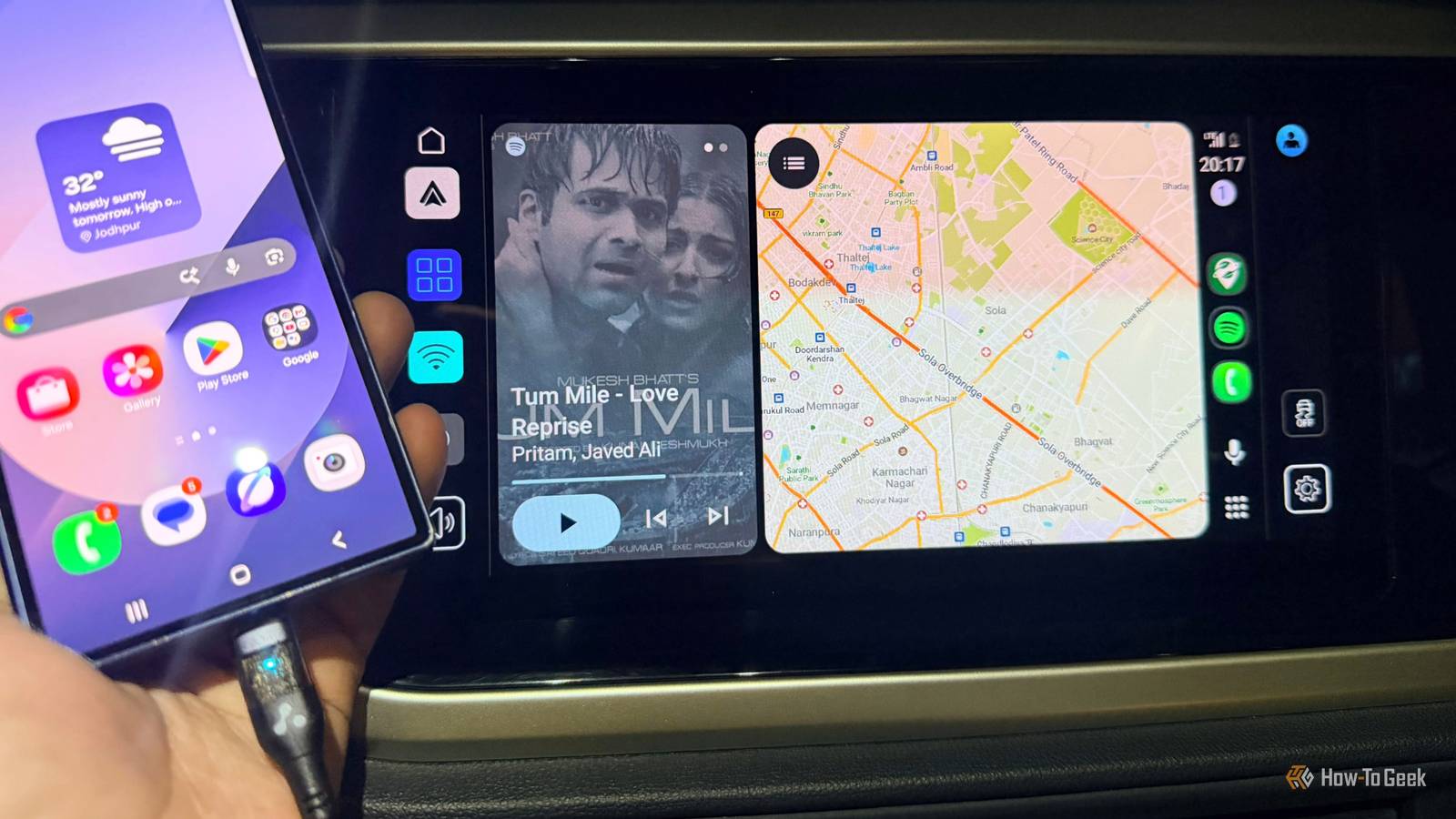
Nothing ruins a long drive like losing 30% of your battery before you reach your destination.That kept happening to me with Android Auto.It ruined the fun, especially when I wanted to listen to music or check how much longer I had to drive without worrying about my phone dying before I arrived.
I didn’t want to stop using Android Auto, so I tried changing a few settings instead.Here are four changes that helped me tackle the drain.I was surprised by how little I had to change to make my long drives less stressful.
I turned my brightness down, and it actually helped A dimmer screen can mean less battery drain I used to keep my phone's brightness pretty high because I wanted to see everything clearly while driving.But I didn’t realize how much that could drain the battery, especially on longer trips.So, I turned it down a notch, and it made a difference in how quickly my battery dropped.
You don’t have to keep adjusting the brightness manually, either.Turn on Adaptive brightness, and your phone will adjust the screen based on the surrounding light.It’s handy when you’re driving through a sunny stretch and then enter a shaded road or a tunnel.
On Samsung phones, go to Settings -> Display and enable Adaptive brightness.You can also lower the brightness manually when your phone’s screen is on.If you usually leave your phone screen off while using Android Auto, though, this setting may not make much difference during your drives.
I stopped apps from running in the background Put unused apps to sleep before a long drive I don’t need every app on my phone doing its thing while I’m out driving.Shopping apps, games, and apps I opened once and forgot about can wait until I need them.So, I started putting the ones I rarely used to sleep instead of letting them run in the background.
On my Samsung phone, go to Settings -> Battery -> Background usage limits -> Sleeping apps.Select the apps you want to add.If you barely use certain apps, you can add them to Deep Sleeping apps, too.
Just be careful with that option because those apps won’t run in the background or send notifications until you open them.I wouldn’t put messaging apps or Google Maps to sleep.But Weather & Radar, NotallyX, and other apps I rarely open can wait.
I turned off location access Stop unnecessary apps from tracking your location Close Whenever I install a new app, I rush through the setup to get to the good stuff.A few taps on Allow, and I’m in.But somewhere in those permission pop-ups, I might have given the app access to my location without thinking twice.
That’s not always a great idea.Some apps don’t need to know where I am, and sharing that information can put my privacy at risk.So, I turned off permissions wherever they weren’t needed.
On Samsung, go to Settings -> Security and privacy -> Privacy -> Permission manager -> Location.Tap an app and choose Don’t allow if it doesn’t need your location.For apps that need it occasionally, you can select Allow only while using the app instead.
I wouldn’t need location access for Google Maps or Waze because they’re my savior during drives.But for apps like Google Keep or Spotify, which don’t need to know my whereabouts, removing location permissions is an easy cleanup.It may not magically fix the battery drain, but less is more.
Related 4 Android Auto tweaks that made my daily drives less stressful Less stress means more sing-alongs.Posts By Sanya Shah I switched to wired Android Auto Why a USB cable can help save battery Wireless Android Auto is convenient, and I like not having to deal with cables every time I get into the car.But on longer drives, I noticed my phone getting warm and losing charge faster than I expected.
Wireless Android Auto uses Wi-Fi and Bluetooth while running navigation and other apps, which can put extra strain on the battery.So, I switched to wired Android Auto.I plugged my phone into the car using a good-quality, short USB-C cable.
The cable can charge my phone, depending on how much power the car’s USB port supplies.If your phone keeps connecting wirelessly, check whether Android Auto settings offer a wireless connection toggle.Developer settings may also offer a Wireless Android Auto option, depending on your version.
Wireless is handy, but for long drives, I’ll take a cable and a more reliable charge.My next weekend trip is sorted With these changes out of the way, I’m feeling much better about my next weekend trip.Before the trip, I’ll also download offline maps before leaving, so I don’t have to rely entirely on mobile data when the network gets patchy.
If 5G coverage is low, I’ll switch to LTE and see if that helps my battery last longer.I’ll also keep my phone out of direct sunlight instead of leaving it to bake on the dashboard.With all these changes, I’ll have a fun long drive.
Related Bored with Google Maps and Spotify? Try these 4 Android Auto apps These are called GEMS.Posts By Sanya Shah
Read More