People everywhere use Android Auto for its excellent traffic and navigation tools, streaming music, and more.But for some, the experience is a little slow and laggy.You don't need to replace your phone or stereo to try and fix things; instead, change these settings or enable a few features, and you'll be all set.
Dealing with a slow Android Auto experience is frustrating, especially when it causes you to miss a turn in traffic, fumble with map controls, or other issues.Luckily for you, there's a hidden developer menu with advanced controls and several useful features that'll make things better.Don't upgrade your gear—customize Android Auto instead.
Use shortcuts in Android Auto They're way better than voice controls Close While you might be tempted to upgrade your phone or buy a new head unit (stereo) for your car with Wireless Android Auto or a better experience and bigger screen, that's not always necessary.If you simply want to improve the Android Auto experience, you'll want to try a few hidden features, like Google Assistant shortcuts.Instead of fumbling with apps or fighting voice commands over road noise and the AC vents, use one-click shortcuts to navigate, call your significant other, or text someone.
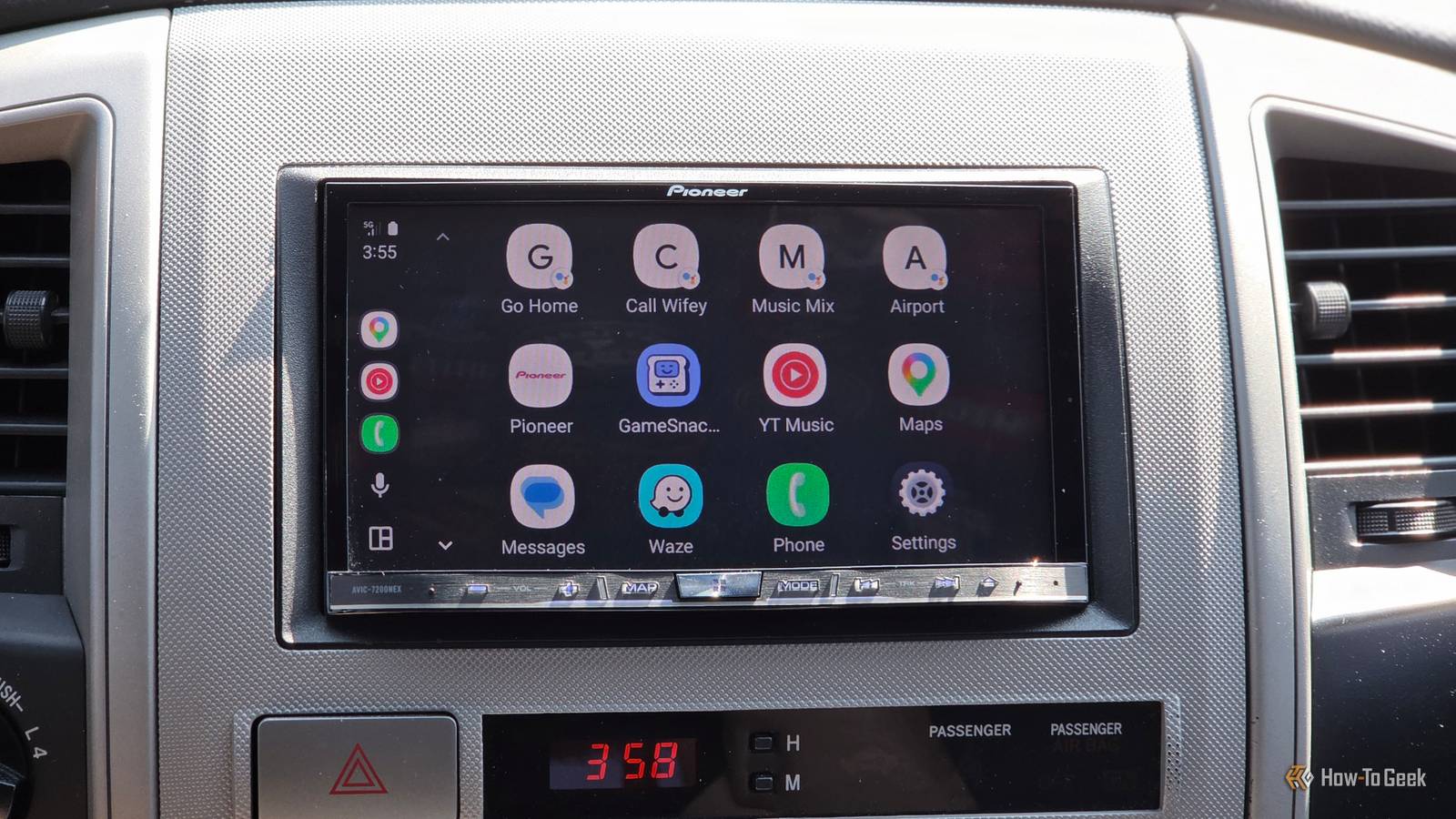
Here's how: Open the settings menu on your phone and search for or find Android Auto.In the Android Auto settings section (not your phone's settings), tap Customize Launcher, then tap the + sign labeled Add a shortcut to the Launcher, then select An Assistant action.Next, enter a command you'd typically say aloud, then give it a name and label you'll easily recognize on the home screen.
Test the command to ensure it works, then tap + Create Shortcut.Now you're all set.The next time you go for a drive, you'll see icons right on the home screen to select shortcuts.
Instead of tapping Google Maps or trying to use voice commands for navigation, tap that one-click button to call your wife, navigate to the airport, etc.Close Custom Assistant shortcuts are the easiest way to supercharge Android Auto.It makes it extremely simple to trigger the same actions you'd do with your hands or voice, only it'll work every time.
Don't fight voice commands and use shortcuts instead.I have shortcuts that instantly launch YouTube Music to a specific playlist, one that automatically texts my wife to say I'm on my way home from daycare, another for firing up Waze and navigating to the airport, and more.Give it a try.
Dig through the developer menu Change the resolution or install the apps you actually want Another potential solution for an older phone or head unit is to adjust deeper system-level settings in Android Auto.Just like a phone, Google's car operating system has a hidden developer menu and mode.Here's how to enable it and what you can do with it.
Open Android Auto, scroll to the bottom, where you'll see the Version section.Tap on that ten times quickly.A box will appear asking you to confirm that you want to enable the developer settings.
Tap OK.Now press the three-dot menu button in the top right corner to access the hidden developer controls.Here, you can completely disable wireless Android Auto if you use a wired connection, which can improve screen performance and your phone's battery life.
You can also enable installing third-party apps from unknown sources, allowing you to sideload apps that aren't available by default for Android Auto.Another option, which is especially helpful on a smaller display, is to adjust the video resolution to best suit your setup.This can improve visibility and readability, make notifications smaller, improve performance, or let you keep that smaller screen a bit longer without needing to upgrade.
Find it in the developer settings under Video resolution.Keep in mind that you'll need to experiment with each one to see how it looks on your device, then pick the best option.Automate everything with routines Supercharge your Android Auto And finally, did you know that you can set up custom automations inside Android Auto? This is my last suggestion and is one of the best ways to change your experience.
I no longer waste time in my driveway, at stoplights, or while driving and trying to complete certain tasks.Instead, I use automated routines.Instead of jumping in the car, fumbling with buttons and cables, using voice commands to navigate to work, then another voice command to play music, etc., a single routine does all that (and more) automatically.
It's a game-changer.Saying something like "start commute" will trigger a Google Assistant routine I've configured in Android Auto.It'll automatically complete all the steps mentioned above.
I get in, say the command, and start driving.Android Auto starts Waze navigating to work, hits play on my favorite playlist, and even shuts my garage door.You can even add a fourth task to text your significant other that you're headed to work or headed home.
Related I stopped typing addresses into Google Maps—now I just say my friend's name Discover the convenience of integrating contacts with Google Maps, eliminating the need to remember or type in addresses.Posts By Nate Pangaro I know, this sounds complicated, but it's actually pretty simple.To start, open the Google Home app, then tap the Automations tab at the bottom right.
From here, select the + Create button, and choose Automations.From here, you'll see "Starters, Conditions, and Actions." Starters are how you trigger routines, whether that's a voice command, the time of day, or even based on your specific location.For example, the starter can be as you leave the neighborhood, which will then start navigation, play music, and text a family member.
Conditions control everything and ensure the routine doesn't start unless you want it to.And finally, Actions are the automations that initiate once the condition is met.So, create an action, like navigating to work, and stack another on top for launching Spotify or YouTube Music, then a third or fourth, depending on your needs.
Control your home, turn down the AC or heater if you have a smart home, text a family member, etc.Once you're all done, hit Save automation.It might take some getting used to, but it's pretty powerful.
A better experience without upgrading At the end of the day, Android Auto is only as good as the screen in your vehicle or the phone you're using.However, as long as the device runs Android 11 or newer, it'll work with Android Auto.And if you have an older car that only offers wired Android Auto, consider getting a wireless dongle to change things up.
Once you set up some automations, adjust the screen resolution, side-load the apps you want, and maybe set up a slew of shortcuts, Android Auto will be better, faster, and easier to use.More importantly, most of this doesn't need a new stereo or clunky voice controls.Related Wireless Android Auto needs both Bluetooth and Wi-Fi, and here’s why Better together.
Posts 8 By Cory Gunther
Read More