I'm the tech guy in my family, which means I'm usually the one getting the call when something "isn't working right." Over the years, I've learned that half the battle isn't fixing the problem, it's figuring out what's actually going on in the first place.Windows gives you plenty of tools, but they're scattered, simplified, or buried behind menus that don't always tell the full story.That's a big part of why I've leaned so heavily on PowerShell, and why I've written before about commands and built-in tools you should try before jumping straight to a full reinstall.
Recently, while tracking down a system detail that Windows didn't make easy to find, I ran a single command that changed how I approach this.Instead of digging through Settings, Task Manager, and System Information, I got a full snapshot of the system in one place.It turns out Windows isn't really hiding this information, it just doesn't surface it in a way most people will ever see.
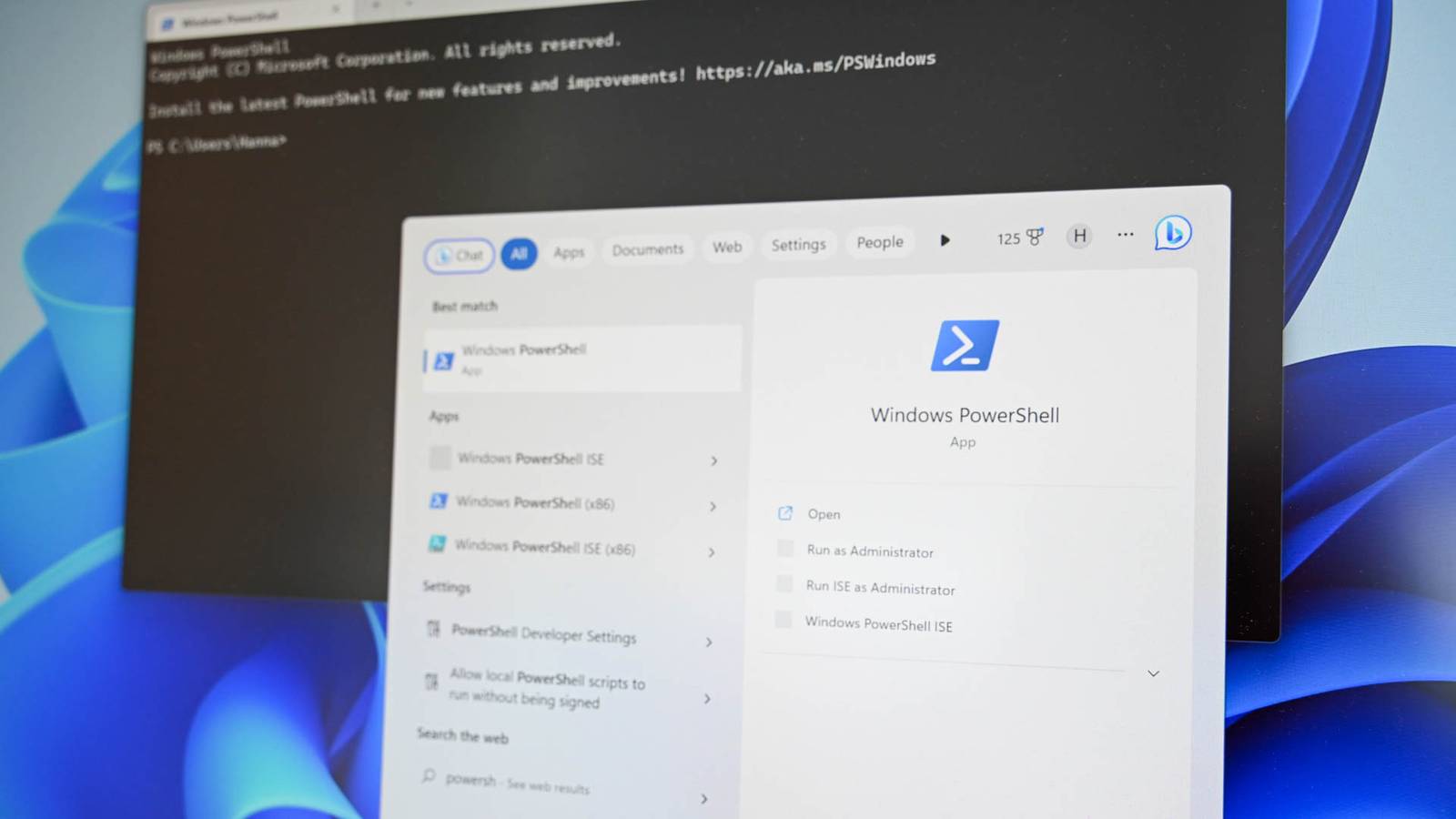
That's where this one PowerShell command comes in.This one command is like a full system report in seconds Run it once and see everything Windows knows about your PC If you only learn one PowerShell command, make it this one: Get-ComputerInfo That's it.No installs, no extra tools, no digging through menus.
Open PowerShell, run it, and Windows pulls data from all over the OS, details you'd normally have to piece together from Settings, Task Manager, Device Manager, and System Information, and lays it out in a single, scrollable output.The first time you run it, it almost feels like overkill, but that's exactly the point.What makes this command so useful isn't just how much it shows, it's how quickly you can get answers.
When I'm trying to diagnose a problem, I don't want to click through five different screens just to confirm a BIOS version or double-check a Windows build number.It's basically the closest thing Windows has to a built-in "tell me everything about this PC" button, it just happens to live in PowerShell instead of a polished UI.It pulls system details Windows keeps buried Here's what you'll find and how to make it usable The first time you run Get-ComputerInfo, it almost feels like information overload.
You're not just getting the basics, you're getting everything Windows knows about that machine in one place.That includes the obvious stuff like your CPU, RAM, and Windows version, but it goes a lot deeper than what you'll see in Settings.You'll find your BIOS version and firmware details, the exact date Windows was installed, your system model and manufacturer, and even things like Secure Boot status and virtualization support.
These are all things Windows technically exposes, but never in one clean, unified view.If you've ever tried to confirm a BIOS version, you know it's not exactly front and center.Same with install dates or certain security features.
With this command, it's all just there.No clicking through menus, no second guessing if you're looking in the right place.It's the kind of output that makes you realize Windows isn't hiding information so much as it's just not prioritizing it for everyday users.
Windows 11 Pro $29.99 $199 Save $169.01 Get Windows 11 Pro and elevate your PC experience while it's available at a huge 88% discount. $29.99 at StackSocial Expand Collapse The downside is obvious the second you scroll.It's a wall of text, and unless you know what you're looking for, it can be overwhelming.That's where a little filtering goes a long way.
Instead of dumping everything, you can pull just the fields you care about.For example, if you only want a quick snapshot of key details, you can use: Get-ComputerInfo | Select-Object CsModel, WindowsVersion, BiosVersion, CsTotalPhysicalMemory You can also search through the output for specific terms, which is a lot faster than manually scrolling: Get-ComputerInfo | findstr /i "bios" Once you start doing this, the command becomes a lot more practical.Instead of being overwhelmed by hundreds of lines, you're using it like a targeted tool to answer specific questions.
That's really where this command shines.It lets you zero in on exactly what you need without digging through half a dozen different parts of Windows, but that flexibility also highlights its biggest weakness.The biggest drawback is how raw the output feels Powerful, but not exactly user-friendly The biggest downside is how raw the output is.
Get-ComputerInfo doesn't try to guide you or highlight what matters, it just dumps everything at once.There's no structure beyond a long list of properties, so if you don't already know what you're looking for, it can feel like noise instead of insight.It's also not very user-friendly.
There's no interface, no sorting, no way to click into anything.You either scroll, filter, or search manually.Some people will always prefer tools like msinfo32 for that reason alone, even if they're less flexible overall.
Related 4 Free Tools I Keep on My USB Drive to Fix Any Windows PC Turn a simple USB stick into a portable Windows repair kit with 4 free tools every PC user should carry.Posts 15 By Rich Hein One command worth remembering when Windows won’t give straight answers If you spend any time troubleshooting Windows, this is one of those commands worth committing to memory.Get-ComputerInfo doesn’t replace every tool, but it gives you a fast, complete snapshot of what’s really going on without jumping between menus or second-guessing where to look.
It’s already built into Windows, it takes seconds to run, and once you start filtering it down to what you actually need, it becomes one of the most practical ways to get straight answers about your PC.
Read More