There's a button on Excel's ribbon that you should think about twice before clicking: Merge & Center.It's familiar and convenient, but it has a habit of making life harder for spreadsheet users down the line.I've avoided it for years, and Microsoft has finally made the better option easier to access.
Merge & Center has been a bad habit for years It's easy to click, but its consequences can be severe Close After decades of using Excel, I've learned to think about how I'll use a spreadsheet down the line, rather than just how I want it to look today.Merged cells can cause problems when you sort data, get in the way when you want to convert a range into an Excel table, and even delete data if you merge cells with multiple values.These problems are particularly frustrating when a worksheet starts as a simple layout but eventually becomes something you need to analyze and manipulate.
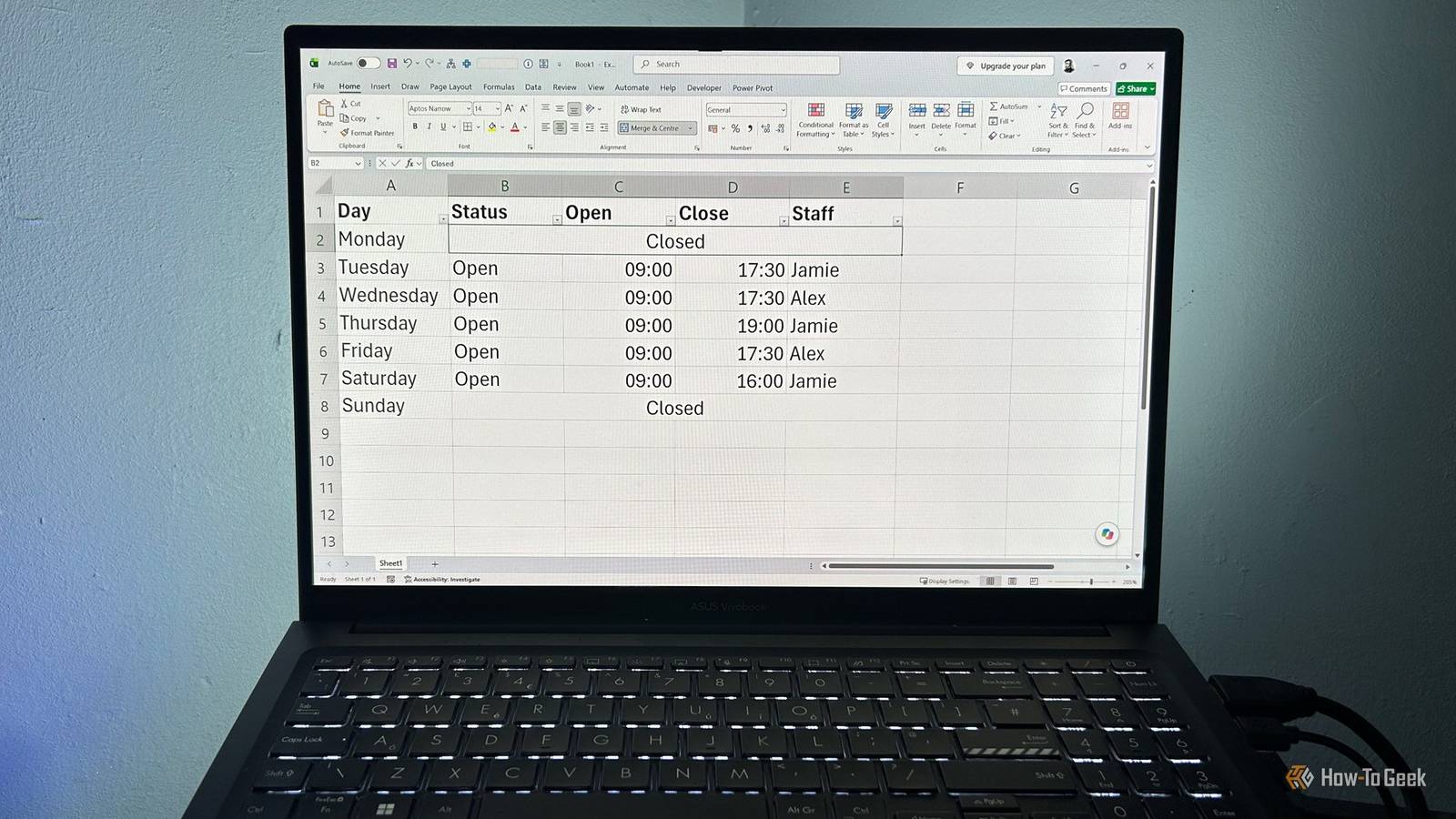
For example, you might want to center a title across several columns or display "Closed" across cells B2:E2 to show that a shop isn't open on a certain day.Merge & Center can make either layout look right, but it can also make the underlying range harder to work with later.Fortunately, Excel has an alternative that gives text a similar appearance without combining the cells.
The problem was that finding it took more effort than clicking the prominent Merge & Center button.Excel has finally made Center Across Selection easier to find No need to dig through Format Cells anymore Close Center Across Selection lets you center text across a selected range while keeping the individual cells separate.For example, I can enter "Closed" in cell B2, select B2:E2, and apply the command.
The word appears centered across the four columns, but the cells remain independent.And because the cells remain separate, I can sort the dataset without triggering the error caused by merged cells.Previously, accessing this option meant opening the Format Cells dialog, switching to the Alignment tab, and choosing Center Across Selection from the Horizontal drop-down menu.
Now, Microsoft has added the option to the existing Merge & Center drop-down on the Home tab, making it much easier to find without having to navigate through several layers of menus.Microsoft is gradually rolling out this new menu feature as a preview, so exactly how and when it'll appear in your version of Excel may vary.Center Across Selection works horizontally across a row, rather than vertically down a column.
I see that as a benefit, not a limitation: when I'm working with data, merging cells down a column is precisely the kind of thing I'd avoid doing in the first place.One advantage of Center Across Selection is that you can use it within the body of an Excel table, whereas Merge & Center isn't available there.This means you don't have to sacrifice the benefits of formatting your data as a table just because you want to center text across multiple cells.
Table column headers are a different story, though: because each column needs its own distinct header, Center Across Selection can't be used to center text across multiple columns in a table's header row.Add Center Across Selection to your Quick Access Toolbar Make the button even easier to access Even with Center Across Selection appearing in the ribbon drop-down menu, I prefer to keep frequently used commands close at hand.Previously, adding Center Across Selection to my Quick Access Toolbar (QAT) meant using a VBA workaround because the command was buried in the Format Cells dialog.
Now, you can right-click it in the Merge & Center drop-down menu and select Add to Quick Access Toolbar.It'll then sit alongside your other QAT commands, ready whenever you need it.This is particularly handy if you regularly format worksheet headings, labels, or other ranges where you want text to span several cells without merging them.
Instead of opening Format Cells or even the ribbon drop-down menu, you can click the QAT button and apply the alignment directly.And to undo it, select the cells and click it again.I'm not suggesting that you should never use Merge & Center.
It can still be useful when you're deliberately creating a presentation-style layout and don't need the cells to behave independently.But when you want text to span a range while preserving the underlying cells, Center Across Selection is often the better choice.Now, it takes much less effort to make it part of your everyday Excel routine.
Excel is getting better at the little things Center Across Selection isn't a new Excel feature, but making it easier to find is a welcome change.And it's one of three useful changes we've recently seen in Excel.Microsoft has also made it possible to name tables as you create them and introduced four new functions that make working with lists and arrays in cells more powerful.
After what seems like an endless string of Copilot-related Excel updates, it's refreshing to see Microsoft improving the everyday features we rely on.
Read More