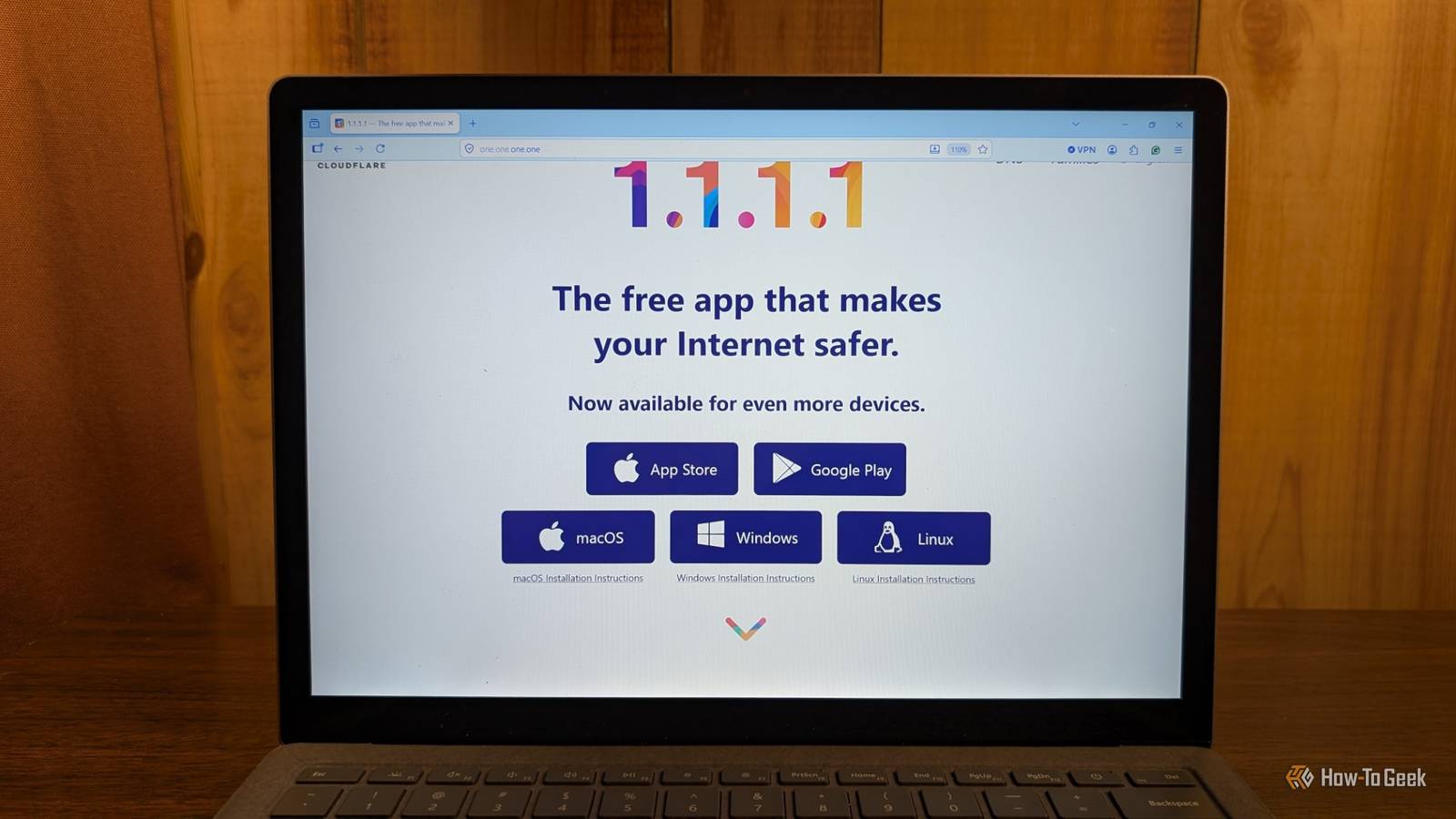
Cloudflare's 1.1.1.1 DNS server is popular for its speed, reliability, and support DNS over HTTPs (DOH), which gives you some added privacy.However, 1.1.1.1 doesn't do much besides lookup IP addresses for you.If you want something that offers additional security, you should try 1.1.1.2 instead.
What does your DNS server actually do? The internet's ever-changing phone book A Domain Name System (DNS) server functions like the internet's phone book.Whenever you enter a website's address into your browser's address bar, your PC forwards that address to the DNS server, and then the DNS server returns an IP address.Your PC (or phone) uses that IP address to actually send and receive information with whatever website you're talking to.
DNS servers aren't strictly necessary for the internet to work, but without them, you'd need to memorize websites' IP addresses—a daunting task.Quiz 8 Questions · Test Your KnowledgeHome networking & Wi-FiThink you know your routers from your repeaters — put your home networking know-how to the ultimate test.Wi-FiRoutersSecurityHardwareProtocolsBegin 01 / 8Wi-FiWhat does the '5 GHz' band in Wi-Fi offer compared to the '2.4 GHz' band?ALonger range but slower speedsBFaster speeds but shorter rangeCBetter wall penetration and faster speedsDLower interference but identical speedsThat's right! The 5 GHz band delivers faster data rates but loses signal strength more quickly over distance and through walls.It's ideal for devices close to the router that need maximum throughput, like streaming 4K video.Not quite — the 5 GHz band actually offers faster speeds at the cost of range.
The 2.4 GHz band travels farther and penetrates obstacles better, which is why smart home devices and older gadgets often prefer it.Continue 02 / 8ProtocolsWhich Wi-Fi standard, introduced in 2021, is also known as Wi-Fi 6E and extends into a new frequency band?A802.11acB802.11axC802.11beD802.11nCorrect! 802.11ax is the technical name for Wi-Fi 6 and Wi-Fi 6E.The 'E' variant extends the standard into the 6 GHz band, offering a massive swath of new, less-congested spectrum for faster and more reliable connections.The answer is 802.11ax — that's Wi-Fi 6 and Wi-Fi 6E.Wi-Fi 6E adds support for the 6 GHz band, giving it far less congestion than the crowded 2.4 GHz and 5 GHz bands.
802.11be is actually the upcoming Wi-Fi 7 standard.Continue 03 / 8RoutersWhat is the default IP address most commonly used to access a home router's admin interface?A192.168.0.1 or 192.168.1.1B10.0.0.1 or 172.16.0.1C255.255.255.0 or 255.0.0.0D127.0.0.1 or localhostSpot on! The vast majority of consumer routers use either 192.168.0.1 or 192.168.1.1 as the default gateway address.Typing either into your browser's address bar will bring up the router's login page — just make sure you've changed the default password!The correct answer is 192.168.0.1 or 192.168.1.1.These are the most common default gateway addresses for home routers.
The 255.x.x.x addresses are subnet masks, and 127.0.0.1 is your own machine's loopback address, not a router.Continue 04 / 8SecurityWhich Wi-Fi security protocol is considered most secure for home networks as of 2024?AWEP (Wired Equivalent Privacy)BWPA (Wi-Fi Protected Access)CWPA2 with TKIPDWPA3 (Wi-Fi Protected Access 3)Excellent! WPA3 is the latest and most robust Wi-Fi security protocol, introduced in 2018.It uses Simultaneous Authentication of Equals (SAE) to replace the older Pre-Shared Key handshake, making it far more resistant to brute-force attacks.The answer is WPA3.WEP is completely broken and should never be used, WPA is outdated, and WPA2 with TKIP has known vulnerabilities.
WPA3 offers the strongest protection, and if your router supports it, you should enable it right away.Continue 05 / 8HardwareWhat is the primary difference between a mesh Wi-Fi system and a traditional Wi-Fi range extender?AMesh systems only work with fiber internet connectionsBRange extenders create a seamless single network while mesh systems create separate SSIDsCMesh nodes communicate with each other to form one seamless network, while extenders create a separate networkDMesh systems are always wired, while extenders are always wirelessExactly right! Mesh systems use multiple nodes that talk to each other intelligently, handing off your device seamlessly as you move around your home under one SSID.Traditional range extenders typically broadcast a separate network and can cut bandwidth in half as they relay the signal.The correct answer is that mesh nodes form one intelligent, seamless network.Range extenders are actually the ones that often create separate SSIDs (like 'MyNetwork_EXT') and can significantly reduce speeds.
Mesh systems are far superior for large homes with many devices.Continue 06 / 8ProtocolsWhat does DHCP stand for, and what is its main function on a home network?ADynamic Host Configuration Protocol — it automatically assigns IP addresses to devicesBDirect Hardware Control Protocol — it manages router firmware updatesCDistributed Hosting and Caching Protocol — it speeds up web browsingDDynamic Hypertext Communication Protocol — it secures data transmissionsPerfect! DHCP (Dynamic Host Configuration Protocol) is the unsung hero of home networking.Every time a device joins your network, your router's DHCP server automatically hands it a unique IP address, subnet mask, and gateway info so it can communicate without manual configuration.DHCP stands for Dynamic Host Configuration Protocol, and its job is to automatically assign IP addresses to devices on your network.Without it, you'd have to manually configure a unique IP address on every single phone, laptop, and smart device — a tedious nightmare!Continue 07 / 8RoutersWhat is 'QoS' (Quality of Service) used for in a home router?AEncrypting all traffic leaving the routerBPrioritizing certain types of network traffic over othersCAutomatically switching between 2.4 GHz and 5 GHz bandsDBlocking malicious websites using a DNS filterThat's correct! QoS lets you tell your router which traffic gets priority.
For example, you can prioritize video calls or gaming over a family member's file download, ensuring your Zoom meeting doesn't freeze just because someone is downloading a large update.QoS — Quality of Service — is actually about traffic prioritization.By tagging certain data types (like VoIP calls or gaming packets) as high priority, your router ensures latency-sensitive applications get bandwidth first, even when the network is congested.Continue 08 / 8HardwareWhat does the 'WAN' port on a home router connect to?AOther computers in your home network via EthernetBA wireless access point for extending Wi-Fi coverageCYour modem or ISP-provided gateway to the internetDA network-attached storage (NAS) deviceCorrect! WAN stands for Wide Area Network, and the WAN port is where your router connects to the outside world — typically to your cable modem, DSL modem, or ISP gateway.The LAN ports on the other side connect to devices inside your home network.The WAN (Wide Area Network) port connects your router to your ISP's modem or gateway — essentially your entry point to the internet.
The LAN (Local Area Network) ports are for connecting devices inside your home.Mixing them up can cause your network to not function at all!See My Score Challenge CompleteYour Score/ 8Thanks for playing!Try Again Why does which DNS server you pick matter? If your DNS server is working perfectly, and you only need to fetch IP addresses, then your choice of DNS server doesn't matter too much.However, there are a few situations where changing your DNS server can make a difference.
Related Why You Should Change Your DNS Server Today Still using your ISP's default DNS server? Change today and reap the benefits.Posts If your current DNS server is down or overloaded, switching to a new DNS server can fix connection or lag issues.Fortunately, problems like that are generally pretty rare now.
More interestingly, because DNS servers sit between you and the websites you connect to, they can also be used to filter your results.Used the right way, that is a powerful tool.UniFi Dream Router 7 9 Brand Unifi Range 1,750 square feet Wi-Fi Bands 2.4/5/6GHz Ethernet Ports 4 2.5G The Unifi Dream Router 7 is a full-fledged network appliance offering NVR capabilities, fully managed switching,a built-in firewall, VLANs, and more.
With four 2.5G Ethernet ports (one with PoE+) and a 10G SFP+ port, the Unifi Dream Router 7 also features dual WAN capabilities should you have two ISP connections.It includes a 64GB microSD card for IP camera storage, but can be upgraded for more storage if needed.With Wi-Fi 7, you'll be able to reach up to a theoretical 5.7 Gbps network speed when using the 10G SFP+ port, or 2.5 Gbps when using Ethernet. $279 at B&H Photo Video $279 at Unifi Expand Collapse There is a Cloudflare DNS server that protects you from malware Everyone still uses 1.1.1.1 Cloudflare's 1.1.1.1 is one of the most popular DNS servers.
It is fast, reliable, and easy to remember.However, it'll also connect you with any website out there—even a malicious one—without even a warning message.That is where Cloudflare's 1.1.1.2 DNS server comes in.
For the most part, 1.1.1.2 works the same way as 1.1.1.1—it provides IP addresses—but it also has an integrated security filter.If you try to connect to a domain known for phishing, running command and control servers, distributing malware, or other kinds of malicious activity, you'll be redirected to 0.0.0.0 instead.Redirecting to 0.0.0.0 just does nothing.
Your browser won't load anything at all.Because the protection layer exists outside your PC and your home network, malware never even reaches your PC, and if you click a phishing link, you're never connected.It is a very proactive way to keep your devices safe, and great if you want another passive layer of protection that you can set and forget.
Cloudflare's 1.1.1.3 is even stricter Cloudflare's 1.1.1.3 DNS server includes everything that 1.1.1.1 and 1.1.1.2 do, but it takes it a step further by blocking websites that are known to host adult-only content.It is a good choice for devices that are used by children, but would also be useful if you wanted to block adult content across an entire network too.You'd just need to change the DNS server on the router instead of on a single device.
DNS-based filtering for malware protection has limits Despite how helpful DNS-based filtering can be for securing your network and your devices, it has a few limitations.The biggest limitation—and the most important—is that it works against known malicious domains.If a new domain crops up that is distributing malware, or a previously-safe domain is taken over by malicious actors, it won't help you.
That is why having multiple layers of protection is essential.It can also return a false positive and block a perfectly safe website, though that is pretty rare.Setting up 1.1.1.2 on your devices Apply the filter to your entire network To filter your entire network, you need to change the DNS server used by your router.
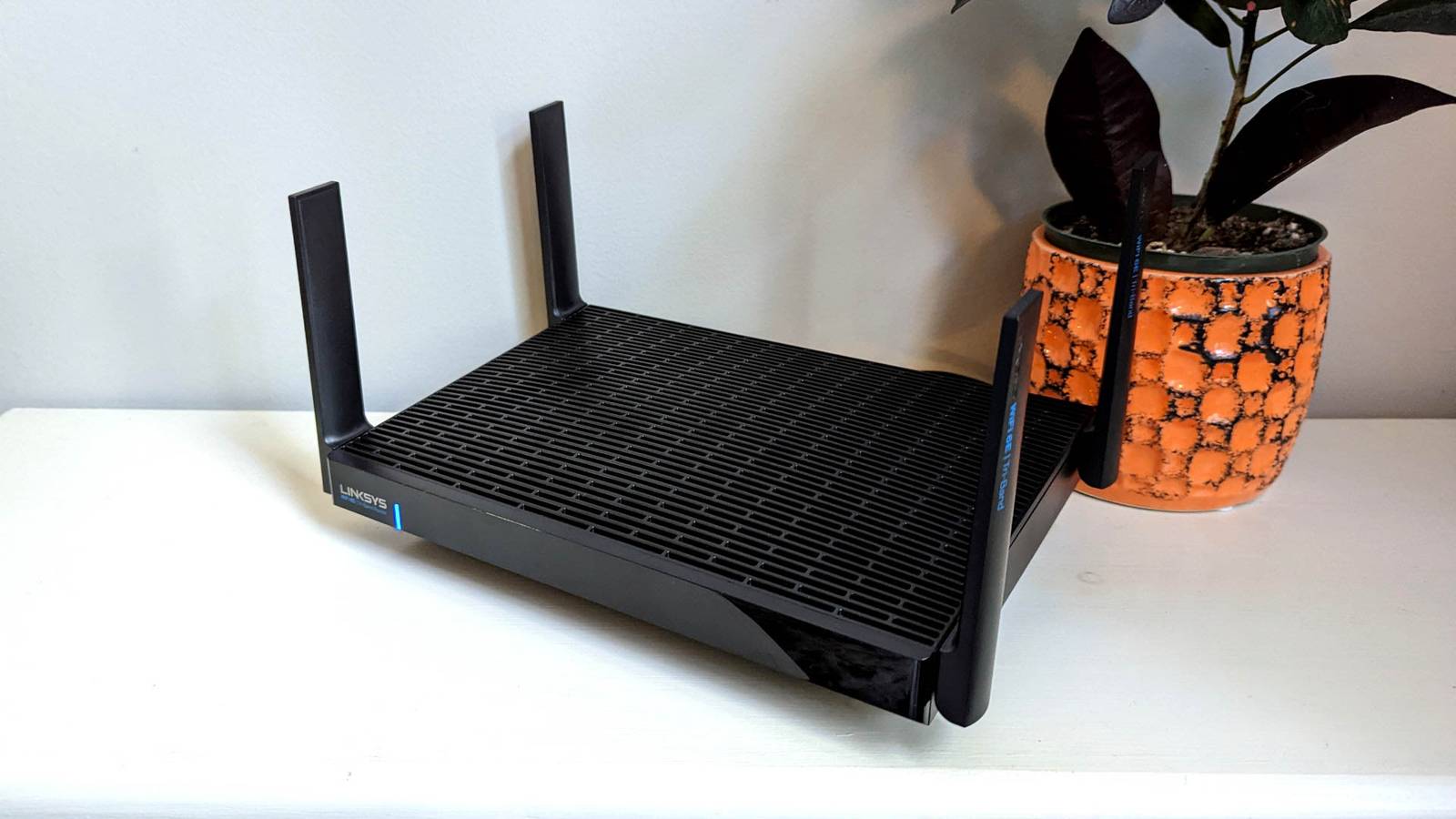
If your router has an app available for desktop or mobile, I'd recommend using that, since they're usually pretty user-friendly.If they don't, you can enter your router's IP address in the address bar of your browser to log in instead.Most of the time, your router's IP address will be 192.168.0.1 or 10.0.0.1, but if neither work, you can run ipconfig /all in the Terminal and look for the Default Gateway entry.
Once you've logged in to your router, look for settings related to DNS or DHCP—the setting to change your DNS server is usually in there somewhere.On my TP-Link router, it was located in Advanced > Network > DHCP Server.Subscribe to the newsletter for practical DNS security help Protect your devices with clear DNS guidance—subscribe to our newsletter for step-by-step setup instructions, filter comparisons, and practical tips on configuring routers and devices to use DNS-based malware and content filtering safely.
Get Updates By subscribing, you agree to receive newsletter and marketing emails, and accept our Terms of Use and Privacy Policy.You can unsubscribe anytime.Once you're there, set the Primary DNS server to 1.1.1.2 and the Secondary (sometimes called alternate) to 1.0.0.2.
Apply it to your Windows PC To change your DNS server on Windows, press Windows+i, then go to Settings > Network & internet > Ethernet (or Wi-Fi) > (Your Network), and click Edit next to DNS Server Assignment.Click the drop-down menu that says Automatic and change it to Manual, enable IPv4, change Preferred DNS to 1.1.1.2 and Alternative DNS to 1.0.0.2, then click Save.Another layer of protection Changing your DNS server isn't a silver bullet that will protect you from every source of malware on the internet, but it is an important layer of protection in a world with increasingly sophisticated types of malware.
Once you change your DNS server, make sure you optimize your browser's security settings.Most modern browsers have capable malware detection that will often block malware before you actually download it.
Read More