Obsidian is one of the most powerful apps out there, but it’s more of a DIY project than a ready-made solution.The default Obsidian experience is fairly basic and bare-bones, centered around a simple note-taking experience.However, once you start tweaking it with the many community-made plugins available, you can slowly transform Obsidian into a powerhouse.
Here’s how I set up my Obsidian vault to function like a project management system—and the results were so good that it has replaced Notion for me.How I've set up Obsidian as a project management system (PMS) Your second brain can also be your workspace without adding unnecessary confusion The term PMS (Project Management System) can mean different things to different people.For some, it can be as simple as a Kanban board — somewhere to dump and keep track of your tasks.
For others, it’s a task tracker paired with a collaboration layer, where the point is assigning tasks to different users and tracking who is doing what.And then there are folks like me — writers and marketers — for whom a PMS is not just a place to store tasks, but a place to do the work itself.For years, I defaulted to using Notion as my main PMS.
Granted, I also used Obsidian, but it was more for knowledge management and building a second brain, not necessarily for tracking my work.Then I started poking around the community plugins and found the Tasks plugin — and it changed everything.Related 5 open-source Obsidian plugins I can't live without I always install these plugins first with a fresh Obsidian install.
Posts By Faisal Rasool How to use the Tasks plugin Deceptively simple, disproportionately powerful Close The Tasks plugin is one of those deceptively simple yet extremely powerful tools.Once installed, any checkbox you create in any note becomes a task.As soon as you create a checkbox, the plugin offers a dropdown of metadata you can attach to it.
This includes things like a due date, a start date, a scheduled date, a priority level, whether it recurs, and — the part that ended up mattering most for me — a task ID and a dependency on another task.While I prefer adding all this task metadata as I create a checkbox, if you’d rather fill out a form, you can use the “Create or edit task” command.It opens a modal with all the same fields, which can be useful if you prefer a thorough overview instead of the quick, spontaneous task-capture experience.
The “Create or edit task” command is only available if you’ve enabled the “Slash commands” core plugin.Close Now, the reason I love using Tasks is because of this unique workflow unlock.While writing a daily note, if I remember something I have to do, I can just add a checkbox (read task) right there.
Likewise, when I'm saving a web clipping and it sparks a task, I can create a checkbox and add it then and there.I never have to stop what I'm doing and go to a dedicated “tasks” space — every note is a task space.Finding your tasks Every captured task in one place, whenever and however you want Now, I know what you might be thinking — isn’t this a messy task-capture system? How will you find all your tasks? Well, that’s where the second half of the plugin comes in.
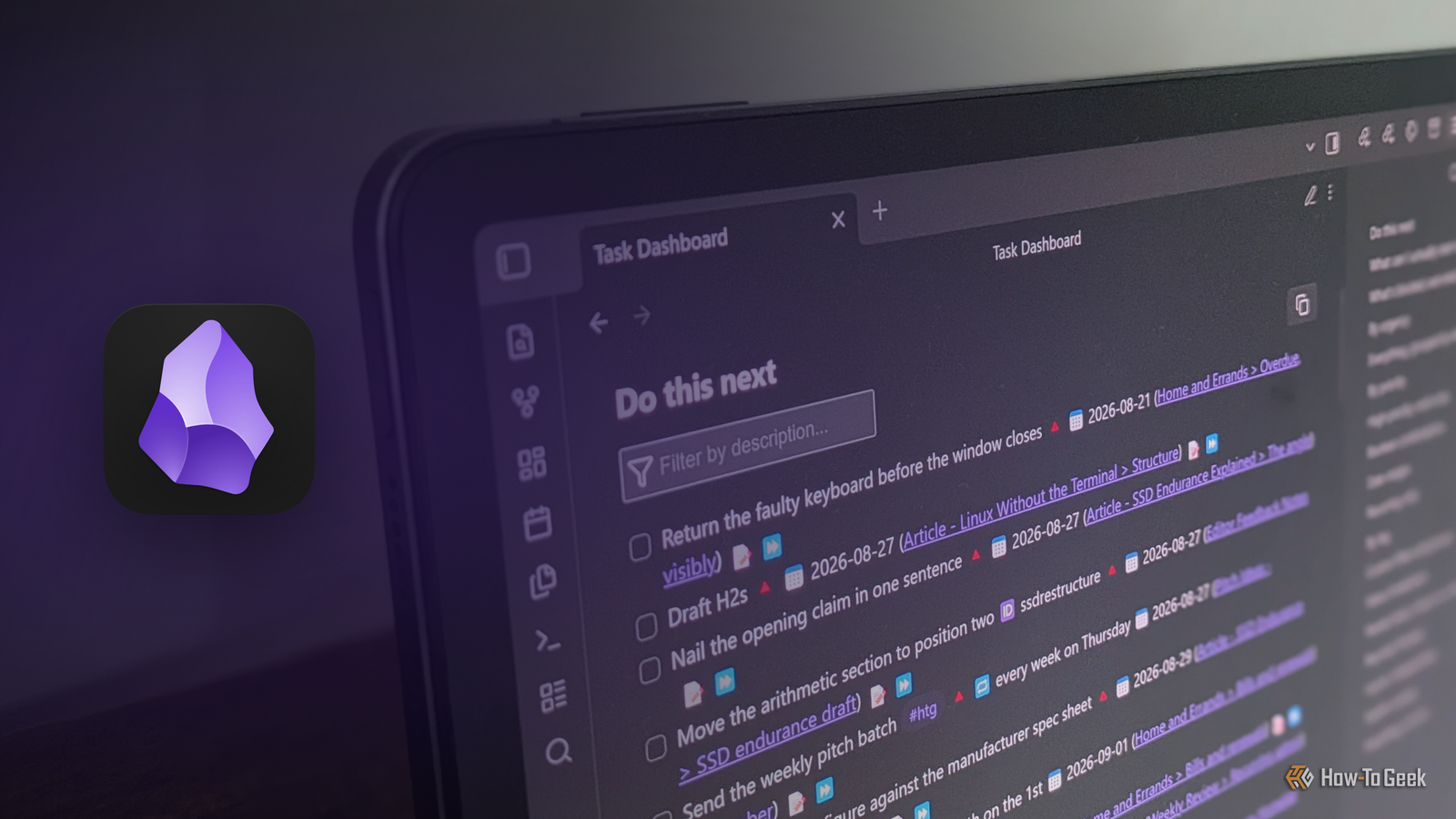
You can surface all the tasks spread across your Obsidian vault using a simple code block.Just enter the following in any note: ```tasks ``` This will scan through your entire Obsidian vault and show you every single task you’ve captured.Ideally, I would create a note called Tasks Dashboard and put this code snippet in it, giving you a dedicated view of all your tasks.
The tasks stay where you created them — the dashboard simply renders them in a single place for viewing.You can’t edit the tasks in this view, but you can check (or uncheck) the tasks.I should also mention that you have powerful filtering options to narrow things down to a few specific tasks.
For example, this is the block to show all the top 10 incomplete tasks that are not dependent on another task being completed, have a due date, and are sorted by urgency: ```tasks not done is not blocked has due date sort by urgency limit 10 short mode ``` And here’s the block showing all blocked tasks that are not done, grouped into folders — that is, the folders in the Obsidian vault where the tasks are contained: ```tasks not done is blocked group by folder hide postpone button ``` Related I started using emoji in my Obsidian notes—here's why it's a total game-changer Learn how emoji turned dull, hard-to-skim notes into a vibrant, visually engaging thinking space Posts By Ali Haider You can use AI to help you with the formulas You don't need to memorize the syntax With the Tasks plugin, capturing tasks is the easy part because you don’t have to explicitly remember any of the metadata — the dropdown surfaces everything for you.The querying half is where it can get annoying, because you have to actually know the filter syntax and tags, and if you get any of it wrong, the renderer will claim that no tasks were found.This is especially problematic because there are a lot of different filters available—which, yes, makes the system more powerful, but also makes it a pain to remember everything.
As such, this is one part where I rely on AI, and it works really well.I’ve shared the Tasks plugin’s documentation and README with Claude — saved as a skill so it’s there permanently — and then described the view I want in plain English.It hands back a code block; I paste it into my dashboard note, and it renders.
Granted, you don’t necessarily have to create a skill for this, since once you create a task view in a note, it’s going to stay there permanently and update as you create or delete tasks across your Obsidian vault.Related Claude + Obsidian: The cheat code for building a second brain that actually sticks Building a second brain has never been easier.Posts By Dibakar Ghosh This has completely replaced my Notion workflow I don't open Notion anymore Previously, my PMS was built on Notion’s relational database system.
I ran two databases, one for projects and one for articles.The projects database held everything I needed to do before I could actually write a given article — experiments to run, tools to test, and setups to build.Then I linked the two databases, so an article would point to the projects it depended on.
Each article was also a page in its own right, so I drafted inside Notion too.The system worked fine.The only problem was that I have a strong preference for local applications — keeping my data on my own system.
So I looked for Notion alternatives and finally found one in Obsidian with the Tasks plugin enabled.Granted, it’s not the same workflow I had with Notion, but I’m getting the same benefit by making tasks dependent on other tasks.I can also add tags like Project and Article for further categorization.
Moreover, I’d argue that capturing tasks became much more convenient in this setup because now I could do it anywhere — I didn’t have to go to a specific page or database.Related 3 ways I use Notion to make my life easier Notion has become the lifeblood of my productivity workflow.Posts By Patrick Campanale What about syncing and collaboration? Two real gaps — two free workarounds One clear advantage Notion has over Obsidian is that you can share your Notion pages with your friends and colleagues and collaborate on them.
Also, since it’s a cloud app, anything you create in Notion automatically syncs across all your devices.Now, Obsidian also has a sync feature, but it’s paywalled.Thankfully, you can use a third-party open-source tool called Syncthing to sync your Obsidian vault between your different devices.
Likewise, there’s another open-source project called CollabMD that lets you host your Obsidian vault online and share it with others for real-time collaboration.This finally settles the Notion vs.Obsidian debate Obsidian wins for me — but does it for you? The Notion versus Obsidian debate has been going on in online circles for about as long as both of them have existed.
Both apps can function as a Project Management System and a Knowledge Management System, but Notion typically gets the nod as the better PMS, while Obsidian is considered the better KMS.As such, many people, myself included, would use both tools.However, with the Tasks plugin, Obsidian can handle project management workloads just as well, and for someone like me, it has become the better overall alternative.
Read More