Receiving a power adapter with every tech purchase is a thing of the past, but the same can’t be said of cables (thankfully).With almost everything now charging via USB-C, you’ll quickly amass a collection of cables that have seemingly universal compatibility.Unfortunately, that’s not the reality.
The problem with USB-C cables Not everything has been standardized Close “USB-C” refers to the connector on the end of the cable, a symmetrical and reversible plug that fits snugly into your devices.When we say “USB-C cable,” we really mean “USB cable of undefined specification that happens to use the USB-C connector.” The USB standard has been constantly evolving since its inception.The main specifications that you need to worry about are data rate and power delivery.
Data rate refers to how fast data can be passed between devices, and some cables don’t support data transfer at all.Power delivery determines how fast a device can charge, or whether thirstier devices like laptops can be powered at all.These two specifications have nothing to do with one another.
You might receive a USB-C cable with a laptop that can handle the 60W your laptop needs to charge, which is stuck on USB 2.0 speeds.The opposite is true too, since some cables that support 40Gbps data transfer can have relatively low power delivery capabilities.For a cable to support fast data speeds, it must use shielded data wires.
Higher power throughput depends on more copper and an E-Marker chip which identifies what the cable is capable of to whatever it is plugged into.There are cables that support both, but these are typically premium options.Don’t expect device manufacturers to include them with your next gadget purchase either; you’ll probably need to buy them if you want them.
The biggest problem of all is that there is no way to tell what these cables are capable of simply by looking at them.Some have markings on them like “PD” to denote which version of the Power Delivery standard they conform to; others come with plastic labels that many of us instinctively remove.This makes it hard to find the right cable for the job when you’re rifling through your well-organized box of wires.
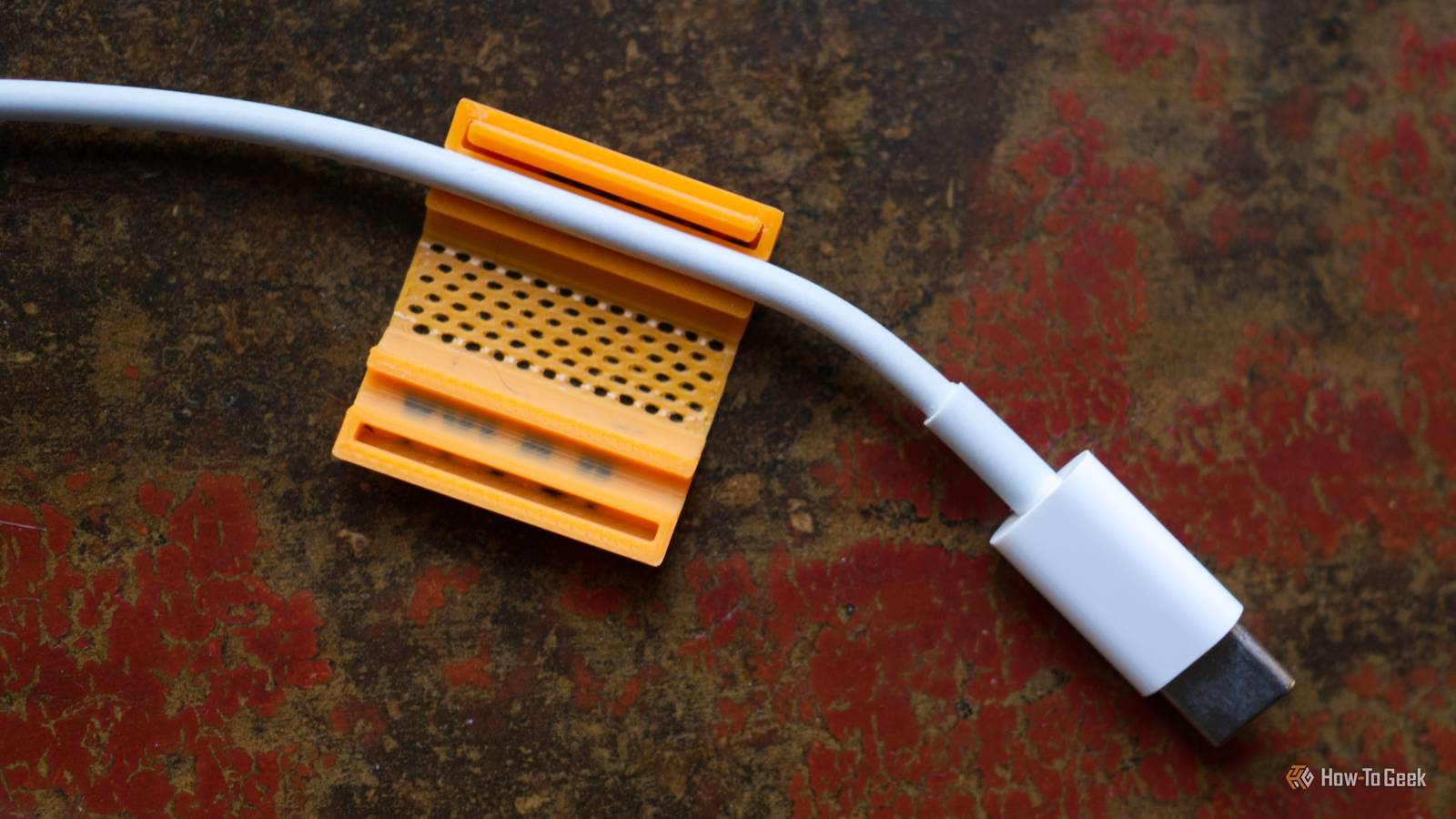
Fix the problem with 3D printed labels Print the labels you need, as you need them Close Thankfully, you can make life a lot easier with a simple 3D-printed fix.Cable labels aren’t exactly a groundbreaking concept, and you could choose to use a bit of tape or handwritten notes.Personally, I’ve settled on a simple reusable color-coordinated design.
The model in question isn’t designed specifically for USB cables or for labeling the capabilities of these cables.But you can easily use it for this by customizing the text field.Do this by finding the “text_shape” entry under the Objects section, right-clicking on it, and choosing “Edit Text.” All you need to do is devise a system that works for you.
You could squeeze the power and data rate information onto the label, or just pick one for the label and choose a color for the other.It depends on how much filament you have available (and whether you can keep the system consistent).I went for a simple color-coordinated system for speed, while printing the power capabilities on the cable itself.
Orange means USB 2.0 (480Mbps), blue means USB 3.0 (5Gbps), blue and gray means USB 3.1 (10Gbps), and grey means USB 3.2 (20Gbps).I don’t have any 40Gbps USB 4.0 cables yet to worry about.The text is embedded, so you can switch off multicolor printing and still be able to read it (though it will be harder to read this way) if you’d rather.
To minimize waste, it’s best to print up a whole bunch of these at once and keep the text the same color throughout.Figuring out what your USB-C cables are capable of It can be easier said than done The hardest part of this operation is figuring out the capabilities of your USB cables.If you’ve purchased the cable, the specification should be on the packaging (and in your online order history, if you’ve since thrown it away).
Cables that come with laptops and smartphones will also often be referenced by the manufacturer on the spec sheet.For more generic devices, like keyboards and USB-C chargeable gadgets, things are a little trickier.Thankfully, apps like USB Device Tree Viewer for Windows, WhatCable for Mac, and usbeehive for Linux can help.
These apps analyze cables that are connected to your computer and report back what they are capable of, both in terms of data transfer rate and charging capability.Once you’ve tested a cable, print a label and file it away.Looking for more small but mighty models? Check out these tiny prints that use less than 20g of filament.
Read More