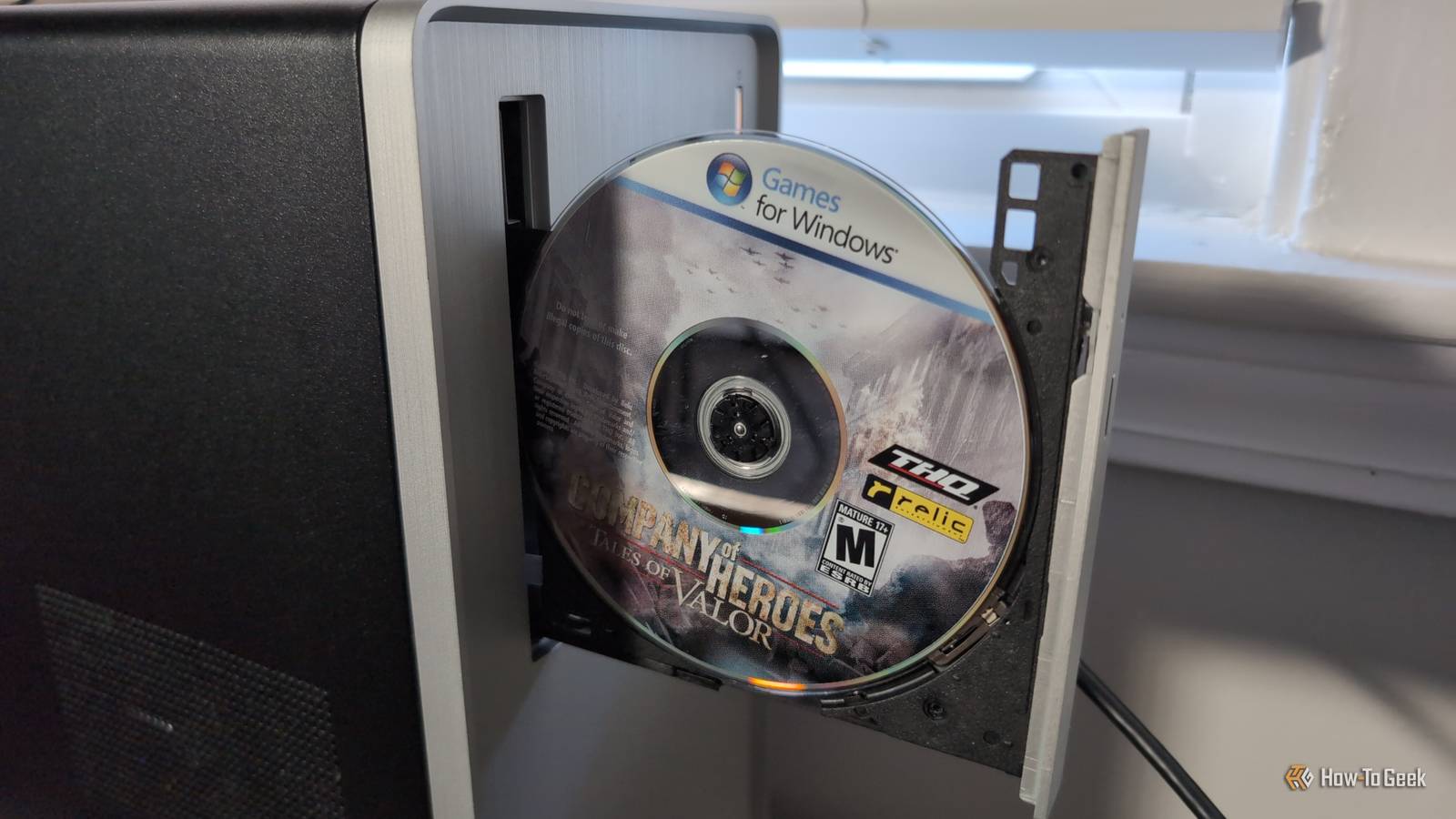
Running old CD-ROM games on modern Windows isn't too hard if you know how to manage Windows' compatibility software.But what if you have a Linux desktop and don't want to leave your old Windows games behind? Recently I picked up a couple of Windows 98 to 7-era games on CD-ROM from a thrift store: and .While holding them felt nostalgic, I realized I wasn't sure how possible playing them on my now-preferred Linux desktop would be.
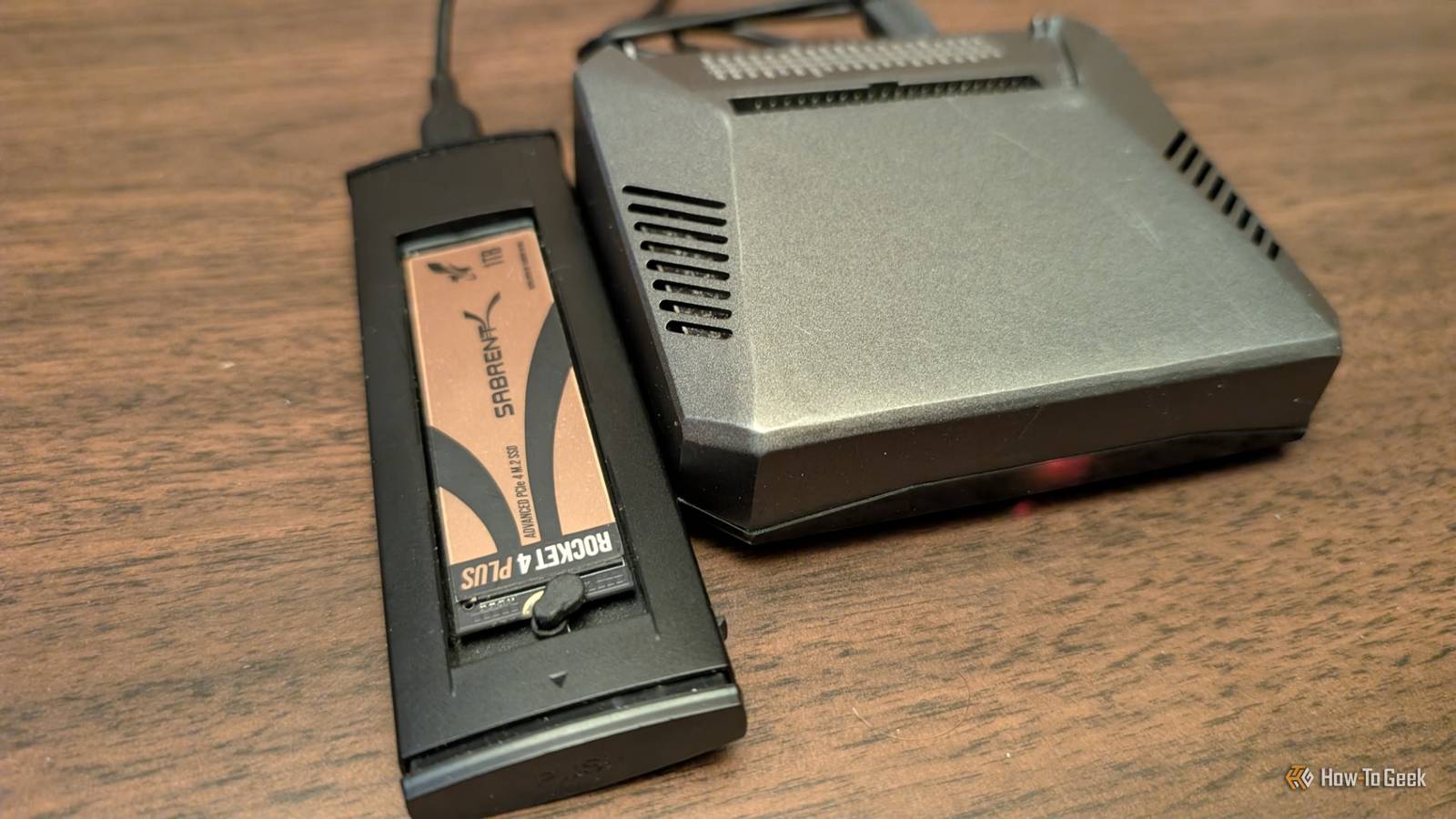
It turned out with modern software it's actually pretty easy.What you'll need There are a few things you'll need in order to follow my steps.Optical disc drive: The best would be a SATA-connected internal drive, but you can get affordable USB-connected drives from just about any tech store.
Heroic Games Launcher: Ideally installed as a Flatpak from Flathub.Other game launchers like Lutris and Steam may work as well, but Heroic is the one I'll be using in this guide because I think it's the most newbie-friendly and doesn't require an account.Your game's activation key (if applicable): Some CD-ROM games came with product keys written inside the case, usually on the manual, that were required for installation.
If your CD case is missing that code, you won't be able to finish the installation process.You can try searching the web for usable activation codes, though, since some people post those online.LG Electronics 8X USB Portable Optical Drive This slim external DVD burner from LG does everything you need a DVD drive to do without getting in your way.
It's perfect for slipping into your laptop bag and forgetting about it until you need it.$30 at Amazon $35 at B&H Photo Video See at LG Expand Collapse Step 1: Check Heroic's Proton version Playing Windows games on Linux always requires a compatibility layer, and in my experience, the most reliable one is Heroic's default: GE-Proton, aka Glorious Eggroll's Proton.Open Heroic Games Launcher and go to Wine Manager and confirm you have GE-Proton-Latest installed.
Click the rotating circle at the top to check for any available updates.Don't get distracted by all the other options in this menu.You can go back and try another version of GE-Proton or Wine if your first installation attempt fails.
Step 2: Insert and mount a CD Connect your disc drive to your PC if it isn't already and insert your CD-ROM.Open your file manager and confirm that the disc is mounted.If it isn't, right-click the drive and look for the option to mount it, or just double-click it.
Step 3: Run the installer With your CD inserted, it's time to run the installer.In your Heroic library, click "Add Game" and type the name of the game in the "Game/App Title" field.If you get the spelling right, Heroic will automatically fetch artwork from the internet and put it in the "App Image" field, which is a nice cosmetic touch.
Next, skip the other options and fields and instead click the "Run Installer First" button at the bottom of the dialog.Using the file browser that pops up, navigate to the mounted CD drive (usually labeled with the game's initials) and look for an executable file named Setup.exe or something similar.Files named Autorun.exe often work too.
Double click it and wait for the game's install wizard to launch.From here on, the experience should be just like installing the game as you did on Windows.After the installation is complete, the wizard may suggest launching the game right there.
I recommend closing the installer at this point, though, as I experienced some weird behavior when trying to immediately start the game.I also often got error messages at the end of game setups about having the wrong version of DirectX installed.Even when they reported the installation failed, this was never actually the case, so I recommend simply accepting the error and moving on.
Step 4: Start playing Back in Heroic's game manager settings, click the folder button on the "Select Executable", at which point you'll get a file browser with Proton's game file folder open.Click through the folders until you find the game's install folder, where you should find an executable with the game's name.For example, Company of Heroe's executable was named CoH_ToV.exe.
A file named Autorun.exe may also work.Double click it, then click "Finish" in Heroic.The game will now appear in your library, and clicking the "Play Now" button will launch the executable you selected.
Subscribe for Linux retro-gaming how-tos and tips Rediscover classic Windows CD-ROM games on Linux - subscribe to the newsletter for step-by-step install guides, Proton/Wine setup tips, and safe CD-to-ISO workflows that help you play and preserve retro PC titles on your Linux desktop.Subscribe By subscribing, you agree to receive newsletter and marketing emails, and accept Valnet’s Terms of Use and Privacy Policy.You can unsubscribe anytime.
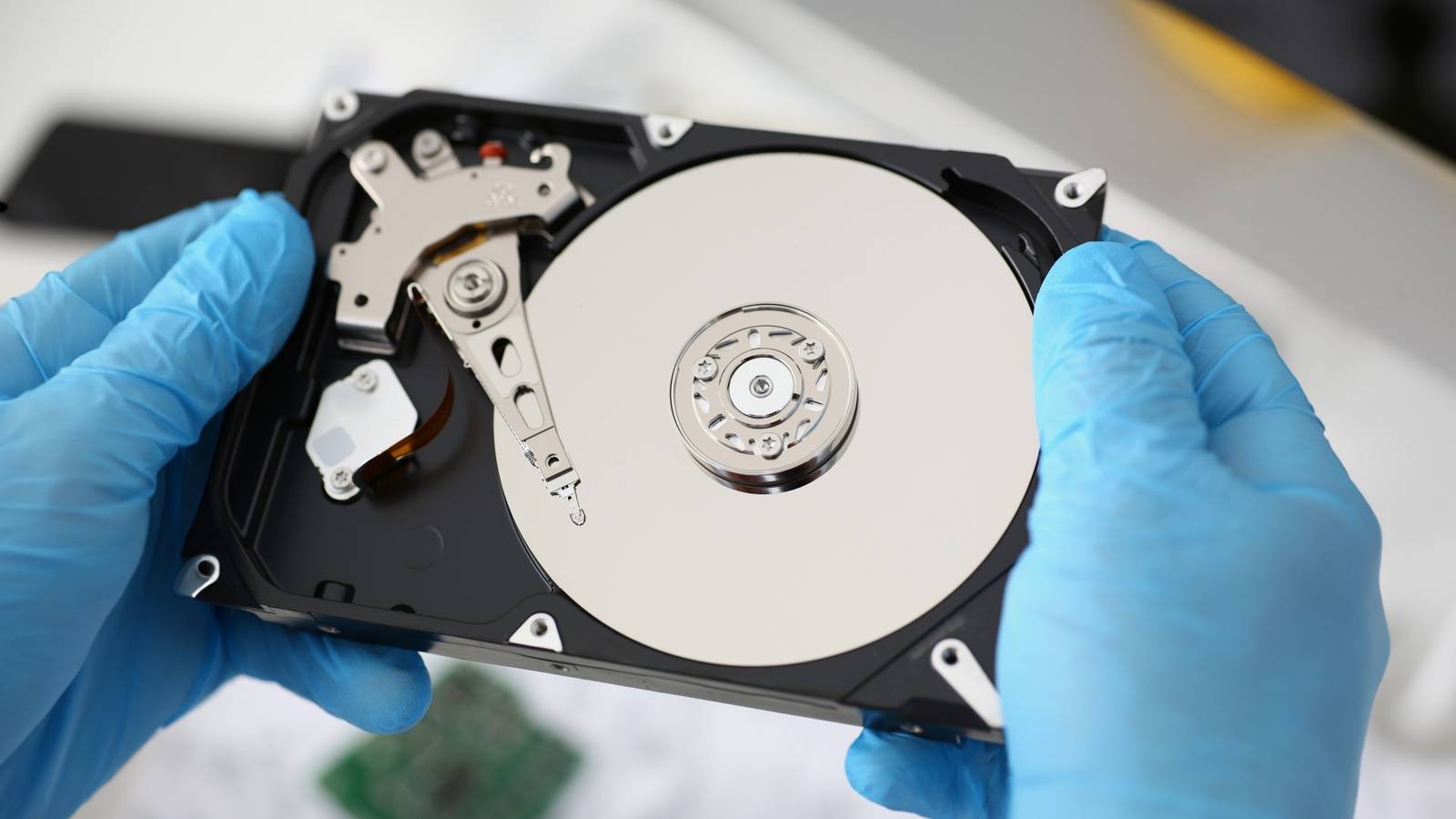
If the game requires a CD to be in the drive in order to play it, you'll need to make sure it's inserted and mounted on your Linux PC.Otherwise, you won't be able to play the game.Step 5 (optional): Rip an image of the CD While many games require you to have the CD inserted in order to play, that's not only inconvenient, it also means you risk losing the ability to play it.
Disc rot sets in, and scratches build up to the point of the disc being unreadable, at which point you'll be up the retro gaming creek without a paddle.The good news is you can often clone an "image" of the CD, typically called an ISO file.Many CD/DVD writing programs can do this, and my preferred app is K3b, a KDE app.
Just right-click the disc, click "Copy Image," check the box for "Only Create Image," then "Start." Hang back and wait for the ISO image to be written.You'll then need to mount the ISO file whenever you want to play it.Fortunately, some Linux file managers let you mount ISO files with the click of a button in the ISO file's context menu, sometimes relying on the presence of the fuseiso package.
If your file manager doesn't give you this option, consider either switching to one that does or mounting the image file via the terminal.You don't actually need a disc drive or CD-ROM to start playing retro games on Linux.There are many open source ports and clones of classic games on Linux, and you can install and play them right now for free if you know where to find them.
If you don't mind repurchasing, you can also find many of the classic games you remember playing available in digital form at GoG.com.Have fun!
Read More