The Quick Settings swipe-down menu makes it easy to access some of the best Samsung Galaxy features.However, while tapping a toggle or button is simple enough, nothing beats performing a single action without touching your phone’s screen.This is what I’ve done with NFC tags, and it has been a game changer for the tools I use most.
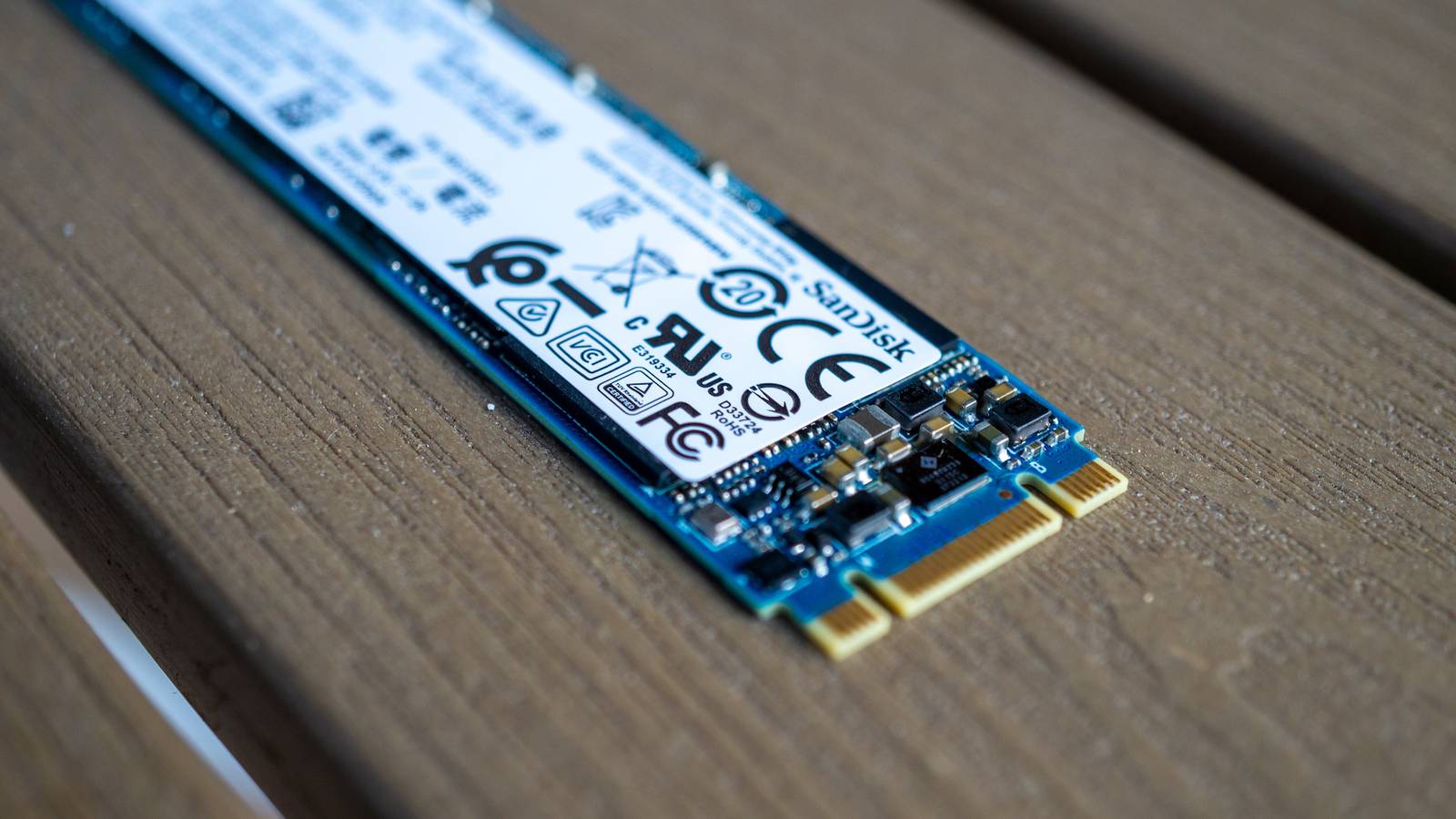
Get your NFC tag ready To get NFC tags to work for you, you first need to get some, which is easy to do.You can get a pack from Amazon easily; you just need to choose whether you want them to have an adhesive backing, depending on where you are going to put them.Close Once you have them in hand, go into your Settings app on your Samsung device and tap Modes and Routines.
From there, if you have not done so already, you can add this setting category to your home screen as its own app.This is what I have done to make it easier to access.No matter how you access the section, you will want to navigate to the middle tab that is labeled Routines.
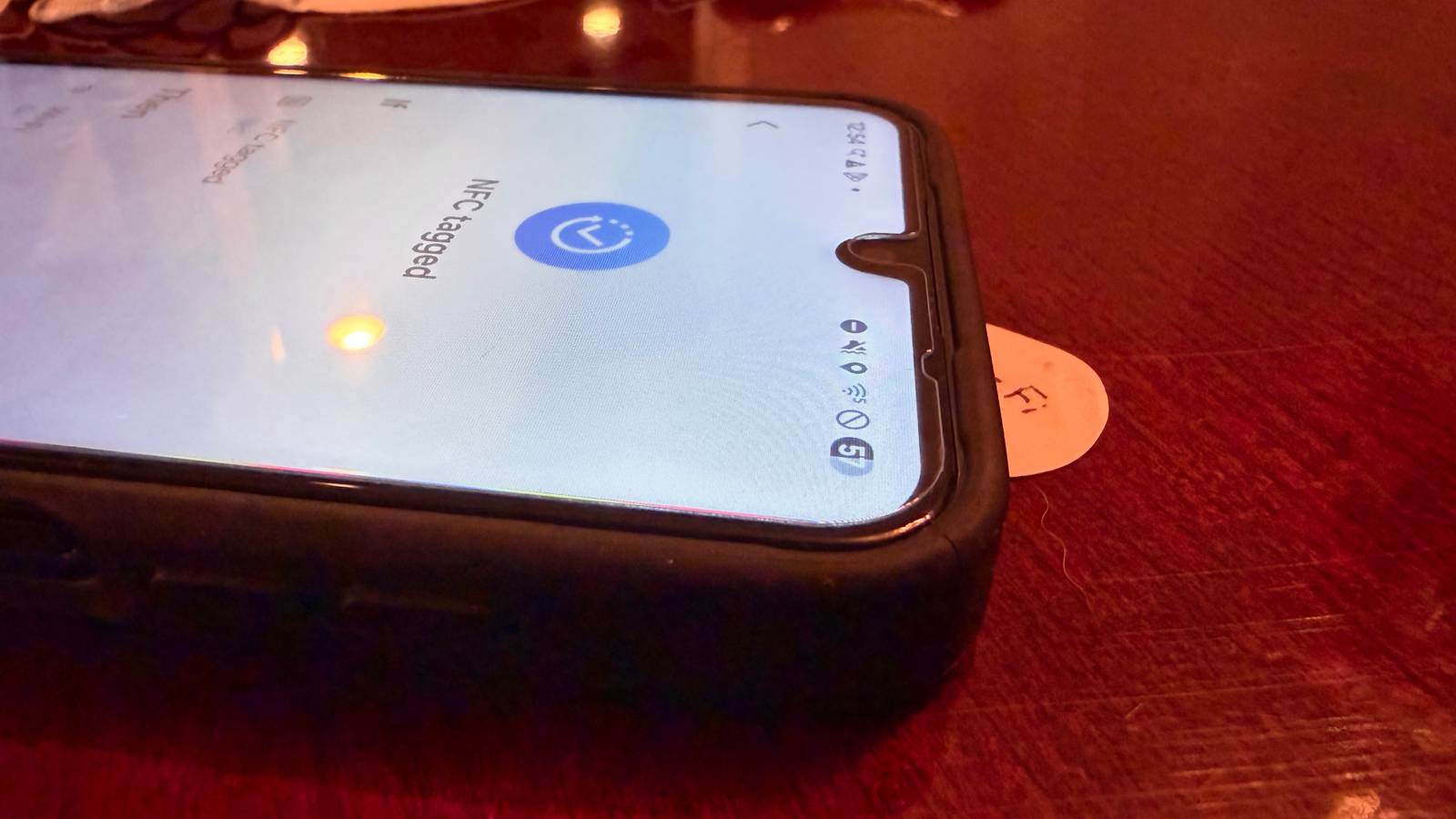
From there, tap on the plus icon in the upper right of the screen next to the magnifying glass.After tapping it, tap on the box that says “Add what will trigger this routine,” and then scroll down until you see NFC tagged under the Connections section.You will then place your device over the tag to register it.
Once it's registered, you’ll be able to add the actions you want to run when the NFC tag is tapped.1 Flashlight Just tap and glow If there is one thing we use our phones for other than communicating with people, taking photos, or scrolling on social media, it is using them as a flashlight.I cannot tell you the last time we used a physical flashlight in my house; we just use our phones.
Yet, while it is not hard to access the flashlight—all it takes is swiping down on the top of the screen and selecting the icon in Quick Settings—it can sometimes be tedious.This is especially true when I need the flashlight but cannot fumble around with the screen.This is where an NFC tag has come in handy for me.
Instead of swiping down and then tapping the icon, I can tap the phone to the tag to turn it on.Due to this, it has led me to put them in small areas and closets that don’t have lights, resulting in me needing a light source to see in them.No longer do I have to take multiple steps to turn on the light: I just tap, and it glows.
This has really come in handy when I am working with my gardening gloves and need to look in my toolbox.Most of the time, it’s dark in there, and having a light can really help me find the tool I am looking for.That’s when I use my phone as a flashlight, but because of the gloves I wear, the screen doesn’t always register my taps.
This has forced me to take them off to use my phone.Now, with an NFC tag I put on the inside lid of the box, I can just tap, get light, find what I am looking for, and then move on with my gardening.It’s that simple, and I no longer need to spend countless minutes trying to get my phone to turn on the flashlight after tapping the icon 10 times while wearing my gloves.
2 WiFi Disconnect and reconnect with a tap If you are like me, you try to conserve your phone’s battery in every possible way, especially when you’re not next to a power source.Most of the time, this is when you’re out of the house.When trying, one of the best methods is to turn off Wi-Fi.
To be more specific, turn off the setting altogether, not just disconnecting from the Wi-Fi you are connected to.Samsung Galaxy A16 5G Brand Samsung Display 6.7-inch AMOLED $180 at Amazon $200 at Samsung Expand Collapse By doing this, you prevent your phone from searching for a Wi-Fi signal in the background, which can drain your battery without you knowing it.Like with the flashlight, turning this off is simple, but it takes more than one step to complete, which—when you are crunched for time—can make all the difference.
This was regularly the case with me.Every morning, if the weather permits, I like to go for a walk around my neighborhood.While I am on it, I want to make sure I conserve as much battery as I can so I can keep my phone going until I get back home.
Yet, since I’m usually in a rush, I don’t always remember to turn on my Wi-Fi before heading out the door.Due to having a set time to leave for work, I try to salvage any minute I can.Having to unlock my device, go into settings, and navigate to the Wi-Fi section may only take a few seconds, but it ultimately adds up and ruins my flow.
However, having an NFC tag by my front door has solved this issue.Now, I can tap my phone to the tag, and it automatically turns off Wi-Fi.I also put another next to it so that when I tap that one, it reconnects my phone to my home network.
Reconnecting has become just as important as disconnecting, hence why I have another NFC tag for it.I do not want to forget to reconnect to my Wi-Fi and waste my cellular data when I have at-home internet available.Putting these NFC tags on has been great whenever I leave the house and come back.
Now, when I am in a rush or just want to relax when I come in, I can tap and go, and my Wi-Fi connection will be handled with minimal action from me.Tap and go NFC tags are useful for a bunch of tasks, especially those that have you complete multiple actions.However, they are even more useful for features that take multiple steps to enable or disable.
This has led me to control the ones I need most when I’m in a rush or can’t tap the screen with just a tap.No longer is it tapping around on the screen; it is just tap-and-go.
Read More