Google Maps is great for finding the quickest way from point A to point B.However, when I choose a specific route and share it with someone else, it sometimes sends them on a different path.I found a simple workaround that keeps shared journeys much closer to the route I originally chose.
Why Google Maps changes shared routes Choosing a route isn't the same as locking it In Google Maps, you can choose between different routes before sharing directions.For example, you might want to avoid a certain road, take a more scenic option, or simply use a route that makes more sense for a particular journey.The problem is that Google Maps is still a navigation app after I've shared those directions—it carries on considering things like real-time traffic, road conditions, and user preferences.
So even if I've selected a particular route on my phone, the person opening the shared link might not get exactly the same one.That's normally a good thing.If there's an accident or road closure since I created the directions, I'd rather Maps find a sensible alternative than send someone into a problem just because that's what I originally selected.
It becomes frustrating, however, when the route itself is the point.A scenic drive is an obvious example.If I've picked a particular road because I want to enjoy the journey, getting there faster via freeway kind of defeats the point.
In this case, I want Maps to stay as close to that choice as possible.Add stops to constrain the route Give Maps a few destinations it can't skip Close The workaround is to add intermediate stops along the route before sharing it.Instead of creating a journey that looks like Start → Destination, I can turn it into Start → Stop 1 → Stop 2 → Stop 3 → Destination.
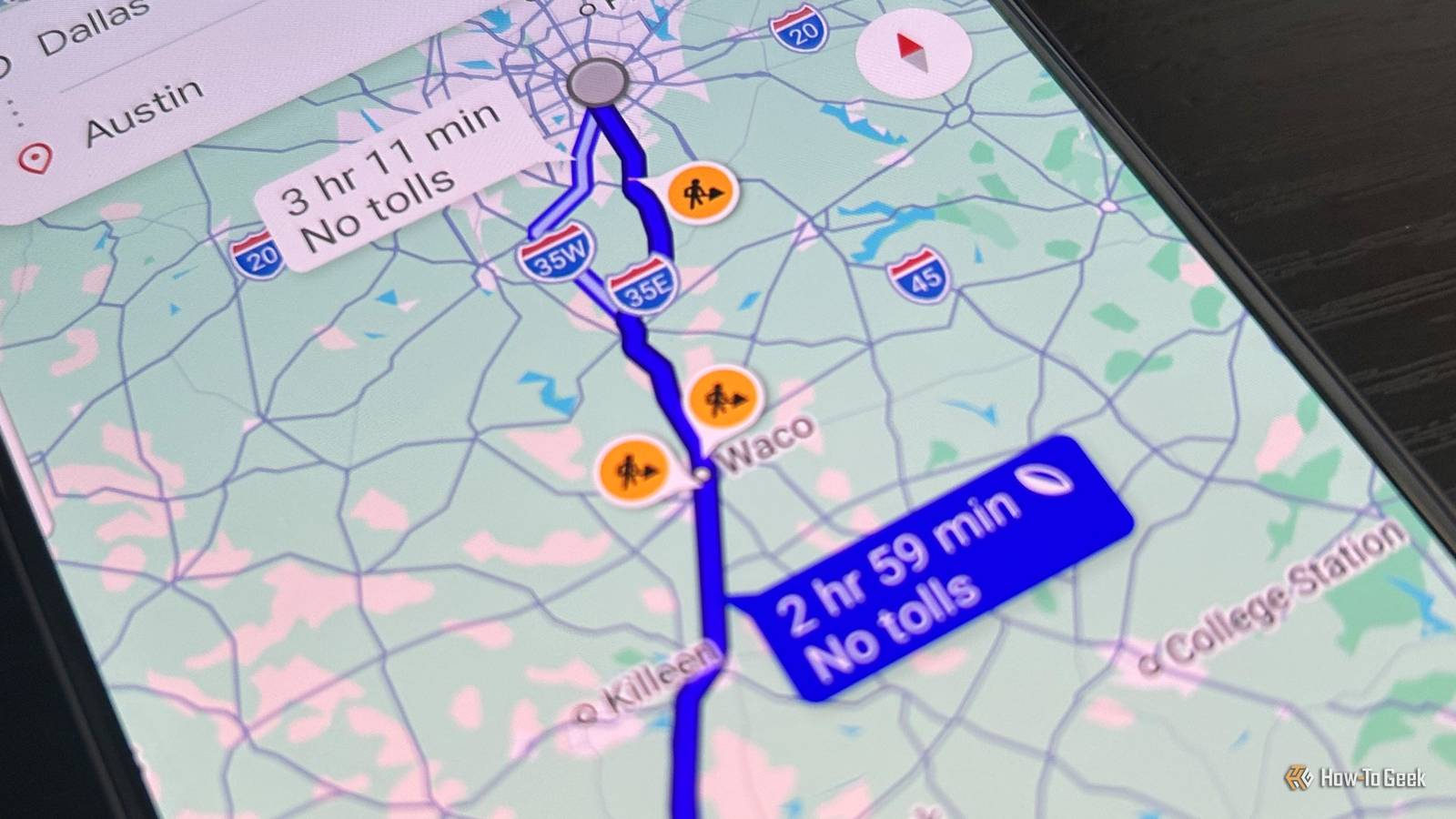
When I do this, Google Maps has to calculate a route that reaches those waypoints.It still decides which roads to use between them, but it has much less freedom to send the journey off in a completely different direction.For example, suppose I'm driving from Dallas to Austin but want to take a slower, more scenic route through the Texas Hill Country rather than sticking to I-35.
I could add stops in Glen Rose, Lampasas, and Marble Falls, giving Maps a series of points that keep the journey on the western route.Related Google Maps’ new 3D Immersive View is so good I’m ditching Waze The biggest update in a decade is a good one.Posts 9 By Cory Gunther Those stops don't have to be places I'm actually planning to spend any time.
They can simply be strategic points that keep the route moving in the direction I've chosen.Then, if there's a particular town or scenic stretch I want to pass through, I can add another waypoint.Once the stops are in place, I can share the directions as normal.
The person receiving them now has the same sequence of destinations to follow, rather than simply being given a starting point and a final destination.Choose your stops strategically A few waypoints are usually enough There's no point turning a journey into a long list of destinations.The best approach is to identify where Maps is most likely to take the route somewhere you don't want it to go, then add a stop to prevent that.
If the first part of the journey is straightforward, but Maps keeps trying to send me onto a freeway for the final stretch, I don't need to add stops all the way from the beginning.One or two destinations along the route are usually enough to keep Maps heading in the right direction.It's also worth noting that there's a hard limit on how many stops you can add.
Google says, "You can add up to nine stops, which includes the final destination." That means a particularly long journey with lots of waypoints might need to be split into two routes.If I hit that limit, I can make the final stop on the first route the starting point for the second, then share both sets of directions.It isn't quite as convenient as having one continuous route, but it lets me keep using strategic stops on a longer journey.
Related 9 Google Maps gestures every driver should know Google Maps is a lot easier to use than it seems.Posts 9 By Jorge A.Aguilar Waypoints aren't an absolute route lock Maps can override your plans when it needs to There's an important limitation when using waypoints in Maps to keep a journey on track: adding stops doesn't permanently lock the app to your chosen road.
If a road is closed, adding a destination along that road isn't going to make the closure disappear.You still want Maps to find another way to reach the stop, but because everyone is navigating to the same waypoints, the overall journey should remain much closer to the route you've planned.That's why I'd describe intermediate stops as a way of constraining the route, not a way of locking it.
I'm giving Maps much stronger instructions about where I want to go, but I'm not overriding its core function as a navigation app that responds to what's happening on the road.Give Maps clearer instructions I don't expect Google Maps to follow my plan blindly, especially when traffic or road conditions change.The useful thing about waypoints is that I can tell it I chose a particular route without having to dictate every turn.
When planning a longer journey, I also make sure Maps isn't prioritizing something I don't want it to.If I'd rather get there a little sooner than save a small amount of fuel, I make sure I tell Maps not to prioritize fuel-efficient routes.Between the two, I have much more control over the route I'm actually asking Maps to follow.
Read More