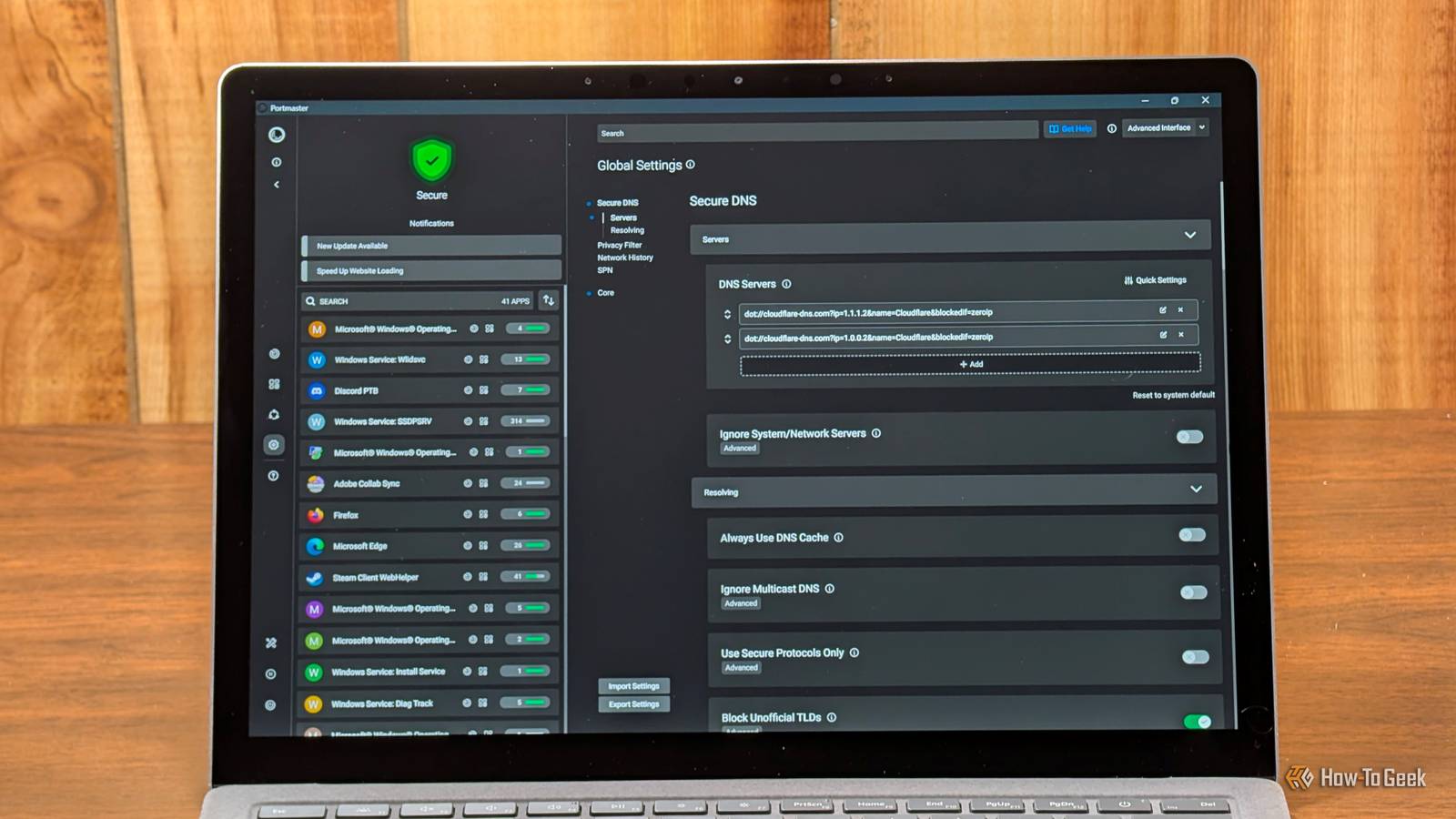
For the most part, I've relied on Windows built-in firewall since I left Windows XP.On a whim, I decided to install Portmaster, a third-party firewall, on my Windows PC to get a better idea of which apps were connecting to the internet and when.Much to my surprise, the list of apps connecting to the internet within a few minutes.
Apps I assumed were totally idle—or even off completely—were actually connecting on their own at seemingly random times.By default, Windows Firewall does a decent job protecting you from inbound threats, but it does little to nothing to prevent apps on your PC from doing whatever they please.Portmaster not only gave me better visibility of what apps were doing, it makes it easy to control apps can connect to the internet at all.
After switching to a third-party firewall, I can't foresee skipping one in the future.Portmaster is a firewall that is different from Windows' default option Portmaster watches every outbound connection Portmaster is a free, open-source firewall originally built by Safing (now a team IVPN).Portmaster connects directly to the Windows network stack through a kernel driver, which gives it a direct look at what application and service on my PC is doing at any time.
The free tier includes a firewall, network monitor, and optional secure DNS.There is also a paid option that offers network history and a privacy network, though I haven't paid for that at this point—the visibility and control have already been a game changer.Spotting apps phoning home inappropriately The network monitor shows which apps are on the web and where they connect One of my favorite features is the network monitor.
It gives me visibility of which apps are currently connected to the internet, and critically, what they're connected to.I can see the IP address of every connection and its corresponding nation.Each app has its own profile that lists every domain and IP address that it has connected to.
This is incredibly useful for catching software that contacts analytics domains or apps reaching out to unexpected countries.If you pick a specific app and open its profile, you can see exactly where your data is going in real-time.Just keep in mind that the free version shows recent activity.
You want a long-term history, you'll have to move to the Plus tier.Blocking apps you don't fully trust Per-app rules let you cut off the internet for one program I try new apps constantly, and even with all the precautions I typically take, I really don't trust them.Portmaster allows you to selectively block individual apps specific domains.
So, whenever I try out a new app that doesn't really have any reason to access the internet (like a file converter), I can block it.If I want to be even more cautious, I can set the default network permission to "prompt." That forces each new app to get permission it can access the internet.This is actually how I tend to run my network, but be warned: it is a lot.
You don't realize just how many different apps and services to access the internet to function.For more common nuisances, you can use a global filter list to block trackers or even ads across your entire system.Use the domain-based block capability sparingly; blocking the wrong domain can break a login or a core app feature, and the cause isn't always obvious.
Related How to Check if Windows Firewall is Blocking an App Checking if an app is blacklisted by the firewall is easy.Posts By Chifundo Kasiya Preventing updates you don't want Blocking an app's update server keeps the version you like Close On more than one occasion, I've had an app I like update automatically, only to discover that the update made things worse.One of the perks of being able to selectively block apps is the ability to prevent unwanted updates.
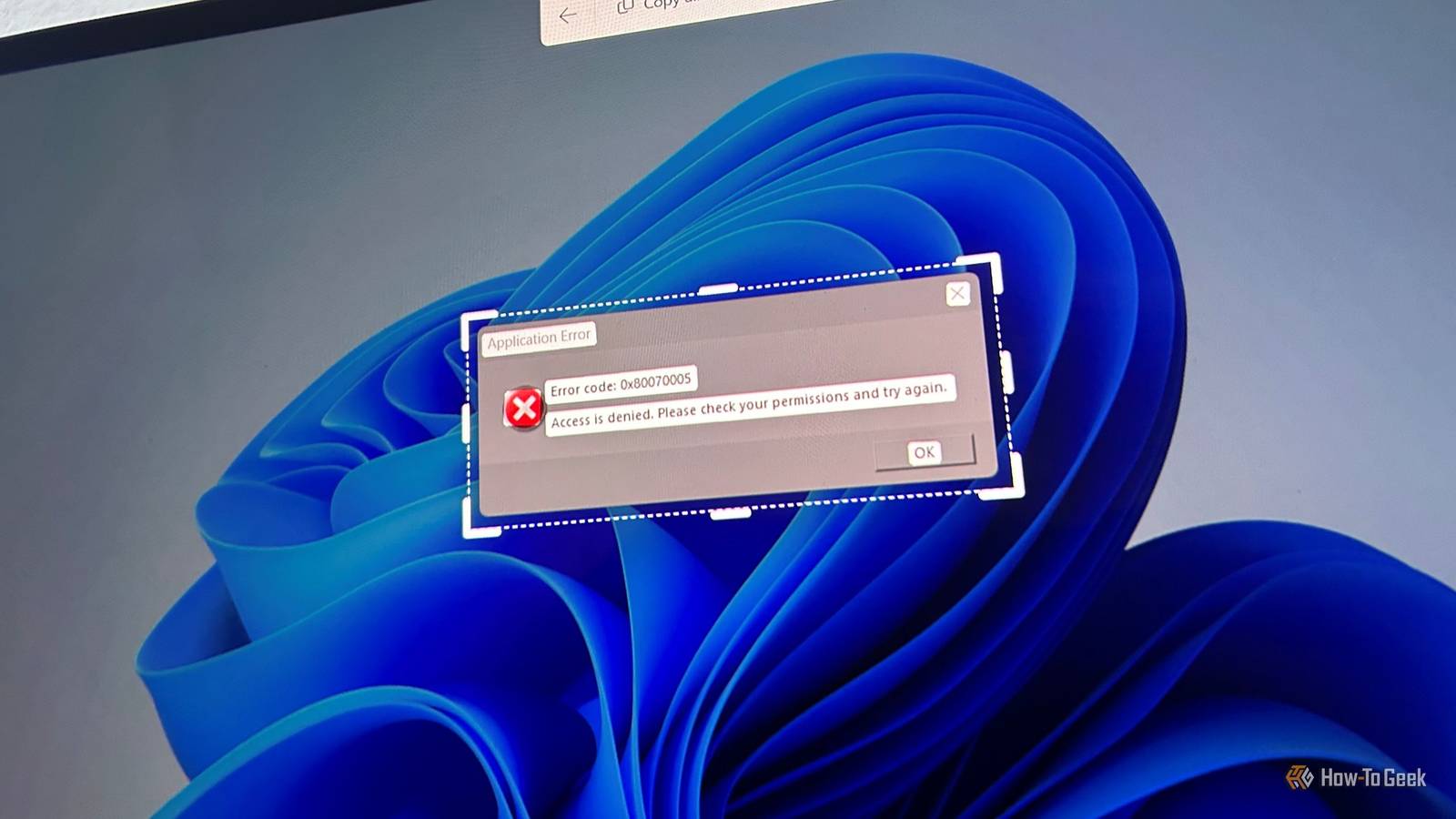
So long as the app doesn't need an external connection to work, you can safely block updates.Do try to prevent Windows Update from running by blocking it from the Internet.Randomly blocking Microsoft services is a great way to render your PC unable to connect to the Internet at all—I've done it on more than one occasion.
Seeing what your apps send out changes how much you trust them Portmaster is an easy, free way to get insight into what all the apps on your PC are actually doing.You can block the new apps you don't trust or prevent an app you like from updating to a new version.Just be careful about blocking much.
It is easy to mess up an app by blocking an ambiguous "update.exe" that you don't recognize.Portmaster costs nothing for the basic program, which includes the firewall and a short history.If you want a long-term history, you'll need to pay about $5 per year.
The Pro tier, which includes access to the SPN network, will cost you $90 per year.
Read More