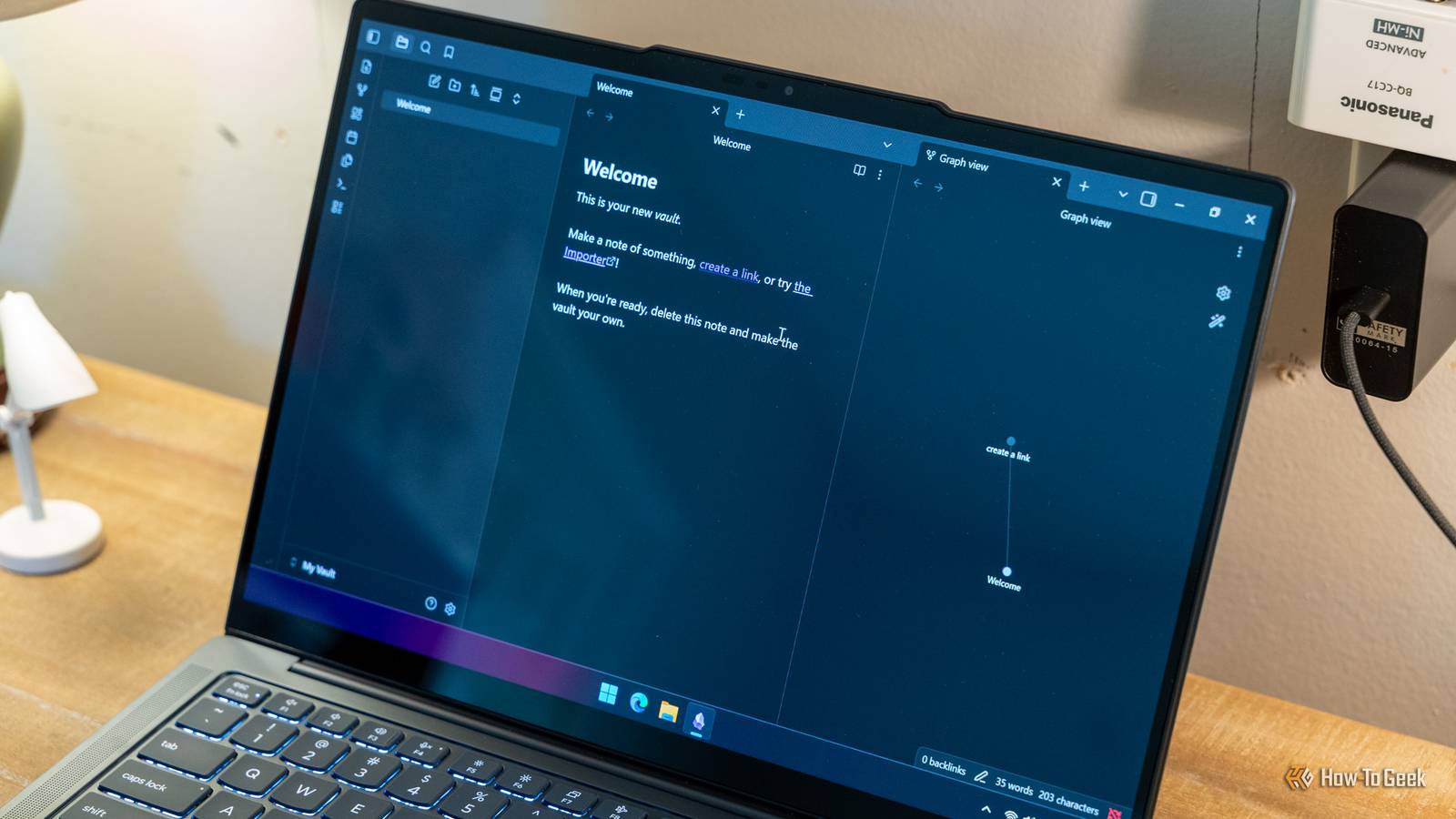
Here are some plugins I install and settings I change whenever I'm setting up a new Obsidian vault.My goal is to create a sort of scaffolding to stay organized as the vault grows.Change the theme Make it your own I find the default Obsidian theme boring, so the first thing I usually do is change it.
You can find some 500 community themes within Obsidian and download them with a single click.Go to settings (the tiny gear icon next to the vault name) and click the "Appearance" tab.Then click the "Manage" button next to the theme menu.
Here you can browse the catalog and see screenshots or other details by clicking theme cards.To apply a theme, click the "Install and use" button at the top of the card.The downloaded themes will also become available in the theme selection on the main "Appearance" menu.
Occasionally, I also change the font.You can scroll down to the Font section and select fonts for the interface and the notes from the drop-down menus.Set up trash, archive, and delete notes without warning Always change the defaults By default, Obsidian throws up a confirmation prompt every time you try to delete a note.
I have a trash system setup for catching any accidentally deleted notes, so this warning just gets in the way.Go to Settings > Files and Links and look for the Trash section.Switch off "Confirm before deleting files.
Obsidian sends deleted notes to the system trash bin by default, so if you empty the bin, you'll also lose any accidentally deleted notes.Instead, you can switch to the "Move to Obsidian .trash" option.This creates a new hidden folder inside the Obsidian vault on your disk and places deleted notes in it.
You can access it at any time within your file manager as long as you've enabled "show hidden files." Some notes don't belong in the main vault, but you don't want to delete them either.So I set up an archive folder within the vault to store them.You can create a new folder by clicking the new folder button (next to the new note button) in the top-right corner of the main Obsidian interface.
Set bookmarks Keeps things organized and accessible The bookmark plugin is preinstalled on every Obsidan vault.You can use it to bookmark notes that you open often.Click the little ribbon icon in the top-right corner of the main Obsidian interface.
You can click the ribbon icon with the plus icon to bookmark the current open tab.Alternatively, you can right-click on any note in the sidebar and select "bookmark" to add it to the bookmark list.You can also create bookmark groups of related notes to keep them organized.
There's a "New Group" button under the bookmarks menu to do that.Create keyboard shortcuts You can set a hotkey for pretty much anything in Obsidian You can also set custom hotkeys to navigate the Obsidian interface faster and get things done.Go to Settings > Hotkeys and set your hotkeys there.
Next to the target action, click the plus button, and then press a memorable key combination.For example, to quickly open the bookmark list, press Command+Shift+B.If it turns red, it means that your desired hotkey is already assigned.
You'll also notice that you can also set hotkeys for the plugins you've installed.With the right setup, you can drive Obsidian entirely with a keyboard.That includes the Markdown formatting for your notes.
Obsidian OS Windows, iOS, Android, macOS, Linux Brand Obsidian Price $4/month (Sync), or $8/month (Publish) Free trial Free version available Obsidian is a note-taking and database creation app that lets you store notes privately, so others can't see them unless you share them.It also has robust third-party app support, so you can customize everything just the way you want it.Download for free Expand Collapse Pin a to-do list Puts all the tasks across your vault in one place If, like me, you have multiple to-do lists scattered across different notes, try the Tasks plugin.
You can download it from the Community Plugins tab.Then create a new note where all your tasks across the whole vault will show up.Paste this text in that note, and it should aggregate all your tasks in one place.
```tasksnot done``` Subscribe to the newsletter for smart Obsidian setups Discover hands-on Obsidian vault guidance, plugin picks, essential settings, hotkey workflows, and homepage/to-do setups by subscribing to the newsletter.Practical steps and choices to help you shape an organized, scalable vault.Get Updates By subscribing, you agree to receive newsletter and marketing emails, and accept our Terms of Use and Privacy Policy.
You can unsubscribe anytime.The edit button next to each task lets you customize the tasks further and set recurring or scheduled tasks.Once you have all your tasks in one place, you can pin this note for easy access.
Right-click on the note tab and select "Pin." Set a homepage Loads at startup and accessible with shortcuts I also have a homepage setup for quickly capturing notes.I call this note my "jrnl" because it serves as an inbox.All the ideas, tasks, notes that need to be quickly captured go here.
Start by installing the Homepage plugin from the community store.You can set the homepage here from the drop-down menu.Enable "Open at Startup." Then, under Settings > Hotkeys, set a hotkey for opening the homepage.
You'll also see a little home button on the sidebar, which you can click to jump to the homepage you set.The vault is now ready With those changes, your vault now has a system for quickly capturing notes and tasks, a to-do list that aggregates tasks from your entire vault, custom hotkeys to work faster, bookmarks for frequently used notes, and a safe archival system.You can now proceed to build your second brain.
Read More