Have you ever glanced at your Android phone’s status bar and spotted a little landline phone icon you didn’t recognize? It is easy to dismiss an unfamiliar symbol or assume something has changed with your phone, but these tiny indicators can actually tell you quite a bit about what your device is doing.Depending on the icon’s design, it could mean a few different things, but one is the most likely culprit.We'll walk through what these symbols mean, why some features might be worth enabling, and where to check your settings if you see an unfamiliar icon.
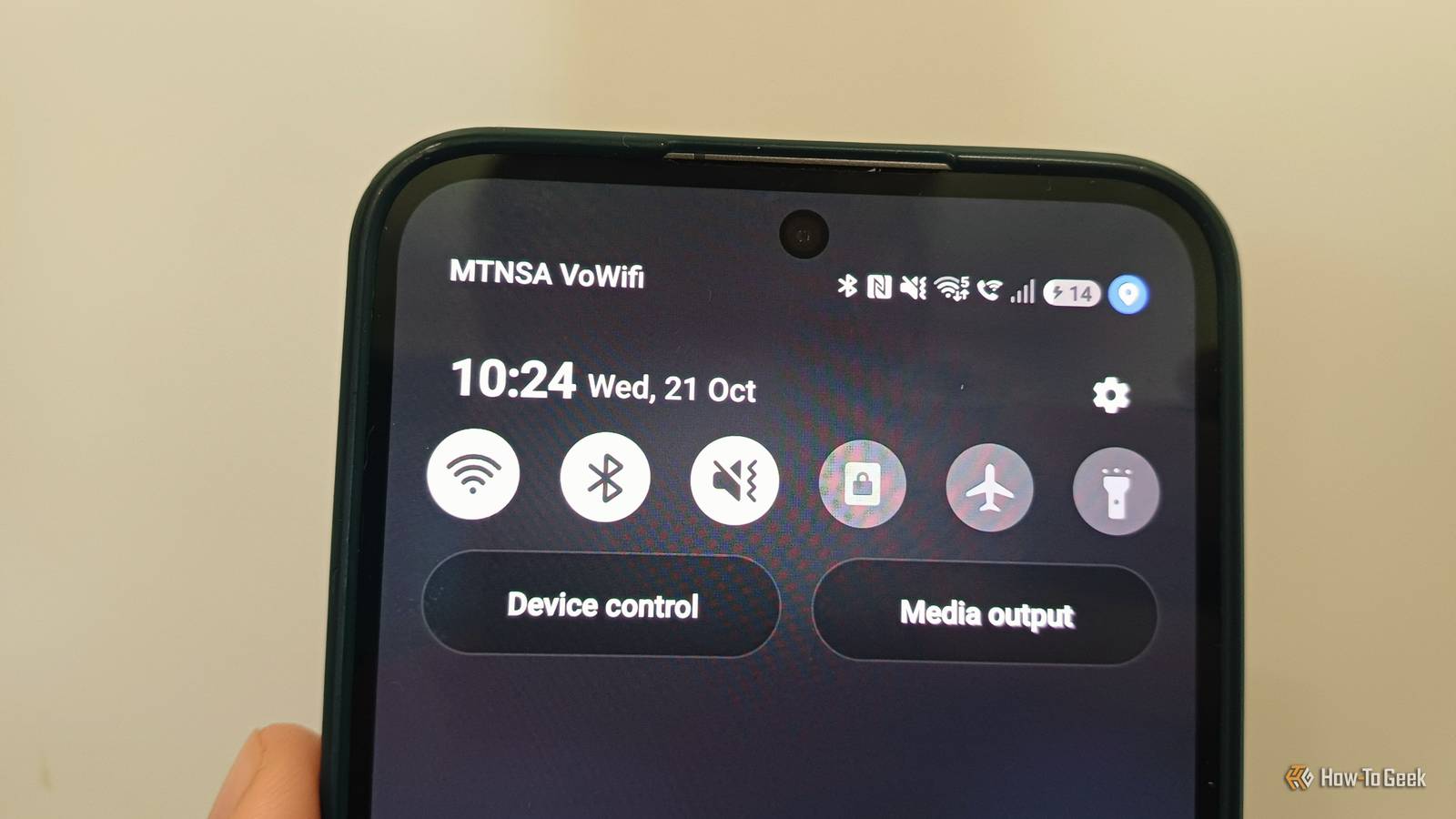
That way, you can figure out what your Android phone is trying to tell you without guessing.The most likely culprit is Wi-Fi calling A feature to use your Wi-Fi instead of your cellular network A couple of landline symbols might pop up in your status bar, but most are pretty well known.The Wi-Fi calling symbol might look unfamiliar to some people.
It displays as a small landline handset with a Wi-Fi symbol above it.When you're on a call routed through your Wi-Fi network, you should see the symbol in your status bar.As long as it is toggled on, though, it should appear every time you pull down your quick panel, alongside a number of other possibly active features like Bluetooth and NFC.
What Wi-Fi calling does is pretty intuitive.Rather than making and receiving calls via your mobile network, your Wi-Fi connection does all the heavy lifting.This also applies to traditional text messages.
It still uses your regular phone number and goes through your built-in phone app; you just don't need a third-party tool like WhatsApp or Skype.You can find this setting pretty easily on most Android phones.If you go into your connection settings, you should immediately see a toggle for Wi-Fi calling quite near the top of the menu.
Wi-Fi calling offers some pretty clear advantages A workaround for shoddy mobile signal Close Where I live, my mobile network connection is a little shoddy.I sometimes have to wander around outside looking for the best spot to stand while I take a phone call; otherwise, the call quality is pretty poor.Wi-Fi calling is designed for people in the same boat as me, of which I am sure there are many.
My internet connection is much more reliable than my mobile network, meaning I don't have to go stand in the yard.Wi-Fi calling has a couple of disadvantages, though, and you won't want to assume it is better to keep it on all the time.If your internet becomes unstable, obviously your call quality will be unstable too.
You also have to consider network strength throughout your home.With Wi-Fi calling, some rooms in my house just don't have a strong enough connection for it to work.When your connection is poor, your phone might switch back to your mobile network, which can also cause issues.
You can choose which network your phone prioritizes, though.In the Wi-Fi calling settings, when the feature is active, you can choose whether your phone prioritizes Wi-Fi or your mobile network, reverting to the other only when it has no better option.With Wi-Fi being a stronger option for me, I set that as my preference, and my phone switches to my mobile network only when it needs to.
There are a handful of other landline icons that pop up on Android devices You could be looking at something a little different As mentioned earlier, the landline symbol could also mean a couple of other things.The most common is, of course, that you're receiving a call, you're placing a call, or you have a missed call or voicemail.The missed call is the only one you would see without doing anything, and it should show a landline handset facing downward with an arrow bouncing off it.
You should see the notification that goes with this symbol when you pull down the quick settings panel.A lesser-known suspect here could be call forwarding.This feature shouldn't turn itself on, so you should know that it is active on your device.
You can check by popping into the settings in your phone app, scrolling down to 'Supplementary services', and then tapping the call forwarding tab.When a call is active, you should see a landline icon with an arrow pointing away from it.The Wi-Fi calling symbol shouldn't be there if you didn't turn it on The Wi-Fi calling icon, as well as the call forwarding icon, shouldn't appear if you didn't turn the feature on.
Neither is enabled by default.When troubleshooting, check whether they're accidentally toggled on in your settings first.Both are great features that can be really useful, but they shouldn't be turning themselves on.
Read More