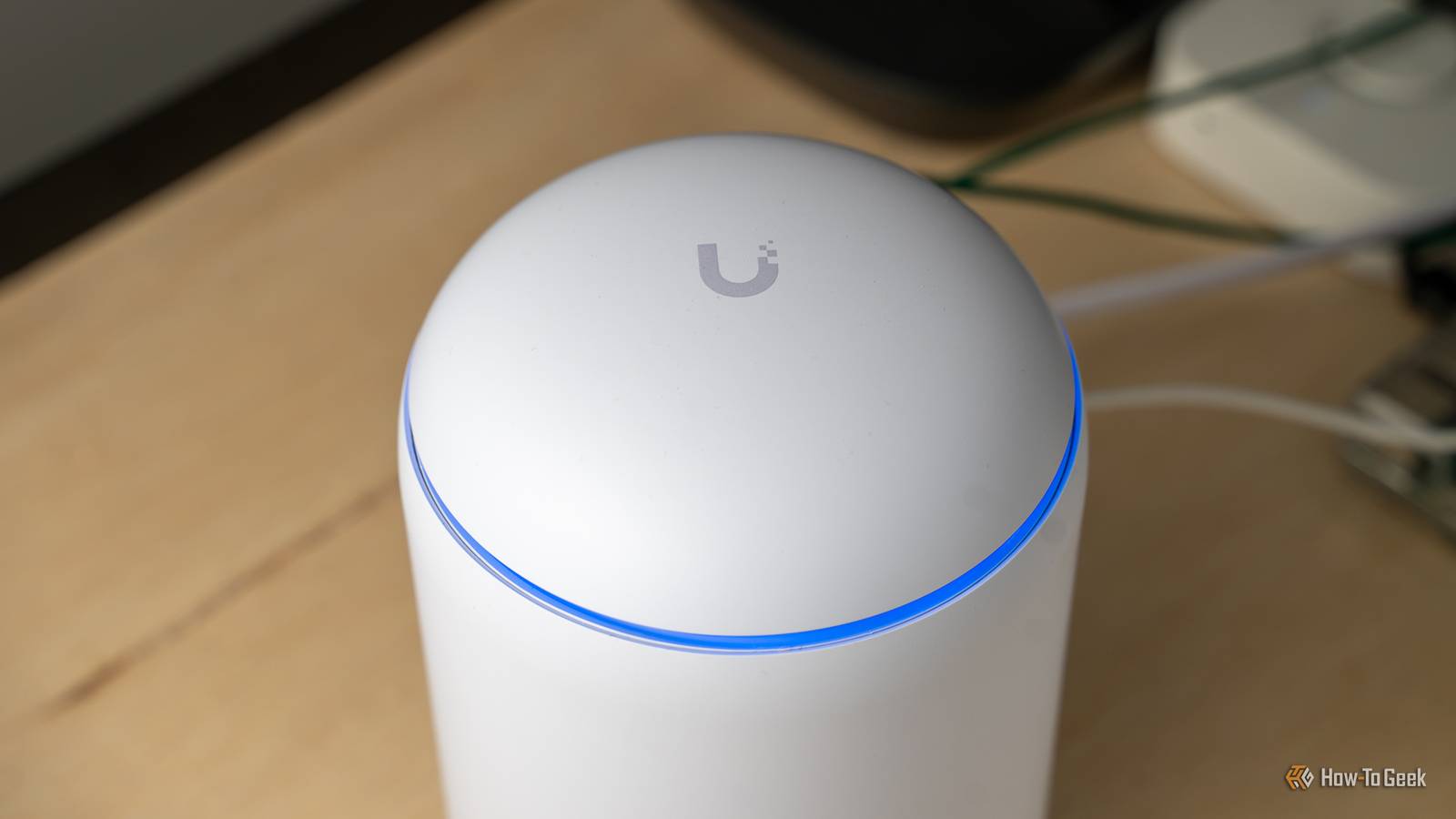
UniFi hardware earns loyalty from people who want control over their networks.Yet your gateway, switches, and access points may be talking to Ubiquiti’s servers more often than you’d expect.Here’s what gets sent, why, and how to rein it in.
Good ol’ telemetry Your network reports in, even when you aren’t looking Close Telemetry is nothing new in networking hardware, and UniFi is no exception.Like most modern platforms, the UniFi Network application and UniFi OS collect usage and diagnostic data intended to help the company understand how its products behave in the real world.This typically covers things like device models, firmware versions, hardware identifiers, feature usage, and crash or performance information.
Ubiquiti has generally described this as anonymous analytics meant to improve reliability and guide development, and for many people that explanation is perfectly reasonable.The catch is that the data collection is often enabled by default, and many owners never see a prompt about it during setup.You pick a controller name, create an admin account, adopt your devices, and move on without realizing a background process is regularly sending information out.
Because it happens quietly, most home users only notice when they inspect their firewall logs, DNS queries, or a network monitoring tool and spot recurring connections to Ubiquiti-owned domains.Outbound connections alone aren’t proof of anything sinister, and anonymized diagnostics are a common industry practice.Still, the amount and frequency of traffic can surprise people who bought UniFi precisely because they wanted a more transparent and configurable alternative to consumer routers.
Anyone running a privacy-conscious setup, a segmented lab, or a network with strict compliance requirements has good reason to know exactly what leaves the building.Behavior also varies depending on your hardware, firmware, and controller version, and Ubiquiti has adjusted its analytics options over time.That makes it important to check your own installation rather than rely on what a forum thread said two years ago.
Reviewing your settings and watching your actual traffic will tell you far more than any general description can.Remote access Cloud convenience comes with a persistent connection Remote access is the other major reason a UniFi setup keeps reaching out.Ubiquiti’s cloud features let you sign in through your Ubiquiti account and manage a console from anywhere, without opening ports or setting up a VPN.
It’s undeniably convenient, especially for anyone who looks after a network belonging to a relative, a small office, or a client across town.To make that work, the console maintains an outbound connection to Ubiquiti’s infrastructure so it can be reached on demand.Because the connection starts from inside your network, you don’t need to forward any ports, which is part of what makes the feature so approachable.
When you connect remotely, traffic is typically brokered through Ubiquiti’s cloud, though newer options such as Teleport VPN, which is based on WireGuard, aim to establish more direct tunnels once the initial handshake is complete.The tradeoff is that your console’s identity and status are tied to a cloud account.Signing in with a Ubiquiti account rather than a purely local one links your hardware to an external service, and that service becomes part of your trust model.
If that account were ever compromised, or if the cloud service had an outage or a security problem, your network management could be affected.Some users also dislike that cloud sign-in can be the default path during initial setup, since it nudges people toward an arrangement they might not have chosen deliberately.None of this makes remote access inherently unsafe.
Plenty of people use it responsibly with strong passwords and two-factor authentication.But it does mean your gear isn’t operating in isolation, and anyone who wants a fully self-contained network should treat the feature as something to opt into rather than something to accept by default.How to stop it Practical steps to limit what leaves your network Reducing UniFi’s outbound chatter comes down to a few layered steps, and you can apply as many as your comfort level demands.
Start inside the software.In the UniFi Network settings and the console’s system settings, look for analytics or data-sharing options and switch them off.Exact menu names change between versions, so check your current release instead of assuming a particular path.
Next, deal with remote access.If you only manage your network from home, disable cloud access and remote management entirely, and consider creating a local-only administrator account that doesn’t depend on a Ubiquiti login.If you do need to reach your network while traveling, a self-hosted VPN such as WireGuard running on your gateway gives you a way in without routing management through Ubiquiti’s cloud.
The most reliable control is at the network level.Because your gateway sits at the edge, you can monitor outbound traffic with your own firewall rules or a DNS filtering tool such as Pi-hole or AdGuard Home, then block or log the domains your UniFi devices contact.Go carefully here.
Blocking too aggressively can break firmware update checks, device adoption, or features you actually rely on, so make changes one at a time and note what stops working.Placing management devices on their own VLAN with restricted internet access is a cleaner way to contain them.Finally, keep checking.
Firmware updates can reset settings or introduce new services, so revisit your configuration after major upgrades.A quick glance at your DNS logs every so often will show whether your changes are holding.You can keep UniFi and your privacy UniFi’s telemetry and cloud features are usually enabled by default, but they’re optional.
By disabling analytics, limiting remote access, and filtering outbound traffic, you can keep the hardware’s power while controlling exactly what your network shares.
Read More