Most Fire TV updates feel like they change things just to change them, and I've thought that plenty of updates have made things worse.This recent update is different.Amazon pushed out changes that actually make the device easier to live with day to day, such as a smart home control panel that doesn't interrupt what you're watching, a navigation overhaul that puts everything where it should have been from the start, and a few other additions that fix things that should've been fixed years ago.
You can control your home without pausing your show Just hold the Home button to open the quick settings The biggest upgrade you'll actually notice and use day-to-day is the new Smart Home Dashboard and Shortcut Panel.You used to have to go through menus and your TV's settings to do much of anything.This new panel slides out as an overlay on your screen without interrupting your video and gives you one place to control basically everything in your living room.
From there, you can get to display and resolution settings, surround sound options, and a dialogue booster that's handy when you're watching late at night and don't want to crank the volume.It also ties into your Alexa smart home setup, so you can pull up Ring camera feeds, adjust lights in different rooms, and handle other connected devices all without leaving what you're watching.Quiz8 Questions · Test Your KnowledgeAmazon Fire TV StickTrivia challengeThink you know your streaming stick inside and out? Put your Fire TV knowledge to the test.SetupFeaturesHardwareAppsHistoryBegin01 / 8HistoryIn what year did Amazon first release the original Fire TV Stick?A2012B2013C2014D2015Correct! Amazon launched the first Fire TV Stick in November 2014, offering a more affordable alternative to the full-sized Fire TV box.
It plugged directly into an HDMI port and quickly became one of Amazon's best-selling devices.Not quite.The original Fire TV Stick was released in November 2014.It came out about seven months after the original Fire TV box and was positioned as a budget-friendly streaming option for cord-cutters.Continue02 / 8HardwareHow does the Amazon Fire TV Stick connect to your television?AUSB-A portBDisplayPortCComposite AV portDHDMI portCorrect! The Fire TV Stick plugs directly into an HDMI port on your TV.
This is what gives it its distinctive stick shape, and it draws power via a separate Micro-USB or USB-C cable depending on the model.Not quite.The Fire TV Stick connects via HDMI, which is why it has that signature dongle shape.It also requires a power cable — either Micro-USB or USB-C — to function, as HDMI alone doesn't supply enough power.Continue03 / 8FeaturesWhich voice assistant is built into the Amazon Fire TV Stick remote?AGoogle AssistantBSiriCAlexaDCortanaCorrect! Amazon's own voice assistant, Alexa, is integrated into the Fire TV Stick remote.
You can use it to search for content, control playback, check the weather, and even control smart home devices.Not quite.The Fire TV Stick uses Alexa, Amazon's proprietary voice assistant.Pressing and holding the microphone button on the remote lets you speak commands, making it easy to find shows or control compatible smart home gadgets.Continue04 / 8SetupWhat type of network connection does the standard Fire TV Stick use to stream content?AEthernet (wired)BBluetooth onlyCWi-FiDCellular LTECorrect! The standard Fire TV Stick relies on Wi-Fi to stream content.
Unlike some competitors and the Fire TV Cube, the basic stick does not include a built-in Ethernet port, though adapters are available.Not quite.The standard Fire TV Stick uses Wi-Fi for its internet connection.If you need a wired Ethernet connection for a more stable signal, you would need a separate Ethernet adapter or consider upgrading to the Fire TV Cube.Continue05 / 8HardwareWhat is the maximum streaming resolution supported by the Fire TV Stick 4K Max?A1080p Full HDB2K (1440p)C4K Ultra HDD8K Ultra HDCorrect! The Fire TV Stick 4K Max supports streaming up to 4K Ultra HD resolution.
It also supports HDR formats including Dolby Vision, HDR10+, and HLG, delivering excellent picture quality on compatible TVs.Not quite.The Fire TV Stick 4K Max tops out at 4K Ultra HD resolution.It also supports advanced HDR formats like Dolby Vision and HDR10+, making it one of the most capable streaming sticks in Amazon's lineup.Continue06 / 8AppsWhich app store is used to download streaming apps on a Fire TV Stick?AGoogle Play StoreBApple App StoreCAmazon AppstoreDSamsung Galaxy StoreCorrect! Fire TV Stick uses the Amazon Appstore to download apps and games.
Because it runs a forked version of Android, the Google Play Store is not available, though many popular streaming apps like Netflix and Disney+ are still offered.Not quite.The Fire TV Stick uses the Amazon Appstore, not the Google Play Store.While the device runs a modified version of Android, Amazon's ecosystem replaces Google's, so you browse and install apps through Amazon's own storefront.Continue07 / 8FeaturesWhich of the following audio formats is supported by the Fire TV Stick 4K for enhanced surround sound?ADolby AtmosBDTS:X ProCTHX Spatial AudioDSony 360 Reality AudioCorrect! The Fire TV Stick 4K supports Dolby Atmos, which delivers immersive three-dimensional surround sound.
You'll need a compatible soundbar or AV receiver to experience the full effect, but it's a significant audio upgrade over standard surround sound.Not quite.The Fire TV Stick 4K supports Dolby Atmos for immersive audio.While the other options are real audio technologies, Dolby Atmos is the surround sound format officially supported and promoted by Amazon on its 4K Fire TV devices.Continue08 / 8FeaturesWhat feature introduced in the Fire TV Stick 4K Max (2nd generation) allows for faster app switching and smoother performance?ATurbo ModeBWi-Fi 6E supportCDual-core processingDCloud Boost technologyCorrect! The second-generation Fire TV Stick 4K Max introduced Wi-Fi 6E support, which provides faster wireless speeds and reduced interference compared to older Wi-Fi standards.
This results in smoother streaming and quicker load times when your router also supports Wi-Fi 6E.Not quite.The headline new feature of the second-generation Fire TV Stick 4K Max was Wi-Fi 6E support.This next-generation wireless standard operates on the 6 GHz band, reducing congestion and enabling faster, more reliable streaming performance than previous models.See My ScoreChallenge CompleteYour Score/ 8Thanks for playing!Try Again Using it is pretty simple.
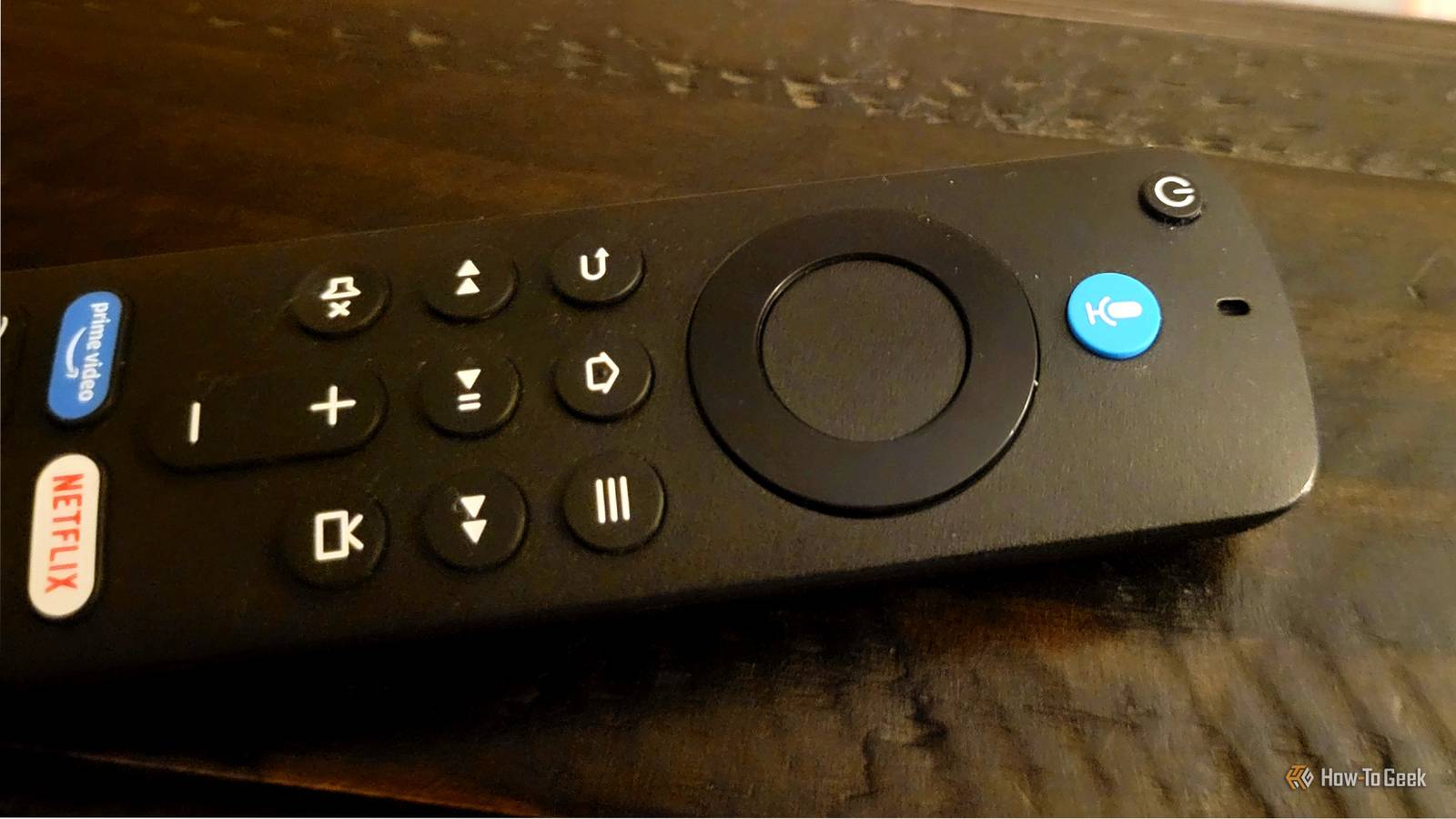
While you're watching something or just browsing around, hold down the Home button on your Alexa Voice Remote, and the panel slides out on the side of the screen.From there, the directional pad gets you where you need to go, whether that's a quick setting or a specific device.You can also get to the full dashboard by holding the Alexa button on your Fire TV remote and saying, "Open Smart Home Dashboard," and it'll come up.
Once you're in, everything works the way you'd expect.Highlight something, click it, and you're all good to go.If you want to check a Ring camera, select it, and a live feed loads right on your TV.
There's even a picture-in-picture mode, so the camera shows up in a small corner window while your movie keeps playing.The main menu is finally back where it belongs You can browse content across apps in a single place The old layout was annoying, but this new one looks better.The only downside is that it can be complicated.
The main navigation had been pushed toward the middle of the screen, buried under giant content banners and ads, so you had to scroll past a wall of promotional images just to get to basic menu options.The latest update moves the navigation bar back to the top where it belongs.When you turn on the TV, your eye immediately knows where to go.
The update also came with cleaner fonts, rounded thumbnails, softer backgrounds, and better spacing, and the whole thing feels a lot less cluttered to browse through.Amazon also added dedicated tabs for Movies, TV Shows, Sports, News, and Live TV, and each one pulls content from all your streaming services into one place.So instead of bouncing between apps, you just tap Movies or TV Shows and get a single feed that mixes titles from across all your subscriptions, grouped by genre, theme, or what you've already been watching.
It doesn't matter if something lives on a paid service or a free channel; it all shows up together.Roku has had something like it a while, and I've always wanted it on Amazon.This one takes a bit of practice to get used to, so try going to the tabs instead of straight to your app.
You can pin way more apps to your home screen now Just press and hold the center button to move them around I think one of the silliest things about Fire TV was that you could only pin six apps to the home screen.Six is a small number considering how many apps are now offered on these services.Even Roku lets you pin far more.
Amazon has finally fixed it, bumping the limit all the way up to twenty apps.A family can now keep all their streaming services, a cloud gaming app, a local media server, and a few smart home tools in one place without anything getting bumped.To keep twenty icons from looking like a cluttered mess, Amazon tightened the layout with smaller, sharper icons and slimmer margins, so ten apps fit in a single horizontal row, with the other ten a quick scroll away.
To use it, go to your app list and pick whichever app you want to move.Once it's highlighted, press and hold the center select button.Hold it for a second, and a small options menu will pop up on your screen.
From there, you'll see a couple of options, but the ones you care about are "Move" and "Move to front." If you pick "Move," you can use the directional pad to drag the app wherever you want it within your available slots, then press select again to drop it into place.If you pick "Move to front," it skips all that and just bumps the app straight to the first position in your row automatically.Instagram gets its own app made for the big screen Scan a code on your phone to log right in Close One of the most interesting features I saw was the Instagram app.
Amazon built a full Instagram app for the TV, which isn't something anyone really saw coming.Before this, getting Instagram on your TV meant screen mirroring or casting, and neither option worked particularly well.The new app doesn't need any of that.
It runs directly on the device and was built with a big screen in mind from the start, so it doesn't feel like something that was forced to fit.The first time you open it, a QR code shows up on screen.Scan it with your phone, and you're signed in.
There is no hunting through letters with your remote.The app handles up to five accounts on a single device, so everyone in the house can keep their own feed without touching anyone else's.Related Your Fire TV is about to look different A new look and a significant speed boost.
Posts 2 By Corbin Davenport There's also an option to set up an account that only lives on the TV if you'd rather keep the two separate.The app leans into Reels, and it handles the format well.Vertical videos stay vertical instead of getting stretched out, and the leftover space on either side fills up with comments, likes, and other details.
This may be your favorite update Not every change here will matter to everyone.Plenty of the features I've mentioned will only help people who use other apps, not just Fire TV's own stuff.This is likely why Amazon didn't announce any of this loudly, because so much of the update was for outside apps.
However, most people are probably sitting on a better Fire TV than they realize, and now would be a good time to get into it.Fire TV Stick 4K Operating System FireOS Resolution 4K A step up from the Fire Stick TV Lite is the Fire Stick TV 4K.It offers a Dolby Vision upgrade and TV controls on the Alexa remote.
RAM/storage 8GB Connectivity Wi-Fi 6, Bluetooth 5.2 Dimensions 108 mm x 30 mm x 14 mm Integrations Amazon Alexa $50 at Amazon Expand Collapse
Read More