I spent years repeatedly rearranging the same Excel worksheets for different tasks: I'd hide columns, change filters, adjust the zoom, and then undo everything later.Then I discovered the overlooked Custom Views option, which lets me save those layouts and switch between them in seconds.Custom Views in Excel are different from Sheet Views.
Sheet Views, available across desktop, web, and supported mobile versions of Excel, are designed primarily for collaboration, letting you sort and filter a shared worksheet without disrupting other people's views.Custom Views is for saving different configurations of a worksheet and is only available in desktop versions of Excel.Custom Views remembers more than you might expect It saves the details you keep changing The useful thing about Custom Views is just how much of a worksheet's setup it lets you keep.
For example, I might have views with: Certain columns or rows displayed and others obscured Particular filters and sort settings applied Specific print settings, such as page orientations, margins, and print areas A certain cell or range selected A more practical zoom level A particular scroll position or frozen panes Regardless of why I need different views of the same worksheet, Custom Views saves me from repeatedly changing the same settings and then trying to remember how to put everything back.I created a standard view before anything else My normal layout became the safety net There's one thing I recommend doing before creating any other views: save your normal worksheet configuration first.It's easy to fall into the trap of discovering Custom Views, setting one up straight away, and then realizing there's no way to quickly undo the changes.
Setting up a standard view means that when I'm finished with another view, I don't have to remember exactly which columns I hid, which filters I changed, or what other settings I adjusted.I can simply switch back to my standard view.Custom Views are created and applied per sheet, but they are saved inside the workbook file.
To create one, I first set up my worksheet exactly as I normally want to see it.I make sure all columns and rows are visible, filters and sorts are reset to the default, and the zoom and other display settings are comfortable for everyday work.Then, I: Open the View tab on the ribbon.
Click Custom Views in the Workbook Views group.Click Add.Give the view a name, such as "Standard." Make sure the relevant options are selected.
Click OK.Close That's my safety net.Once it's saved, I can start creating other versions of my worksheet without worrying about how I'll get back to normal.
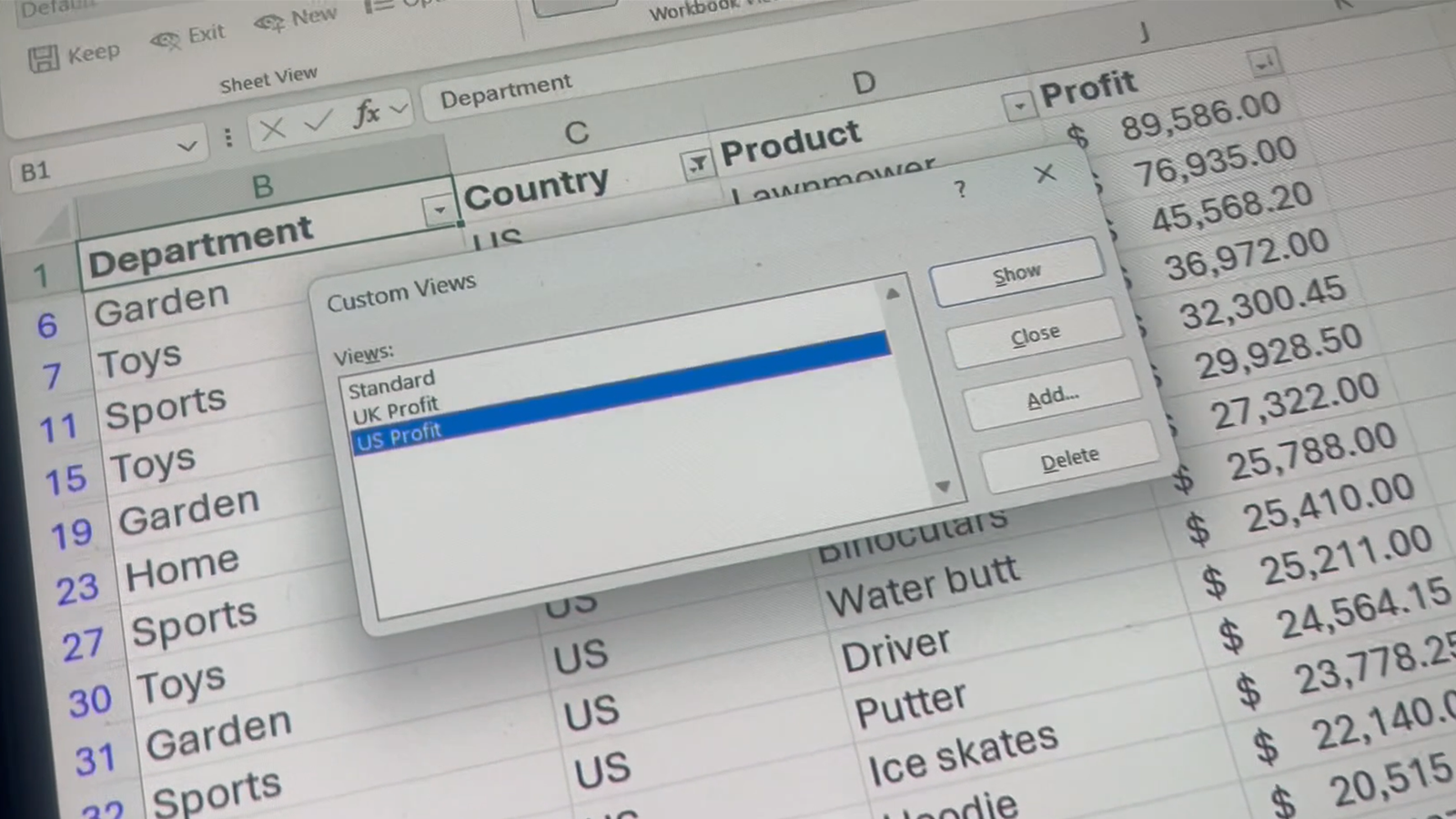
To switch back to this standard view later, I click View > Custom Views, select Standard in the list, then click Show.I created views for the jobs I do most often One worksheet, several different layouts Now that my standard view is set up, I can configure the worksheet for a particular task and save that arrangement as another view.In the example below, I've hidden columns A and E-I, applied a filter to the Country column, sorted the Profit column in descending order, and increased the zoom.
I then saved this arrangement in a view named "US Profit." Close Once I've created a view, I can leave it exactly as it is and return to it whenever I need it by selecting it in the Custom Views dialog and clicking Show.Alternatively, there are three other things I can do with the view: Tweak it: For example, I could switch the sort in the Profit column to ascending order and keep everything else as it was.Then, I can create a new view with the same name.
Excel asks whether I want to replace the existing view, and clicking Yes updates it.Use it as a baseline: For example, I could change the filter in the Country column to show only UK results and save the view as "UK Profit." Delete it: If I decide I won't need that view again, I can open the Custom Views dialog, select the view, and click Delete.Close In my experience, once I started using Custom Views, it became a major part of my workflow.
It felt like opening up a whole new version of Excel, but in reality, I had merely turned to an easy-to-use feature I previously overlooked.The Quick Access Toolbar made Custom Views even better Switch layouts without digging through the ribbon There's one more change that made Custom Views much more practical for me: adding the actual Custom Views command to my Quick Access Toolbar (QAT).Before I did this, I'd have to go to the View tab, open Custom Views, and select the view I want.
That's fine, but if I'm switching between layouts regularly or presenting to a group of people, I don't want to keep digging through the ribbon.To add the command to the QAT, right-click Custom Views in the View tab and click Add to Quick Access Toolbar.Now, when I click the button in the QAT, the same Custom Views dialog appears.
It's a small change, but it saves a click each time.Close There's one big catch with Custom Views Excel tables get in the way Because Custom Views are a legacy feature from older versions of Excel that predates Excel tables, the button on the ribbon becomes grayed out as soon as you add one to the workbook.If you want to keep your table, slicers can give you some of the same convenience with quick, visual controls for filtering your data.
They won't reproduce everything Custom Views can do, such as hiding columns or changing the zoom, but they can work well for switching between filtered views.The other option is to convert the table back into a normal range.You can do this by selecting a cell in a table and clicking Table Design > Convert to Range.
I'd think carefully before doing that, though.If table features like structured references, automatic expansion, and automatic formatting for new rows are more important to you than being able to quickly jump between different spreadsheet layouts, keep Custom Views in the bank for a future Excel project.Excel works better when I make it work for me Custom Views has made me realize how much of Excel's default setup I simply accepted for years.
I don't have to keep working with the same worksheet layout just because that's how I originally set it up.The same applies to the rest of Excel, whether that's tweaking the UI or creating a custom ribbon tab containing the tools I use every day.Custom Views is another small change that makes Excel feel much more like my spreadsheet than Microsoft's.
Read More