Home networking is something we all wish was simple, but anybody who has spent more than a weekend messing with routers knows that it's really not.Stuff breaks for no apparent reason, and there are so few ways to know what kind of problem you're having.I was recently dealing with one of those "is it me or is it the network?" problems for weeks, and I was getting nowhere.
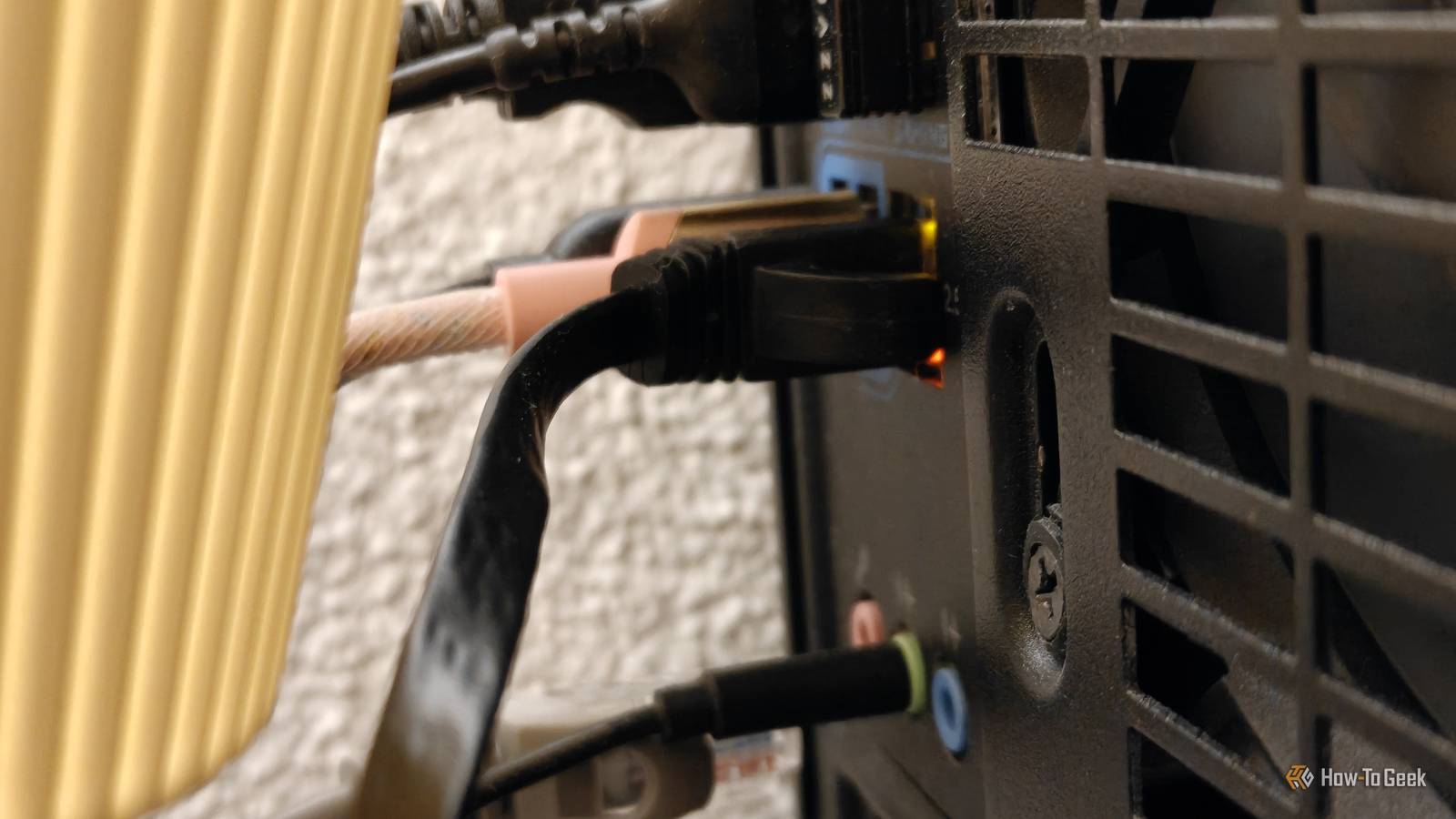
Out of ideas, I decided to do the most basic thing I could think of: I grabbed a single Ethernet cable and plugged my two PCs directly into each other.It's a pretty old-school trick, but it is genuinely the fastest way to isolate a problem.A direct PC-to-PC link is the cleanest test bench you can build No router, no switch, no Wi-Fi, no excuses The good thing about plugging two machines straight into each other is that you remove all other variables.
It's just two NICs and a cable, and that means if something still doesn't work, you know for sure that your machine is the problem.Modern Ethernet ports are all auto-MDI-X, so you don't need a crossover cable like in the old days.And if you don't know what a crossover table is, you don't need to worry about it.
Any Cat5e or Cat6 cable will do the job, and the two PCs will negotiate the link without any extra hardware involved.Instead of trying this trick after weeks of failure (like me), it's best used as an early diagnostic tool.Sometimes you start to guess that you've got a tricky problem on your hands even before you've exhausted all the usual checks, and this trick can help you direct your efforts in the right direction.
It's as simple as this: if your file transfer crawls at 15 MB/s through the router but flies at gigabit speeds over the direct link, then your PCs are fine, and your network gear is the problem.If it crawls in both setups, you've got a machine-level issue to chase down instead.Quiz8 Questions · Test Your KnowledgeWeird, forgotten, and quirky WiFi tips and tricksTrivia challengeThink you know WiFi? These obscure but genuinely useful tricks will put your network knowledge to the test.Hidden FeaturesSecurityPerformanceHardwareTroubleshootingBegin01 / 8Hidden FeaturesWhat happens when you connect to a WiFi network that uses a "captive portal" (like at a hotel or coffee shop) and your phone never shows the login popup?AYou must forget the network and reconnect manuallyBNavigating directly to a non-HTTPS site like neverssl.com can force the portal to appearCYou need to disable and re-enable WiFi three timesDOnly a full device restart will trigger the portalCorrect! Sites like neverssl.com exist specifically for this purpose.
Because captive portals intercept unencrypted HTTP traffic to redirect you, visiting a plain HTTP site forces the interception to happen.HTTPS sites won't work because the portal can't inject a redirect into an encrypted connection.Not quite.The trick is to visit a plain HTTP site like neverssl.com.
Captive portals work by intercepting unencrypted HTTP requests, so if your browser only tries HTTPS connections automatically, the portal never gets a chance to redirect you.A dedicated HTTP-only site bypasses that problem.Continue02 / 8PerformanceWhich lesser-known WiFi channel width setting can actually reduce real-world speeds on a 5 GHz network in a crowded apartment building?A20 MHzB40 MHzC160 MHzD80 MHzCorrect! 160 MHz channels look great on paper and deliver blazing speeds in ideal conditions, but in dense environments they consume so much of the 5 GHz spectrum that they overlap with neighboring networks constantly.The resulting interference can make your speeds worse than a narrower 80 MHz channel would have been.Not quite.
The answer is 160 MHz.While wider channels mean more theoretical bandwidth, they also grab a huge chunk of the spectrum.In a building packed with routers, a 160 MHz channel will collide with neighbors' networks so often that 80 MHz ends up being the sweet spot for real-world performance.Continue03 / 8SecurityWhat is "SSID cloaking" (hiding your network name), and why do most security experts consider it essentially useless?AIt encrypts the network name, but modern tools can decrypt it in secondsBHidden SSIDs are still broadcast in probe requests from your own devices, making them trivially discoverableCIt only hides the network on Windows devices, not on macOS or LinuxDIt works well for security but breaks compatibility with smart home devicesCorrect! When your phone or laptop has previously connected to a hidden network, it actively broadcasts the hidden SSID in "probe requests" as it searches for it — advertising the network name to anyone listening.
Tools like Wireshark or Kismet can spot a hidden SSID almost instantly, making the feature security theater rather than actual protection.Not quite.The real problem is probe requests.Your own devices give the secret away by broadcasting the hidden SSID name while scanning for it.
Any passive WiFi scanner can catch these probes, so hiding your SSID provides no meaningful security benefit and can actually introduce connectivity headaches.Continue04 / 8HardwareWhat is the purpose of the often-ignored "transmit power" setting found in many router admin panels?AIt controls how many simultaneous devices can connect at onceBReducing it can actually improve network performance by reducing interference with neighboring networksCIncreasing it always improves range and speed proportionallyDIt only affects the 2.4 GHz band and has no impact on 5 GHzCorrect! Cranking transmit power to maximum sounds logical, but it can backfire.A louder router "shouts" over neighbors' networks, increasing co-channel interference.Turning it down slightly can create a cleaner, less congested wireless environment — especially important in apartments.
The sweet spot is often 70–80% power, not 100%.Not quite.Lowering transmit power can paradoxically improve performance.When every router in a building blasts at full power, they all interfere with each other more aggressively.
Dialing back the power reduces that interference, which in dense environments often results in faster and more reliable connections.Continue05 / 8TroubleshootingYour WiFi works fine but smart home devices keep dropping off the network.Which quirky router setting is most likely the culprit?ADNS over HTTPS being enabled on the routerBAP isolation (also called "client isolation") being turned onCIPv6 being disabled in the router settingsDQoS rules prioritizing video streaming trafficCorrect! AP isolation is a security feature designed to prevent WiFi clients from communicating with each other — useful on public hotspots.But smart home devices like Philips Hue bridges, Chromecast, and others rely on being able to "see" each other and your phone on the local network.
With AP isolation on, they go silent, which looks exactly like random disconnections.Not quite.The sneaky culprit is usually AP isolation (client isolation).This setting is great for hotel or café networks where you want to block strangers from accessing each other's devices, but it completely breaks smart home ecosystems that depend on local device-to-device communication.
Disabling it usually brings everything back to life instantly.Continue06 / 8Hidden FeaturesWhat does enabling "OFDMA" on a WiFi 6 (802.11ax) router actually do that older WiFi standards could not?AIt allows the router to broadcast on both 2.4 GHz and 5 GHz simultaneously for the first timeBIt lets a single transmission carry data for multiple devices at the same time by subdividing channelsCIt doubles the maximum range of the 5 GHz bandDIt encrypts each device's traffic independently so other users cannot snoopCorrect! OFDMA (Orthogonal Frequency Division Multiple Access) is one of WiFi 6's biggest real-world upgrades.Instead of serving one device per transmission slot, the router subdivides each channel into smaller resource units and sends data to multiple devices simultaneously.In homes with dozens of connected gadgets, this dramatically reduces latency and congestion.Not quite.
OFDMA lets the router slice a single transmission into pieces for multiple devices at once.Previous WiFi standards had to take turns, sending data to one device at a time.OFDMA is why WiFi 6 feels snappier in busy households even if your peak download speed doesn't change dramatically.Continue07 / 8PerformanceWhich unusual physical placement trick can meaningfully improve WiFi signal quality throughout a home?APlacing the router inside a metal cabinet to focus the signal forwardBPositioning the router centrally and elevating it (on a shelf or mounted high on a wall)CKeeping the router near the main TV to prioritize streaming trafficDPlacing the router next to a window so the signal can reflect off the glassCorrect! WiFi signals radiate outward and slightly downward from antennas, so a centrally placed, elevated router covers more of your living space evenly.
Routers stuffed in cabinets, placed on the floor, or shoved in a corner behind a TV waste much of their signal into walls and furniture.Height gives the signal a clearer path to every room.Not quite.The winning move is central placement with elevation.
WiFi radiates in a roughly spherical pattern, so a router on the floor or hidden in a cabinet sends half its signal uselessly into the ground or into wood.Mounting it high on a central wall or setting it on a high shelf gives every device in the home a more direct line of sight.Continue08 / 8SecurityWhat is "WiFi Sense," the feature Microsoft quietly introduced in Windows 10 at launch, and why did it cause widespread alarm?AIt automatically reported your WiFi password strength to Microsoft's security serversBIt shared your saved WiFi passwords with your contacts on Outlook, Skype, and FacebookCIt enabled automatic connections to any open network within range without user confirmationDIt allowed nearby Windows devices to borrow your internet connection without a passwordCorrect! WiFi Sense would share your saved WiFi credentials with your contacts so they could connect at your home without you telling them the password.The backlash was intense — people realized their house guests' contacts could potentially access their home network.
Microsoft disabled the sharing feature in 2016, though the auto-connect to open hotspots portion lingered longer.Not quite.WiFi Sense automatically shared your saved WiFi passwords with people in your Outlook, Skype, and Facebook contact lists.The idea was convenient guest access, but the privacy implications were alarming — your contacts' contacts could potentially end up with access to your home network.
Microsoft pulled the password-sharing feature in 2016 after the public backlash.See My ScoreChallenge CompleteYour Score/ 8Thanks for playing!Try Again Static IPs are the part that trips everyone up DHCP isn't coming to save you here An important point to remember is that when you connect two PCs directly, there is no DHCP server sitting in the middle handing out IP addresses.Instead, you set static IPs yourself (which, don't worry, is perfectly quick and easy).Pick any private subnet you're not already using at home, give one PC something like 192.168.0.11 and the other 192.168.0.12, set the subnet mask to 255.255.255.0 on both, and leave the gateway blank.
That's it.The two machines can now see each other, ping each other, and share files.If you're working with a NAS instead of a second PC, the same logic applies, except a lot of NAS vendors recommend specific link-local ranges for this kind of direct test.
QNAP, for instance, tells you to set the PC to 169.254.100.99 with a 255.255.0.0 mask when you're doing a direct-connection diagnostic, because that's the range the NAS itself will self-assign to.One small note: on a desktop with only one Ethernet port, going direct means disconnecting yourself from the internet.You can use Wi-Fi as your "real" network during the test, or just deal with the outage until you're done.
UGREEN Cat 8 Ethernet Cable $8 $10 Save $2 Brand UGREEN I consistently recommend these Ethernet cables, and I'll keep recommending them, because they're simply a good deal.Affordable, reliable, and Cat8, they'll last you years.$8 at Amazon Expand Collapse What this setup actually tells you about your real network It's basically a process-of-elimination machine Once your computers are linked, all you need to do is copy a big file across the direct cable and watch your transfer speed.
This is exactly how I tracked down my own mystery problem.Through my switch, my NAS was crawling at maybe 30 MB/s on a good day.But the direct cable saturated the line on the first try.
That immediately told me the NAS, its drives, and both NICs were healthy.The fault had to be somewhere between them, and after some port-swapping, I narrowed it down to a single bad cable run inside a wall.You can use the same trick to rule out software, too.
If file sharing flat-out refuses to work over the direct link, you know it's not your firewall rules on the router or some weird VLAN tagging.It's almost always going to be SMB settings, Windows network discovery being turned off, or a profile set to Public instead of Private.Those are quick fixes once you know where to look, and the direct-cable test is what tells you to look there in the first place.
As a side note, it's also a fantastic way to do a one-time bulk transfer between two machines without bothering with cloud storage or an external drive.Related The forgotten network setting making your internet feel slow Stop blaming your router for slow website loading times Posts 2 By Monica J.White The direct link is the diagnostic tool nobody talks about I spent way too long blaming my ISP, my router, my NAS firmware, and anything else I could think of before I finally dug out the Ethernet cable.
In hindsight, I obviously wish I had done it a lot sooner.And while the fix in the end was boring (just a cable I had to replace), the relief of finally solving the problem was frankly liberating.If you've been chasing a slow transfer, a flaky NAS, or just one of those vague feelings that something is 'off' with your network, give the direct-cable test a shot before you spend another evening factory-resetting your router.
It costs nothing, it takes about ten minutes to set up, and the results are as definitive as you can get.TP-Link USB to Ethernet Adapter $12 $13 Save $1 If your second device doesn't have an Ethernet port, this little adapter is a true champ.I use it on my main PC to have a second port handy, but I also have a second backup one in my toolkit.
$12 at Amazon Expand Collapse
Read More