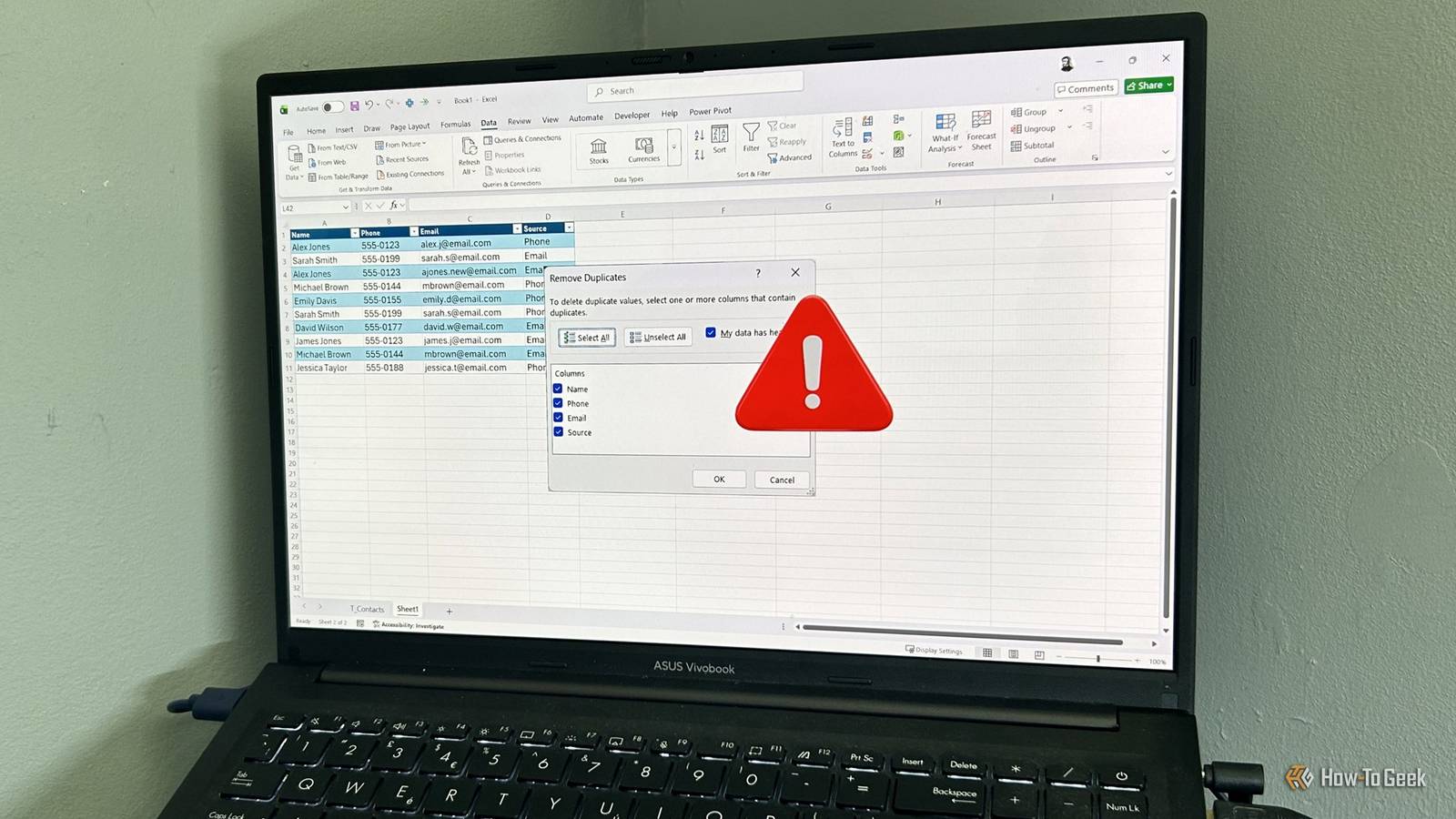
Excel's Remove Duplicates button looks like a harmless cleanup shortcut, but one wrong click can permanently delete data you actually still need.Instead of risking your source records, use built-in tools to safely inspect, extract, or rebuild datasets without destructive edits.All examples in this guide use an Excel table (Ctrl+T) named T_Contacts.
To follow along, download a free copy of the Excel workbook containing this table.After you click the link, you'll find the download button in the top-right corner of your screen.The hidden dangers of Excel's native Remove Duplicates tool Why clicking that button is a risky cleanup move Excel's dedicated Remove Duplicates tool (Data > Data Tools > Remove Duplicates) is one of its riskiest utilities.
The moment you click it, Excel permanently erases rows from your dataset.If you realize after saving and closing the file that you actually needed that information, the "Undo" button won't always save you.The real trap here is how the column checklist works.
Excel's pop-up menu looks like a safety feature that lets you choose which columns to scan.But here's the catch: unchecking columns just tells Excel to ignore differences in those fields when matching entries.Once it finds a match, Excel still deletes the entire row.
In our T_Contacts table, you might try to outsmart the system by leaving "Name," "Phone," and "Email" checked, while only unchecking "Source." While this successfully deletes the true duplicates for Sarah Smith and Michael Brown (because all their contact fields match perfectly), it hits a paradox with Alex Jones.Because his two rows have different email addresses, Excel treats them as separate records, leaving both in place.If you then uncheck the "Email" and "Source" columns to force Excel to find the duplicate "Alex Jones," the tool matches his name and number, but instantly vaporizes the row containing his updated email address.
In other words, you're forced to choose between a messy list and lost data.This tool also completely hides your workings.Building a reliable spreadsheet relies on keeping an explicit audit trail so you can track changes and troubleshoot errors.
Relying on a destructive tool is like ignoring your math teacher's advice to show your work—once the result is all you see, there's no way to verify how it was produced or where things went wrong.Finally, the result is a snapshot—once a new row is added to the table, the cleaned output is already out of date, forcing you to repeat the process manually if you want it to stay accurate.So, instead of using Remove Duplicates, you can use tools that preserve your original data while producing dynamic, repeatable results that stay in sync as your dataset changes.
Microsoft 365 Personal OS Windows, macOS, iPhone, iPad, Android Free trial 1 month Microsoft 365 includes access to Office apps like Word, Excel, and PowerPoint on up to five devices, 1 TB of OneDrive storage, and more.$100 at Microsoft Expand Collapse Use conditional formatting to visually isolate your duplicate data Spot the repeats without deleting a single row When you need to audit a messy spreadsheet, your primary focus should be on visibility, not deletion.Conditional formatting lets you shine a spotlight on repeating entries while keeping every row of your data intact, meaning you can investigate repeated entries before deciding what to do with them.
This completely solves our data-loss paradox.By highlighting the duplicate names instead of deleting them, you can see that Alex Jones appears twice with different email addresses.Since your data hasn't been deleted, you can verify the correct address and safely clean the list yourself.
Here's how to use this tool: Select the Name column.Open the Home tab on the ribbon.Click Conditional Formatting > Highlight Cells Rules > Duplicate Values.
Verify the left drop-down menu is set to Duplicate, choose a color scheme, and click OK.Excel instantly highlights the repeating names (Alex Jones, Sarah Smith, and Michael Brown).What's more, the highlighting is dynamic, so as new rows are added or values change, duplicates are automatically updated in real time.
Now, you can compare details side-by-side and manually update records without losing any underlying data.Extract a pristine list using the dynamic UNIQUE function Let formulas do the heavy lifting If you'd normally reach for Remove Duplicates to create a clean list for something like a quick mailing label printout, you don't need to alter your original table.Instead, you can use the dynamic UNIQUE function, which scans your source data and outputs a clean array in a separate section of your workbook.
Best of all, it updates automatically as your table grows.UNIQUE is typically used on a single column when you want a clean list of values, such as names or email addresses.If you use it across multiple columns, Excel treats each row as a unique combination of values.
Using this function is straightforward: Select an empty cell where you want your clean list to live (like cell F2).Type: =UNIQUE( Select the Name column and type a closing parenthesis to complete the formula: =UNIQUE(T_Contacts[Name]) Press Enter.Excel spills the results automatically, reducing your list to a clean set of unique names while keeping them synchronized with your source table.
Master Power Query for advanced and repeatable data scrubbing The ultimate toolkit for complex spreadsheet cleanup For larger datasets or recurring reports, Power Query is one of Excel's most reliable tools for cleaning and transforming data.Instead of modifying your original worksheet, it imports a copy of your data, applies a series of repeatable transformation steps, and outputs the cleaned result to a new sheet.If you need to control which record is kept, sort the data before removing duplicates.
Unlike the native Remove Duplicates tool, Power Query preserves that sort as part of a repeatable transformation, so the same logic is applied every time you refresh.Here's the workflow: Select any cell inside your table, go to the Data tab, and select From Table/Range to open the Power Query Editor.If needed, sort the data so the most relevant record appears first.
For example, if the email source is more up-to-date than the phone source, sort the Source column in ascending order.Select the Name column (or hold Ctrl and select multiple columns for full-row deduplication).Right-click and select Remove Duplicates.
Click Close & Load in the Home tab.Power Query then drops the cleaned data list onto a brand-new worksheet, leaving your original table unchanged.And each time you refresh the query, the same steps are reapplied to new or updated data, keeping results consistent without redoing the process manually.
Level up your Excel workflow with automation Conditional formatting helps you inspect duplicates safely in real time, UNIQUE produces live-updating clean lists, and Power Query lets you rebuild structured datasets that stay consistent on refresh.Together, they replace Excel's destructive workflow with transparent, repeatable, and dynamic processes.If those tools handle everyday cleanup, Python in Excel is the natural next step for automating workflows and scaling beyond built-in features.
Read More