Most people who've owned a Windows PC for more than a year have at some point installed something like Winhanced or clicked through an ad promising to speed things up and free gigabytes of wasted space.It feels responsible because the registry needs cleaning, the disk needs optimizing, and Windows wasn't doing those tasks automatically back then.That made sense decades ago, but it doesn't hold up anymore thanks to Windows 11's improvements.
Windows used to need help cleaning up Now the OS handles everything in the background Close Over the past thirty or so years, the way Windows takes care of itself has changed almost completely.Back in the days of Windows 9x and early NT, the OS really couldn't do much on its own because it had no built-in way to handle things like disk fragmentation, bloated registries, or junk files piling up.That's when the industry of third-party tools started to build up, like Norton Utilities, CCleaner, Winhanced, and SystemCare.
These could be relied on for basic upkeep.You'd run them manually, clean things up, and hope for the best.As the NT kernel grew up through Windows 10 and 11, Microsoft may have realized that having third-party tools poking around in system internals was causing more trouble than they were worth.
While they helped, these tools could cause registry corruption, instability, and security holes.The company made sure that the OS would be better suited to managing its own housekeeping, and instead of treating maintenance as something you did occasionally with a separate program, Windows started handling it quietly in the background, all the time, without you having to think about it.It’s a great reason to upgrade to Windows 11.
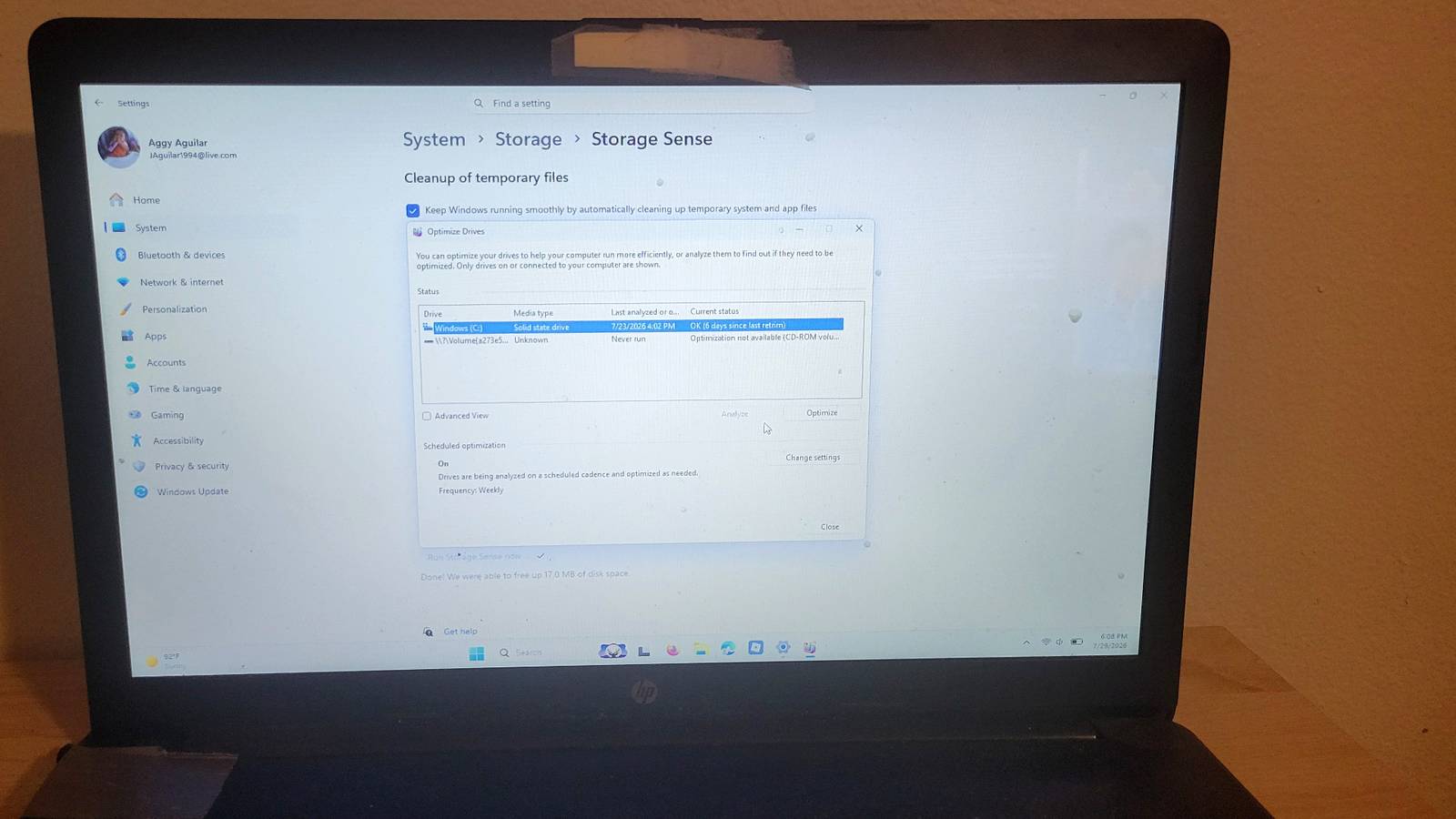
The tools it comes with already do a great job Your system manages its own storage and memory There are a few replacements that make Windows 11 a lot better than older versions.The old Disk Cleanup tool has mostly been replaced by Storage Sense that some people wish they’d used years ago.Unlike basic disk cleaners that work off a fixed list of file locations and delete on a rigid schedule, Storage Sense runs quietly in the background as part of the operating system itself.
It keeps an eye on your available storage in real time, and when space gets low, it clears out the files you don't need.This gets rid of leftover setup files, browser caches, and items sitting in your Recycle Bin.It also works directly with OneDrive, so if a cloud-backed file hasn't been opened in a while, Windows can quietly remove the local copy to free up space while keeping a lightweight placeholder, so the file still appears to be there.
Third-party cleaners can mess this up and cause real issues.Setting Storage Sense up is straightforward.You just have to go to Settings, then System, then Storage, switch it on, and hit "Configure Storage Sense." From there you can tell it to automatically clear your Recycle Bin or Downloads folder every 14, 30, or 60 days, or just have it kick in whenever your drive starts running low.
On the SSD side, Windows now handles TRIM commands natively in the background, which matters because a lot of third-party disk optimizers would run mechanical-drive defrag routines on SSDs.This is the wrong thing to do and wears the drive down for no reason.The same story plays out with memory.
There are tools that say they can free up RAM by forcing Windows to dump things out of memory.What they actually do is throw away file caches and preloaded apps that Windows had staged specifically so things would open faster.Your memory usage number goes down, and everything gets slower.
Windows' own memory manager already handles this a lot better.It shuffles pages around based on what's actually being used and what can wait.Microsoft has also moved away from old SCSI translation layers toward native NVMe drivers and a faster storage path that cuts down on CPU overhead when reading files.
When aggressive third-party tools try to work around or replace any of these systems today, they tend to break things.This is because of missing dependencies, corrupted settings, and other reasons.What used to be a helpful category of software has become mostly a liability.
PC Health Check is another tool that does more than it looks like on the surface.I used to think all it did was scan, but it's actually testing your hardware and software against the security and performance requirements built into Windows 11's startup process.It checks hardware requirements like your processor, RAM, storage, and TPM status, ensuring your system meets Windows 11 eligibility standards.
Outside cleaners will actually break things They delete files your computer needs to work Third-party optimizer tools like Winhanced get marketed hard as the go-to fix for squeezing more performance out of Windows 11.In reality, they can do serious damage.These tools run with full admin privileges and make huge changes.
They can even get past the safety checks Windows has built in specifically to stop that kind of thing.These optimizers will dig into critical registry hives like SYSTEM, SOFTWARE, and COMPONENTS and start deleting things they've flagged as unnecessary clutter.The trouble is, a lot of what they're removing isn't clutter at all.
When those structures get wiped out, Windows loses track of its own component model, so the next time an app tries to check what the system can do, that request falls flat, and things start crashing.On top of that, many of these tools also go after the Windows Component Store, deleting files from WinSxS to free up disk space.That sounds harmless enough, but those files are what Windows uses to repair itself.
Once they're gone, the built-in repair tools can't do their job anymore.Windows has done a lot to make itself safe, and the age of using third-party tools may be coming to an end.It's better to use what's baked into the machine than try outside sources.
Windows is already ready for this The frustrating part is that these optimizer tools don't fail in obvious ways.You run one, the numbers look better, and you assume it worked.What you don't see is the Component Store with files missing, or the registry entries Windows depended on that are now gone.
By the time something breaks, it's hard to connect it back to the tool that caused it.The better move is to let Windows manage itself and stop giving admin access to software that's solving a problem that no longer exists.
Read More