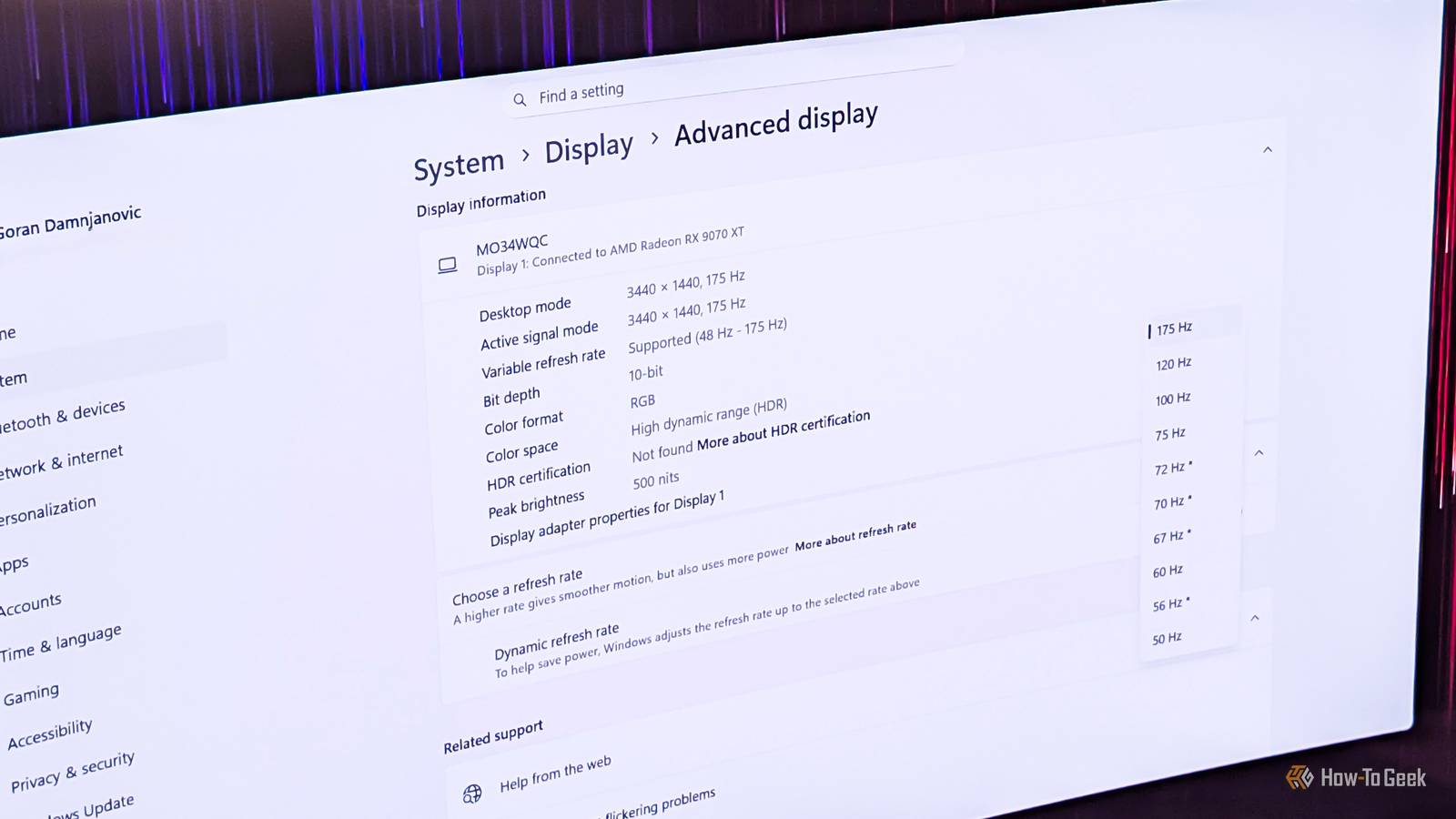
By default, Windows sets the refresh rate to 60Hz when you first boot a new PC or reinstall Windows, regardless of your monitor's native refresh rate.This is why one of the most popular pieces of advice for Windows users is to manually increase the refresh rate in Windows Settings after getting a new PC or reinstalling Windows.The catch is that Windows can revert your monitor's refresh rate to 60Hz in many other situations as well, without notifying you.
This can be annoying, and I've had this happen many times over the years on various Windows PCs.Once, I used a PC for about a week before noticing this, with Windows reverting the refresh rate from 100Hz—the native refresh rate of my monitor at the time—to 60Hz just because I switched the display to my TV to play a game and then switched back to my monitor.Here's when Windows may kick your refresh rate down to 60Hz and what you can do about it.
Windows can revert your monitor's refresh rate to 60Hz for a variety of reasons Some are justified, others make little sense One of the most frequent triggers for Windows to revert the refresh rate to 60Hz is when you delete your GPU drivers (either with Display Driver Uninstaller or a vendor-specific tool like AMD Cleanup Utility) and then reinstall them.The moment the drivers are deleted, Windows will switch to a generic driver, which provides basic display functionality and causes Windows to drop the refresh rate to 60Hz.In most cases, it won't restore the higher refresh rate when you reinstall the drivers.
This can also happen if you choose the clean install option when installing new GPU drivers.If you happen to manually delete and then install your GPU drivers or clean-install new drivers, make sure to check whether the refresh rate has been set back to 60Hz afterward.On AMD systems, Windows might install an incorrect or older GPU driver via Windows Update, which can mess up your graphics card's performance in games, but can also cause your refresh rate to revert to 60Hz.
If you own a laptop and enable a power-saving mode (most control utilities, such as MSI Center and ASUS Armoury Crate, have some form of a power-saving mode), there's a good chance Windows or the laptop manufacturer's software will kick the refresh rate back to 60Hz.If the power-saving mode is activated, the laptop may revert to 60Hz after each reboot even if you manually increase the refresh rate.In some cases, having power-saving mode enabled will keep the maximum refresh rate when plugged in but revert to 60Hz when running on battery.
I've also regularly had Windows drop the refresh rate back to 60Hz when switching between different monitors.For instance, if I set Windows to project only on the secondary display, such as my TV or the dummy HDMI plug I use as a virtual monitor for local game streaming, Windows will often set the refresh rate on my main monitor to 60Hz when I switch back to it.If you disconnect your monitor from your GPU (or unplug the video cable from the monitor) and then reconnect it, Windows may set the refresh rate back to 60Hz as well.
The same thing can happen if you use a KVM switch or when you change the video cable or adapter you use to connect the monitor to your PC.When you boot into Safe Mode and then reboot your PC, Windows may not restore the refresh rate to your monitor's native value, but keep it at 60Hz, which is the default value Windows uses when in Safe Mode.If you play an older video game that features an exclusive full-screen option alongside a max frame rate option, your refresh rate may get stuck at 60Hz when you exit the game if you had set it to 60Hz in-game.
Last but not least, Windows may revert the refresh rate to 60Hz even when you simply change the resolution in Windows Settings.Here's what to do if your refresh rate is constantly being reverted to 60Hz Enable some Windows services, or disable power-saving settings if you own a laptop Close If Windows reverts your refresh rate to 60Hz after every reboot and you own a laptop, the first thing you should check is whether a power-saving mode is active in your laptop vendor's control utility.This setting is called GPU Power Saver in ASUS Armoury Crate, while MSI laptops should have Display Power Saver or power-related User Scenario options in MSI Center.
Alienware laptop owners can explore the Performance and Fusion tabs in Alienware Command Center.If you own a laptop from a different manufacturer, try exploring its control utility and look for power options and whether a power-saving mode is activated.You can also switch to Best performance mode in Windows by opening Settings > System > Power & battery and setting Power mode to Best performance for both when plugged in and on battery.
You should also check whether the Energy Saver setting is set to run all the time.Go to Settings > System > Power & battery > Energy saver and make sure the Always use energy saver toggle is disabled.Up until recently, we were also able to set the battery level at which Energy Saver kicks in.
However, it seems that a recent Windows update disabled the option because I cannot find it on any of the four Windows handheld PCs I actively use, and multiple Reddit users have also reported that they cannot find the setting.You can still adjust this option via PowerShell.Just run PowerShell as administrator, type the following command, and enter the battery level at which you want Energy Saver to activate at the end of the command.
If you want Energy Saver to activate at 10% battery, for instance, type the following: powercfg /setdcvalueindex SCHEME_CURRENT SUB_ENERGYSAVER ESBATTTHRESHOLD 10 If you don't want Energy Saver to automatically kick in, change 10 to 0: powercfg /setdcvalueindex SCHEME_CURRENT SUB_ENERGYSAVER ESBATTTHRESHOLD 0 Close If you own a desktop, or if switching to Performance power mode on your laptop didn't fix the issue, you can try enabling a few Windows services that may cause Windows to revert the refresh rate to 60Hz if they're disabled for some reason.The first step is to press Windows + R to open the Run box, then type services.msc to open the Services window.Once there, locate the following two services: Display Enhancement Service and Display Policy Service.
Right-click each service and start them if they aren't running.Now click Properties, and make sure neither service is disabled.By default, Display Enhancement Service should be set to Manual (Trigger Start), while Display Policy Service should be set to Automatic, like in the screenshot above.
In many cases, though, you'll have to manually switch back to a higher refresh rate In most situations, though—deleting and reinstalling GPU drivers, disconnecting and reconnecting the monitor, switching between different displays, and more—you will have to manually change the refresh rate to your monitor's native value, and it should stick, at least until Windows decides to revert the refresh rate to 60Hz again.Just open Windows Settings and go to System > Display > Advanced display.Once there, set the refresh rate to the highest value available.
Read More