Every Excel power user knows that keyboard shortcuts are one of the best ways to speed up their workflow.But there's one problem: there are more than 200 of them.My way around this is to focus on a select handful that genuinely save me time, and Alt+; is high up that list.
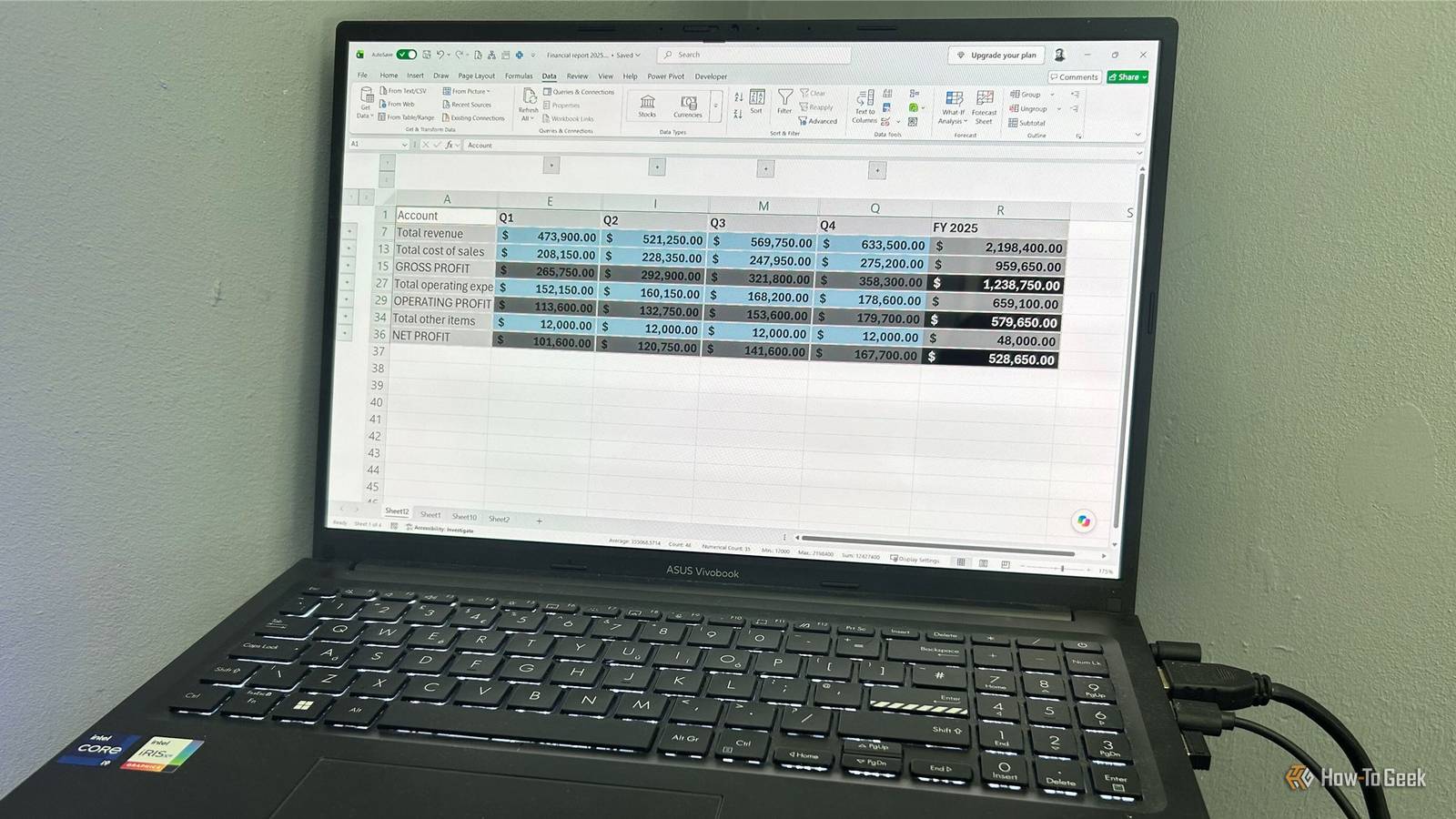
To show you why I keep coming back to this shortcut, I've created a fictional 2025 profit-and-loss report with monthly figures, quarterly totals, annual totals, and detailed rows for each category (click the screenshot to expand).Copying and formatting hidden cells A hidden cell is still part of your selection Once the financial year is complete, I don't need all the detail in the report I'm preparing.I only want to see the quarterly and full-year figures.
So I manually hide the January through December columns.I also hide the detailed rows, leaving me with a much more manageable summary.Close Hiding rows or columns doesn't remove their contents or calculations.
The cells are still there; they're simply hidden from view.Now let's say I want to copy this condensed report to another worksheet.I select the entire report, copy it, and paste it.
But because I manually hid the monthly columns and detailed rows, Excel still considers those cells part of my selection.When I paste the range, the hidden cells come along too.Close The clue is in the thick green outline around the selection.
When I first select the dataset with hidden rows and columns, the outline is unbroken.This is where Alt+; comes in.If I select the same range and press Alt+;, you'll notice the thick green outline disappears, and the individual cells become selected, indicating that Excel has restricted the selection to the cells that are currently visible.
When I press Ctrl+C, marching ants appear around those individual areas, providing another visual confirmation that only the visible cells are being copied.I can now paste the selection, and only my condensed report is copied.Close Copying isn't the only time this matters.
Suppose I decide I want to change the cell fill of the quarterly subtotals from gray to blue.To do this, I hold Ctrl while selecting the quarterly subtotal cells, then apply the relevant formatting.But again, when I unhide the rows and columns, I notice that the hidden monthly values have also adopted the formatting.
Close The solution is the same.After selecting the cells, I press Alt+;.Now, when I apply the blue fill, only the cells I could see were formatted.
Close This is the reason I keep Alt+; in my mental shortlist of Excel shortcuts: it lets me tell Excel that I want to work with only the cells I can currently see.Copying and formatting grouped columns and rows Grouping isn't a workaround Another way to obscure cells you don't need to see is to use Excel's grouping tool.For example, if I want to periodically check the underlying numbers and compare them to this year's figures, grouping gives me a way to quickly expand and collapse the report, keeping it tidy while still giving me quick access to the underlying details.
Close Unfortunately, that doesn't change how Excel treats those cells when I select the range.When I select the collapsed report, copy it, and paste it into another spreadsheet, the collapsed columns and rows are included in the copied result.But when I select the report and press Alt+;, the thick green outline disappears, and the individual visible cells become selected.
So when I copy the selection and paste it, only the visible summary is duplicated.Close The same applies to formatting.If I don't use Alt+;, the cell fill is applied to more cells than I intended, but using Alt+; refines the selection to only what's on my screen.
Close So, the rule seems straightforward: when I manually hide or group columns and rows, Excel still includes those cells in my selection, and pressing Alt+; restricts the selection to the cells I can see.But there's an exception.Copying and formatting filtered ranges Filtering works differently In many workflows, you might filter the data instead of hiding or grouping rows.
And that makes perfect sense.Filtering is a fundamental way of working with data, and you'll find it everywhere from other spreadsheet apps to database software.Excel even gives you slicers when you want an easier way to apply and see your filters.
Excel knows that filtering is a common workflow, which is why it has already addressed the "select only visible cells" problem for you.If I select and copy a filtered column, whether it's part of an Excel table or a regular range, Excel automatically excludes the filtered-out rows from the selection, as shown by the marching ants that appear.I can then paste the selection into another worksheet, and only the visible cells are duplicated.
I don't need to press Alt+; first.Close The same applies if I format the filtered selection.Excel applies the change to the visible filtered rows without changing the rows that the filter has removed from view.
Close But filtering and hiding aren't always interchangeable.As with my P&L dataset from earlier, if I'm working with a report where I simply want to hide some details while keeping the structure of the worksheet intact, rather than removing certain records from view based on a criterion, filtering isn't appropriate.Hiding or grouping are usually my go-to methods.
And in those situations, Excel doesn't automatically restrict the selection to what I can see.That's why Alt+; remains such a crucial shortcut.It gives me a quick way to select only the visible cells when I've manually hidden or grouped rows and columns.
For this reason, even when I have only used Excel's built-in filters, I still press Alt+; every time, partly through muscle memory and partly because it gives me a useful final check that I've selected exactly the cells I intend to work with.Alt+; is one of my favorites That's why Alt+; is one of my go-to shortcuts in Excel.It saves me the frustration of accidentally modifying cells I meant to leave untouched.
And if you're wondering what else makes my Excel shortcut shortlist, there are a few others I use just as regularly.Ctrl+Enter is essential for updating non-contiguous cells and filling in missing values, Ctrl+H helps me clean up messy imports and fix formatting issues, while Ctrl+1 gives me access to essential formatting tools not available directly on the ribbon.
Read More