Linux is well known for being receptive to customization, and KDE Plasma is no exception.In contrast to the minimalism of GNOME, KDE’s shell lets you fine-tune hundreds of different settings, and the default way to do so is via System Settings.But this app is far from perfect — presenting so many options in a user-friendly way is quite a challenge.
If you’re struggling to get along with the settings app, try these tips to help find your way.Discover your preferred way to launch Choose the best default for you from the many options available If this is your first time with System Settings, congratulations: you’re about to discover an essential, powerful tool at the heart of your Linux OS.It’s so important that there are many different ways to launch it, including: Open the App Menu, then select System, System Settings.
Run System Settings from the bottom panel, if it’s pinned by default (you can choose to pin it once it’s open).Open a terminal and run the command systemsettings.Open the KRunner panel using Alt + F2 or Alt + Space, then type systemsettings and press Enter.
With all these options available, I recommend choosing just one and using it until it sticks in your muscle memory.The last thing you want is to hunt around for the System Settings app when a simple shortcut opens it immediately.I’m personally a fan of pinning this app to your panel, since it’s so useful, but otherwise it's buried under a couple of menus and some scrolling.
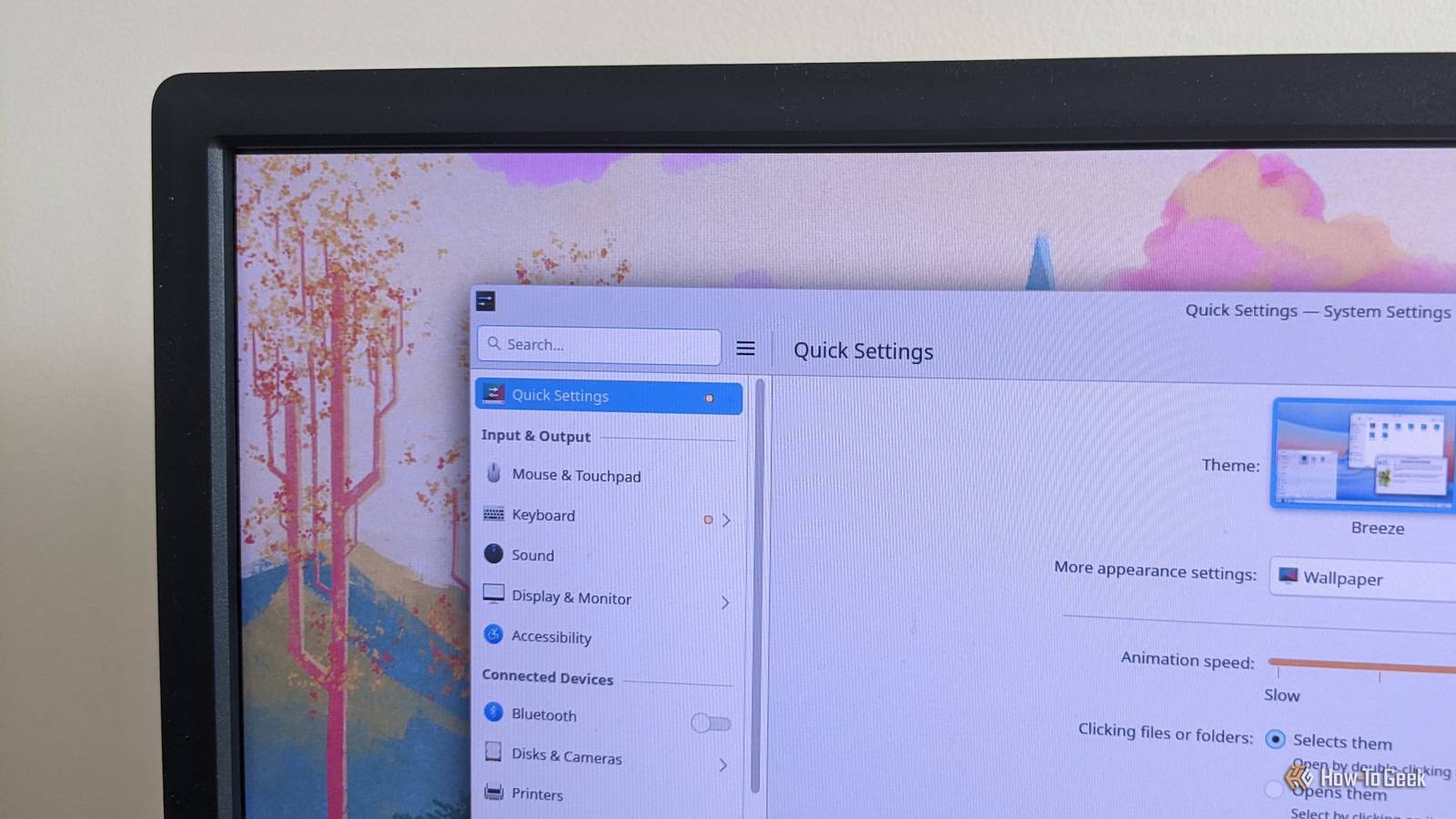
But if you want to keep the panel as clean as possible, there’s no substitute for the KRunner approach, which gets you straight into System Settings without leaving the keyboard.Use Quick Settings for the most common stuff If you use it a lot, it should be here When you launch System Settings, the default view will show the Quick Settings page.This puts some of the most useful global settings front and center, including Theme and Animation speed.
It also includes shortcuts to individual modules like Wallpaper and General Behavior.The Quick Settings view also shows your most-used pages, giving you an easy route to the settings you change all the time.Explore the available options Get a good idea of what you can change Close When you first start using KDE, it’s a good idea to familiarize yourself with the full suite of settings that are available.
You only really need to do this once to understand the scope; if you skipped this step when you first installed Linux, I recommend going back and doing it now.System Settings organizes everything into groups, modules, and pages, with individual settings attached to the latter.For example, a setting like Resolution is on the Display Configuration page, in the Display & Monitor module, under the Input & Output group.
You don’t have to commit all this to memory — there are better ways to navigate, as we’ll see shortly — but it really helps to get an idea of what’s included.If you’ve migrated from Windows or macOS, you may see settings here that you’re totally unfamiliar with, that you’ve never even considered adjusting before.Remember that some settings can be inapplicable; you can use the Show Inapplicable Pages item from the main menu to see what’s currently hidden.
You can also take the time to learn which settings require the System Settings app and which don’t.Most apps have their own Settings or Configure menu.These are typically standalone, although some have integration with the System Settings app, particularly for settings that might be shared across apps, like KRunner’s plugins: Also remember that icons in the System Tray provide immediate access to common settings, like the Brightness & Color icon, which has a Configure button that shortcuts to Night Light settings, for example.
Be search savvy The search field is useful, up to a point The System Settings app's best feature is probably its global search field.Located at the top-left, it lets you narrow the main list of modules to a much more manageable set.For example, search for “scroll,” and you should see matches including the Mouse page and the General Behavior module.
The settings search is most useful when you’re trying to locate a page or module.In theory, search can unearth individual settings too, but this is very hit-and-miss.For example, searching for “visualization” won’t get you any results, even though there is a settings page with that exact heading.
But search for “task switcher,” and you’ll locate the Task Switcher page under the Window Management module, which contains it.Some modules have their own search in addition to the global search.The Shortcuts page, in the Keyboard module, has a search field that filters based on the name of the action or a specific key.
Note that wording can be very important to your search.In this example, searching for “screenshot” yields zero results; you need to know that the action uses the term “capture” instead.Highlight Changed Settings An easy way to find out what’s different from when you installed Another very useful feature that’s easy to overlook is this option that lets you track down which settings you’ve actually changed.
These aren’t just changes you’ve made in the current session or recently; they’re changes you’ve made since you first installed your Linux distro.The feature is great if something isn’t working properly, or if you decide you like a setting the way it used to be.From the main (hamburger) menu, toggle Highlight Changed Settings on and off.
With this option on, KDE will highlight modules, pages, and even individual settings that are different from the defaults.For example, if you’ve changed a keyboard shortcut, you’ll see a filled circle next to the Keyboard module, the specific Application page, and the keyboard shortcut itself.Again, for various reasons, this feature isn’t 100% perfect, but it can certainly help you track down most settings you’ve changed to troubleshoot issues.
System Settings is not perfect, so get used to its quirks While System Settings is a great app, it still has its flaws.Search can be hit-and-miss, and settings aren’t as fully integrated across the entire system as we’d all like.Hopefully, the app will keep improving; in the meantime, get used to its quirks and learn how to tweak your system as efficiently as possible.
Read More