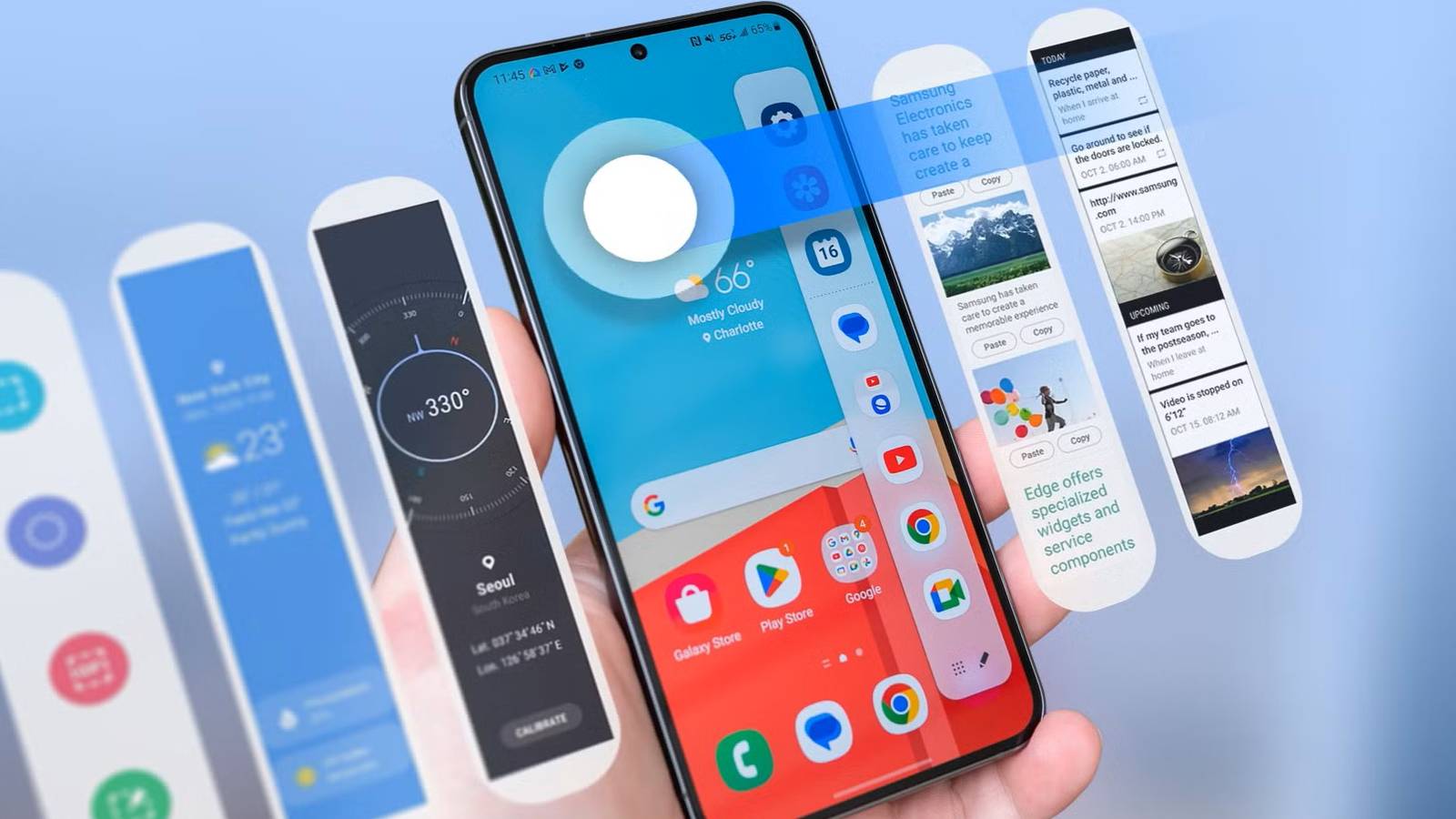
I used to think Samsung’s edge panels were one of those features that sounded useful in theory but didn’t really have much practical value.After spending some time with them, though, I’ve changed my mind.The retractable shortcut drawer gives me quick access to a ton of things I use a lot without forcing me to leave whatever I’m doing or hunt through a cluttered app drawer.
For something that’s always sitting quietly at the edge of the screen, it can make everyday tasks noticeably less frustrating.What makes edge panels particularly useful is how much you can customize them.I can choose which apps and shortcuts appear, add dedicated panels for things like tools, contacts, weather, and reminders, and even adjust the handle so it’s barely visible.
There are plenty of ways to make the feature work for you.If you have a Samsung phone, it’s something that is definitely worth exploring.Samsung devices come with a retractable shortcut drawer Edge panels make things easily accessible I'm admittedly not the greatest at organizing my app drawer.
I try my best, but it's just messy enough that sometimes I lose track of where some of my apps are.When I'm in a bit of a flurry and already doing something else on my phone, sometimes this means extra frustration looking for the things that I need.This happens to me a lot when I'm swapping between loyalty apps and the Samsung Wallet app when I'm standing at the checkout counter.
Something that has made things drastically easier for me is Samsung's Edge Panels feature.This feature essentially acts as a shortcut drawer that sits just on the side of your screen.When active, you'll see a thin translucent panel on the side of your screen.
When you swipe this panel towards the center of your screen, it opens up a shortcut drawer that can come loaded with some of your phone's essentials.This makes it a little bit easier to find apps when you're in a bit of a hurry, with them always being right there on the left of your screen.Activating edge panels is very easy.
You'll find the toggle for the feature under your display settings.By default, when you turn it on, it'll appear on the right side of your screen, and it will come loaded with a few core apps, such as Galaxy's Interpreter app, as well as some of your most used apps.You can also go in and edit the panel to include whatever other apps you might want.
I've now got my Samsung Wallet app set as a shortcut.You can load your edge panel with more than just apps As few or as many panels as you'd like Close While having apps on hand at the edge of your screen is obviously one of the most useful benefits of edge panels, this feature can do a lot more.In the edge panel settings, tap the 'Panels' tab to find plenty of other panels you can add to the mix.
You can add as many different panels as you like, and in whatever order you'd like.When you have multiple panels enabled, all you have to do is swipe to move on to the next one.The available panels are all pretty useful.
The 'People' panel allows you to add shortcuts for key contacts.There is a 'Tasks' panel that allows you to quickly do things like add alarms, take screenshots, or compose a message.The 'Weather' panel is nice, but a bit redundant considering you can access it from your home screen.
You can also tack on a panel that comes loaded with your most recent clipboard items and one with all your important reminders.My personal favorite, though, is the 'Tools' panel, which features a compass, a tally counter, your torch, a ruler, and a surface level.You can customize the way that it looks as well You can make it practically invisible In the settings menu for edge panels, you'll also see a tab labeled 'Handle'.
This essentially allows you to customize how the little tab on the side of your screen looks before you swipe open the shortcut drawer.I don't really like my screen to feature a lot of visual noise, so I really appreciate that Samsung allows me to make it as non-intrusive as I'd like.In the 'Handle' settings, you have a couple of key options.
You can adjust the position of the panel, having it appear either at the top left or top right of your screen.You'll also see a slider on the panel itself here, allowing you to drag it up and down as well.Beyond positioning, you can adjust the color of the handle, how transparent it appears, and how tall and wide it is as well.
I've made mine quite small and as transparent as possible.An alternative way to access your favorite apps and features At first, I was a little dubious about the actual functionality of Samsung's edge panel feature.It seemed like a redundant way to browse your phone, considering you can pretty easily swipe down into your app drawer and find what you need, or just use the search bar.
However, after using it for a while, it has really grown on me.I don't use all the panels, but I love having quick and simple access to shortcuts for my most used apps, tools, and contacts simply by swiping the edge of my screen.
Read More