When you want to check or monitor your PC's hardware, you usually have to install a handful of different tools just to get all the information you need.But what if I told you there’s one app that does it all, from giving you a comprehensive view of your hardware’s health to creating detailed CSV logs of your video game benchmarks? HWiNFO is the Swiss army knife of computer tools HWiNFO is one of the most comprehensive Windows tools there is.It’s commonly called HWiNFO64, since that’s the version most modern Windows PCs use, but there are also versions for ARM64, 32-bit systems, and even legacy DOS systems.
HWiNFO has a long list of features, but let's start with the basics.If you've just bought a machine and want to see what's inside, the tool provides you with a system summary—and I'm not just talking about the basic information that Windows gives you in Task Manager.The tool shows everything from your CPU, GPU, motherboard, and other hardware model names to your RAM clock speeds and timings, your GPU’s current and maximum PCIe link speed and width, your CPU’s maximum boost clock, and even PBO max clock speed if you've overclocked your AMD CPU.
If you’ve tweaked your BIOS settings, this provides an easy way to review your hardware configuration without needing a separate tool like CPU-Z—all the information is right here.When you close the system summary window and head into the full mode, you'll be met by an interface that looks like a combination of Windows' built-in System Information was remixed with Device Manager.The key difference here is that HWiNFO provides a much more user-friendly overview than System Information.
For instance, here’s the unreadable mess that System Information gives me when I want to check the specifications of my two monitors.Now compare that to the far simpler, yet more comprehensive and useful overview that HWiNFO provides.Another tool that has been replaced for me is CrystalDiskInfo, which is a popular tool for monitoring and reviewing storage drive health.
It provides the basics you’d expect, including whether a drive uses PCIe or SATA, along with the model, capacity, firmware version, and a long list of supported protocols and features.Like CrystalDiskInfo, a key feature of HWiNFO is its ability to read and display S.M.A.R.T.data from storage drives.
You can use it to review your drive’s health, power cycle count, power-on hours, temperature, time spent above warning and critical temperature thresholds, and more.Frankly, I can't think of a drive metric that I'd like to check in CrystalDiskInfo that isn't already available in HWiNFO.In fact, as far as read-only tools go, I don’t think there’s any reason to install anything other than HWiNFO.
Whether you want to check your motherboard’s BIOS version, the number of unsafe shutdowns on your NVMe SSD, HDR support, or your CPU, GPU, and RAM configuration, you can do it all in one place.The only thing HWiNFO doesn’t do is manual tuning—you’ll need tools with kernel-level access for that, like MSI Afterburner.Effortlessly monitor your system in real time While HWiNFO’s ability to display detailed system information is undeniably useful, that’s really just the beginning.
Most people download the tool to use it in sensors-only mode (which you can select from the drop-down menu when the program starts).When you first open HWiNFO in sensors-only mode, it can feel a bit overwhelming.The tool can monitor just about everything: current, minimum, maximum, and average readings for voltages, temperatures, power draw, and power limits across your CPU, GPU, RAM, NVMe, motherboard, and so much more.
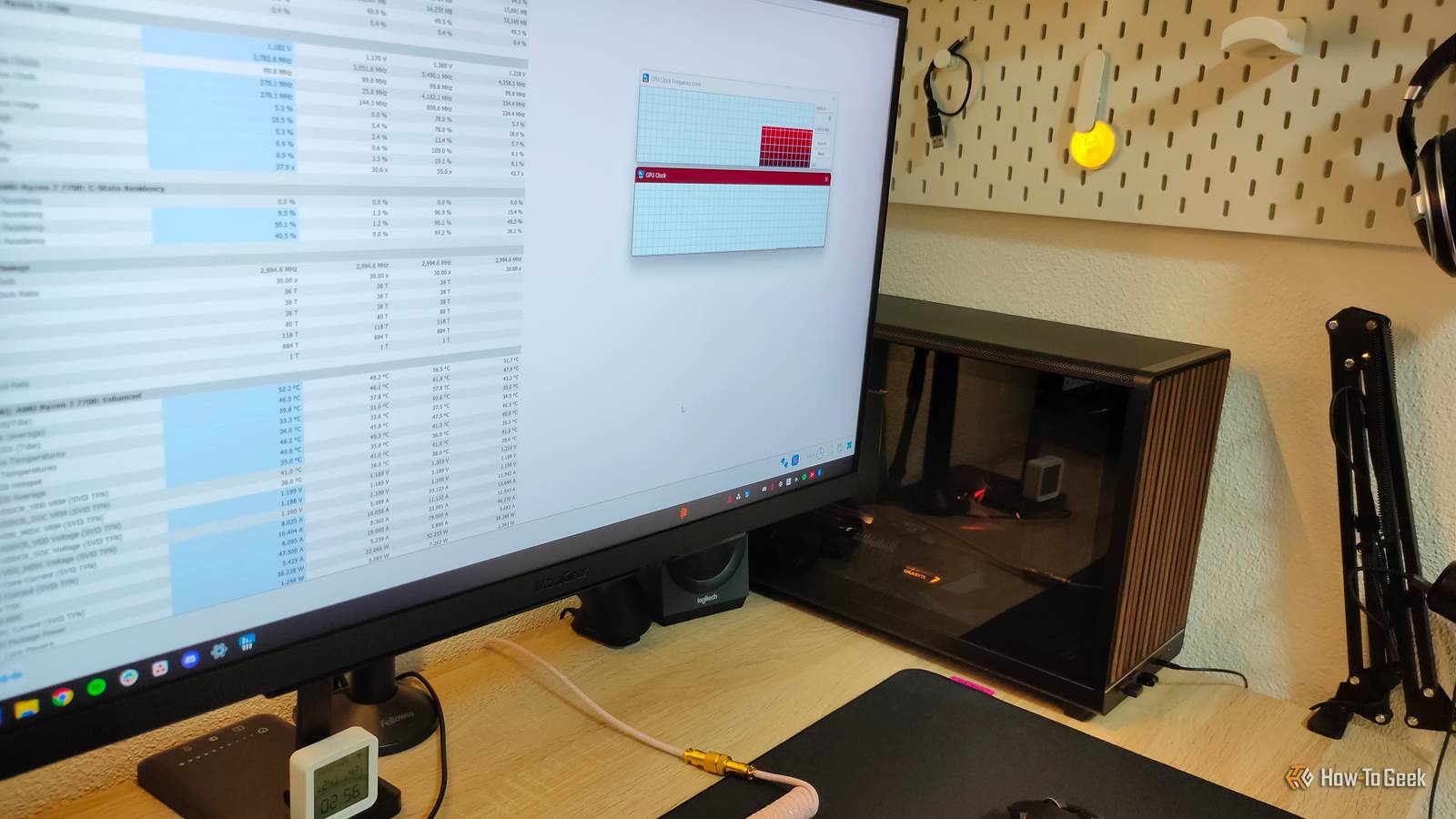
The good thing is that you can minimize or disable monitoring for anything you’re not currently interested in, and you can rearrange the order of metrics to create a list that’s relevant to you.If you want to track a specific metric in real time, you can right-click it to add it to your system tray (the far-right corner of the taskbar) or display a graph showing the data over time.This is perfect for monitoring CPU or GPU frequency, temperatures, and power draw while your system is under load.
There's even an option to stress test your system in the corner.It's always a welcome feature as far as hardware monitoring tools go.Benchmark and optimize your PC's gaming performance I've talked a lot about hardware overview and monitoring, but I haven't even touched on the reason why I use HWiNFO—performance logging.
Subscribe to the newsletter for deeper HWiNFO and PC diagnostics Joining the newsletter gives focused coverage of HWiNFO, sensor logging, benchmarking workflows, and practical PC-monitoring guidance—step-by-step logging tips, CSV analysis pointers, and comparisons to help you get more from your tools.Subscribe By subscribing, you agree to receive newsletter and marketing emails, and accept our Terms of Use and Privacy Policy.You can unsubscribe anytime.
The tool can output comprehensive CSV logs of all the sensor data you collect between when you start and finish the logging, allowing you to create a detailed hardware report.Once again, HWiNFO typically provides far more information than you might need at any given moment, so if you’re only trying to check your GPU performance, you should consider disabling logging for everything except the GPU and PresentMon (for FPS and frame time).Once you have your CSV report, you can use a tool like Excel to view it.
Whether you just want to compare before-and-after FPS and GPU temps after a light undervolt, or create comprehensive graphs that visualize how each GPU metric changed over time, HWiNFO has all the data you need.Admittedly, HWiNFO can be a bit more difficult to use than tools with a cleaner visual presentation and built-in graphing.In those cases, you might prefer something like CapFrameX, which has the same data but in a neatly packaged interface.
Related 3 In-Game Performance Monitoring Tools I Recommend to Every PC Gamer Monitor all your in-game performance stats with one of these tools.Posts By Goran Damnjanovic I’m only scratching the surface here.HWiNFO lets you check, track, monitor, log, and benchmark all kinds of system data once you know your way around it.
Fortunately, the tool is surprisingly easy to navigate, so give it a try.Trust me, you'll be impressed by just how much it can do.
Read More